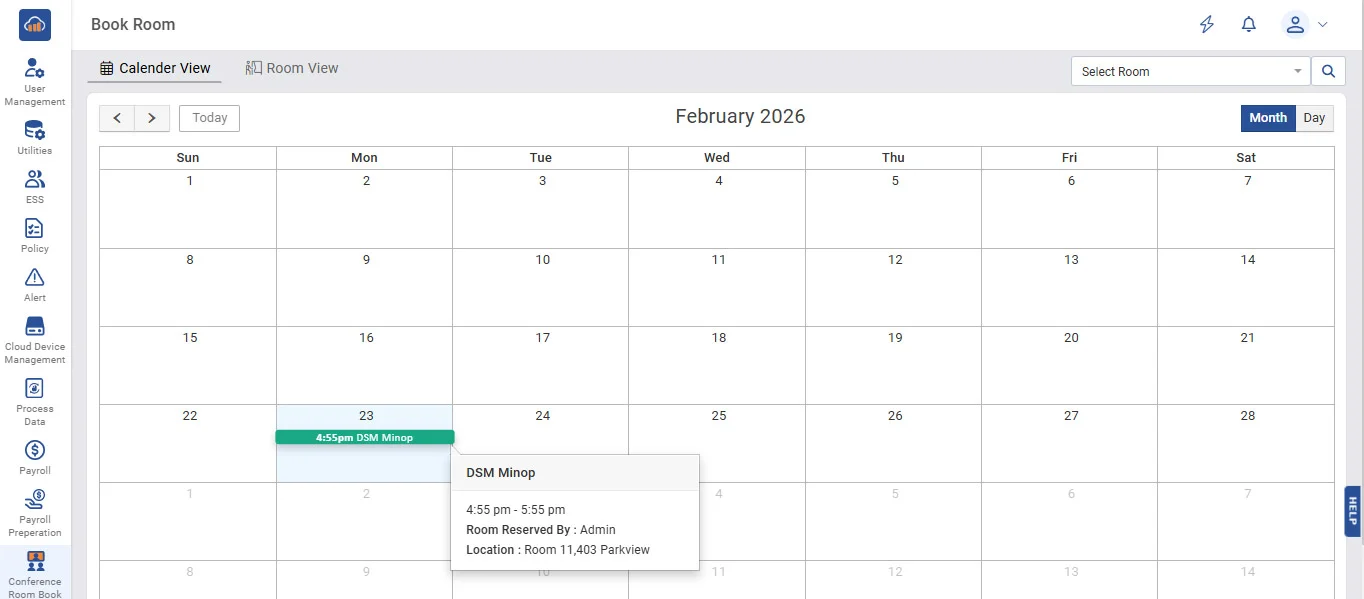
➤ The Conference Room Booking page allows users to book meeting rooms through both Calendar View and Room View options.
• In Calendar View, users can check date-wise availability (Month/Day view) and schedule meetings accordingly.
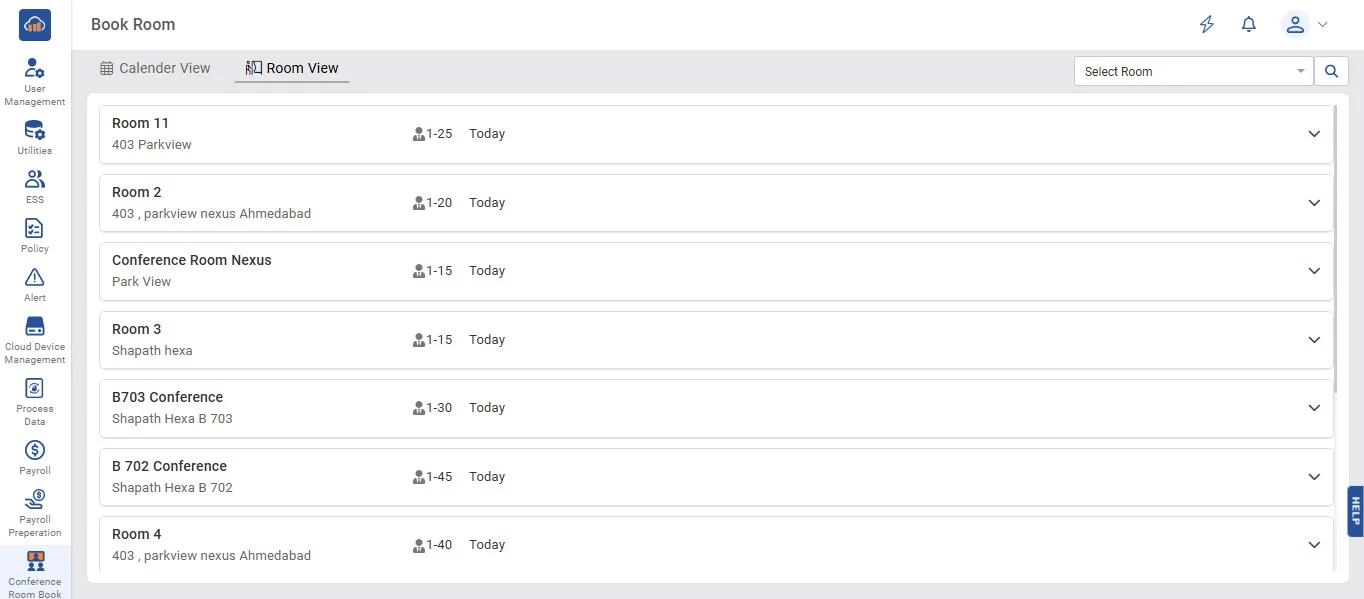
• In Room View, users can see room details, capacity, location, and today's bookings, and filter rooms using the “Select Room” option for easy booking.
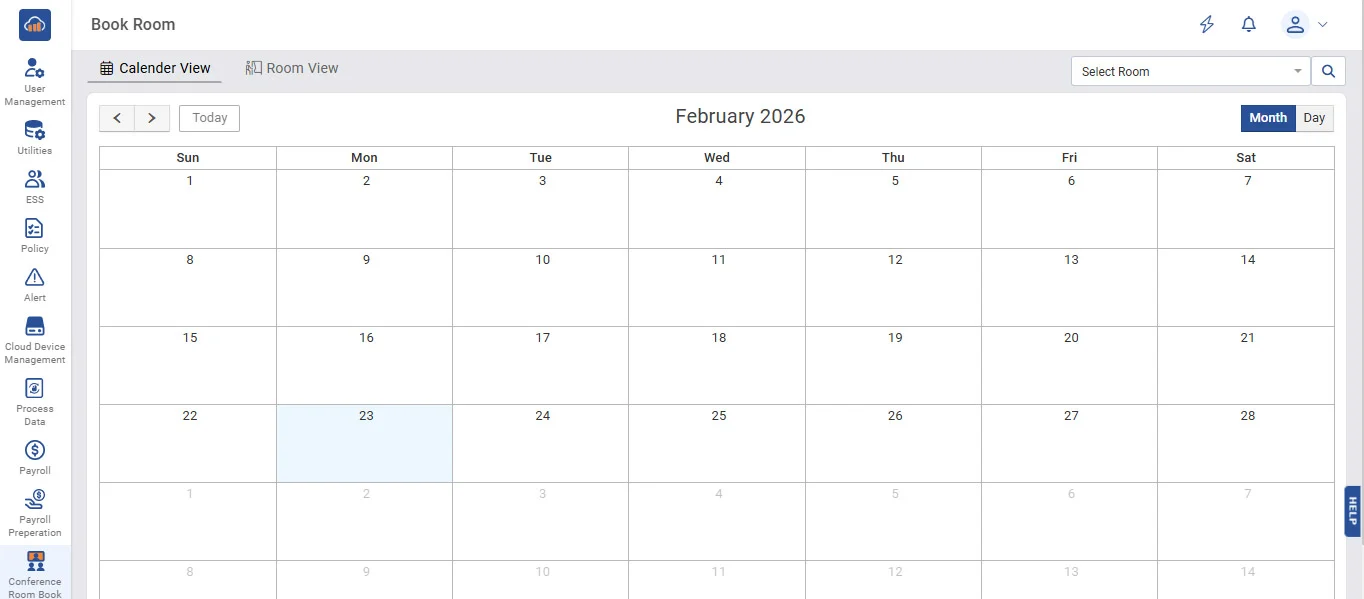
• This image shows the Month Calendar View of the Conference Room Booking page.
• This image shows the Room View of the Conference Room Booking page.
• This image shows the Room wise filter Conference Room Bookings.
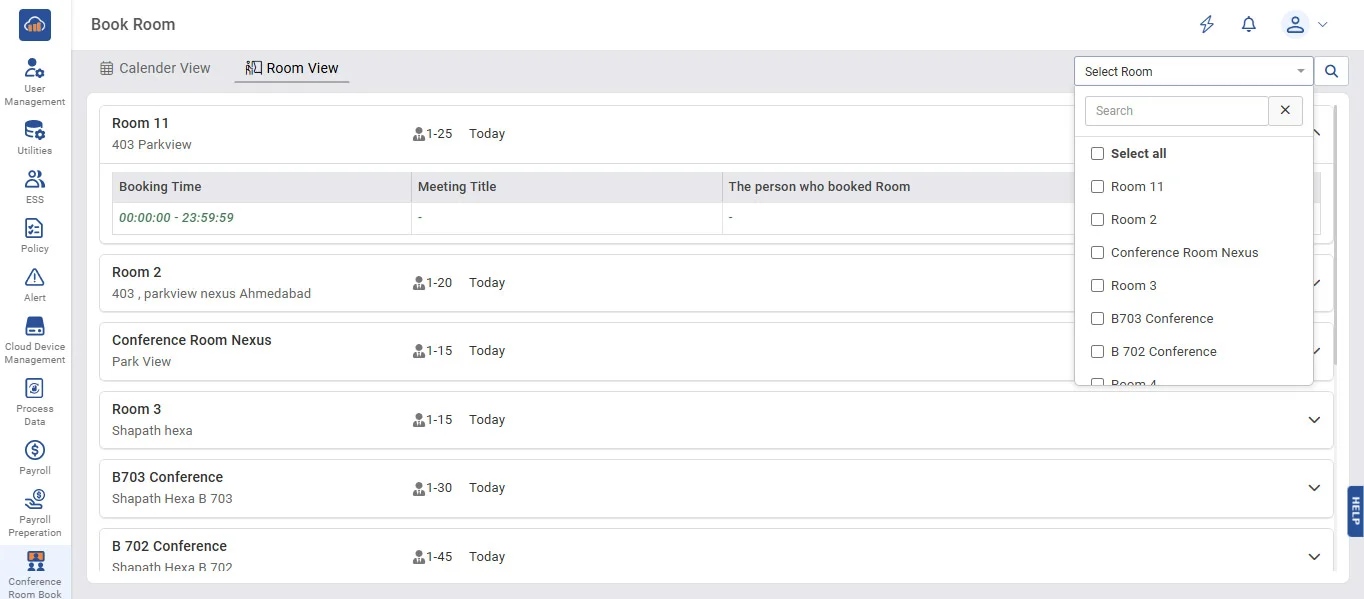
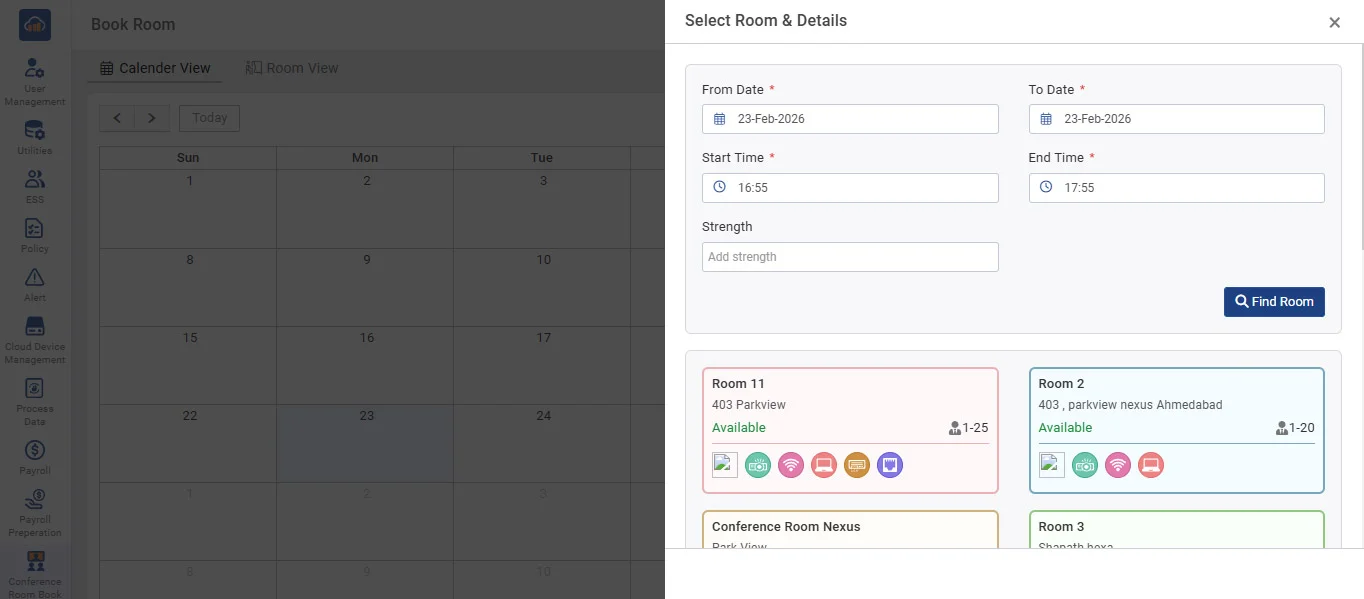
• This image clearly shows the Select Room option and booking details, along with the room's amenities, availability status, and seating capacity, helping users choose the most suitable conference room.
• This image shows the Calendar View with a booked meeting displayed on a selected date. When a user clicks on a booking (e.g., DSM Minop), a popup appears showing complete details such as meeting time (4:55 PM - 5:55 PM), booked by (Admin), and room location (Room 11, 403 Parkview).