• The Policy & Canteen Allocation module manages the assignment of pricing policies and canteen access to employees. Each employee needs both a policy allocation (which defines their subsidy rules and monthly limit) and canteen assignments (which canteens they can order from). The table lists all active employees including those without allocations, making it easy to identify and assign missing configurations. An employee must have both a policy and at least one canteen assigned to place orders.
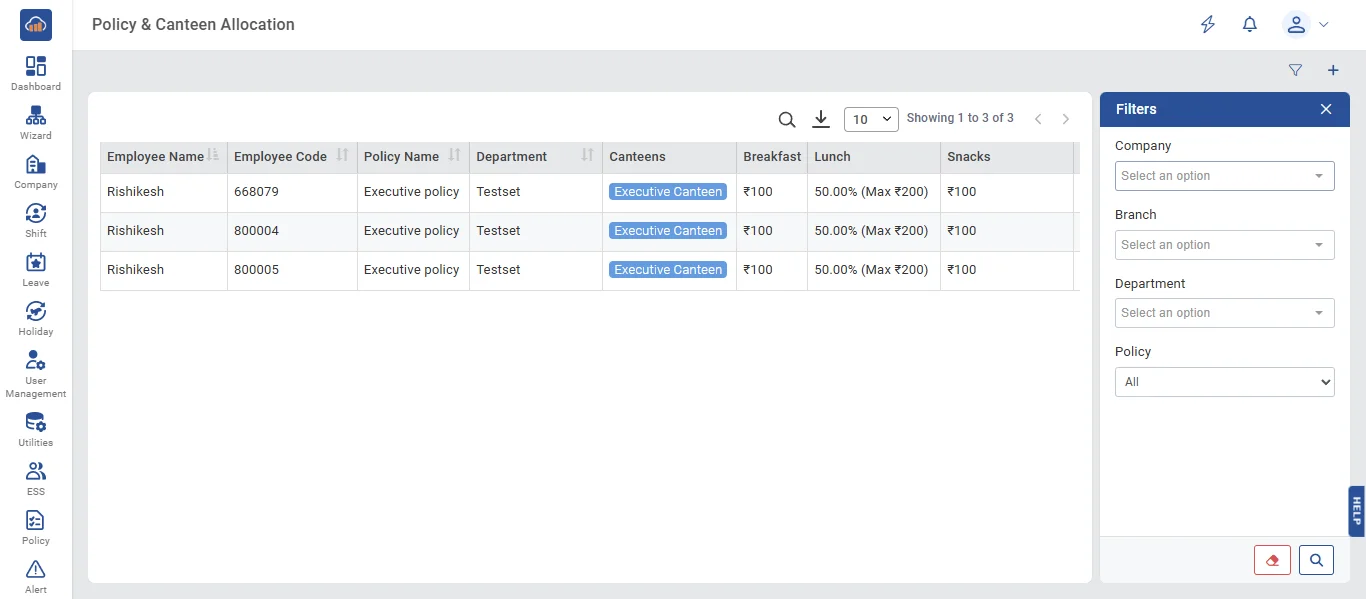
• The following page gets open when one selects "Policy & Canteen Allocation" from the side navigation. It displays a DataTable with columns:
- Employee Name and Employee Code
- Policy Name (shows "Not Assigned" if none; shows an "Inactive" danger badge if the assigned policy is inactive)
- Department
- Canteens (shown as badges - displays canteen names with "Inactive" indicator if a canteen is inactive)
- Breakfast, Lunch, Snacks, Dinner subsidy columns (showing the subsidy type and amount from the assigned policy)
- Monthly Limit (from policy, or "Unlimited")
- Action buttons (Edit, Remove)
The "Filters" panel provides role-dependent filters:
- Company (Super Admin only)
- Branch (Super Admin and Company Admin - multi-select, cascading from Company)
- Department (all admin roles - multi-select, cascading from Branch)
- Policy dropdown
- Search text (employee name or code)
An Excel export button is available for exporting allocation data.
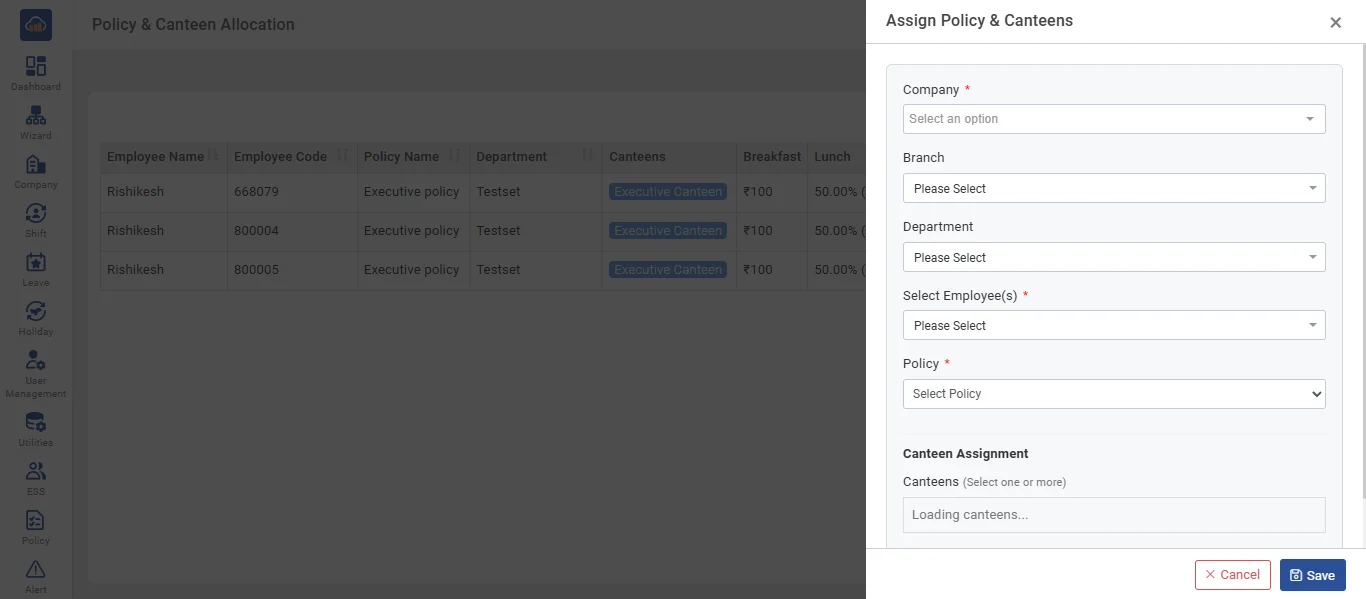
• Click the "+ Assign Policy & Canteens" button to allocate policy and canteen to employees. A side panel opens with cascading selection fields:
Employee Selection (cascading dropdowns):
- Company * (Super Admin only)
- Branch (multi-select, cascading from Company - available for Super Admin and Company Admin)
- Department (multi-select, cascading from Branch)
- Select Employee(s) * (required, multi-select, cascading from Department - multiple employees can be selected for bulk assignment)
Policy Assignment:
- Policy * (required - select the pricing policy to assign. Shows a warning badge if the selected policy is inactive)
Canteen Assignment:
- Checkbox list of available canteens (select one or more canteens the employees will have access to order from. Shows a warning indicator for inactive canteens)
After configuring all settings, click "Save" to assign. Click "Cancel" to discard.
• To edit a single employee's allocation, click the "Edit" icon in the Action column. The panel shows the employee name as static text (read-only), with the Policy dropdown and Canteen checkboxes editable. Update the assignments and click "Save".
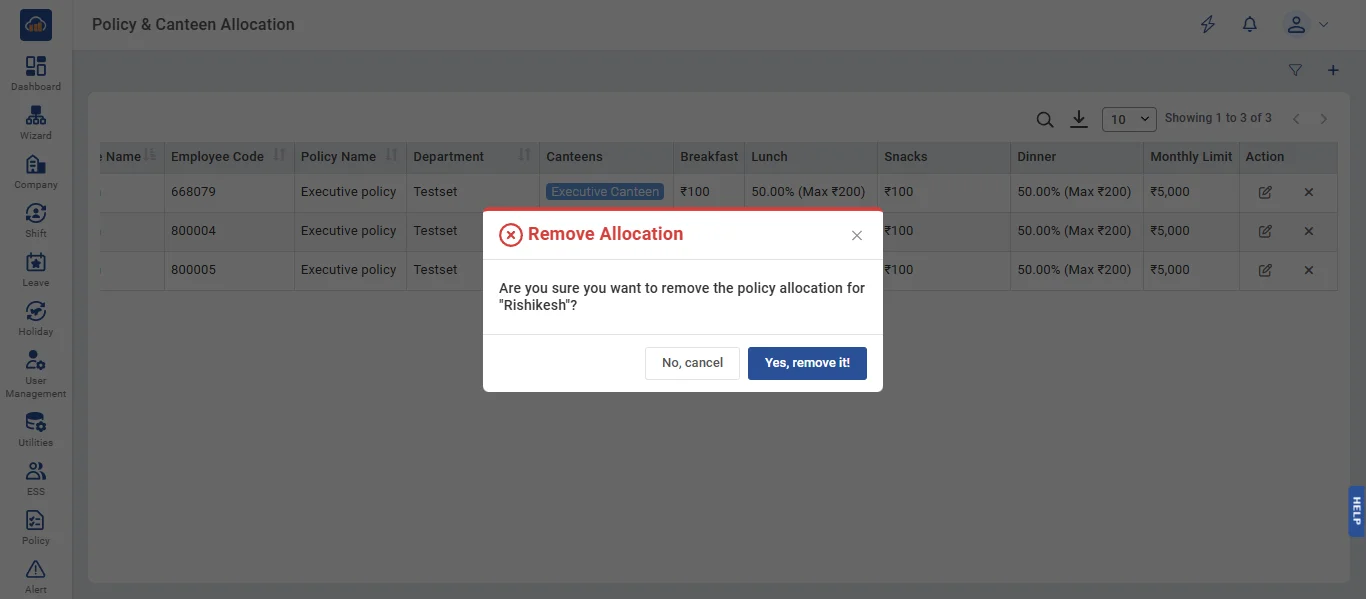
• If user wants to remove an allocation, click the "Remove" icon in the action column. A confirmation dialog appears: "Remove Allocation - Are you sure you want to remove the policy allocation for [Employee Name]?". Click "Yes, remove it" to confirm or "No, cancel" to abort. This removes the policy assignment; the employee will no longer be able to place orders until a new policy is assigned.