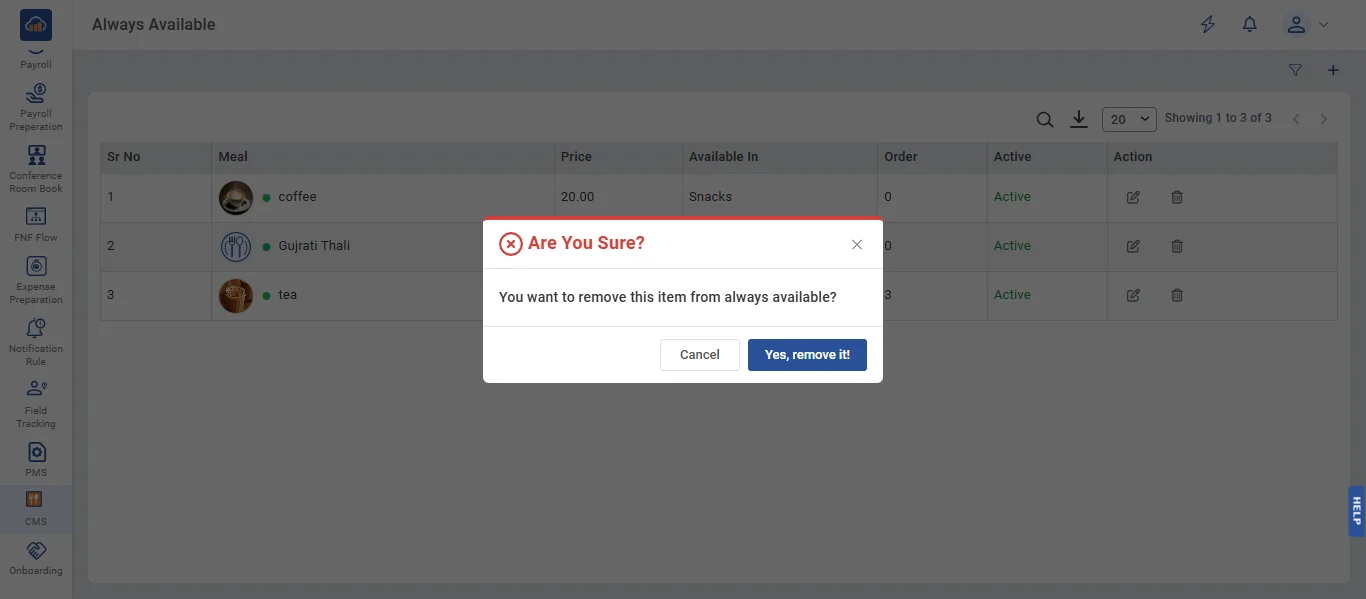
• The Always Available module allows administrators to mark certain staple meal items (like chai, coffee, roti, rice, etc.) as always available. These items automatically appear on every daily menu regardless of the weekly template or daily menu configuration, making them constantly accessible to employees. Items can be configured to appear in all meal slots or only specific ones. Only Super Admin and Canteen Manager can manage always-available items; Company Admin and Branch Admin have read-only access.
• The following page gets open when one selects "Always Available" from the top navigation tabs. First select a canteen from the Canteen dropdown. The page displays a DataTable with columns:
- Sr No
- Meal (with image thumbnail and dietary type icon)
- Price
- Available In (shows specific slot names, or "All Slots" if available across all slots)
- Order (display order number)
- Active (Active / Inactive status)
- Action buttons (Edit, Remove/Delete)
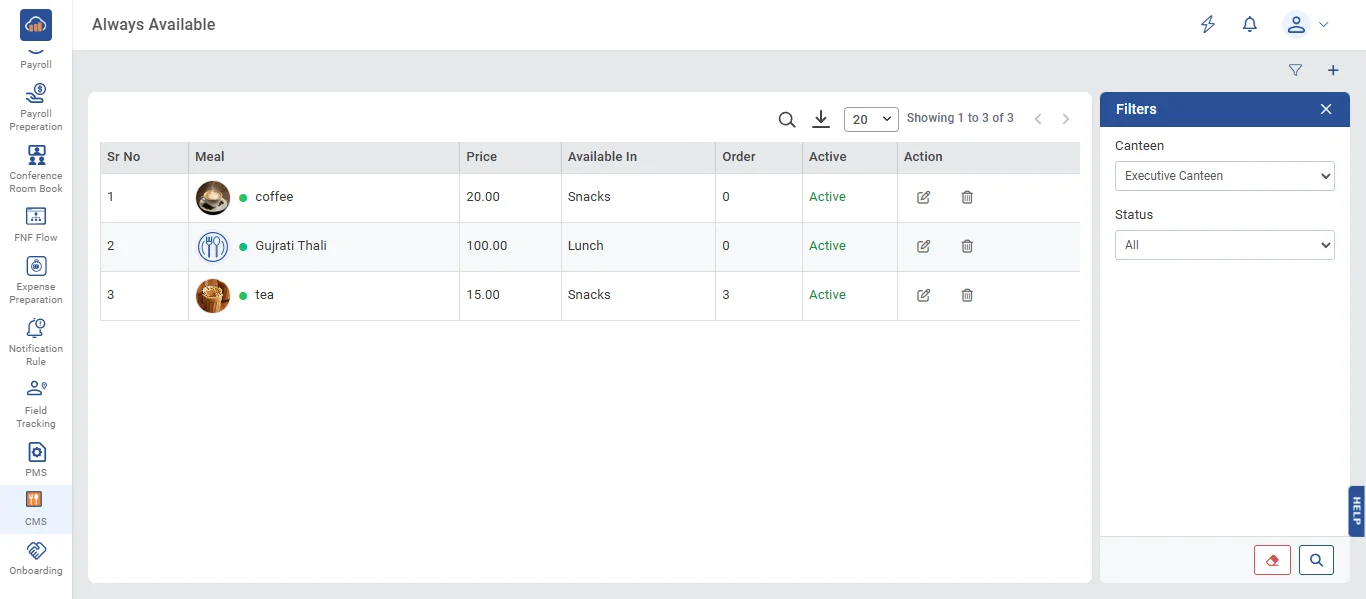
The "Filters" panel allows filtering by Canteen, Active Status (All / Active / Inactive), and search text. An export button is available at the top.
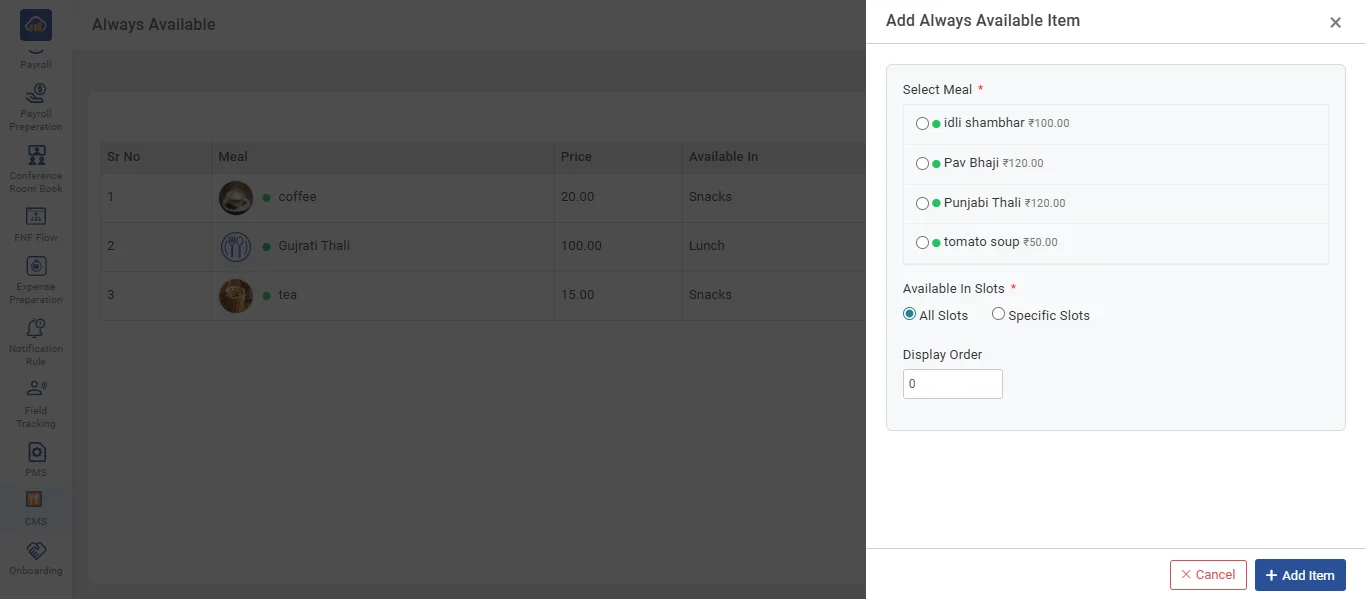
• Click the "+ Add Item" button to add a new always-available item. A side panel opens with:
Select Meal *: A radio list showing all available meals that are not yet in the always-available list. Each item shows its dietary type icon (green dot for Veg, red dot for Non-Veg, teal dot for Vegan) and price. Only active, non-deleted meals from the selected canteen are shown.
Slot Type: Radio selection:
- "All Slots" - The item will appear in every meal slot (Breakfast, Lunch, Snacks, Dinner)
- "Specific Slots" - Shows a checkbox list of the canteen's active meal slots so you can select specific slots
Display Order: Number field to control the sequence in which always-available items appear.
After configuring, click "+ Add Item" to save. Click "Cancel" to discard.
• Click the "Edit" icon on any item to modify its settings. The edit panel shows:
- Slot Type radio (All Slots / Specific Slots) with slot checkboxes
- Display Order number field
- Active / Inactive toggle
Click "Save" to update the settings.
• If user wants to remove an item from always available, click the "Remove" icon. A confirmation dialog appears: "Are You Sure? You want to remove this item from always available?". Click "Yes, remove it" to confirm or "Cancel" to abort. The item will no longer appear automatically on future daily menus.