• The Canteen module allows administrators to create and manage canteen locations. Each canteen is configured with a name, canteen head email (who becomes the Canteen Manager), opening/closing timings, and a password for the canteen manager login. Super Admin can see and manage canteens across all companies, while Company Admin and Branch Admin can manage all canteens, and Canteen Managers can only view and manage canteens assigned to them. Employees see only active canteens assigned to them.
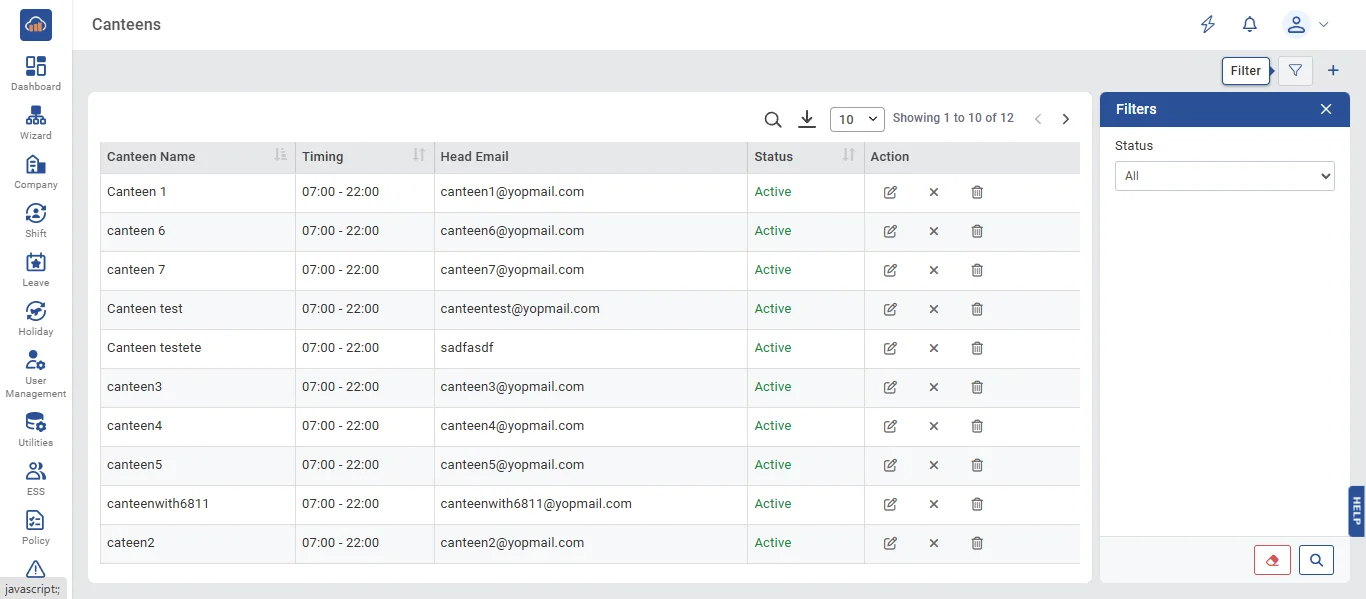
• The following page gets open when one selects "Canteen" from the side navigation under "Canteen Preparation". It displays a DataTable with columns: Canteen Name, Timing (opening - closing), Head Email, Status (Active/Inactive badge), and Action buttons.
The "Filters" panel on the right side allows filtering by:
- Status (All / Active / Inactive)
An Excel export button (download icon) at the top allows exporting the canteen list to an Excel file. The "+ Add Canteen" button at the top right opens the add form.
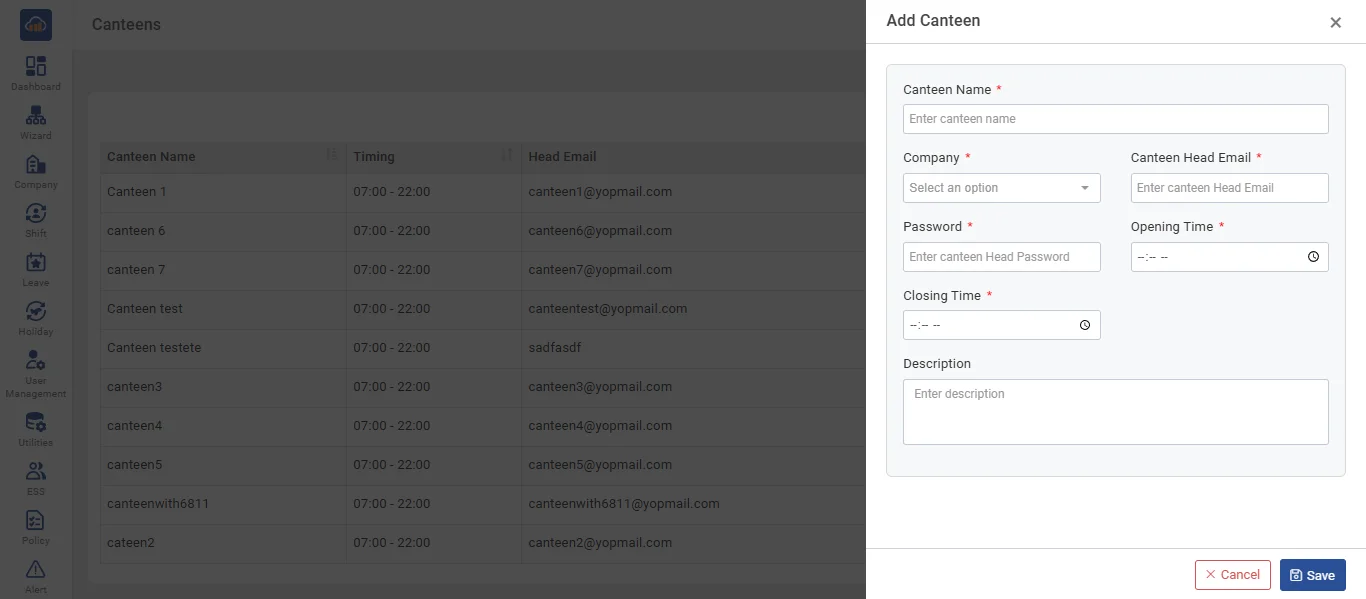
• Click the "+ Add Canteen" button at the top right to add a new canteen. A side panel opens with the following fields:
- Company * (visible only for Super Admin role - select which company the canteen belongs to)
- Canteen Name * (required, max 100 characters - must be unique, case-insensitive)
- Canteen Head Email * (required, valid email, max 255 characters - this creates a new Canteen Manager user account with role access)
- Password * (required, minimum 6 characters - used for the canteen manager's login)
- Opening Time * (required, time picker)
- Closing Time * (required, time picker - must be after opening time)
- Description (optional, max 500 characters)
After filling all details, click "Save" to create the canteen. Click "Cancel" if you don't want to create.
Note: Creating a canteen automatically creates a Canteen Manager user account linked to the provided email with the Canteen Manager role (RoleId 6807).
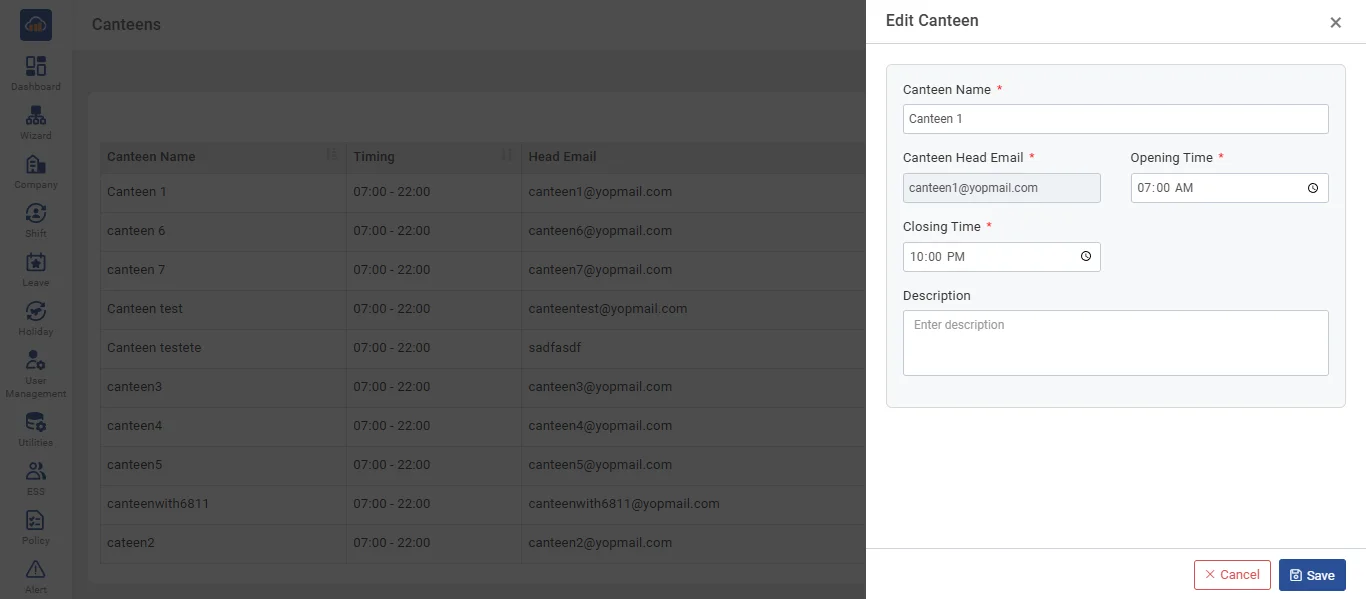
• If user wants to edit a canteen, click on the "Edit" icon button in the action column. A side panel opens with the existing canteen details pre-filled. The Canteen Head Email field is read-only during edit. The Password field is hidden during edit. Update the required fields and click "Save" button. If user does not want to update, click "Cancel" button or close the panel.
• Additional Actions available in the Action column:
Activate / Deactivate: Toggle the canteen's active status by clicking the status toggle icon. A confirmation dialog appears before changing. When deactivating, the associated Canteen Manager user account is also set to inactive (unless they manage other active canteens). When activating, the Canteen Manager user is re-enabled.
Note: Deactivation is blocked if employees are currently assigned to the canteen. You must remove all employee canteen allocations first.
Delete: Permanently remove the canteen by clicking the delete (trash) icon. Available for Super Admin, Company Admin, and Branch Admin only - Canteen Managers cannot delete canteens. A confirmation dialog appears before deletion.
Note: Deletion is blocked if employees are assigned to the canteen. Deleting a canteen also removes the associated Canteen Manager user account if they are not managing other canteens.