• The Daily Menu module is the central hub for managing what meals are available each day in a canteen. It combines items from three sources: Weekly Template meals, Always Available items, and manually added Special items. Administrators can generate menus from templates for date ranges, copy menus from other days, add/edit/remove individual items, track available and sold quantities, and view a calendar overview. Only Super Admin and Canteen Manager can modify the daily menu; Company Admin and Branch Admin have read-only access.
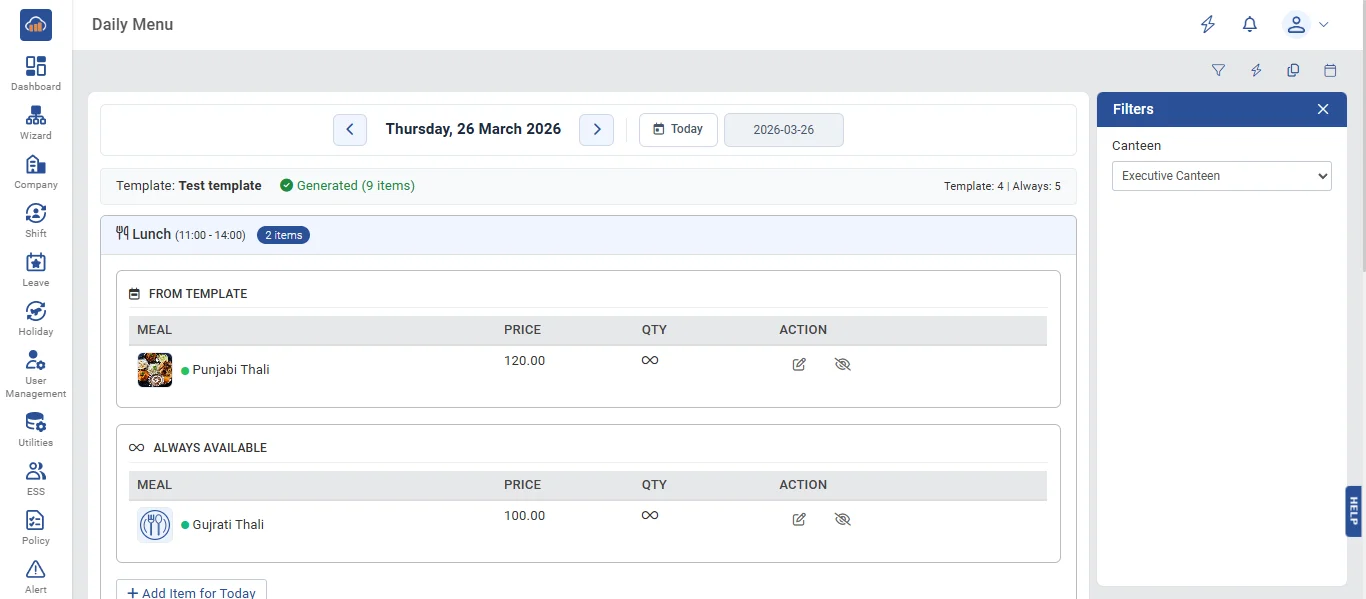
• The following page gets open when one selects "Daily Menu" from the top navigation tabs. It displays the menu for the selected date organized by meal slots:
Date Navigation Bar at the top:
- Previous Day (<) and Next Day (>) arrows
- Current date display (e.g., "Wednesday, 27 March 2026")
- "Today" quick button and date picker for direct selection
Menu Info Bar: Shows the assigned template name, menu status (Generated / Not Generated), and override indicators.
Slot Panels (accordion-style): Each meal slot has a collapsible panel with a meal count badge. Items are grouped by source: "FROM TEMPLATE", "ALWAYS AVAILABLE", and "SPECIAL" (manual).
Meal Table within each slot with columns:
- Meal (with image, dietary icon, name, and Jain indicator)
- Price
- Available Qty (infinity symbol if unlimited, or the total quantity set by admin)
- Sold Qty (number of servings already sold through orders)
- Remain Qty (remaining = Available - Sold. Shows "Sold Out" when 0)
- Action buttons
Removed items are shown with strikethrough text and a "Removed" badge with the removal reason.
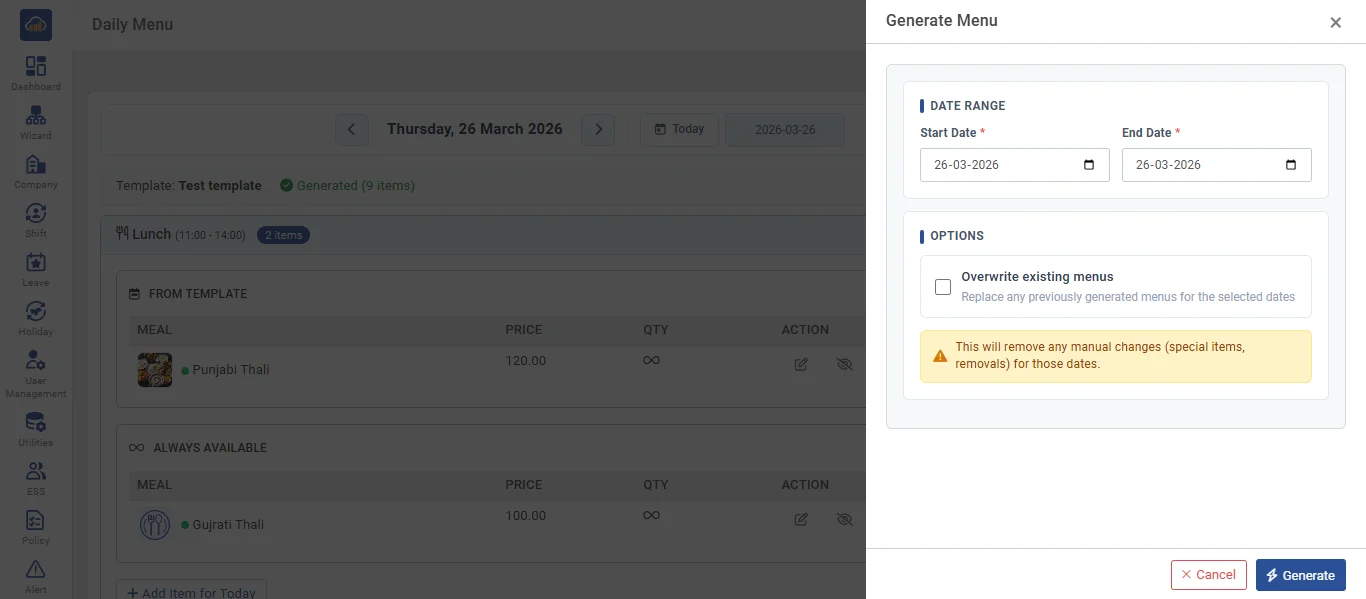
• Click the "Generate Menu" button (gear icon) to auto-generate daily menus from the assigned template and always-available items. A side panel opens with:
- Select Canteen * (pre-selected)
- Start Date * and End Date * (max 31 days range)
- "Generate existing menus" checkbox - Overwrites existing menus including manual changes
- Warning: "This will overwrite any manual changes for the target date range."
Click "Generate" to proceed. Results show how many days were generated vs. skipped.
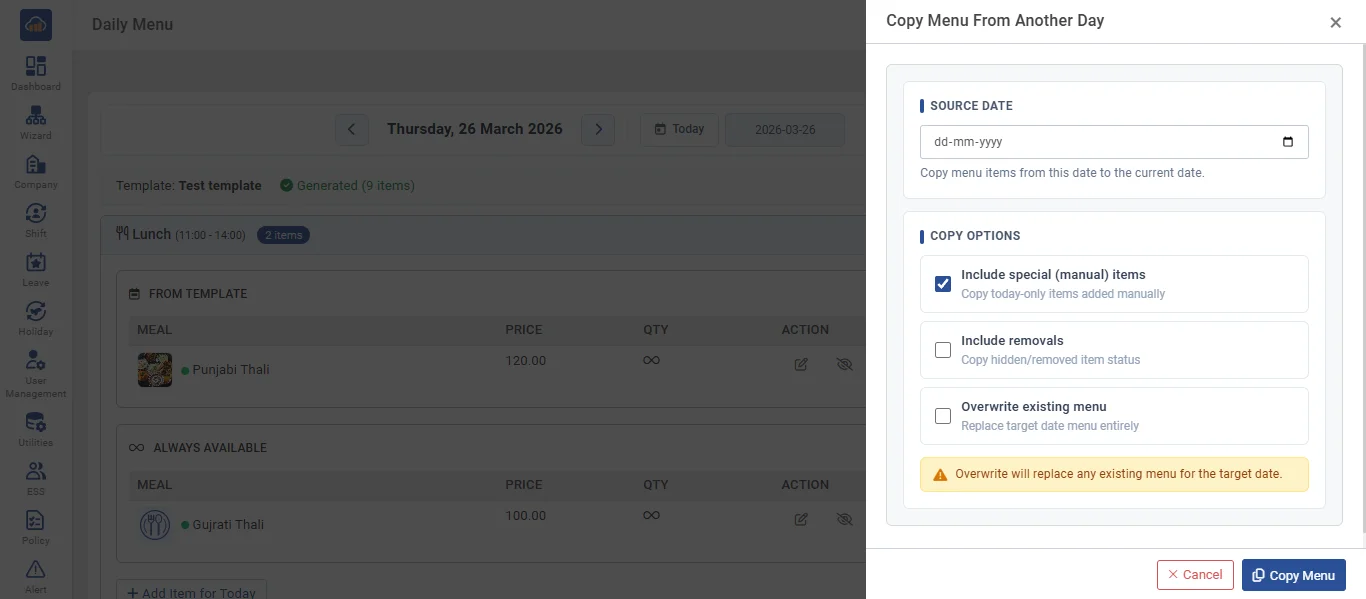
• Click the "Copy Menu" button to copy a menu from another day. A side panel opens with:
- Source Date * - Select the date to copy from
Copy Options:
- Include special (manual) items
- Include removed items
- Include availability overrides
- Warning: "Overwrite will replace any existing items for the target date."
Click "Copy Menu" to execute.
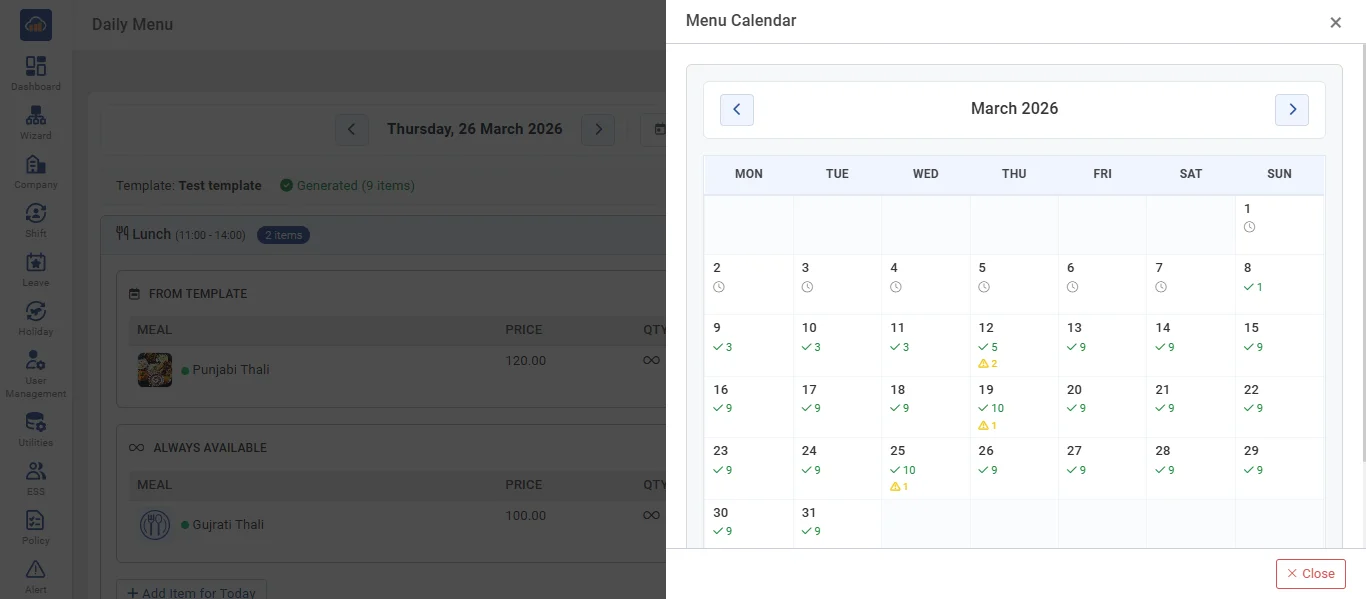
• Click the "Menu Calendar" button to view a monthly calendar overview showing:
- Month/year navigation arrows
- 7-column calendar grid with color-coded dates
- Each date shows: Generated/Pending status, item count, override indicators
- Summary bar: generated days, not-generated days, days with overrides
- Click any date to navigate to that day's menu
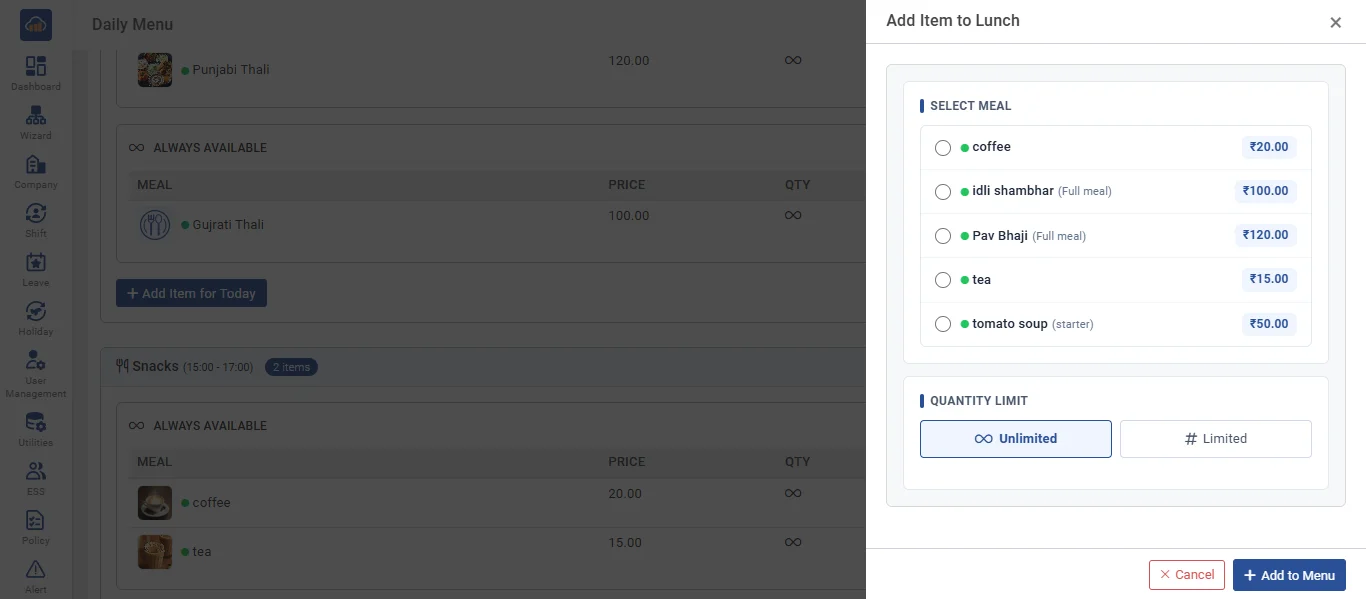
• Click the "+ Add Item" button within a meal slot section. A side panel shows:
- Searchable radio list of available meals (not yet on the menu for this slot), with dietary icon, name, image, and price
- Quantity Limit: "Unlimited" or "Limited" with number input
Click "Add to Menu" to save. Added items appear as "Special" source type.
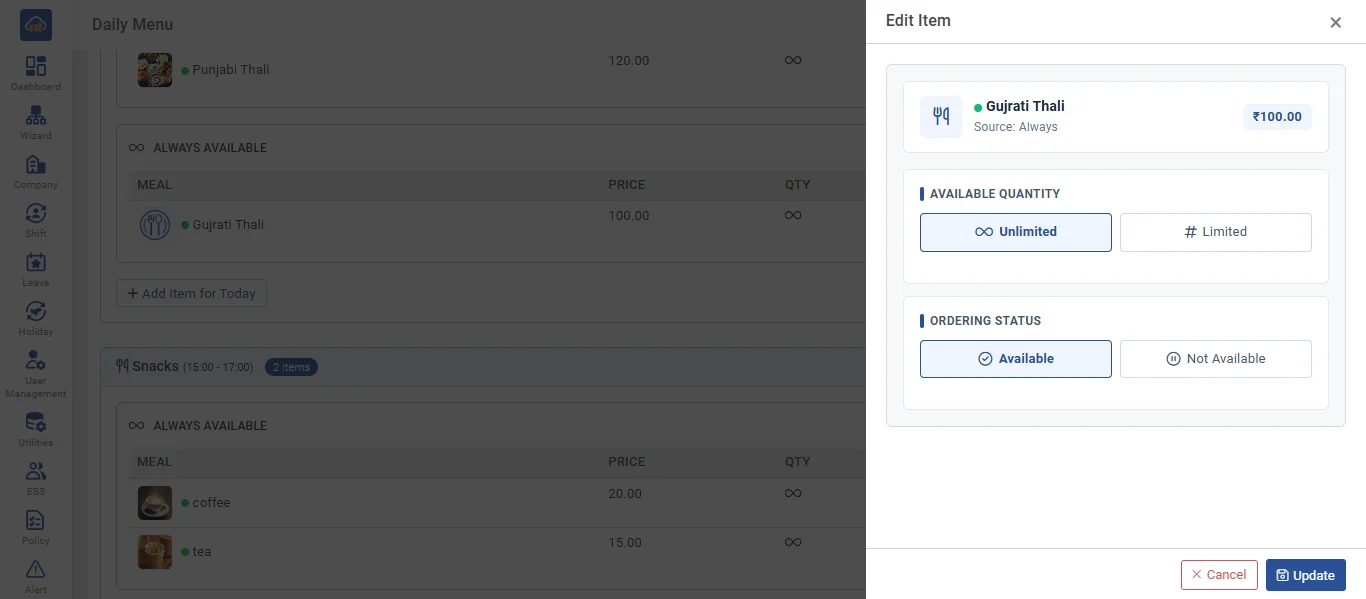
• Click the "Edit" icon on any menu item. A side panel opens showing:
- Meal info card (name, dietary type, price - read-only)
- Sold count badge (e.g., "5 servings sold")
- Available Quantity: Toggle between "Unlimited" and "Limited"
- Ordering Status: Toggle between "Available" and "Not Available"
Click "Save" to update. Quantity cannot be set below the sold count.
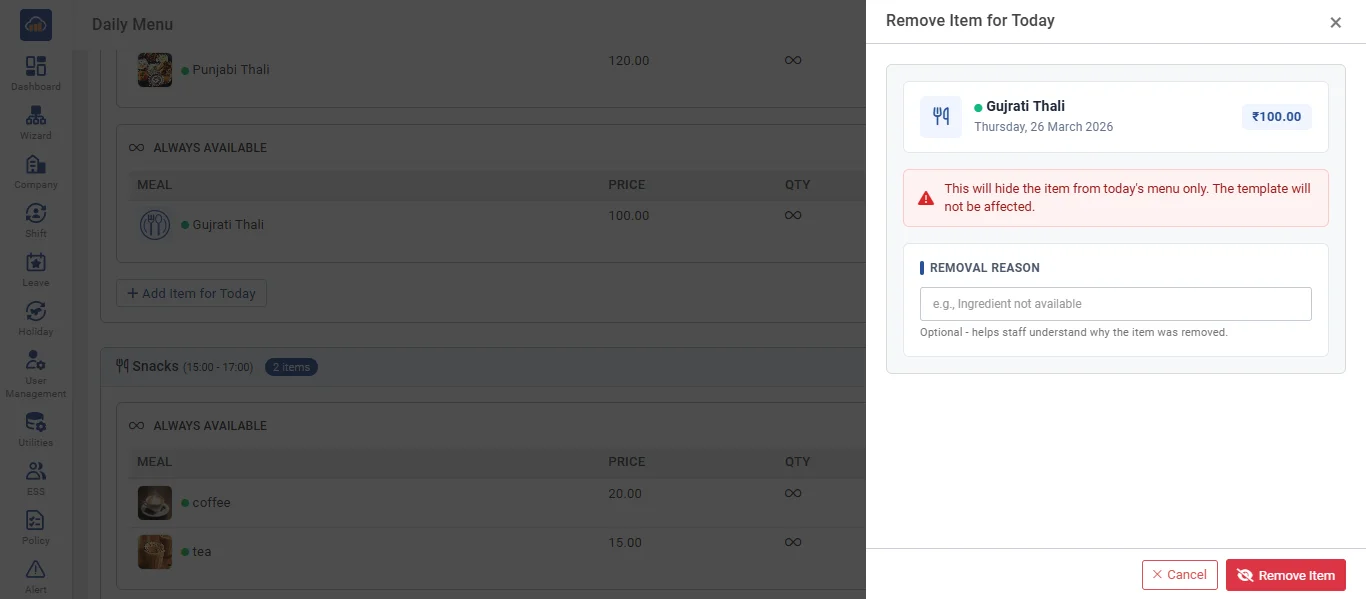
• Click the "Remove" icon on any menu item. A side panel shows:
- Warning: "You will hide the item from today's menu only. The template will still include it."
- Removal Reason (optional text field)
Click "Remove Item" to confirm.
Additional actions:
- Restore Item: Click the "Restore" icon on any removed item to make it available again
- Delete Manual Item: Special/manual items can be permanently deleted. Template and Always Available items can only be removed (hidden), not deleted
- Note: Items for past dates cannot be modified