• The Employee Self Service (ESS) Orders module is the employee-facing portal for meal ordering. Employees can browse the daily menu for their assigned canteens, view their subsidy policy details and monthly spending balance, place orders through a cart-based workflow, track order history, view detailed order information, and cancel pending orders. This module is only accessible to employees (non-admin roles) who have both a policy and canteen allocation.
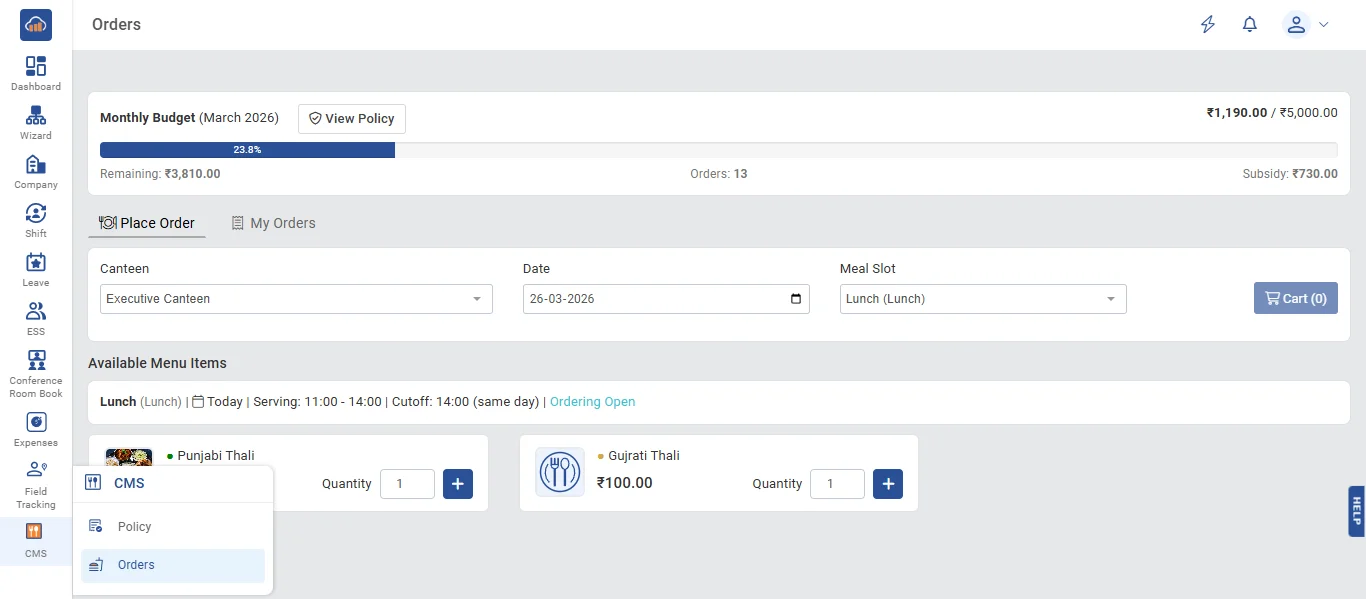
• The following page gets open when an employee navigates to "Orders" from the ESS portal. It displays:
Monthly Budget Bar at the top:
- Budget progress bar showing spent vs. total limit (e.g., ₹1,100.00 / ₹3,000.00)
- "View Policy" button to see full policy details
- Remaining Balance amount
- Savings amount (subsidy received this month)
Two tabs: "Place Order" and "My Orders"
Place Order Tab:
- Canteen dropdown (only shows canteens allocated to the employee)
- Order Date selector (today or future dates)
- Meal Slot dropdown (cascading from canteen, shows serving times)
- Slot info bar: slot name, serving time, ordering status ("Ordering Open" / "Ordering Closed" based on booking cutoff time)
- Menu items displayed as cards with: meal image, dietary type icon, name, description, price, remaining quantity (shows "X left" if limited), and "Add" button with quantity selector
- Cart badge (top right) showing current item count
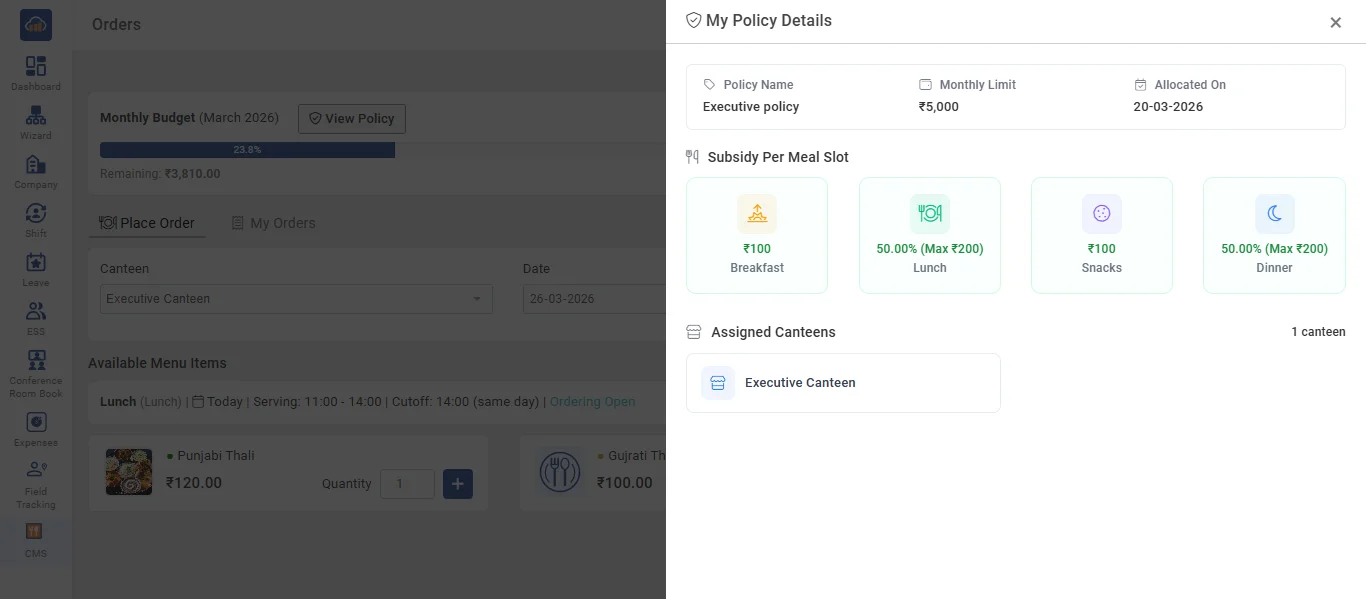
• Click the "View Policy" button to see the employee's assigned policy details:
- Policy Name (e.g., "Executive Policy")
- Monthly Limit amount (or "Unlimited" if no limit is set)
Subsidy Per Meal Slot breakdown:
- Breakfast: subsidy type and amount (e.g., "Fixed ₹50", "50% Max ₹100", or "None")
- Lunch: subsidy type and amount
- Snacks: subsidy type and amount
- Dinner: subsidy type and amount
Assigned Canteens: List of canteens the employee can order from with count
Order Settings: Whether order cancellation and multiple orders per slot are allowed
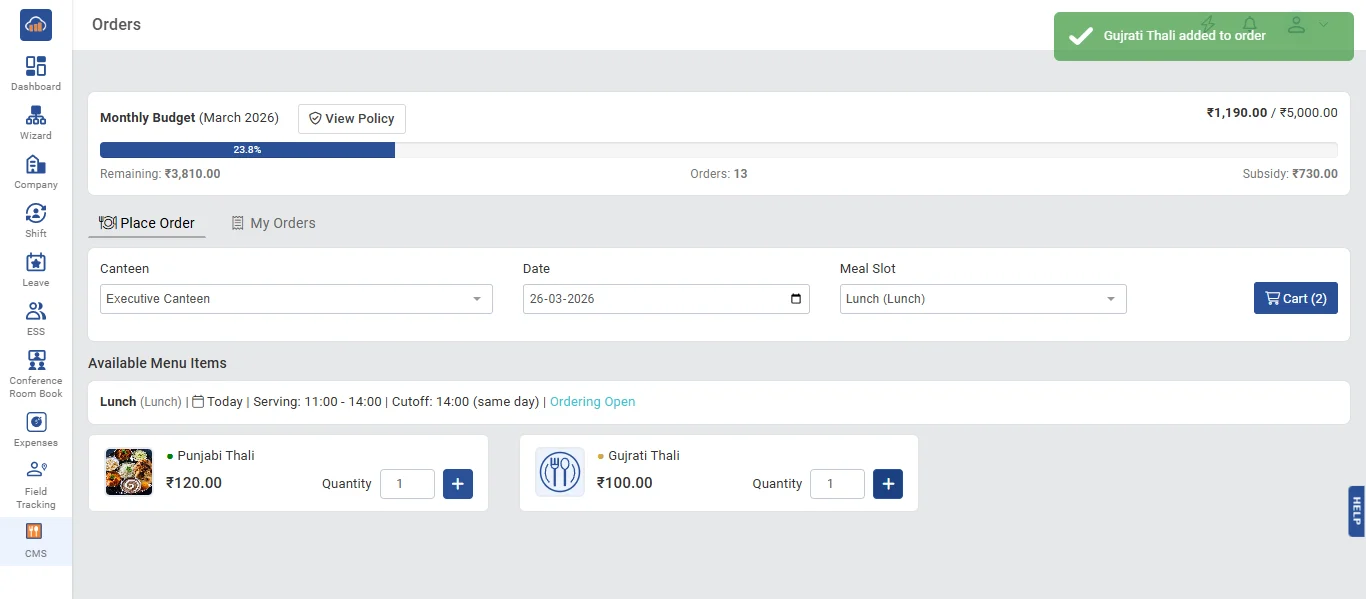
• After adding items to cart and placing an order, a success notification appears: "Great! Your order is on its way!" confirming that the order has been placed successfully.
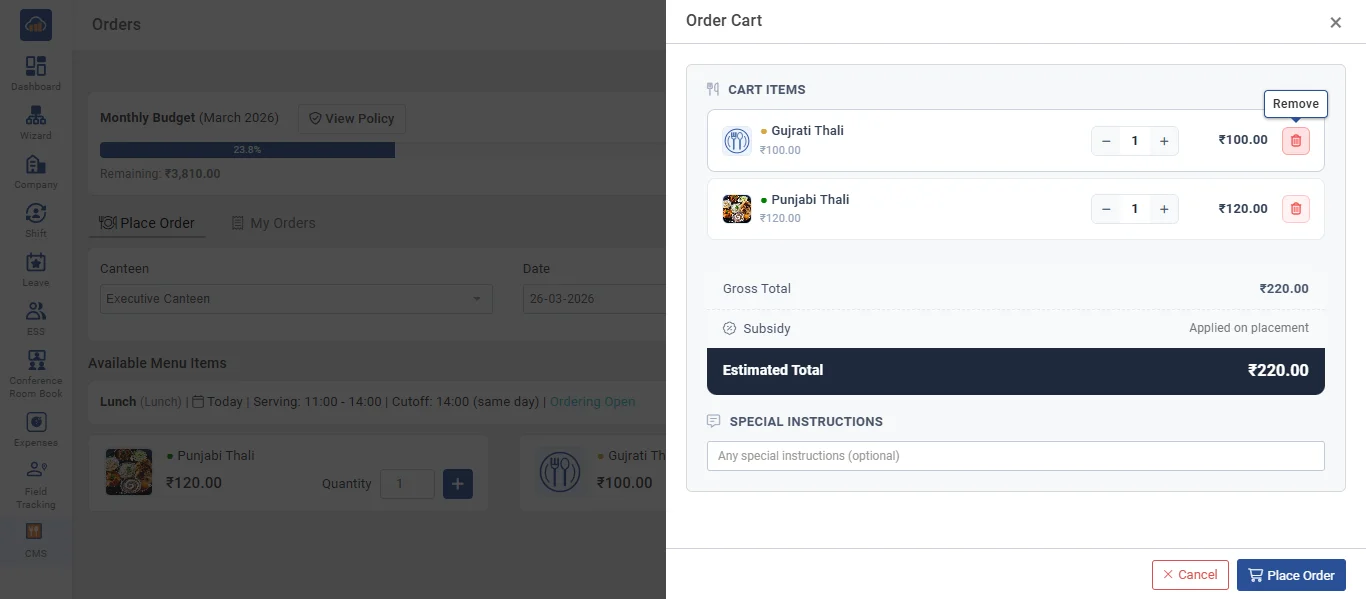
• Click the cart icon to open the "Order Cart" panel:
- Cart items with: meal image, name, quantity controls (+/-), individual price, and remove button
- Gross Total amount
- Estimated Subsidy amount
- Estimated Total (You Pay) amount (gross minus estimated subsidy)
- Special Instructions text area (optional, max 500 characters)
- "Place Order" button to confirm
Note: If the monthly limit would be exceeded, a warning is shown. If the policy disallows multiple orders per slot and an order already exists for the same slot and date, placement is blocked.
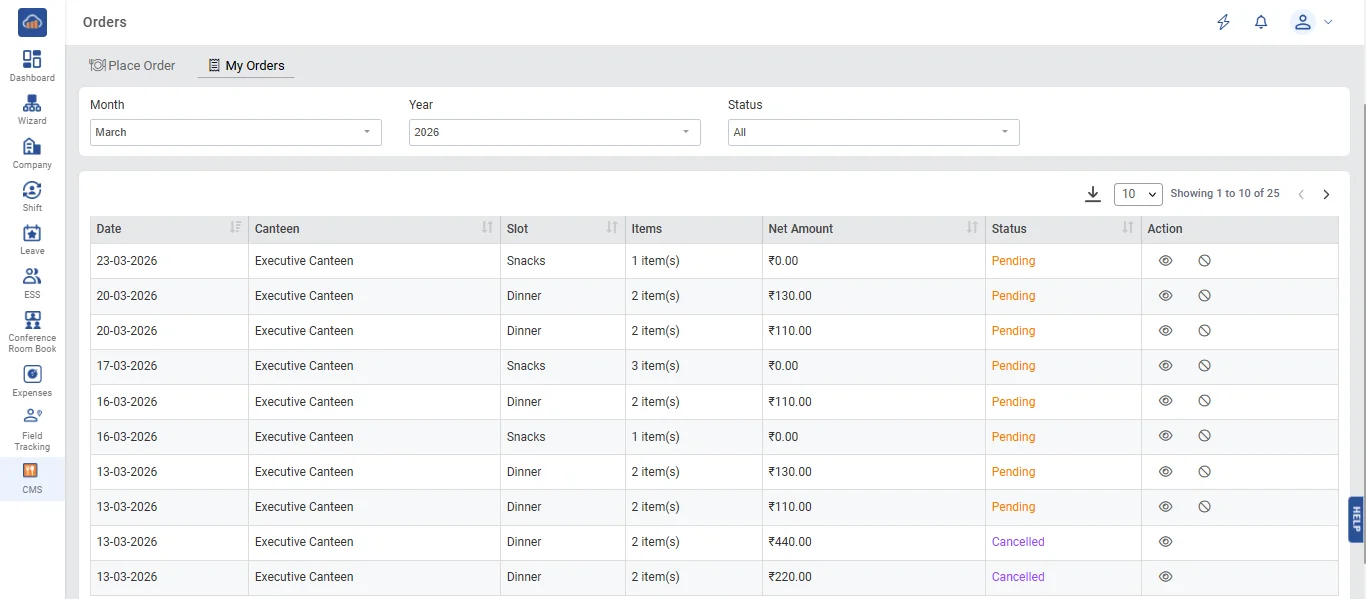
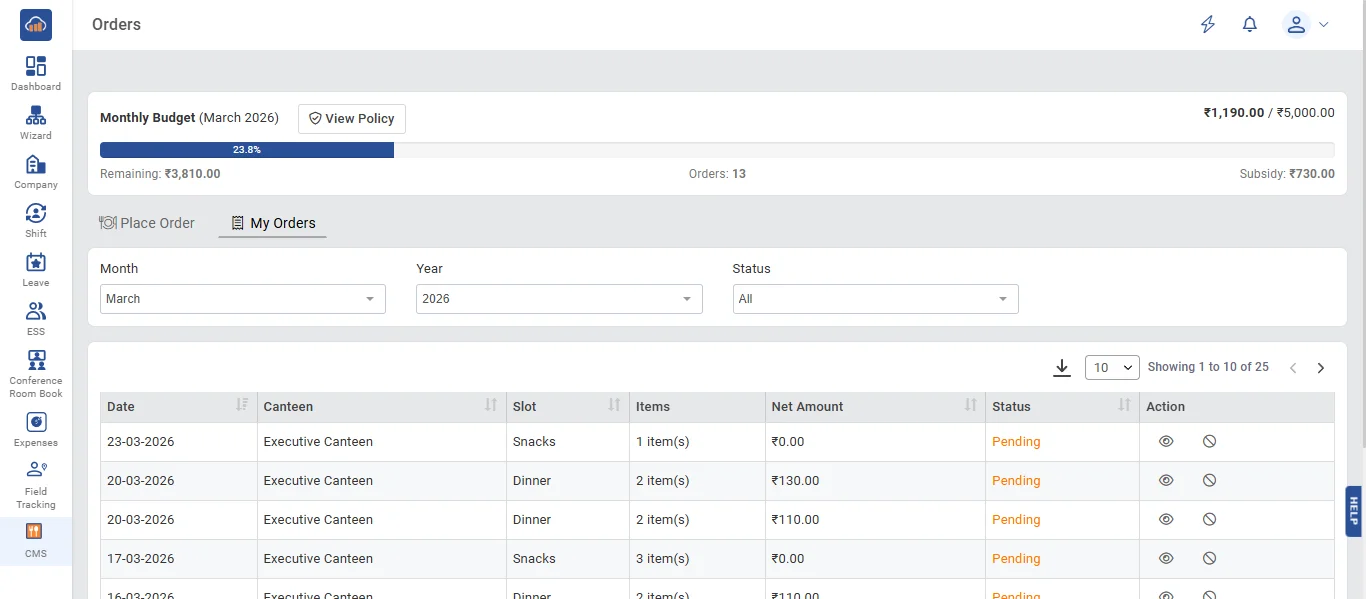
• Click the "My Orders" tab to view order history. It displays:
- Filters: Month dropdown, Year dropdown, Status filter (All / Pending / Accepted / Rejected / Served / Cancelled)
- Orders listed with: Date, Canteen, Slot, Items summary, Net Amount, Status badge
- Action icons for viewing detail and cancellation (for pending orders only)
Orders are listed in reverse chronological order with the most recent at the top.
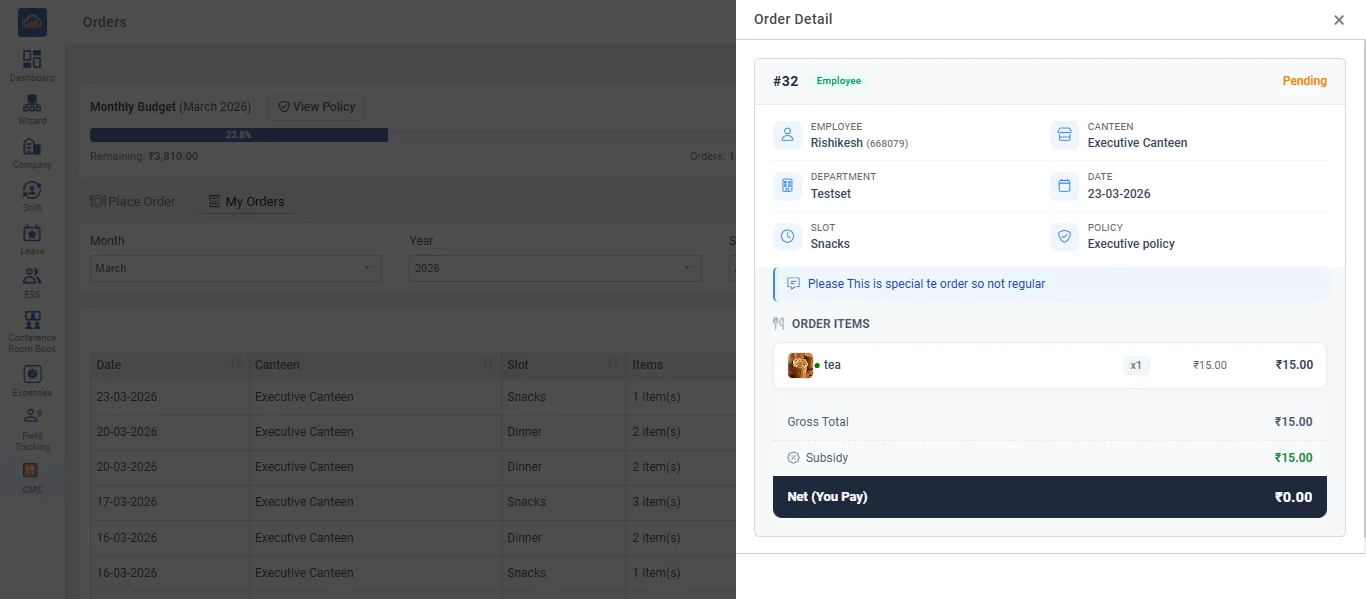
• Click the "View" icon on any order to see the order detail:
- Order ID and Status badge
- Employee Name, Canteen, Date, Slot
- Policy applied (e.g., "Executive Policy")
- Ordered Items with images, names, quantities, and prices
- Financial summary: Gross Total, Subsidy, and Net (You Pay) amount
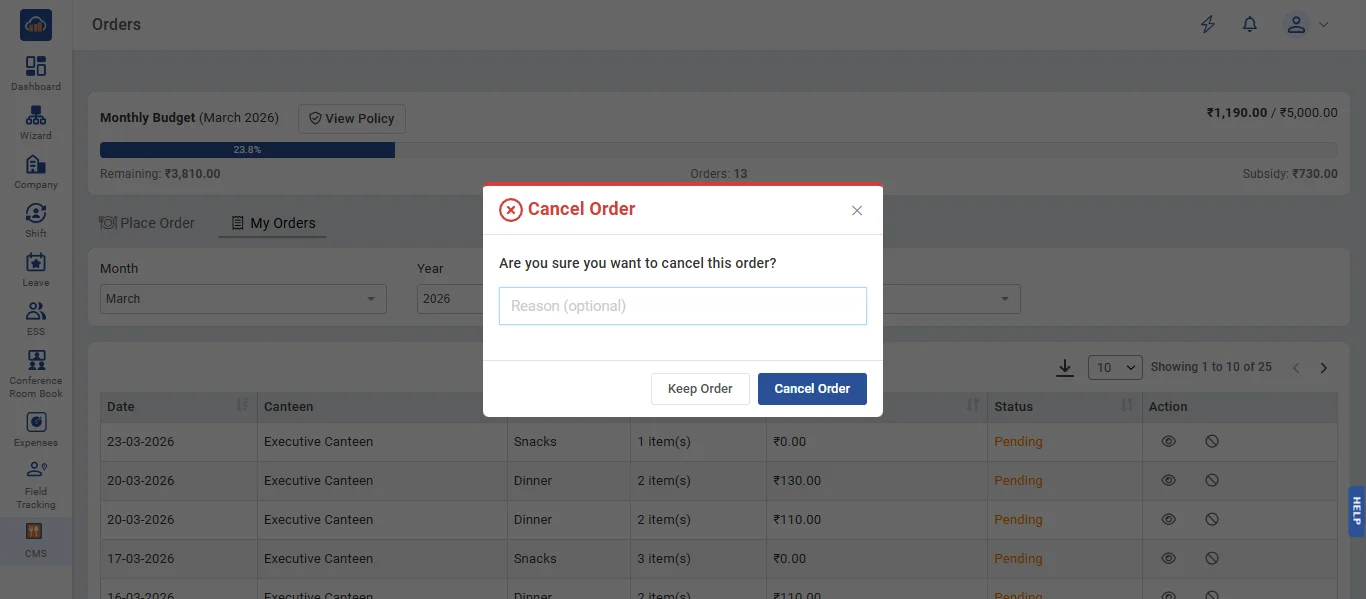
• To cancel an order, click the "Cancel" icon on any pending order. A confirmation dialog appears:
- Message: "Are you sure you want to cancel this order?"
- Provide Explanation - Text area to enter the cancellation reason
Click "Cancel Order" (red button) to confirm, or "Keep Order" to abort.
Note: Cancellation is only available for Pending orders and only if the assigned policy allows order cancellation (Allow Order Cancel setting).
• The "My Orders" tab supports filtering and pagination. Status badges are color-coded:
- Pending (yellow) - Order is waiting for canteen to accept
- Accepted (blue) - Order has been accepted for preparation
- Served / Delivered (green) - Order has been served
- Rejected (red) - Order was rejected by the canteen
- Cancelled (red) - Order was cancelled by the employee