• The Guests module allows administrators to manage meal orders for guest visitors. Unlike employee orders (which employees place themselves), guest orders are created by administrators on behalf of visitors. Each guest order requires a guest name and a host employee. Guest orders do not receive any subsidy - the full gross amount is charged as a company expense. Guest orders are tracked separately and appear in the Salary Deduction Report under the Guest order type.
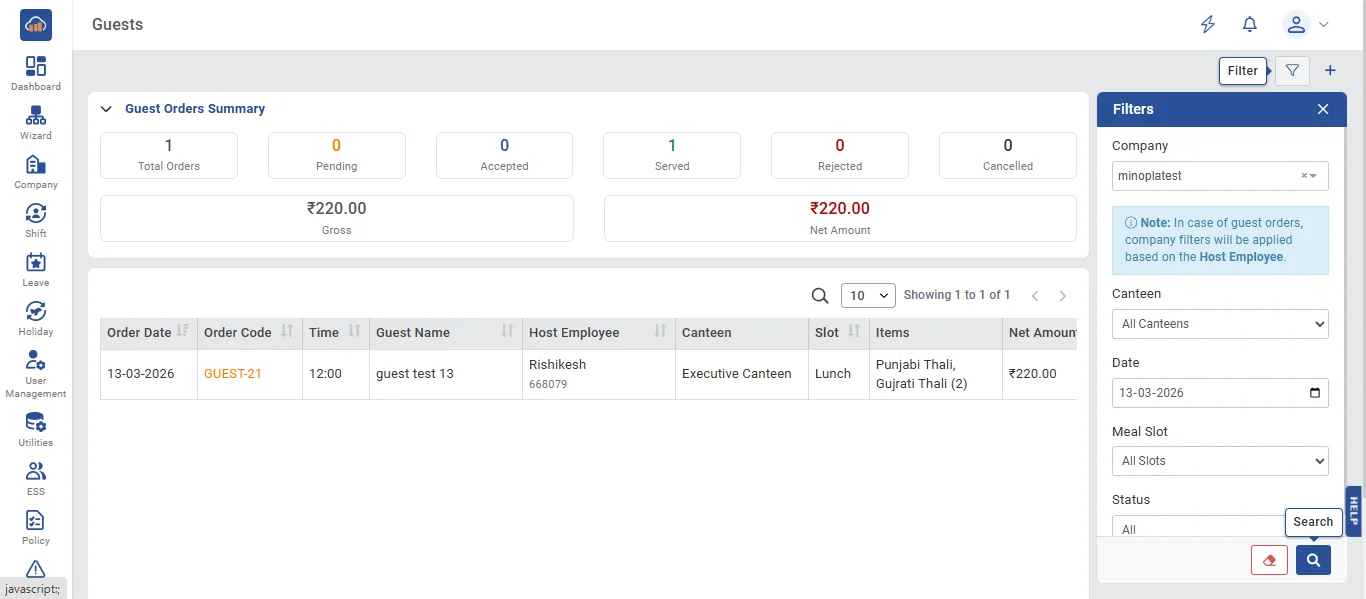
• The following page gets open when one selects "Guests" from the top navigation tabs. It displays:
Filters Panel (right side, role-dependent):
- Company (Super Admin only)
- Canteen dropdown
- Date (date picker, defaults to today)
- Meal Slot (cascading from canteen)
- Status (All / Pending / Accepted / Rejected / Served / Cancelled)
- Search text for guest name or host employee
Summary Cards:
- Total Orders, Pending, Accepted, Served, Rejected, Cancelled
- Total Gross (₹), Total Net (₹)
Guest Orders DataTable (filtered to guest order type only):
- Order Date, Order Code (in orange), Time, Guest Name, Host Employee (name + code), Canteen, Slot, Items summary, Net Amount, Status badge, Action buttons (View, Cancel)
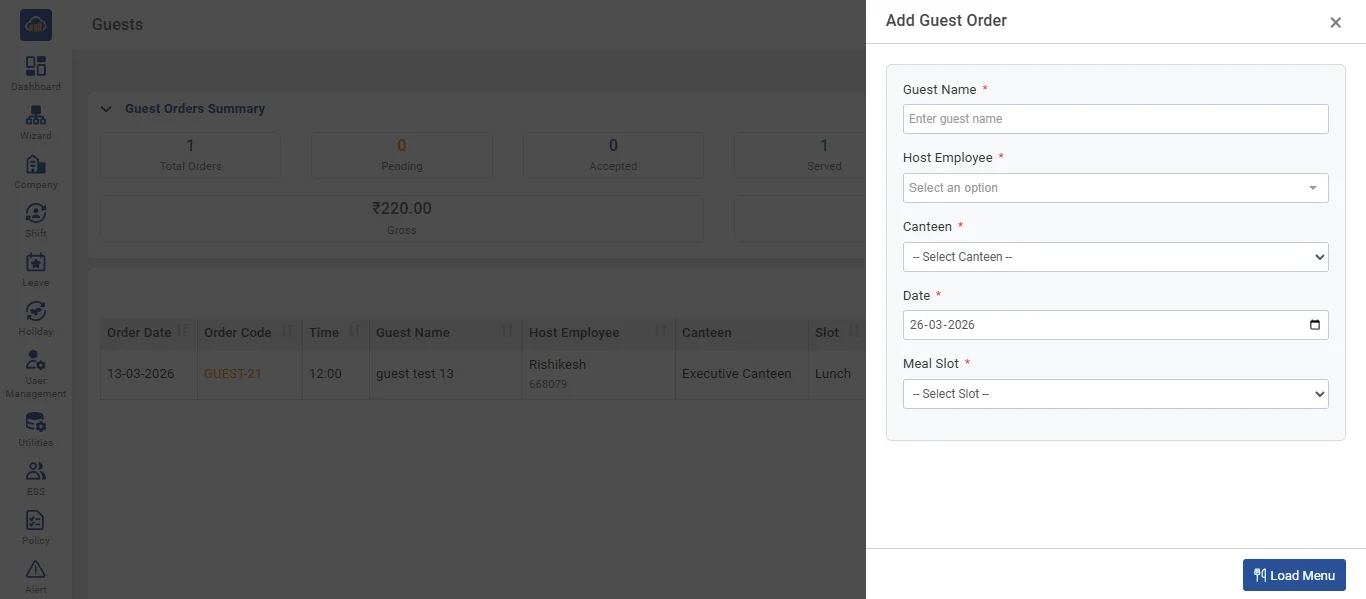
• Click the "+ Add Guest Order" button to create a new guest order. A two-step wizard panel opens:
Step 1 - Setup:
- Guest Name * (required, max 100 characters)
- Host Employee * (required, searchable paginated dropdown - searches across all employees)
- Canteen * (required)
- Order Date * (required, date picker - cannot select past dates)
- Meal Slot * (required, cascading from canteen - shows available slots)
Click "Load Menu" to proceed to Step 2.
Step 2 - Menu & Cart:
- Slot info bar showing: serving time, booking cutoff, ordering open/closed status
- Menu items displayed as cards with: meal image, dietary icon, name, price, remaining quantity, and description
- Quantity input + "Add" button per item
- Cart section showing: added items with totals
- Remarks text field for special instructions
- Gross Total display
- "Place Guest Order" button to submit
- "Back to Setup" to return to Step 1
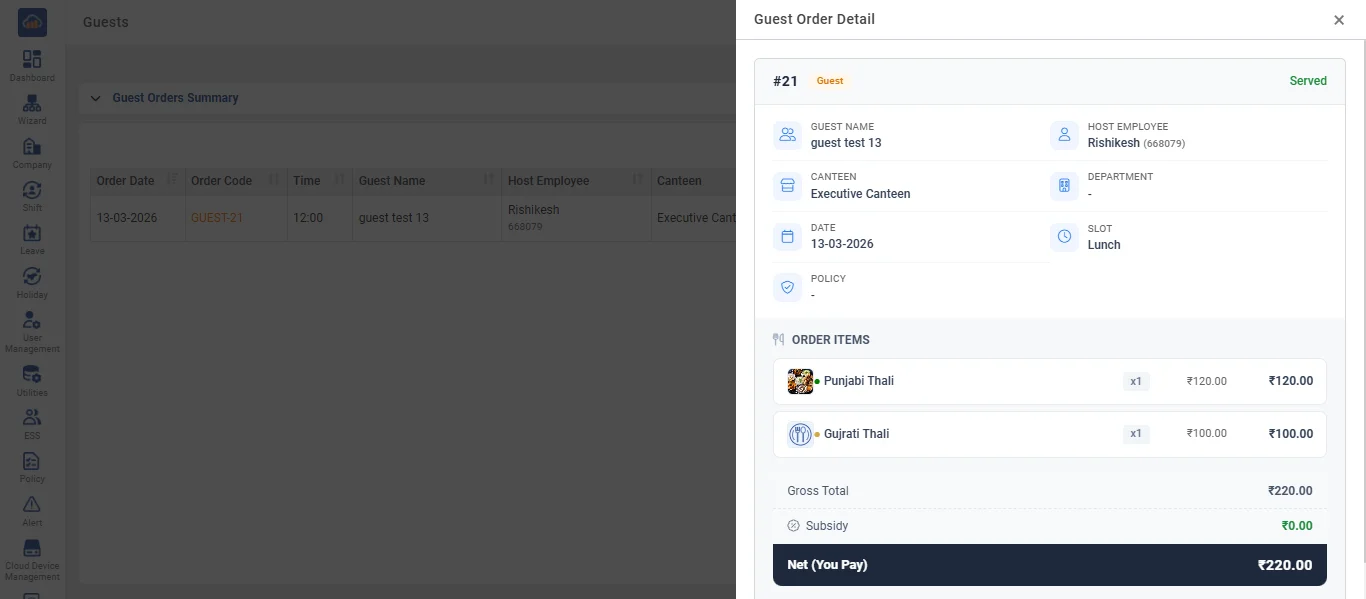
• Click the "View" (eye) icon on any guest order to see details. The panel shows:
- Order header: Order Code with "Guest" badge + Status badge
- Info grid: Guest Name, Host Employee (name + code), Canteen, Date, Slot
- Ordered Items table with meal images, names, quantities, and prices
- Financial summary: Gross Total and Net amount (same as gross since no subsidy applies to guest orders)
Cancel Order: Available for Pending orders. Click the cancel button and optionally provide a cancellation reason.