• The Meal Master module allows administrators to create and manage individual meal items for each canteen. Each meal has a name, image, pricing (with optional tax calculation), dietary type classification (Vegetarian, Non-Vegetarian, Vegan), Jain-friendly option, and category assignment. A summary statistics bar provides quick counts of meals by type and status.
• The following page gets open when one selects "Meal" from the top navigation tabs. First select a canteen from the Canteen dropdown.
Summary Statistics Bar (above the table, shows totals for the entire canteen - unaffected by filters):
- Total Meals count
- Veg count (vegetarian items)
- Non-Veg count (non-vegetarian items)
- Vegan count
- Active count
- Inactive count
DataTable with columns: Sr No, Meal Name (with image thumbnail and description), Category, Dietary Type (with color icon - green dot for Veg, red dot for Non-Veg, teal dot for Vegan, plus "Jain" indicator if applicable), Price (with tooltip showing base price + tax breakdown), Status (Active/Inactive), and Action buttons.
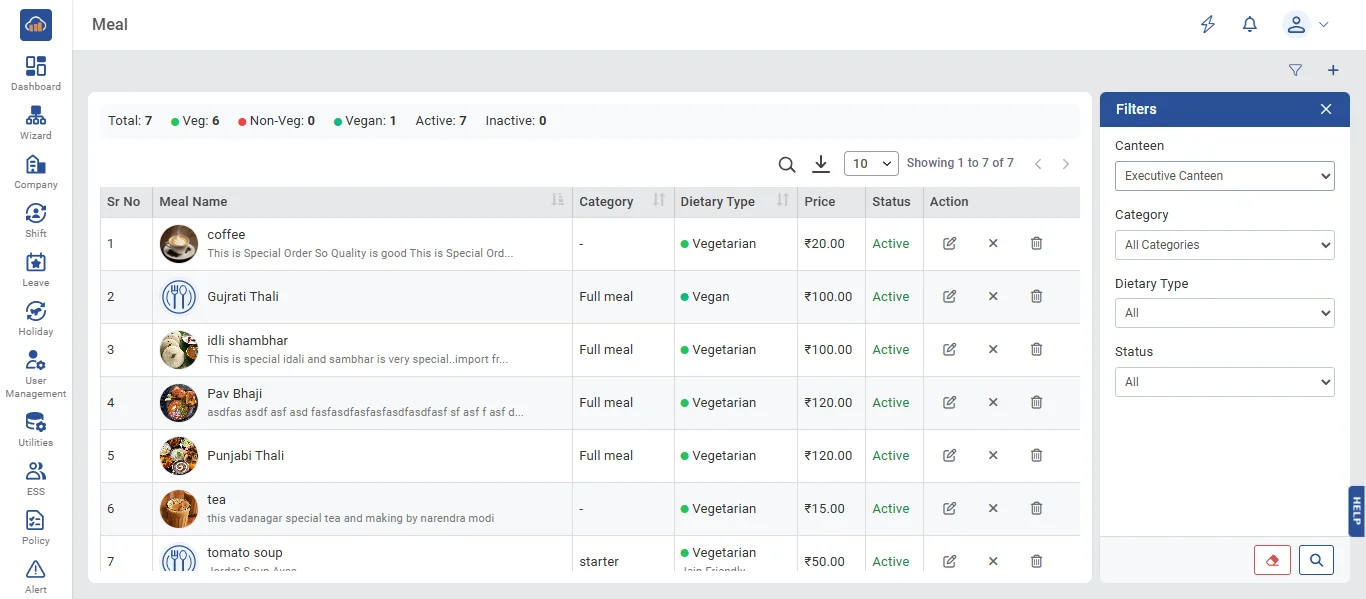
Filters panel:
- Canteen dropdown
- Category dropdown (populated based on selected canteen)
- Dietary Type (Veg / Non-Veg / Vegan)
- Status (All / Active / Inactive)
An Excel export button is available for exporting meal data.
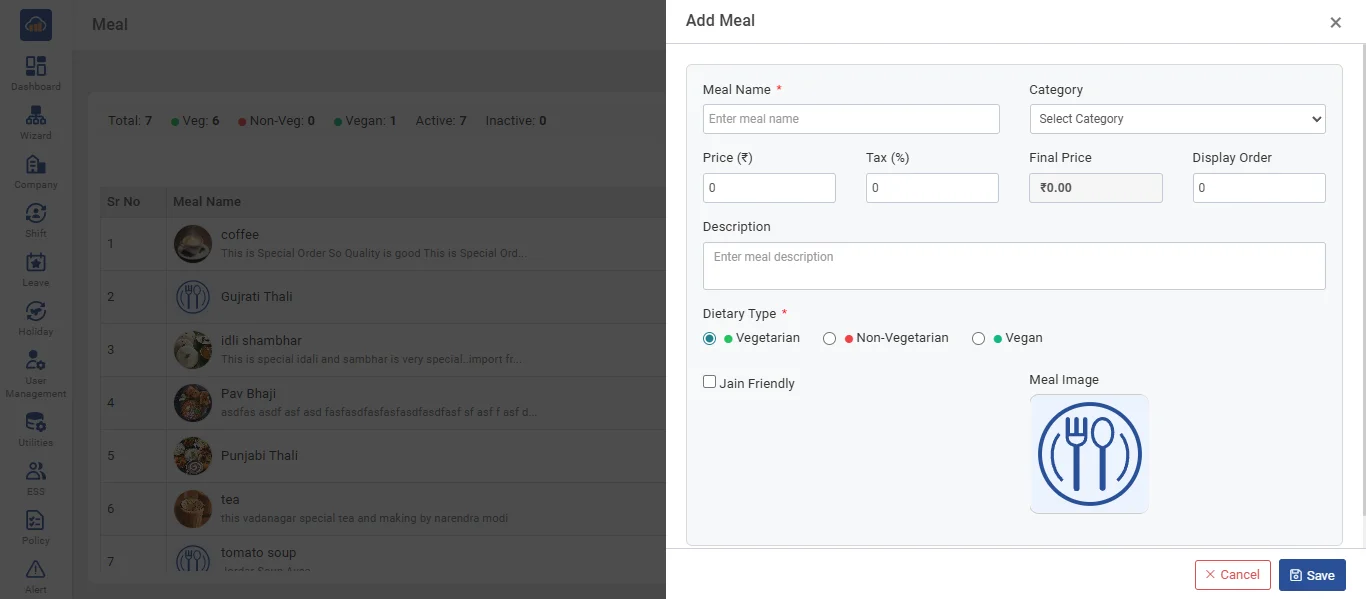
• Click the "+ Add Meal" button to add a new meal item. A side panel opens with the following fields:
- Meal Name * (required, max 100 characters - must be unique within the canteen, case-insensitive)
- Description (optional, max 500 characters)
- Category * (dropdown - select from the canteen's categories)
- Dietary Type * (required, radio buttons - Vegetarian / Non-Vegetarian / Vegan)
- Is Jain Friendly (checkbox - marks the meal as Jain-friendly for dietary filtering)
- Meal Image (file upload - accepts .jpg, .jpeg, .png, .bmp formats, max 1MB. Shows a preview thumbnail after upload with a remove button)
- Price (number - base price of the meal in ₹, default 0, range 0-99,999.99)
- Tax Percentage (number - tax applied on base price, 0-100%, default 0)
- Final Price (auto-calculated display - shows base price + tax amount. For example, if Price = ₹100 and Tax = 5%, Final Price = ₹105.00)
- Display Order (number - controls sequence in listings)
After filling all details, click "Save" to create. Click "Cancel" to discard.
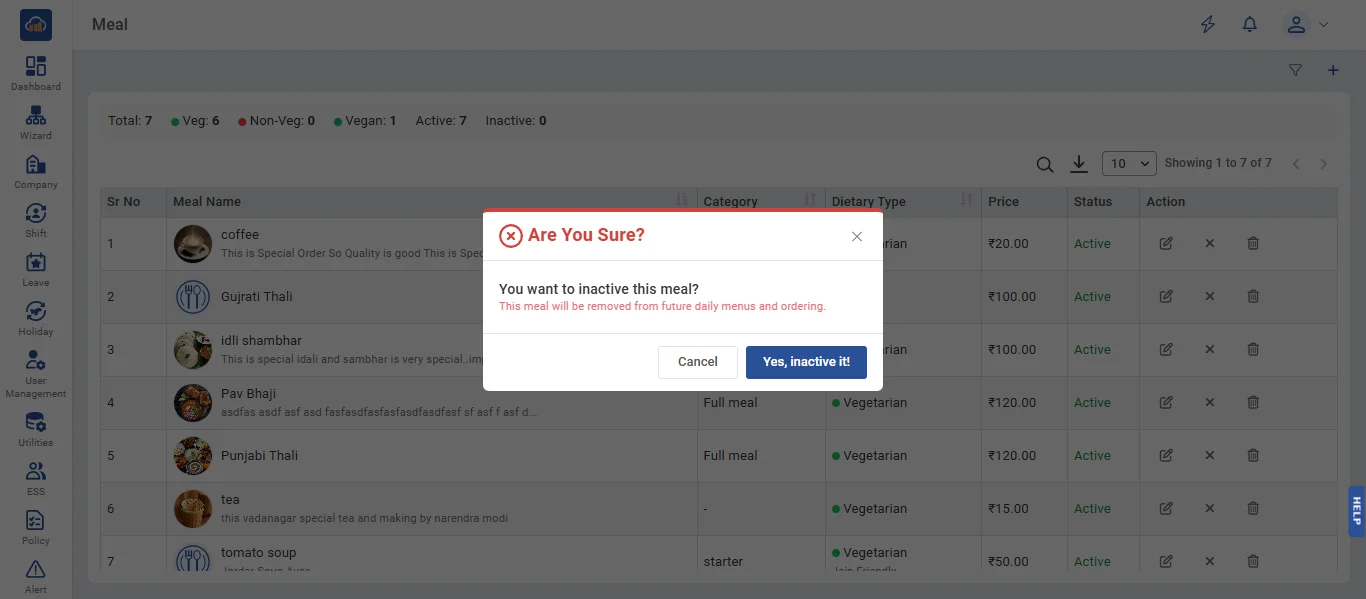
• If user wants to deactivate a meal, click the "Deactivate" icon in the action column. A confirmation dialog appears: "Are You Sure? You want to inactive this meal?". Click "Yes, Inactivate It" to confirm or "Cancel" to abort.
Note: Deactivation is blocked if there are pending or accepted orders for this meal. All orders must be completed, rejected, or cancelled first.
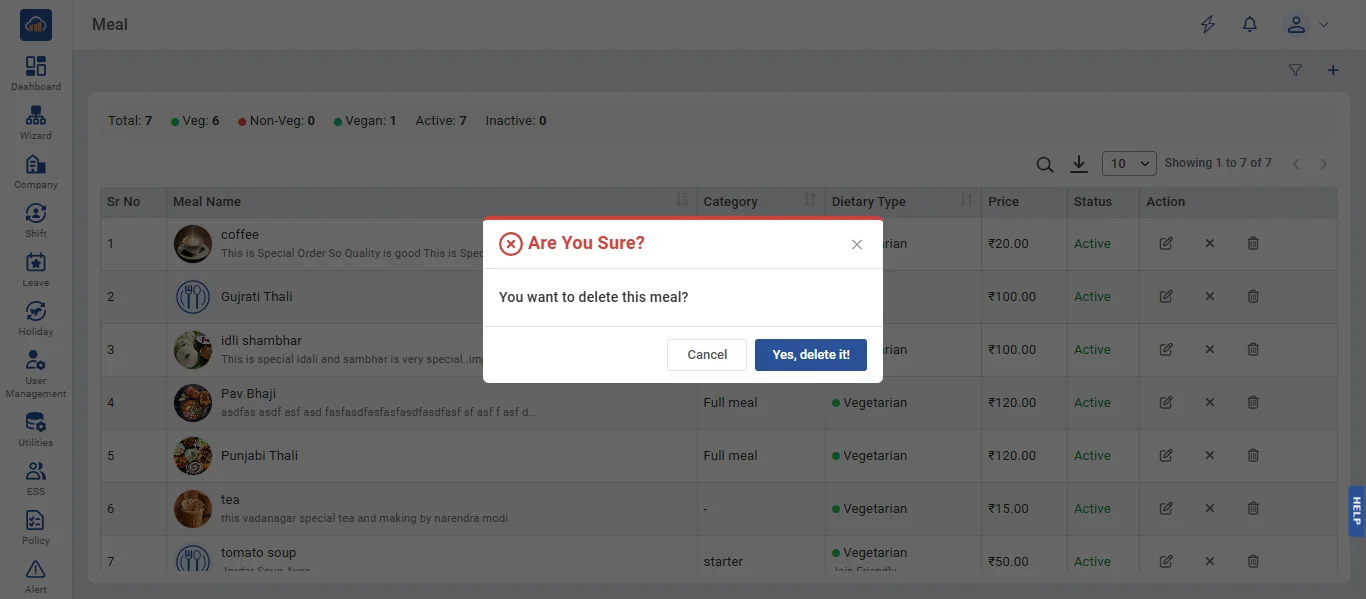
• If user wants to delete a meal, click the "Delete" icon in the action column. A confirmation dialog appears: "Are You Sure? You want to delete this meal?". Click "Yes, Delete It" to confirm or "Cancel" to abort.
Note: Deletion is blocked if the meal is referenced in any of: future daily menus, always-available items, weekly template details, or pending/accepted orders. All these dependencies must be removed first.