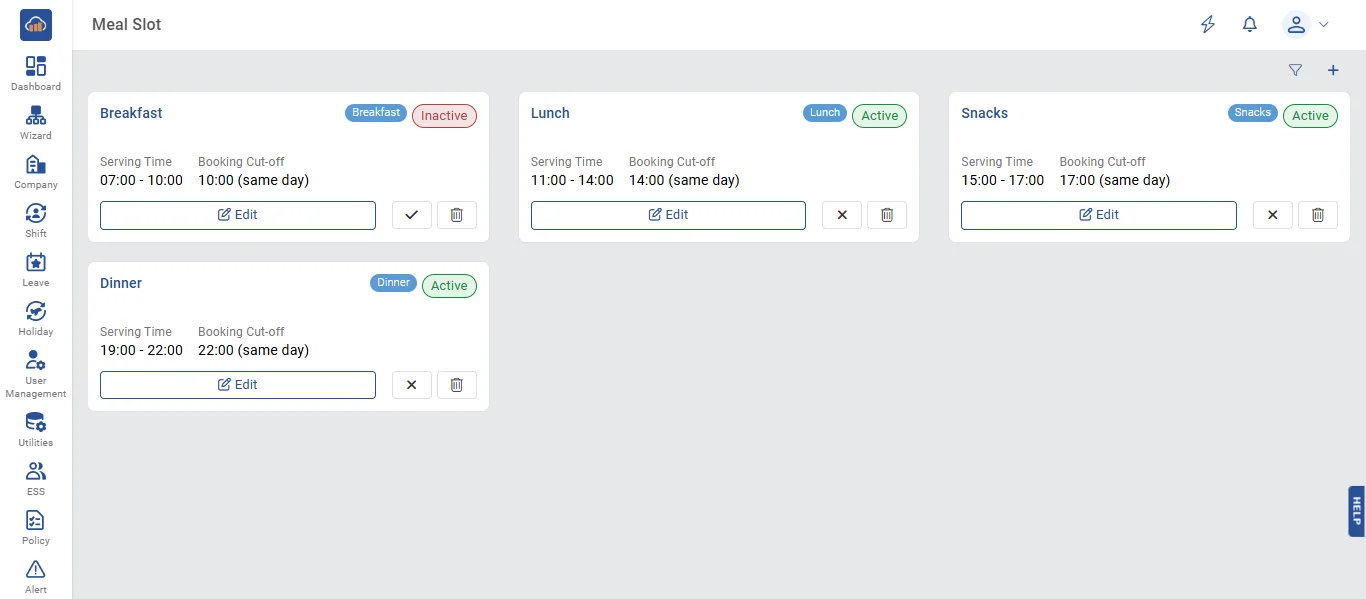
• Meal Slot allows administrators to configure time-based meal serving windows for each canteen. Slots define when meals are served (e.g., Breakfast, Lunch, Snacks, Dinner), their serving time ranges, and the booking cut-off rules that control when employees must place orders by. Each canteen can have up to 12 meal slots. Canteen Managers can manage slots for their own canteens; employees see only active slots.
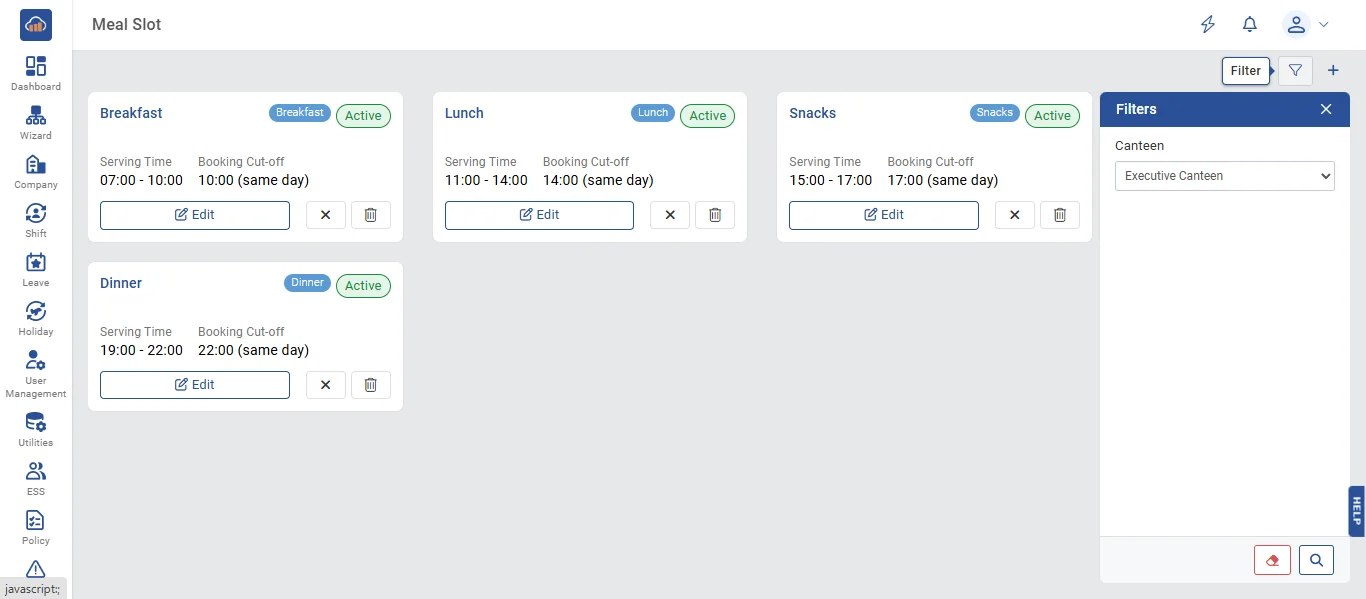
• The following page gets open when one selects "Meal Slot" from the side navigation. First select a canteen from the Canteen dropdown filter (auto-selected if you manage only one canteen). Slots are displayed as cards in a grid layout. Each card shows:
- Slot Name and Slot Category badge (Breakfast / Lunch / Snacks / Dinner)
- Status badge (Active / Inactive)
- Serving Time range (start - end)
- Booking Cut-off time with day indicator (Same Day / Previous Day)
Action buttons on each card: Edit, Activate/Deactivate, and Delete. The "Filters" panel is available on the right side.
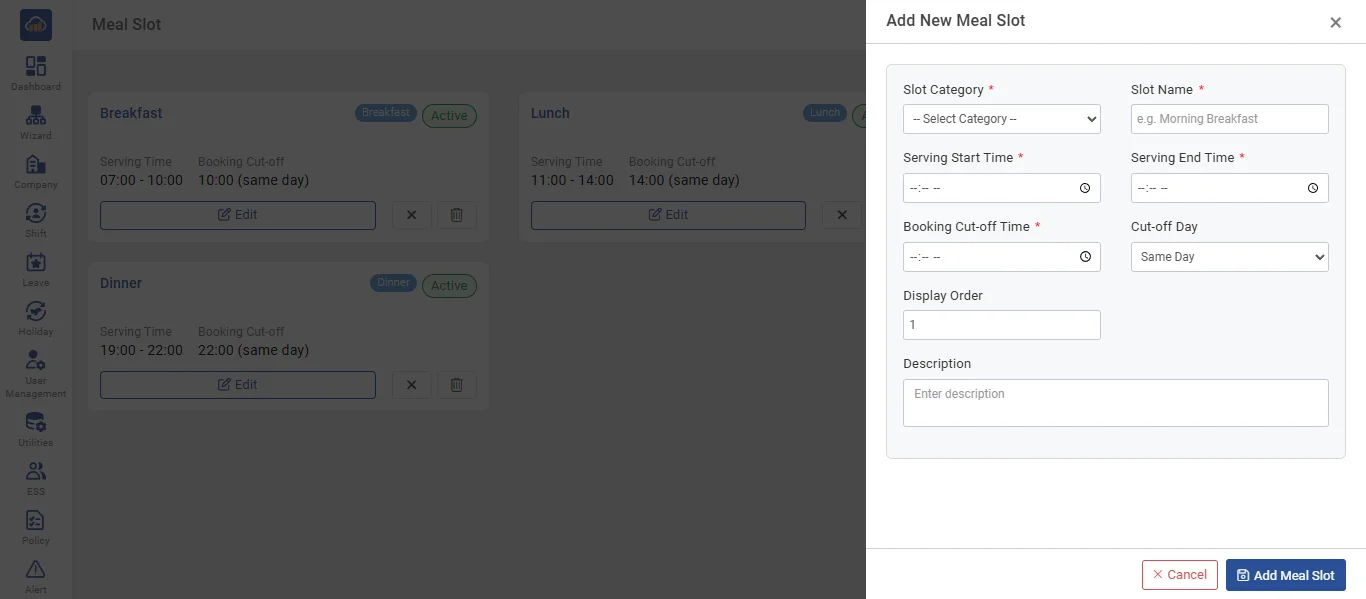
• Click the "+ Add Meal Slot" button to add a new meal slot. A side panel opens with the following fields:
- Slot Category * (required - Breakfast, Lunch, Snacks, or Dinner)
- Slot Name * (required, max 50 characters - e.g., "Morning Breakfast", "Late Lunch")
- Serving Start Time * (required, time picker)
- Serving End Time * (required, time picker - must be after start time)
- Booking Cut-Off Time * (required, time picker - the deadline for employees to place orders)
- Cut-Off Day (Same Day or Previous Day - determines when the cut-off applies. For example, "Previous Day at 10:00 PM" means employees must order before 10 PM the night before the meal)
- Display Order (number, 1-100 - controls the sequence in which slots appear)
- Description (optional, max 255 characters)
After filling all details, click "+ Add Meal Slot" to create. Click "Cancel" to discard.
• Click the "Timeline" button on any meal slot card to view a visual timeline representation of all slots within that category, showing how the slots are distributed across the day.
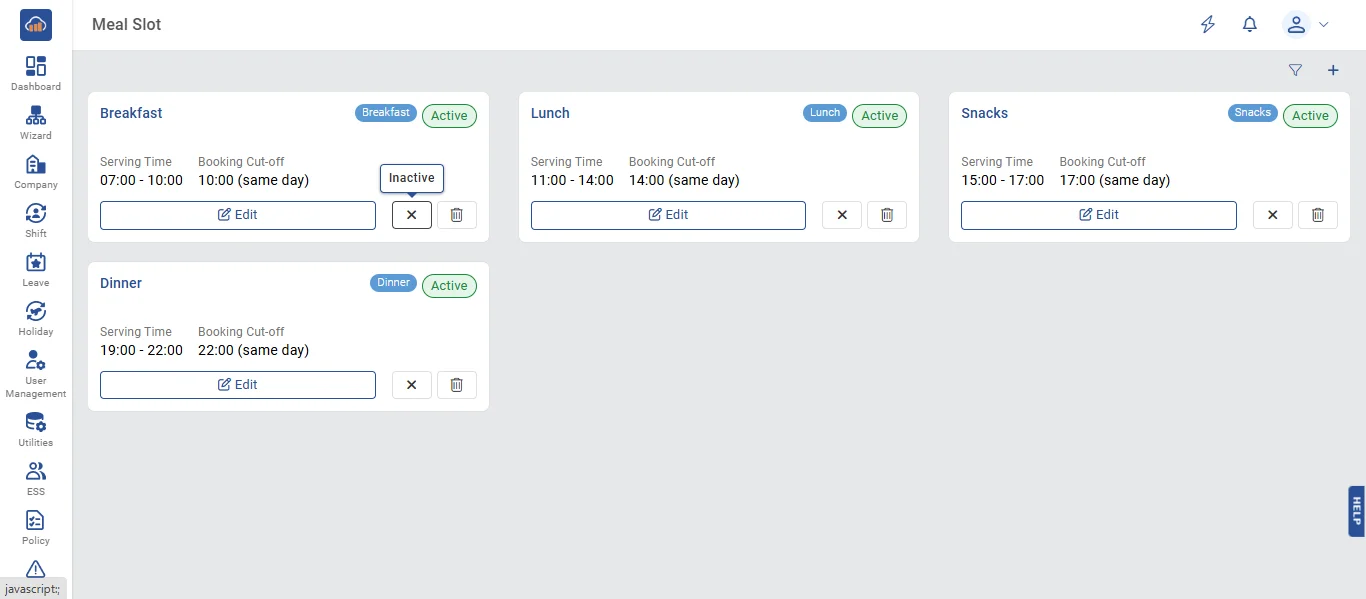
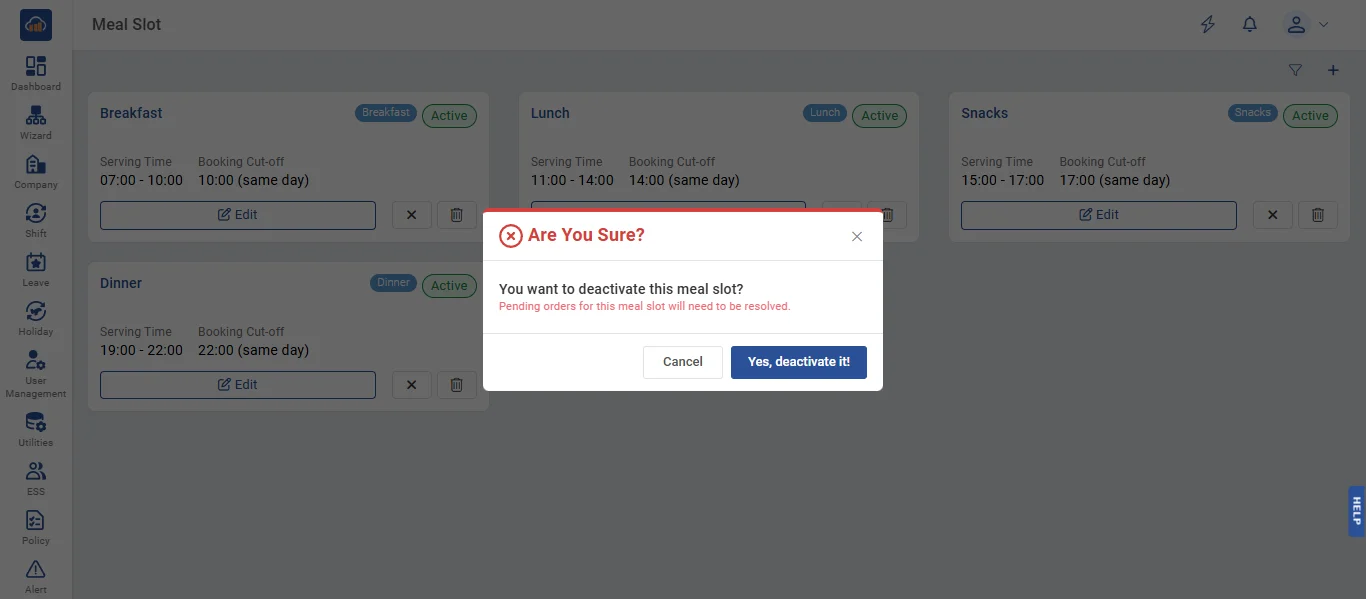
• If user wants to deactivate a meal slot, click the "Deactivate" icon button. A confirmation dialog appears: "Are You Sure? You want to deactivate this meal slot?". Click "Yes, deactivate it" to confirm or "Cancel" to abort.
Note: Deactivation is blocked if there are pending or accepted orders for this meal slot. All orders must be completed, rejected, or cancelled first. Deactivated slots will not appear in the daily menu for employees and no new orders can be placed.
• After clicking "Yes, deactivate it", a success message appears confirming: "Meal slot has been deactivated". Click "OK" to close the message.
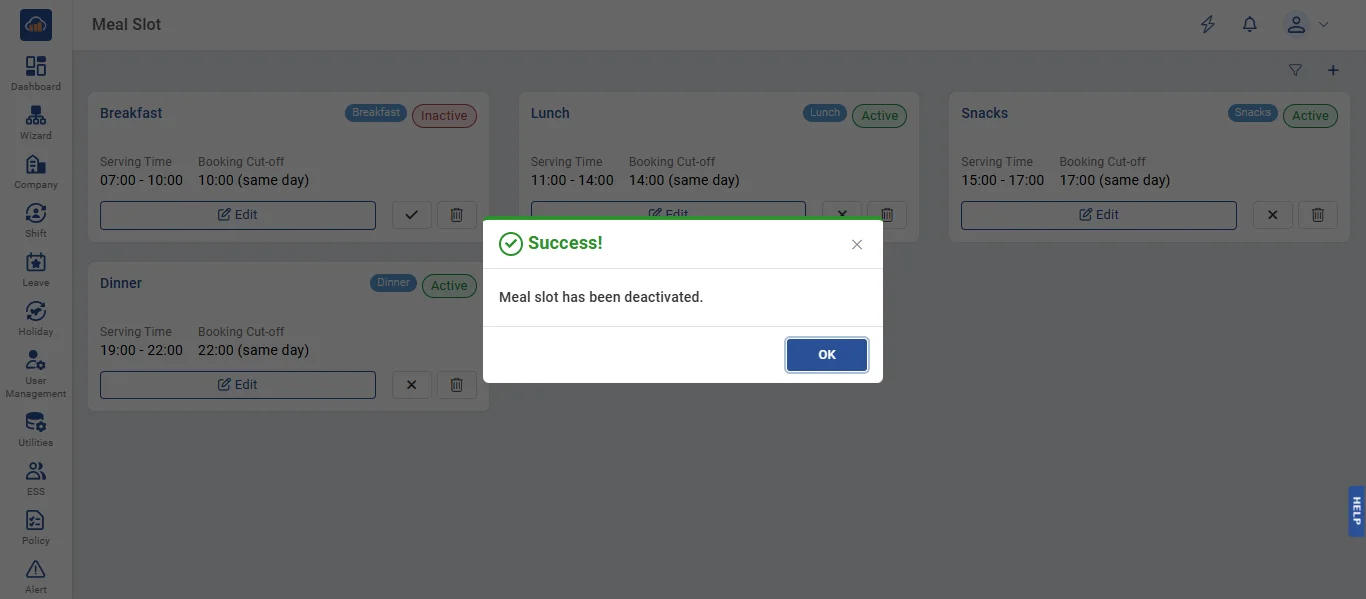
• After deactivation, the meal slot card will show the "Inactive" status badge. The deactivated slot will be visually distinguished from active slots and will not be available for employee ordering.
Deleting a meal slot: Deletion is permanently blocked if there are future daily menus, weekly template details, or pending/accepted orders referencing this slot. You must clear these dependencies before the slot can be deleted.