• The Orders module provides administrators with a comprehensive view of all employee and guest meal orders. It shows real-time order summaries with status counts, financial totals (gross, subsidy, net amounts), and detailed order information. Administrators can accept, reject, and mark orders as served. The Canteen Manager role gets an auto-refresh feature for real-time order monitoring during meal service. Only Super Admin and Canteen Manager can update order statuses; Company Admin and Branch Admin have view-only access.
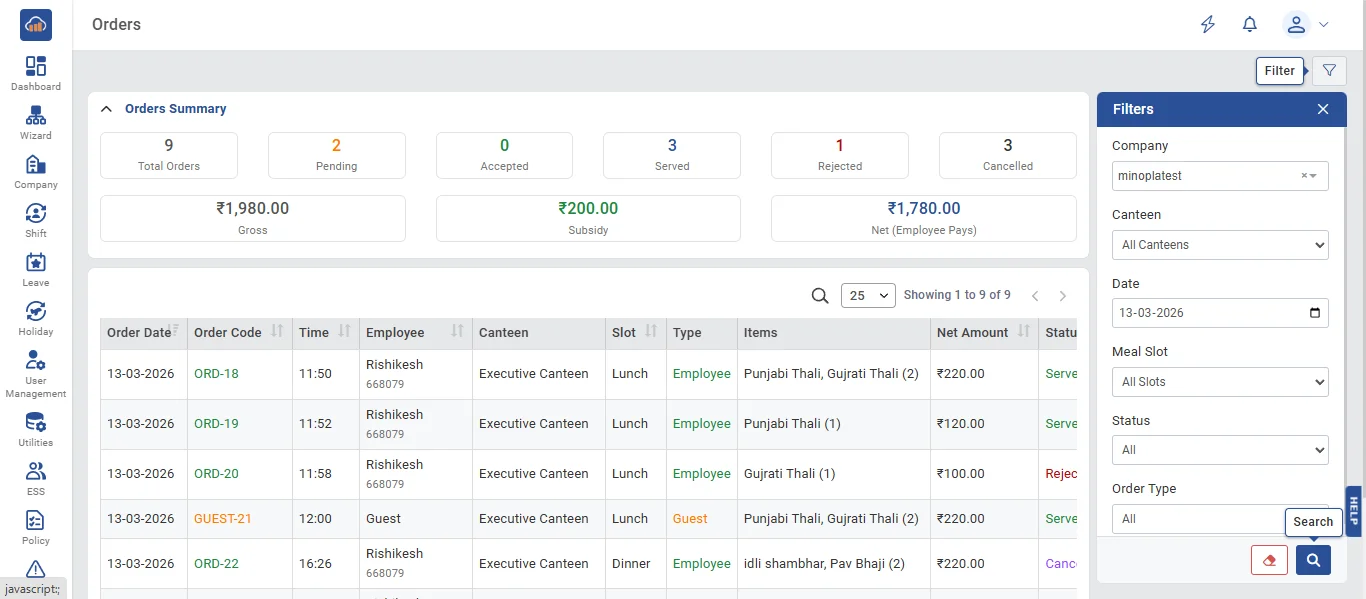
• The following page gets open when one selects "Orders" from the top navigation tabs. It displays:
Filters Panel (right side, role-dependent):
- Company (Super Admin only)
- Canteen dropdown
- Date (date picker, defaults to today)
- Meal Slot (cascading from canteen)
- Status (All / Pending / Accepted / Rejected / Served / Cancelled)
- Order Type (All / Employee / Guest)
- Search text for employee name, code, or guest name
Summary Cards at the top:
- Total Orders, Pending, Accepted, Served, Rejected, Cancelled counts
- Total Gross (₹), Total Subsidy (₹), Total Net (₹)
Orders DataTable columns:
- Order Date, Order Code (green for Employee, orange for Guest), Time, Name (employee name + code, or guest name in orange), Canteen, Slot, Type badge, Items summary, Net Amount, Status badge, Action buttons
Auto-Refresh (Canteen Manager only): Orders auto-refresh every 30 seconds with Live/Paused indicator and toggle button.
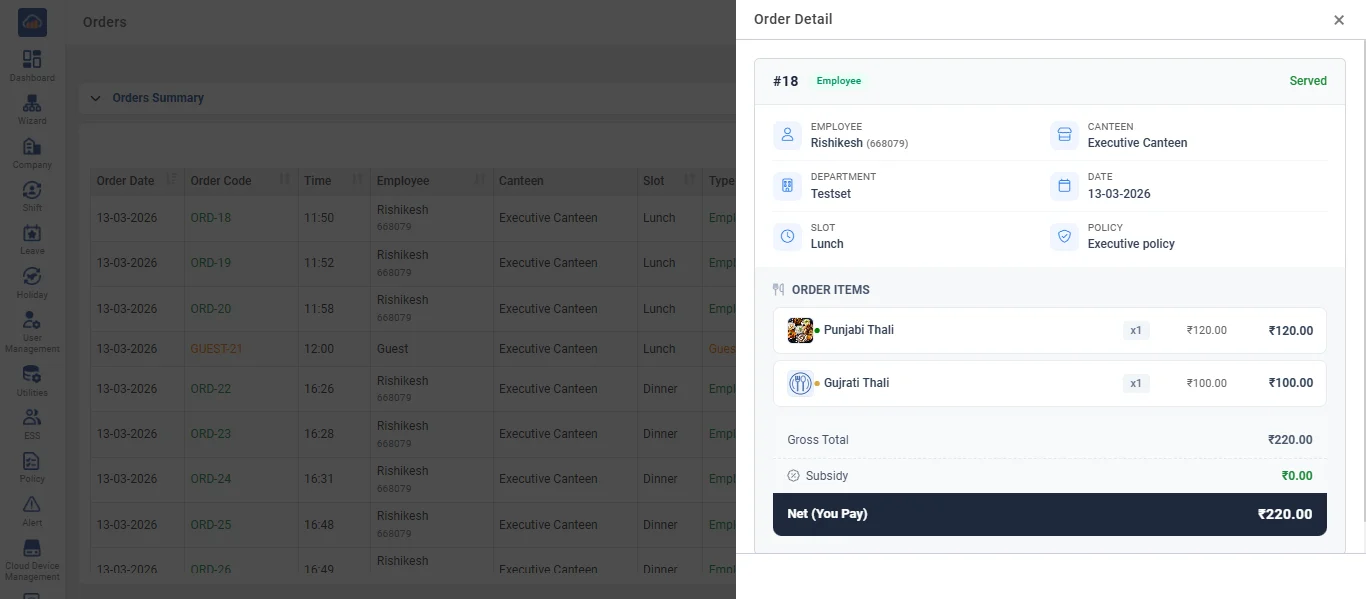
• Click the "View" (eye) icon on any order. A side panel opens showing:
Order Header:
- Order Code with type badge (Employee/Guest) and status badge
- Info grid: Employee Name, Canteen, Department, Date, Slot, Policy
- For guest orders: Guest Name and Host Employee details
- Remarks section (if any)
Ordered Items Table: Meal image, dietary icon, name, quantity, unit price, item total
Financial Summary:
- Gross Total - Total before subsidy
- Subsidy - Organization's contribution (0 for guest orders)
- Net (You Pay) - Employee's payment amount
Action Buttons (Super Admin and Canteen Manager only):
- Accept (green check) - For Pending orders, accepts for preparation
- Reject (red X) - For Pending orders, prompts for rejection reason
- Mark Served (utensils icon) - For Accepted orders, marks as delivered
Status Flow: Pending → Accepted or Rejected. Accepted → Served. Rejected, Served, and Cancelled are final.