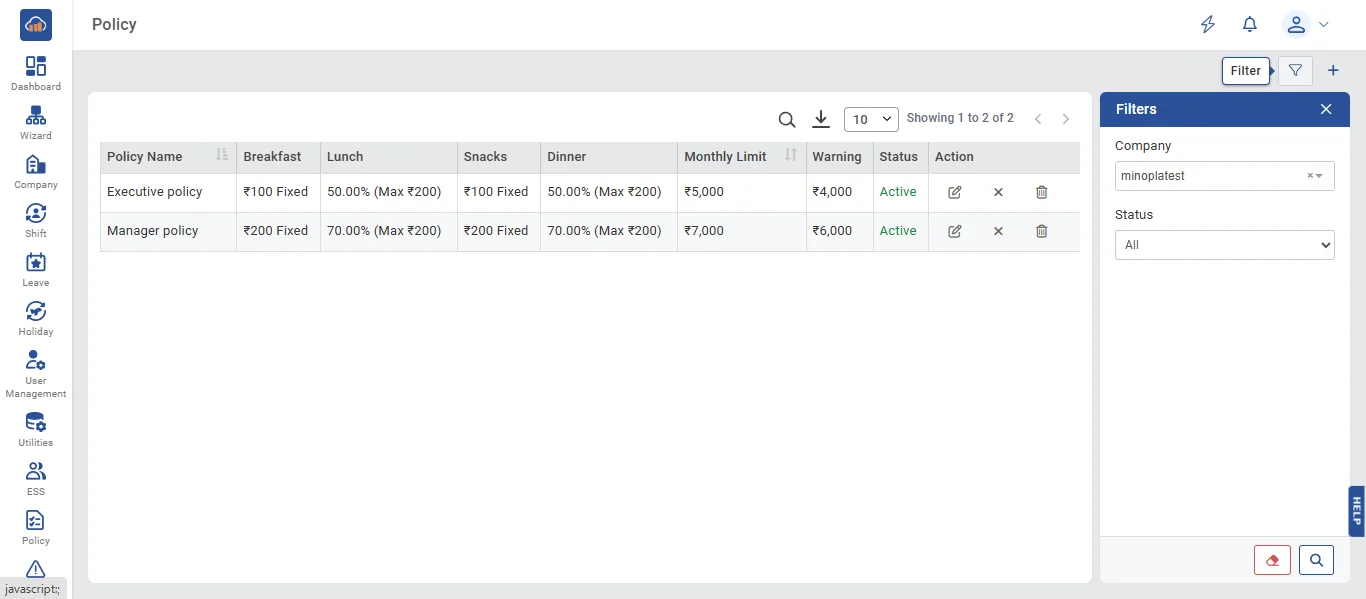
• The Policy module allows administrators to create pricing and subsidy policies that define how meal costs are shared between the organization and employees. Each policy specifies subsidy rules per meal slot category (Breakfast, Lunch, Snacks, Dinner), a monthly spending limit, warning thresholds, and order behavior settings. Policies are company-specific. Only Super Admin and Company Admin can create, edit, and delete policies. Branch Admin and Canteen Manager have read-only access.
• The following page gets open when one selects "Policy" from the side navigation. It displays a DataTable with columns: Policy Name, Breakfast (subsidy display), Lunch (subsidy display), Snacks (subsidy display), Dinner (subsidy display), Monthly Limit, Warning, Status (Active/Inactive), and Action buttons.
The "Filters" panel allows filtering by:
- Company (Super Admin only - required to select a company before viewing)
- Status (All / Active / Inactive)
- Search text (policy name or description)
An Excel export button is available at the top for exporting policy data.
Note: Branch Admin and Canteen Manager roles cannot see the Add, Edit, or Delete action buttons.
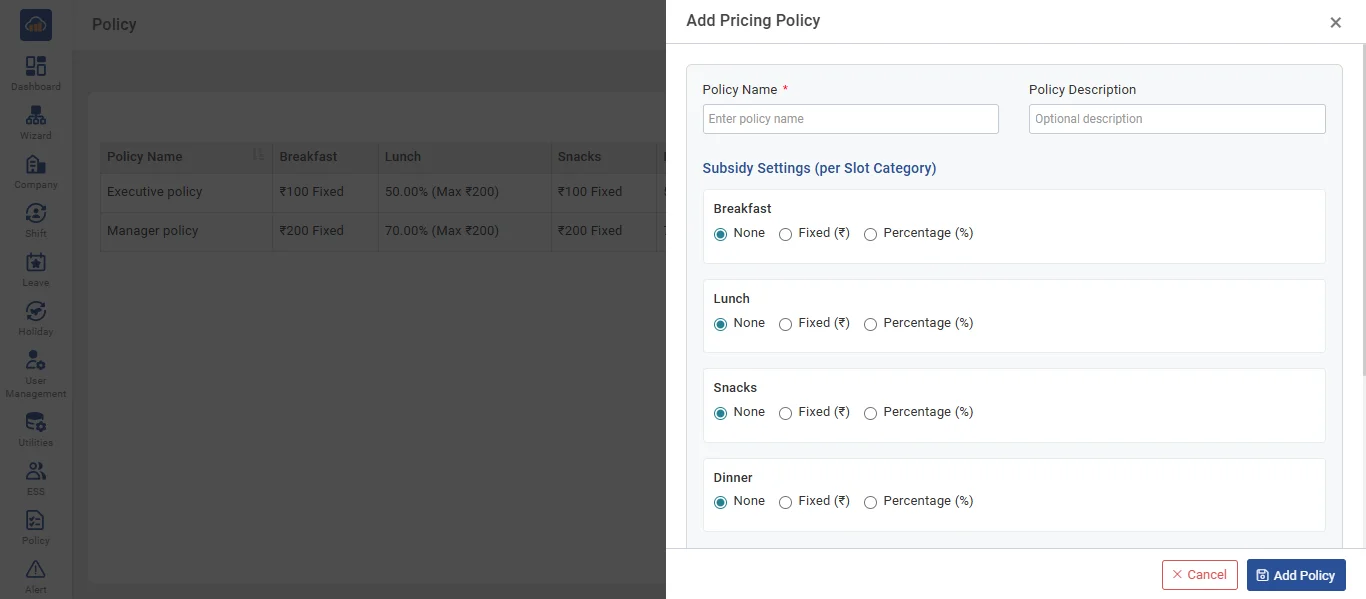
• Click the "+ Add Policy" button to add a new pricing policy. A side panel opens with the following sections:
Basic Details:
- Policy Name * (required, max 100 characters)
- Policy Description (optional, max 500 characters)
Subsidy Settings (configured separately for each slot category - Breakfast, Lunch, Snacks, Dinner):
- None - No subsidy for this slot (employee pays full amount)
- Fixed (₹) - A fixed rupee amount as subsidy (e.g., ₹50 per order). The organization pays up to this fixed amount, employee pays the rest
- Percentage (%) - A percentage of the meal cost as subsidy (e.g., 50%, range 1-100%). Optionally set a Max Cap amount to limit the maximum subsidy per order
Monthly Limit:
- Monthly Limit - Maximum amount (₹) an employee can spend per month. Leave empty for Unlimited. Once reached, the employee cannot place more orders until the next month. Resets on the 1st of each month
Warning Threshold:
- Warning Amount - Show a warning when spending reaches this absolute amount, OR
- Warning Percentage - Show a warning when spending reaches this % of the monthly limit (1-100%)
- Note: These are mutually exclusive - only one can be set. Warning must be less than the monthly limit.
Order Settings:
- Allow Order Cancel (checkbox, default enabled) - Whether employees can cancel their pending orders
- Allow Multiple Orders (checkbox, default enabled) - Whether employees can place multiple orders in the same meal slot on the same day
After configuring all settings, click "Add Policy" to create. Click "Cancel" to discard.
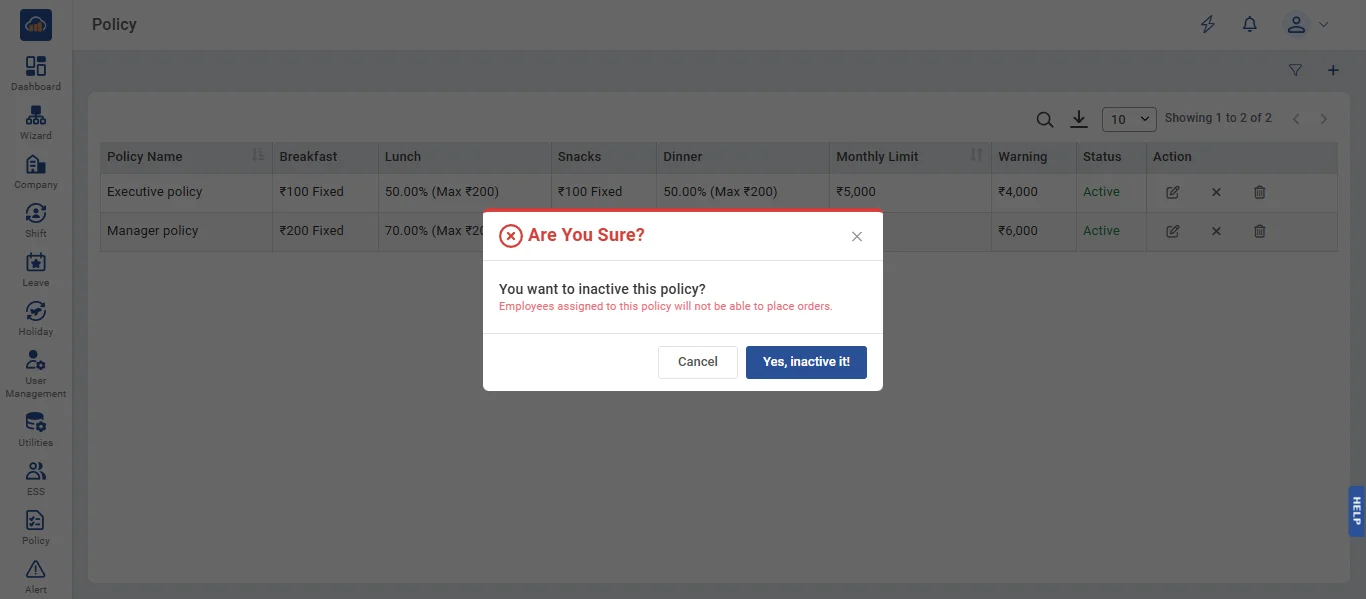
• If user wants to deactivate a policy, click the "Deactivate" icon in the action column. A confirmation dialog appears: "Are You Sure? You want to inactive this policy?". Click "Yes, Inactivate It" to confirm or "Cancel" to abort.
Note: Deactivating a policy does not remove existing employee allocations. However, employees with an inactive policy will not be able to place new orders. Their balance and order history remain viewable.
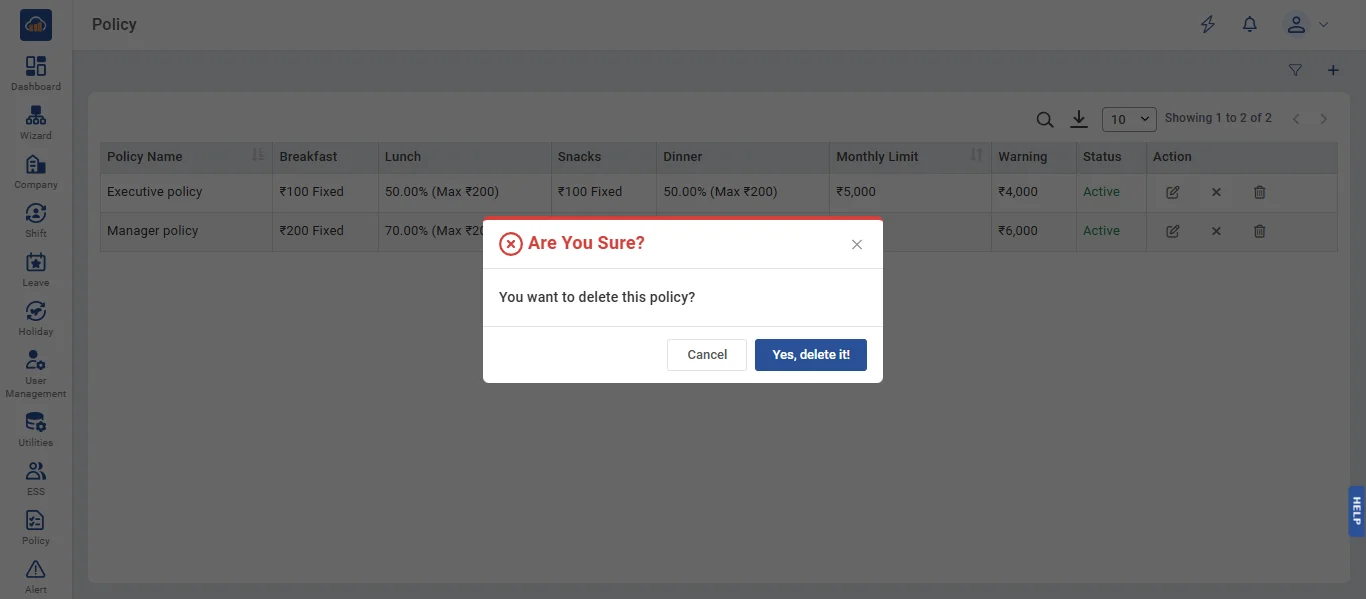
• If user wants to delete a policy, click the "Delete" icon in the action column. A confirmation dialog appears: "Are You Sure? You want to delete this policy?". Click "Yes, Delete It" to confirm or "Cancel" to abort.
Note: Deletion is blocked if employees are currently assigned to this policy. You must remove or reassign all employee allocations first before the policy can be deleted.