• Templates allow administrators to create weekly meal plans that define which meals are served on each day of the week across different meal slots. Once a template is assigned to a canteen, it can be used to auto-generate daily menus, saving time on repetitive menu planning. Each template belongs to a specific canteen and contains a 7-day schedule (Monday through Sunday) with meals assigned per slot. Only Super Admin and Canteen Manager can manage templates; Company Admin and Branch Admin have read-only access.
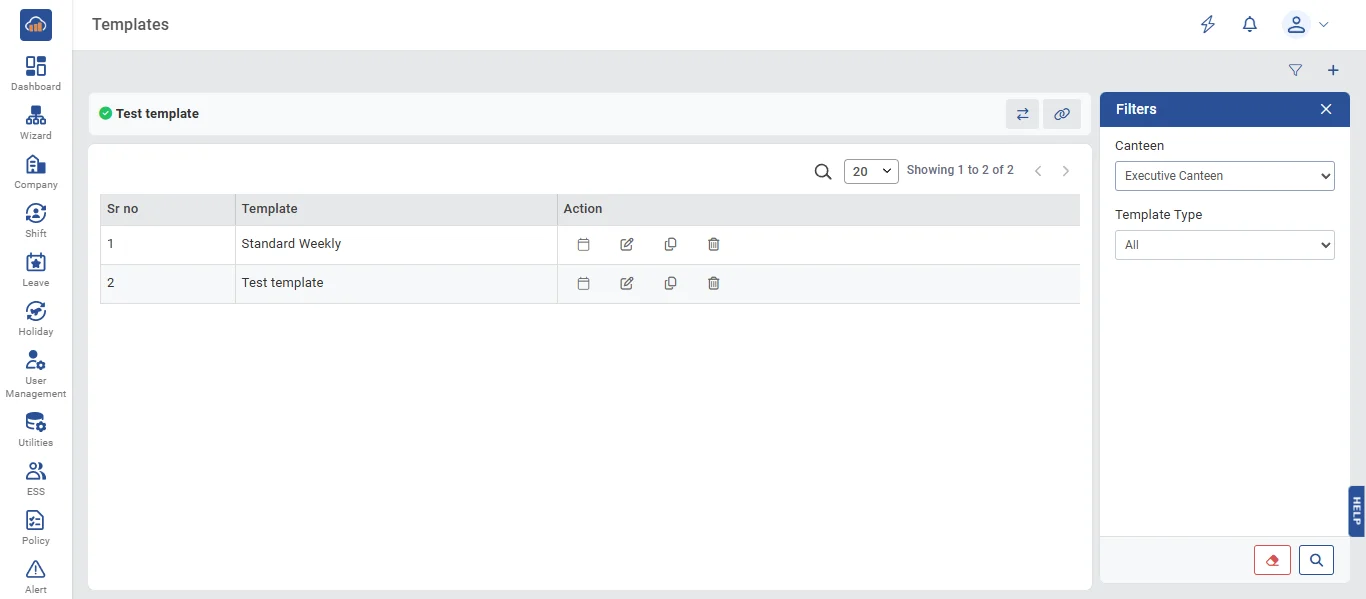
• The following page gets open when one selects "Templates" from the top navigation tabs. First select a canteen from the Canteen dropdown. The page shows:
Active Template Panel at the top: Displays the currently assigned template name for the selected canteen (or "No template assigned" if none). A "Change" button allows reassigning the active template.
DataTable with columns: Sr No, Template (name + description), and Action buttons (Edit Schedule, Edit Details, Duplicate, Delete).
The "Filters" panel allows filtering by search text.
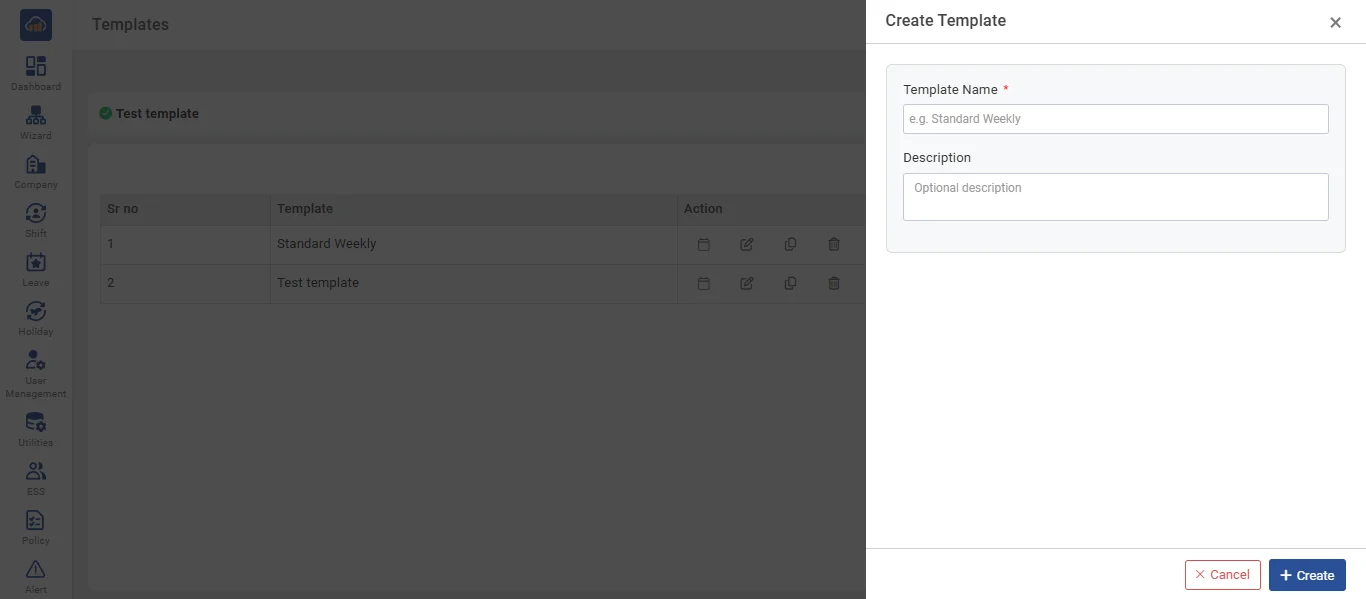
• Click the "+ Create" button to create a new template. A side panel opens with:
- Template Name * (required - must be unique within the canteen)
- Description (optional)
After filling details, click "Create" to save. Click "Cancel" to discard.
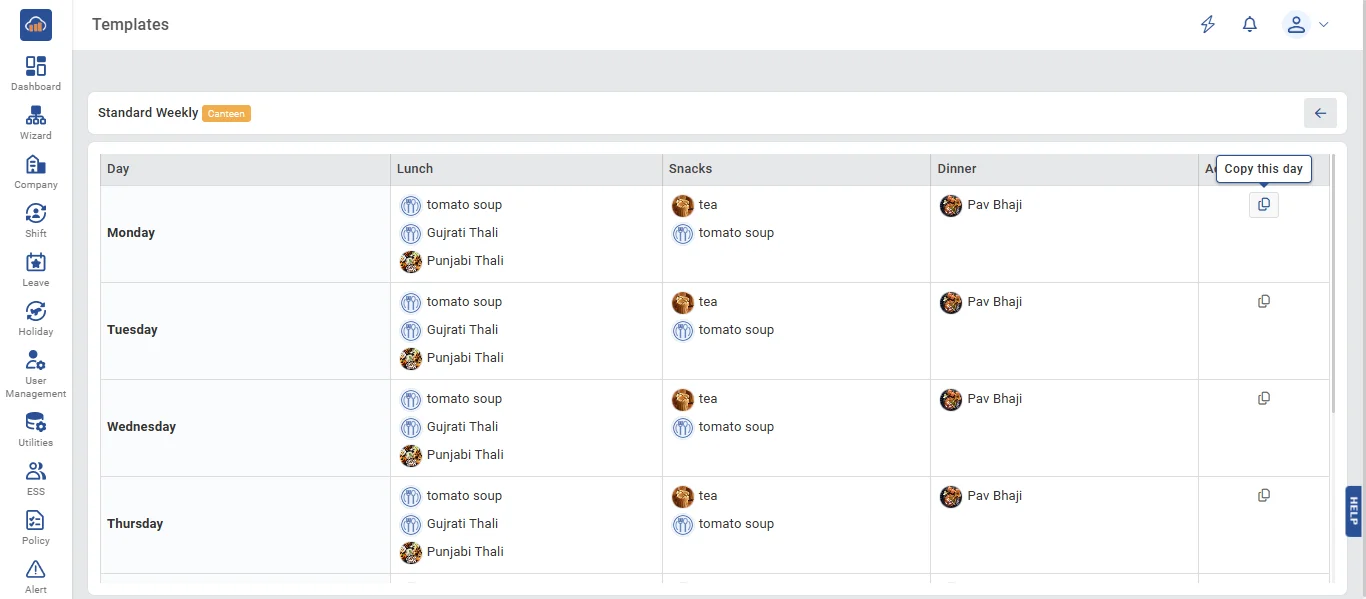
• Click the "Edit Schedule" (calendar icon) on a template to open the schedule editor view. It displays a full 7-day weekly grid with:
- Days listed vertically (Monday through Sunday)
- Meal Slots shown horizontally (based on the canteen's active slots)
- Each cell shows the assigned meals with their images and dietary icons
- Click any cell to edit the meals for that day+slot combination
- "+ Add to slot" button on each row to add meals
The template name and status badge are shown at the top.
Copy Day: You can copy all meals from one day to other days. Click the "Copy Day" button to select target days with quick actions (Select All Weekdays, Select All, Clear All). This is useful for setting up similar menus across weekdays.
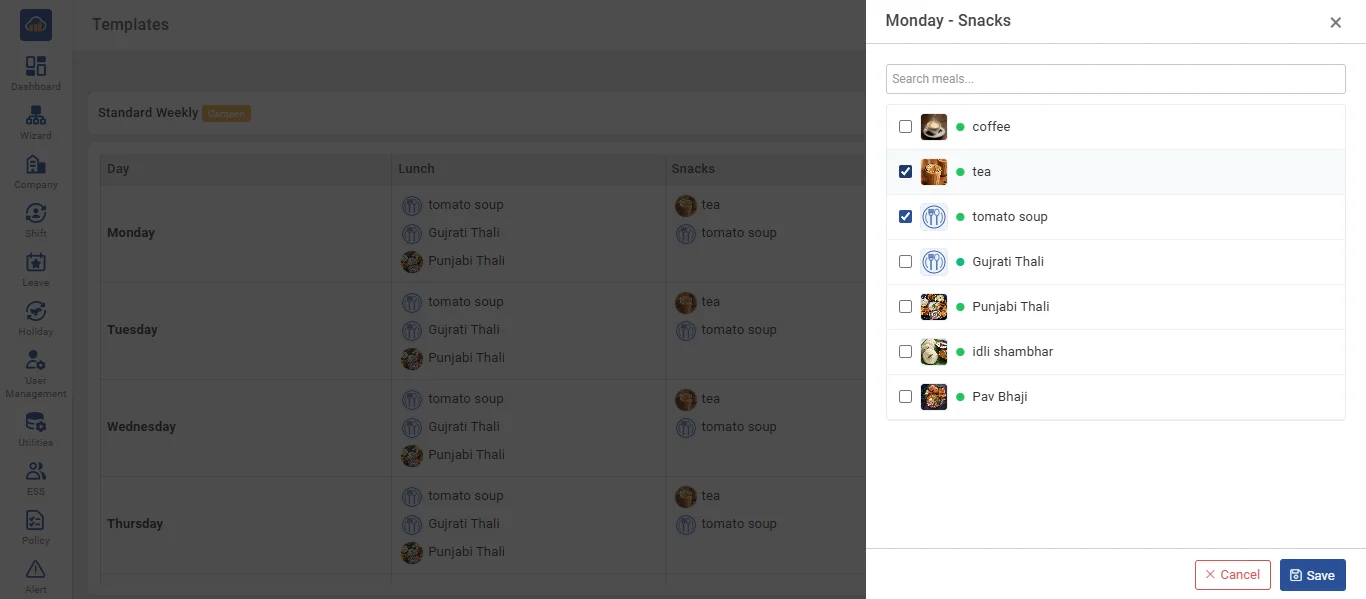
• Click the "+ Add to slot" button on any day row to add meals to a specific slot. A side panel opens showing the selected day and slot (e.g., "Monday - Snacks") with a searchable checkbox list of available meals. Each meal shows its dietary type icon. Select the meals you want to add and click "Save".
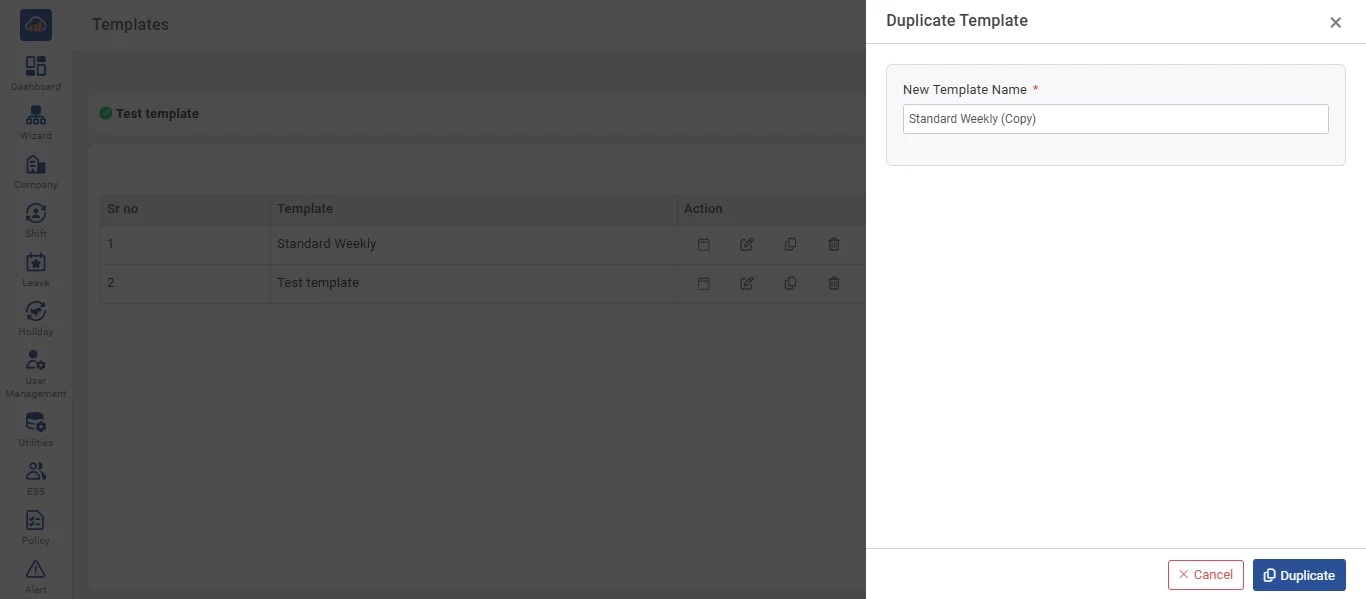
• To duplicate a template, click the "Duplicate" icon. A dialog opens with:
- New Template Name * - Pre-filled with original name + "(Copy)"
Click "Duplicate" to create an exact copy with all day/slot meal assignments.
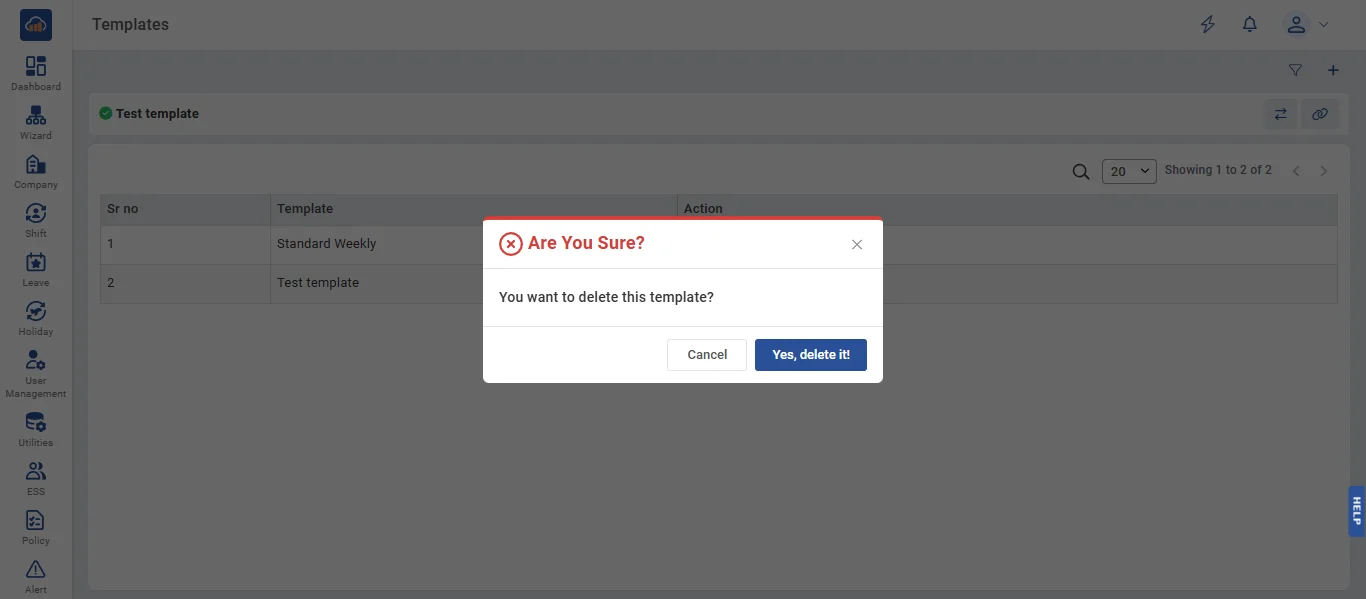
• To delete a template, click the "Delete" icon. A confirmation dialog appears. Click "Yes, Delete It" to confirm or "Cancel" to abort.
Note: Deletion is blocked if the template is currently assigned as the active template. You must assign a different template or unassign it first.
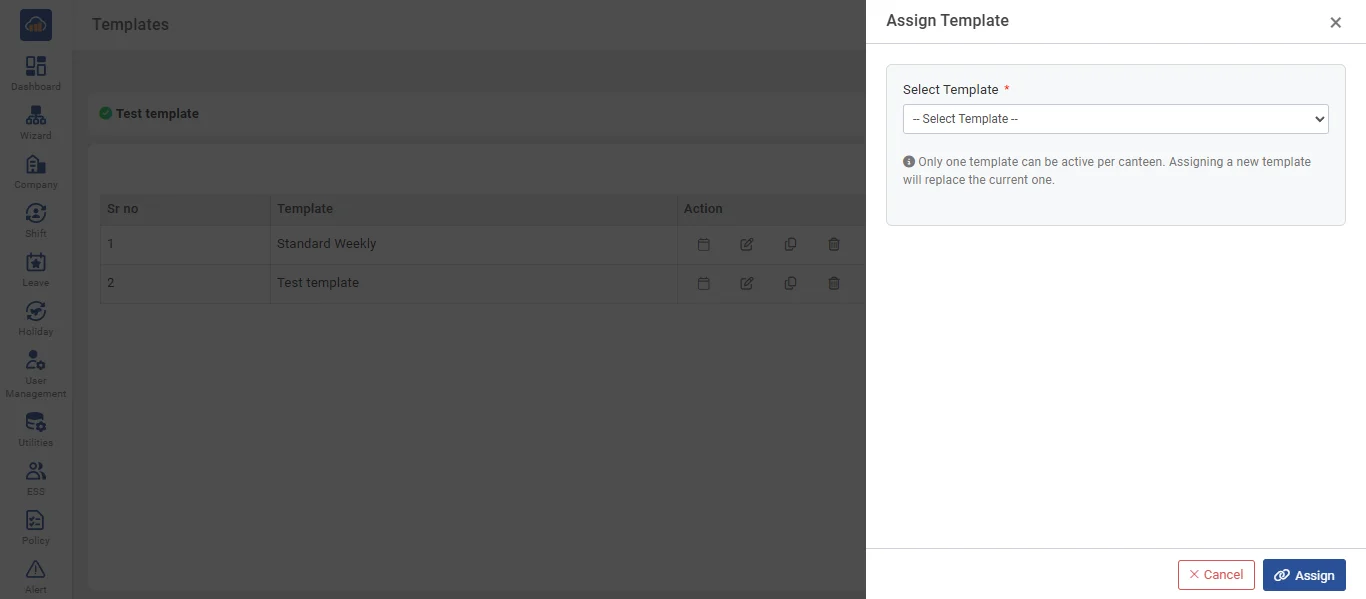
• To assign a template for daily menu generation, click the "Assign" icon or use the "Change" button on the Active Template panel. A side panel opens with a dropdown to select the template. Assigning a new template replaces the previously active one.
- Warning: "The live daily list may not be active yet. Assigning a new template will override the current one."
Click "Assign" to confirm.
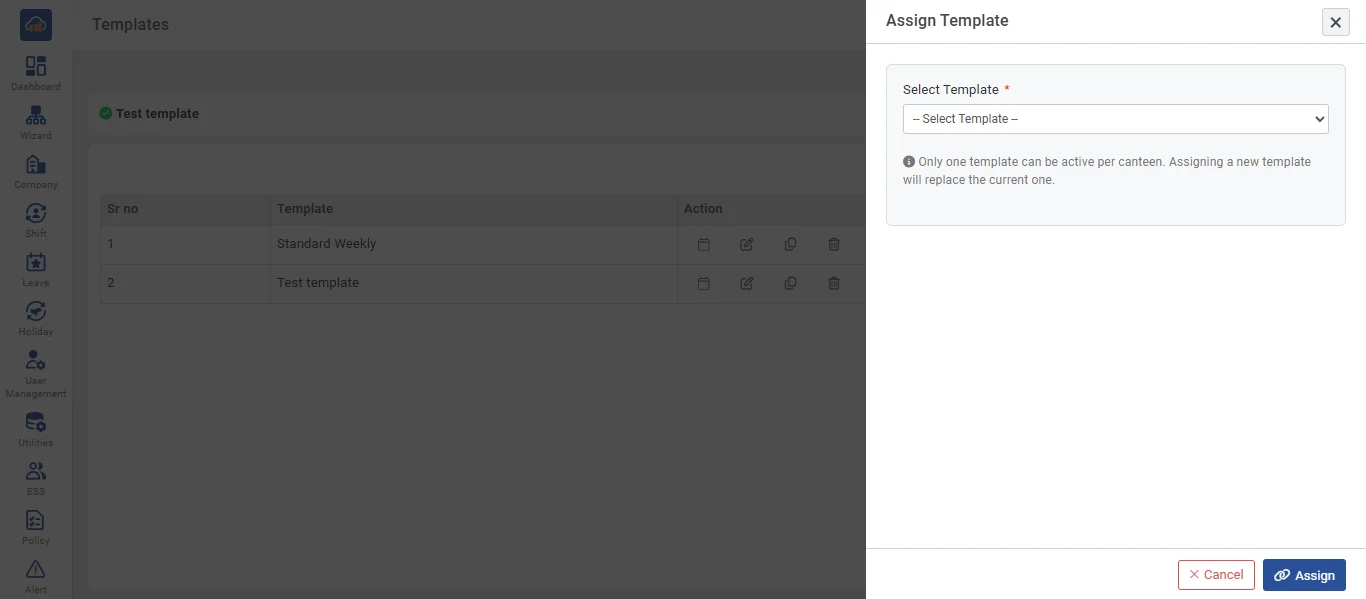
• The assign template panel also shows additional informational notes about template assignment behavior and its effect on daily menu generation.