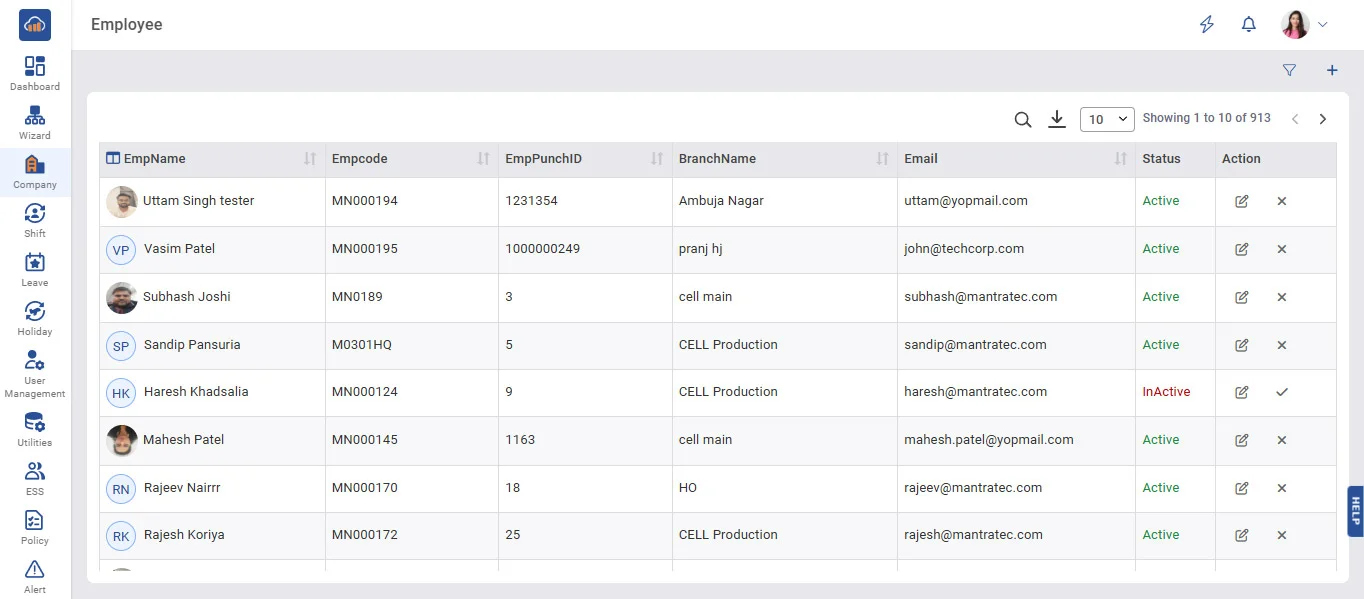
Above image shows example to add details while creating an employee.
Below image shows modal that comes when you click on “+ add Employee”
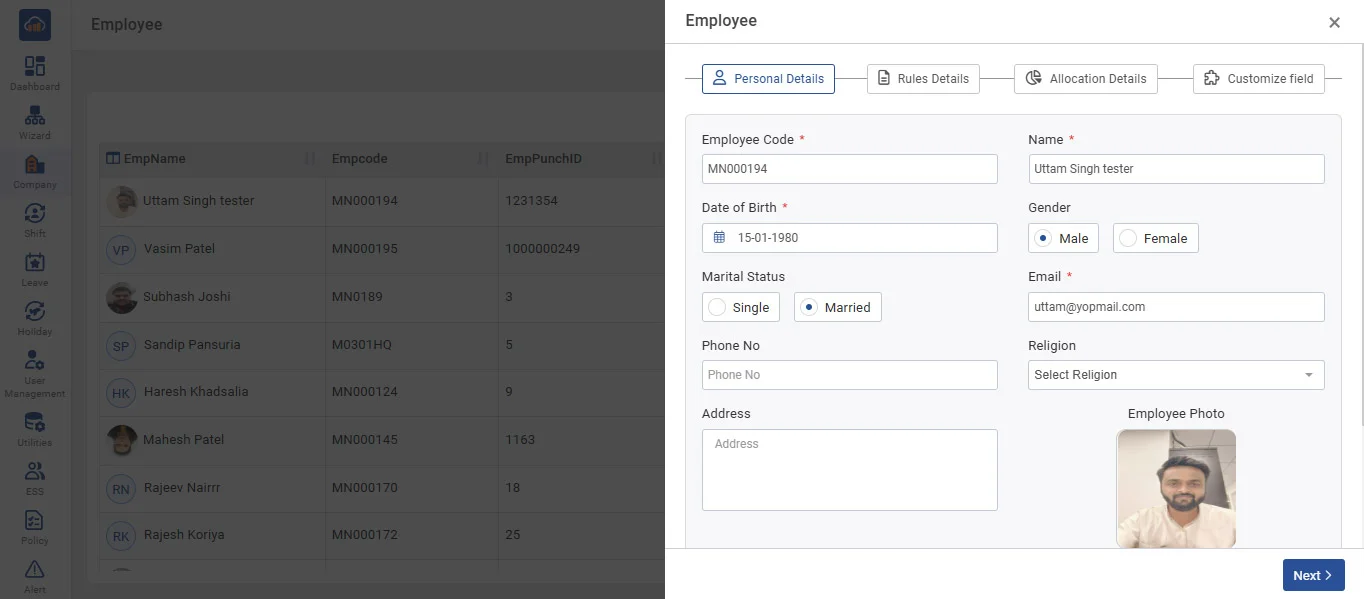
Above image shows example to add details while creating an employee Personal Details.
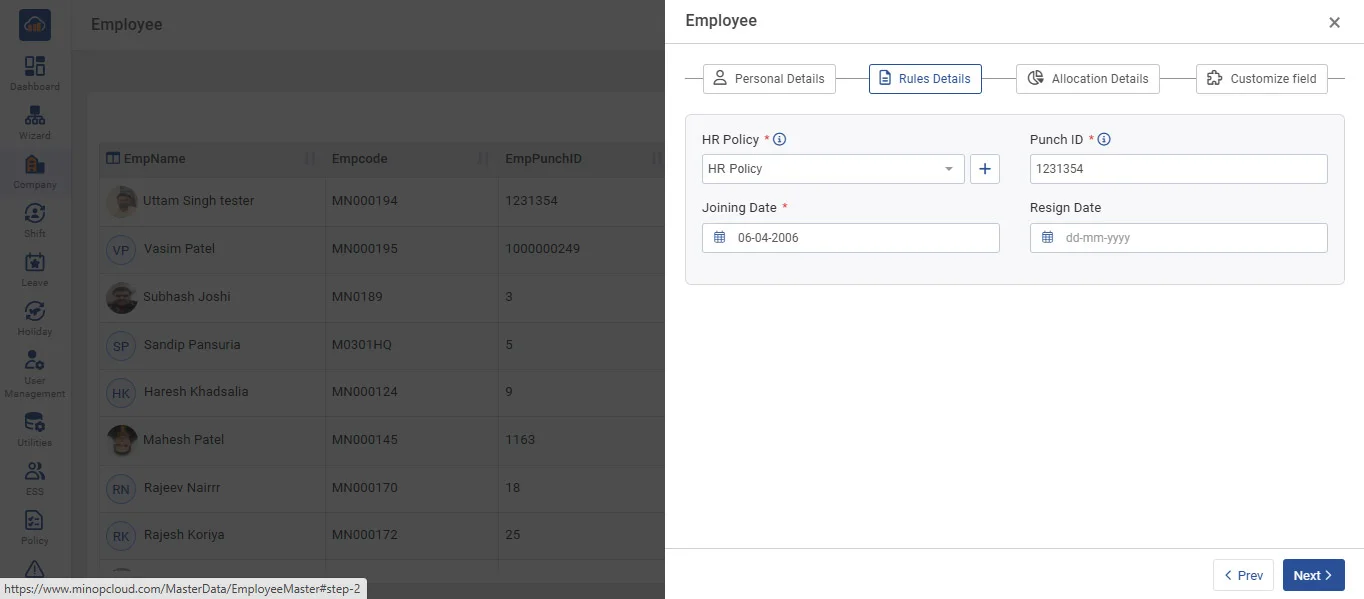
Above image shows about next tab required to select Rules Details and remaining details.
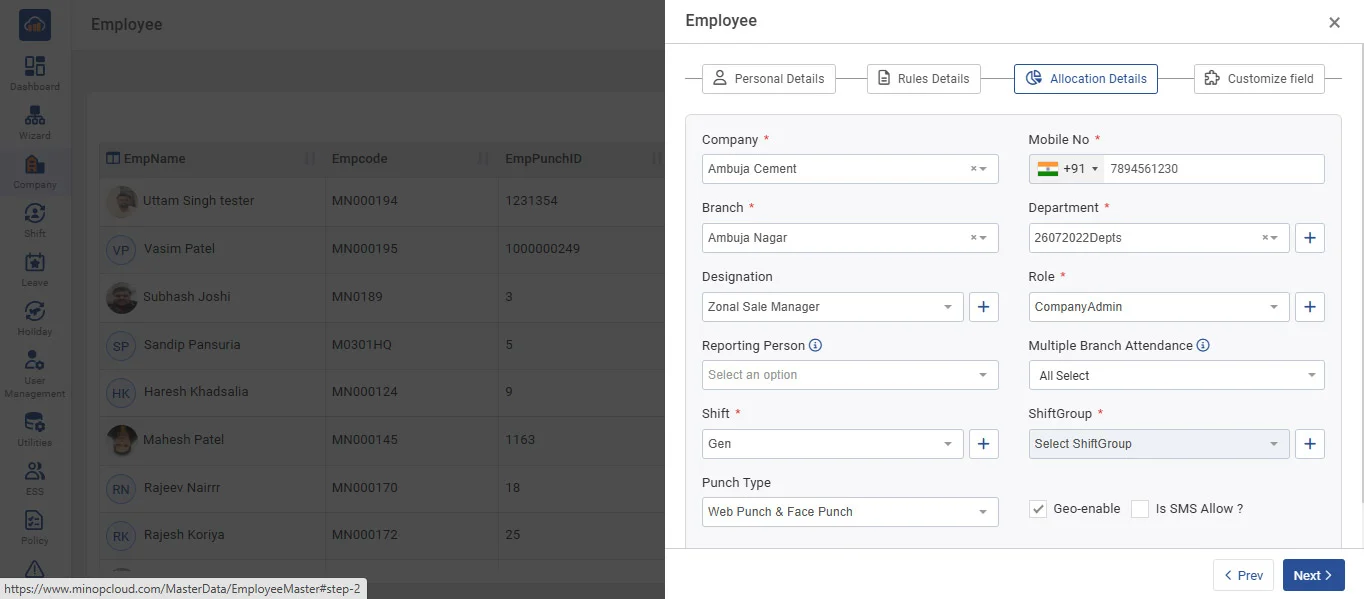
Above image shows about next tab required to select Allocation Details and remaining details.
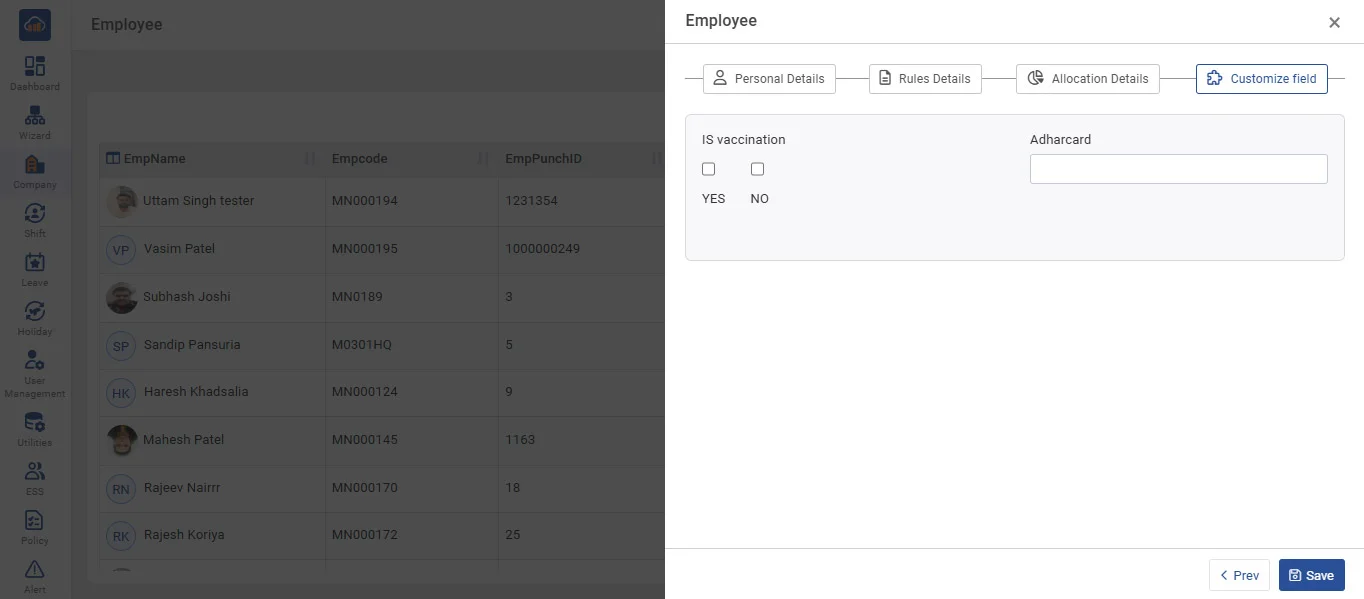
Above image shows about next tab required to select Customize Fileds.
•To add new employee, click on '+ Add Employee' and then fill in the employee details and click on the 'Save' button.
• In Grid, it displays all employee entries that are already entered by you.
• You can edit employee entries by clicking on the 'Edit' button.
• By clicking the “+” button, you can add that field from the employee master itself.
• If ESS in the system setting wizard is off, then email and mobile number are not mandatory fields, and if ESS is ON, then the user must enter an email and mobile number.
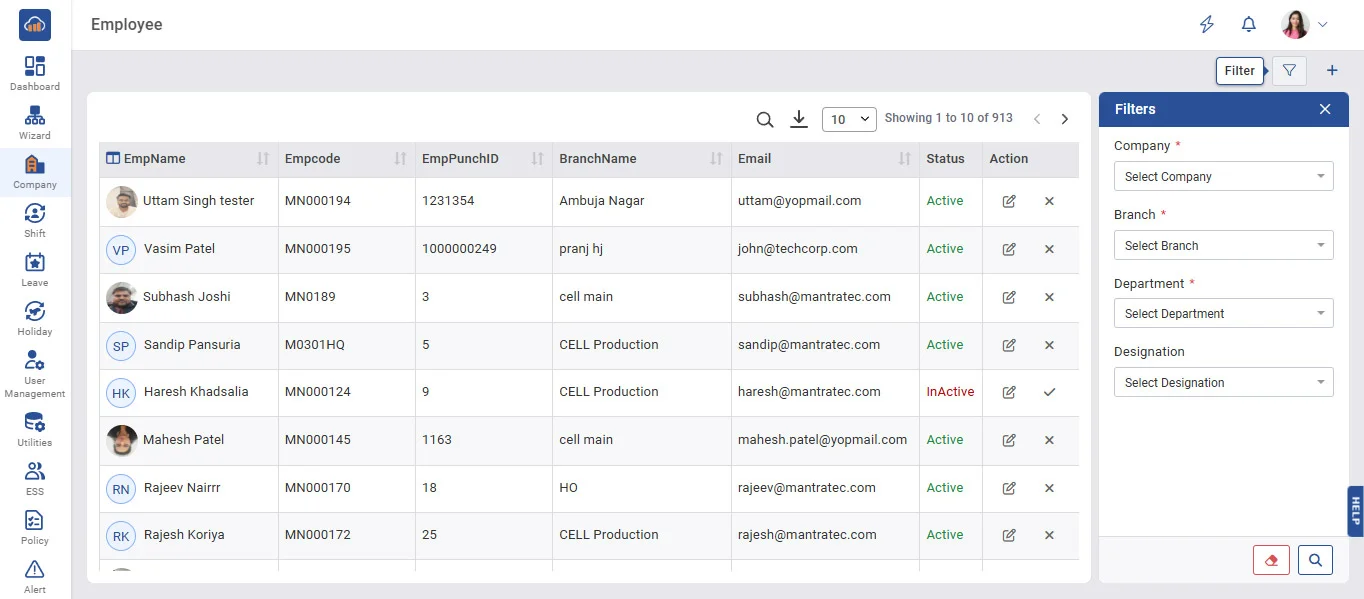
Apply filters to view specific data based on selected criteria.