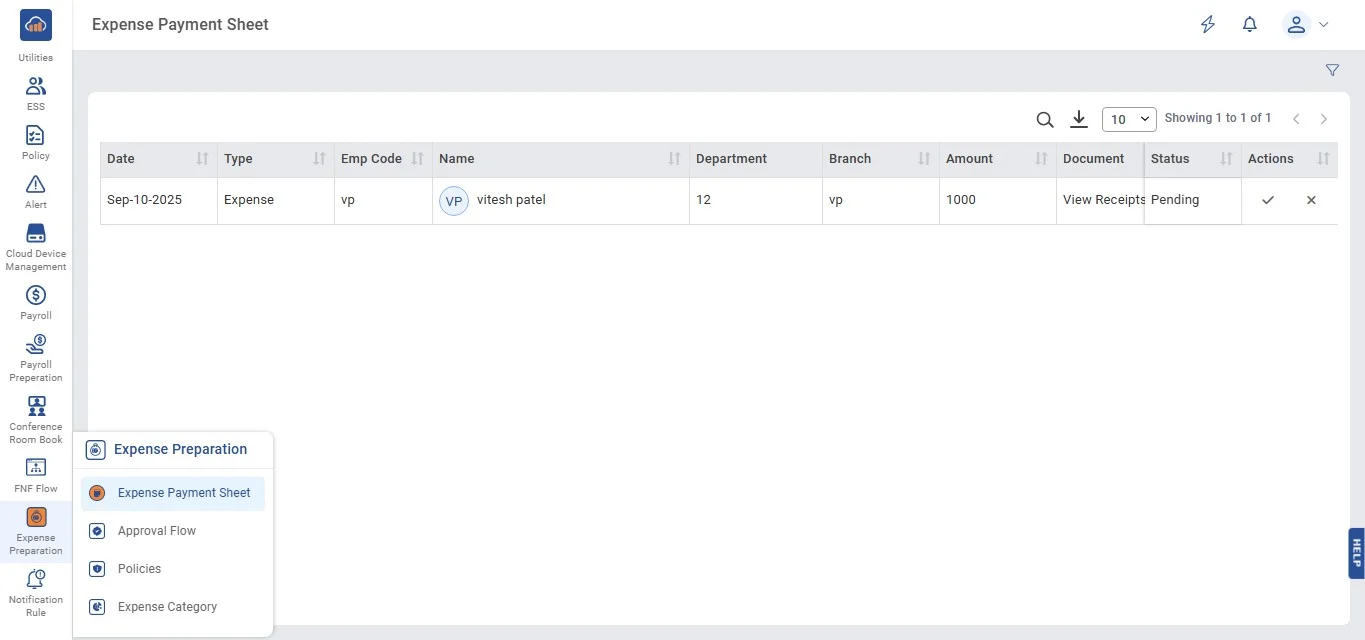
Step 1: Access the Expense Payment Sheet
• From the left navigation menu, go to: Expense Preparation → Expense Payment Sheet.
• This opens the list of all pending and processed expense claims.
| Field | Details |
|---|---|
| Type | MINOP - Expense Management System - Expense Payment Sheet |
| Device | Web Application |
The Expense Payment Sheet feature in the Expense Management System serves as the final approval stage for expenses. This page enables the administrator to review and confirm payments, with default approval roles designated to the Accounts and HR departments. It ensures proper authorization and accountability before expenses are released for payment.
• From the left navigation menu, go to: Expense Preparation → Expense Payment Sheet.
• This opens the list of all pending and processed expense claims.
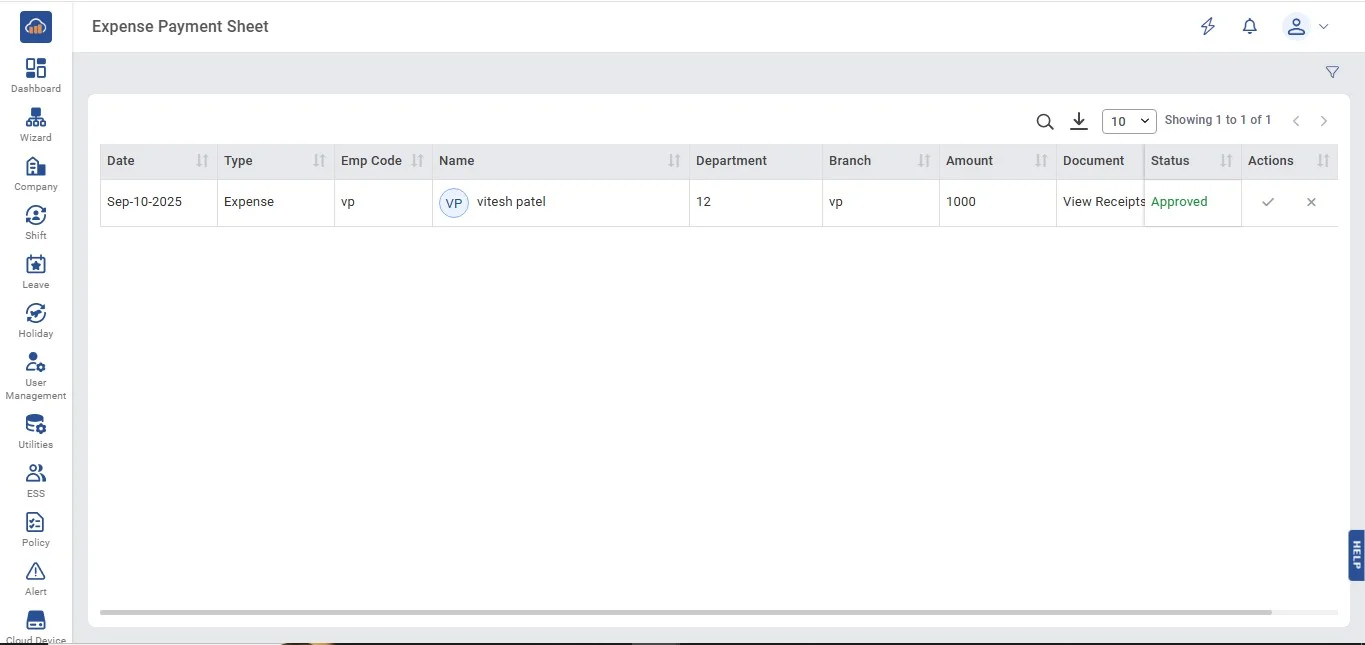
The system displays a table with key details:
| # | Column | Description |
|---|---|---|
| 1 | Date | Date of expense submission |
| 2 | Type | Type of expense (e.g., Expense, Travel) |
| 3 | Employee Code & Name | Employee Code & Name |
| 4 | Department and Branch | Department and Branch |
| 5 | Amount | Amount claimed |
| 6 | Document | Supporting Document (View Receipts) |
| 7 | Status | Current Status (e.g., Pending) |
| 8 | Actions | Approve / Reject |
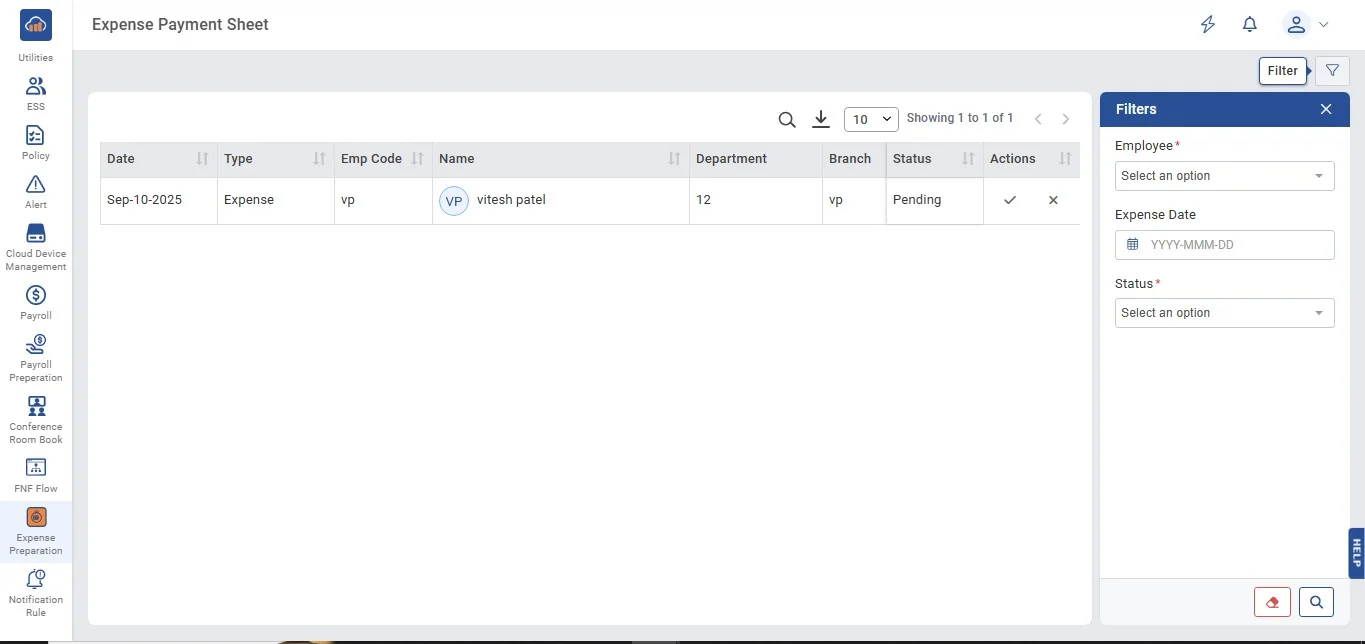
Use the Filter option (right panel) to search by:
• Employee
• Expense Date
• Status (Pending, Approved, Rejected)
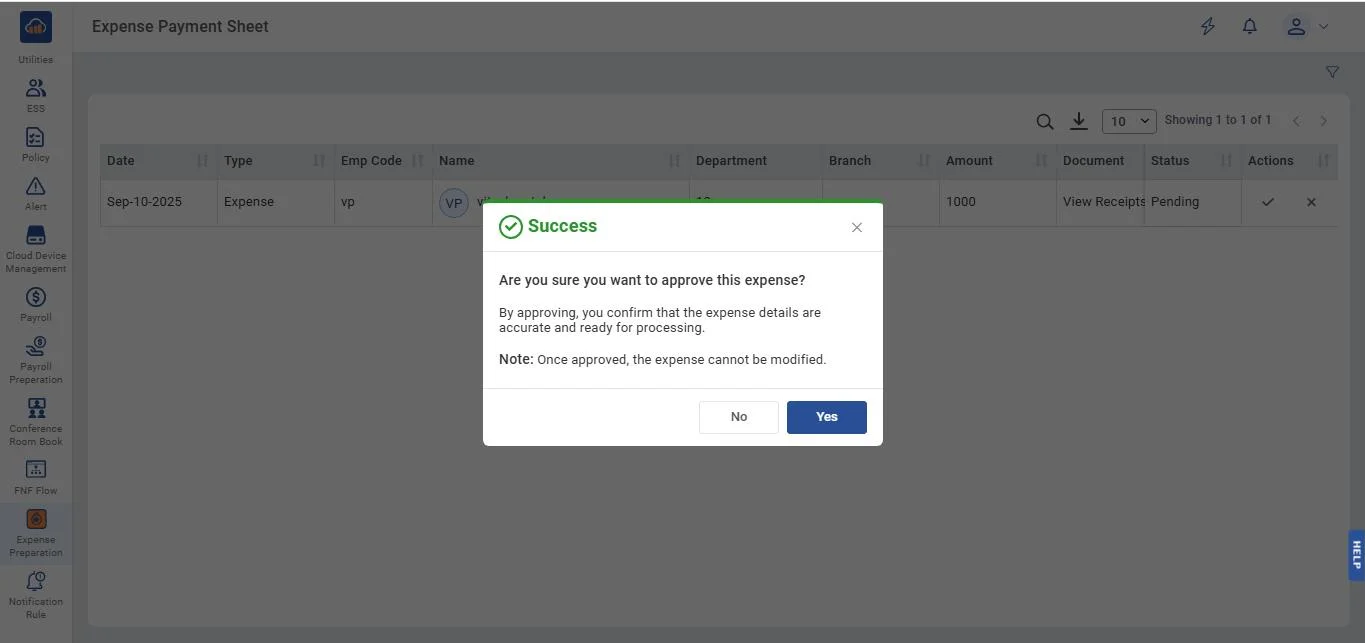
• Click on the ✔ (Approve) action.
• A confirmation popup appears: "Are you sure you want to approve this expense? By approving, you confirm that the expense details are accurate and ready for processing."
• Click "Yes" to confirm approval or "No" to cancel.
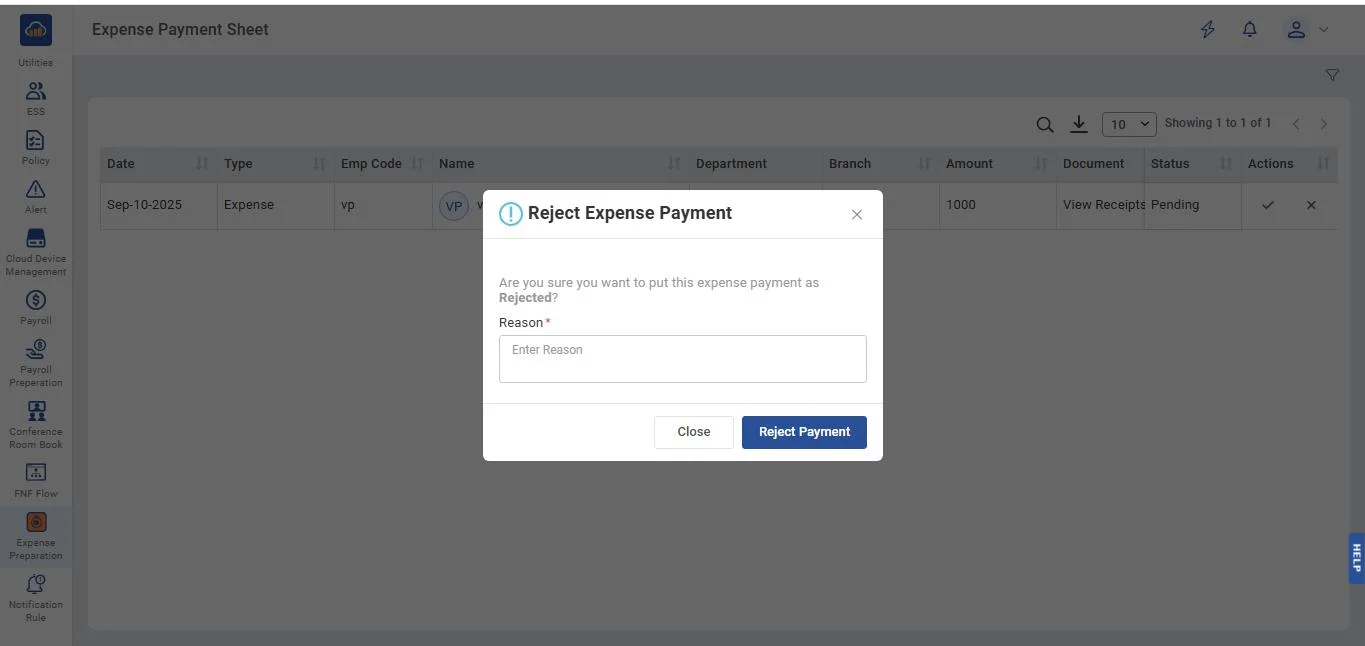
• Click on the ✖ (Reject) action.
• A popup appears asking for a rejection reason.
• Enter the reason for rejection (mandatory field).
• Click "Reject Payment" to confirm.
• The status updates to Rejected and the employee is notified.
• Approved expenses move forward to the Accounts/HR team for payment disbursement.
• Rejected expenses are logged with the rejection reason and returned to the employee.
• Reports can be exported for auditing and compliance.