Expense Request

Overview

Field Details
Type Expense Request
Version 1.0

Goal/Scope

The scope for expense requests in an expense management system involves enabling users to submit detailed expense requests, attach receipts, categorize expenses, specify dates, and submit for approval within defined policies and thresholds.

User Story

An employee/manager wants to submit expense requests in the system, including details and receipts, so that they can be reviewed and approved efficiently, ensuring timely reimbursement and accurate financial tracking.

Sections

1. Expense Request:

    a. Step 1 – Expense Details/Travel Details

    b. Step 2 – Upload Bills or Documents

2. View/Edit/Delete Expense Request

1. Expense Request

Step 1 – Expense Details / Travel Details

Validation: If user role = Employee/Manager

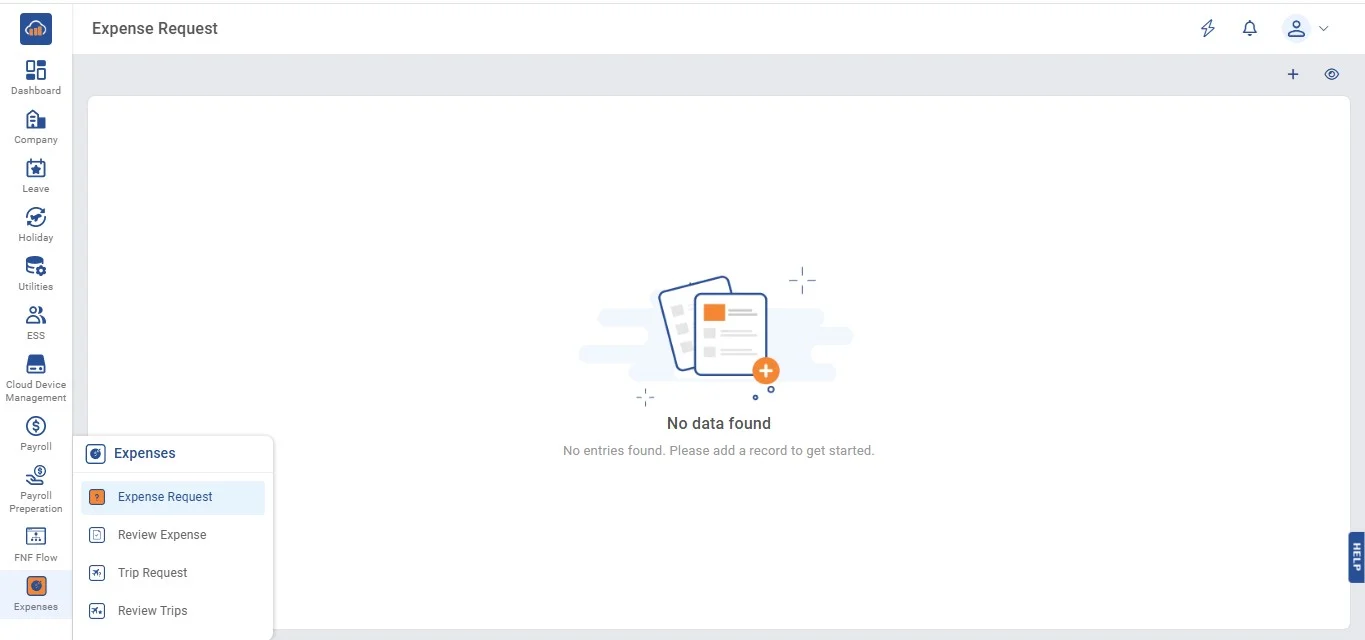
The following page gets open when one selects on the "Expense Request" from side navigation under "Expenses" which is primary navigation.
img

Then click "Expense Request" button at the top right to add flow.
img

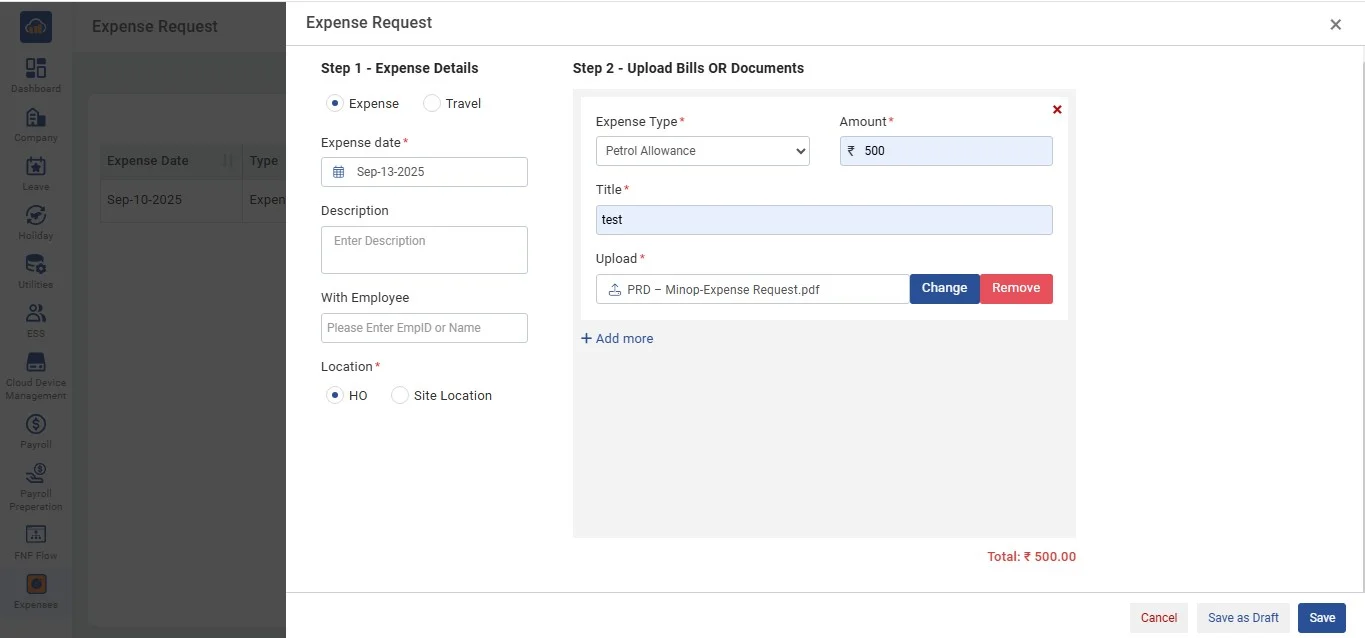
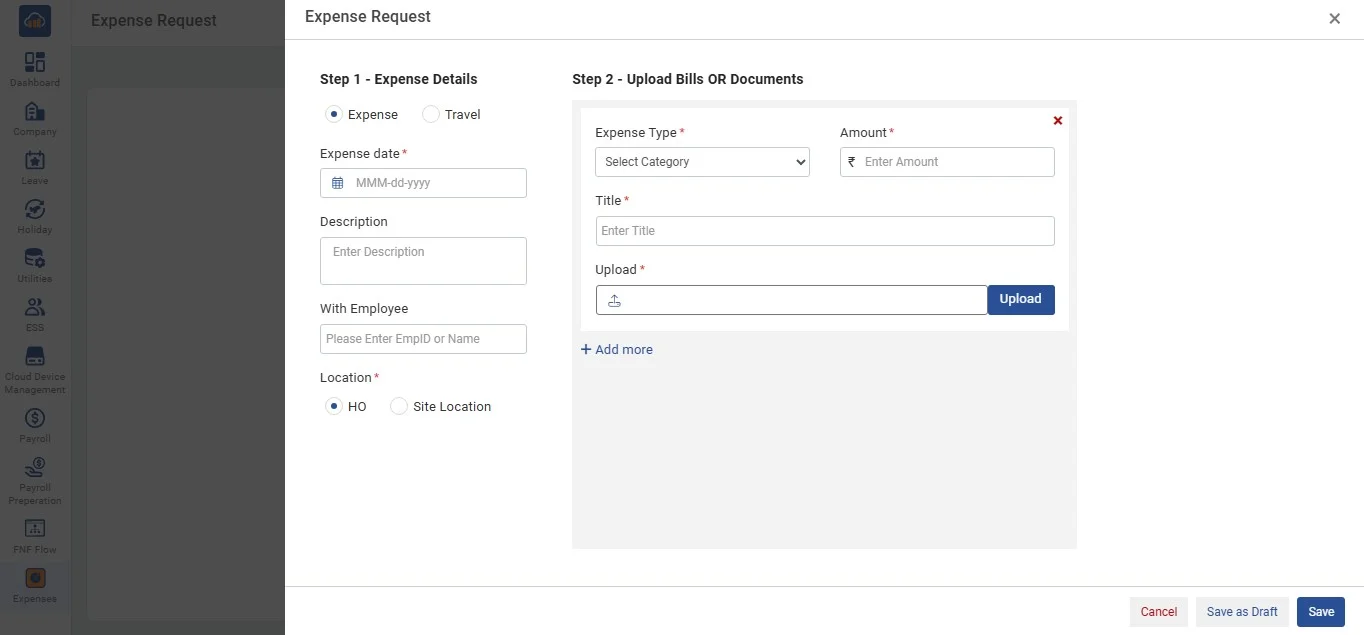
After clicking on "Expense Request" a modal gets open that showcases the fields to be filled to add expense request.
img

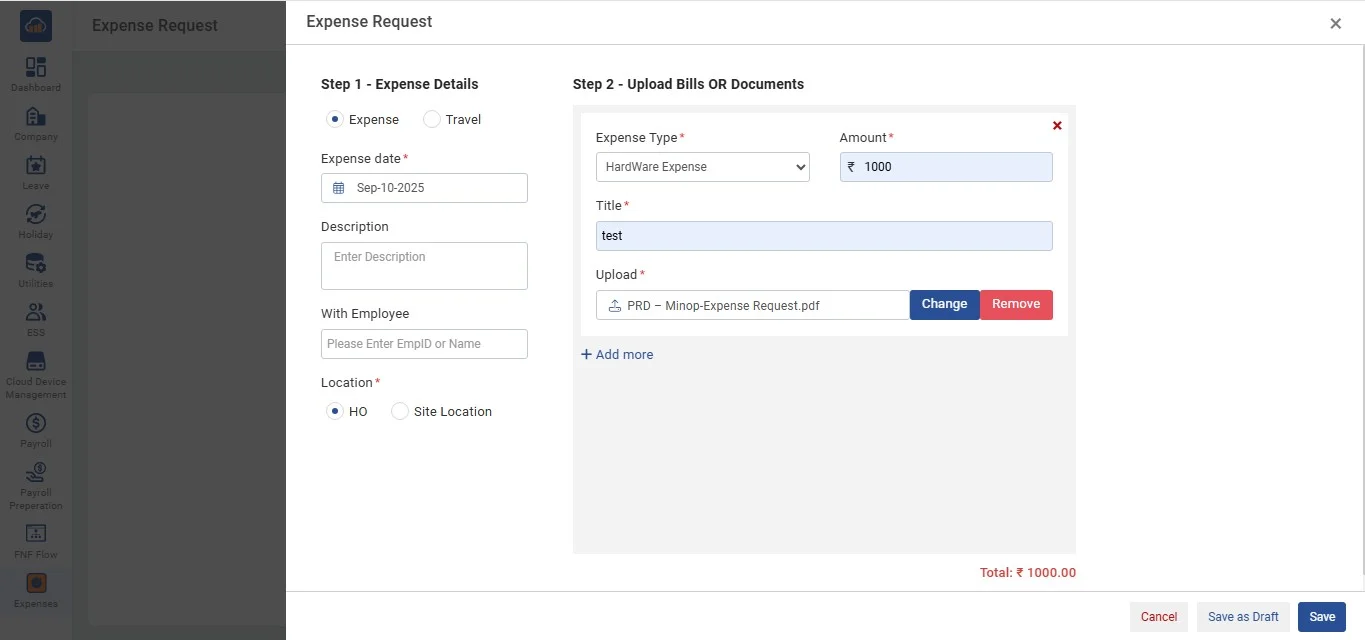
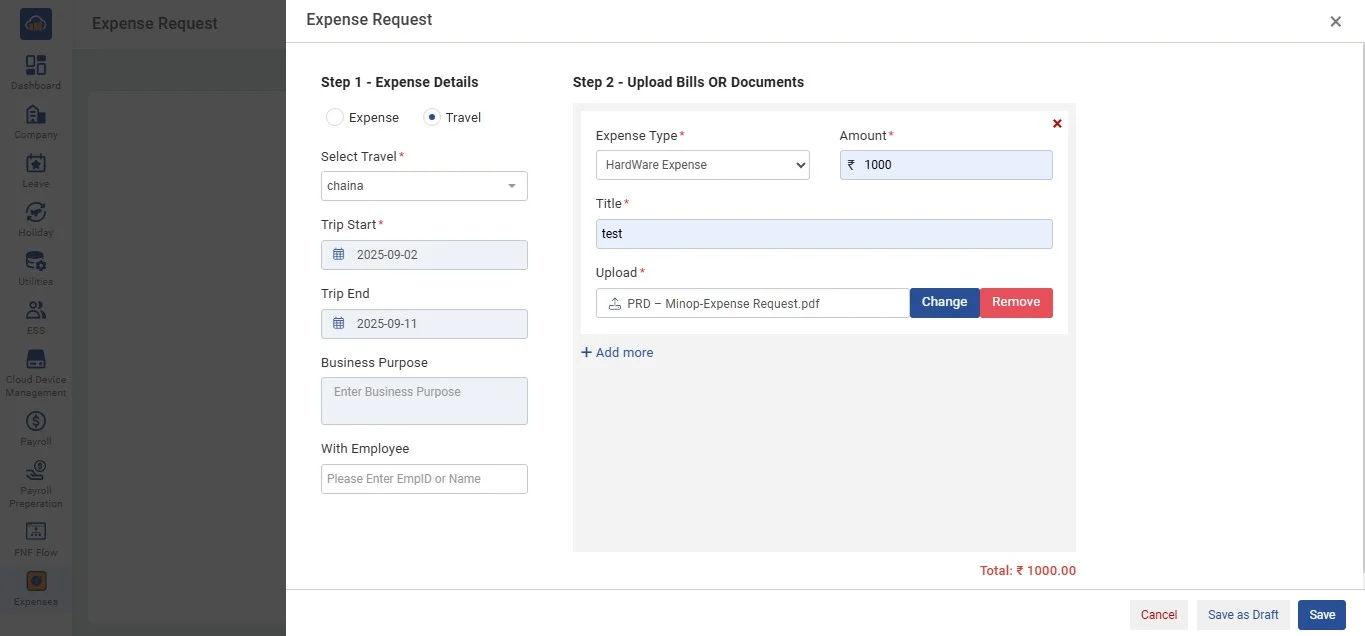
Enter the information either for "Expense" or "Travel". Continue the process by filling information in Step 2.
img

Step 2 – Upload Bills or Documents

Validation: If user role = Employee/Manager

After Step 1, enter the information in Step 2 to complete the process.

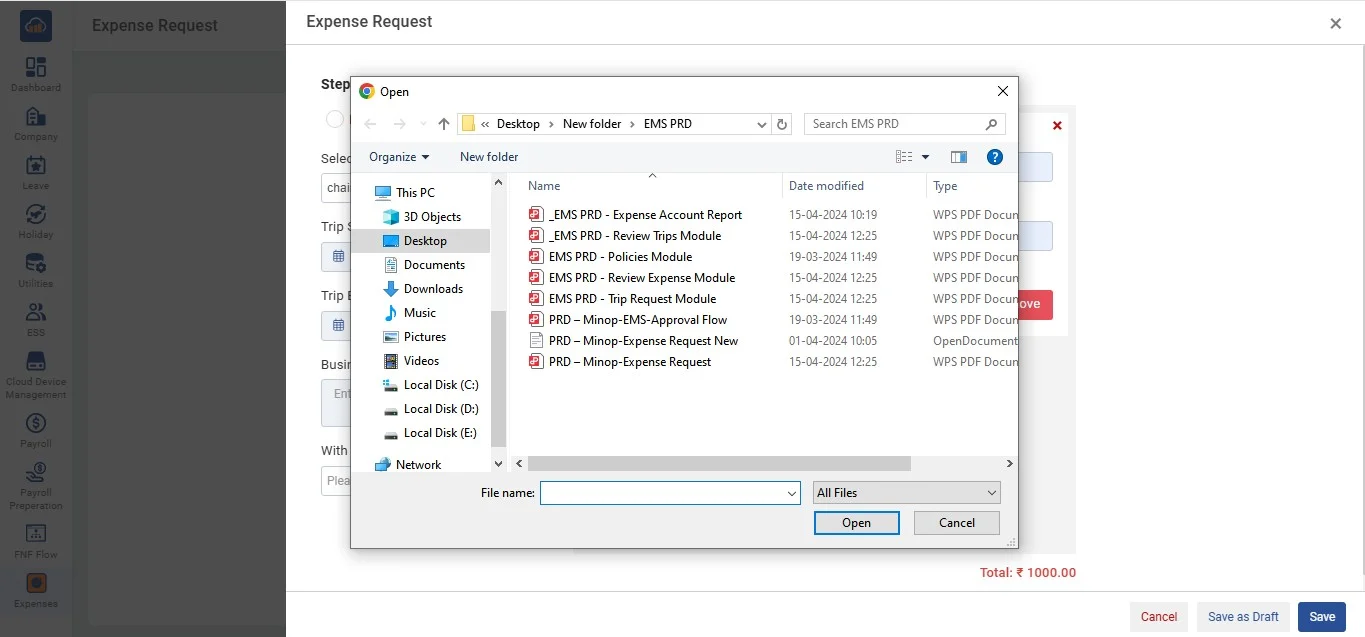
Click on "Upload" button to upload any file.

img

After selecting file click on "Expense Request" to add the request. The approvers list views details on who are the approvers.

img

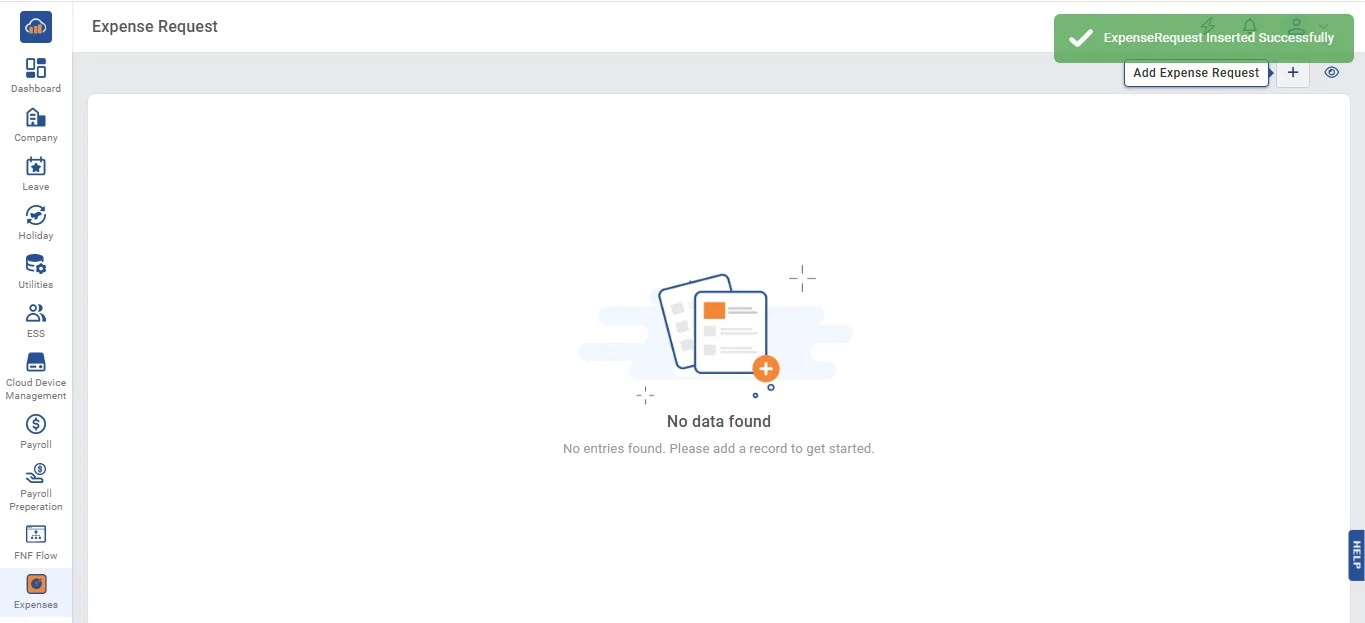
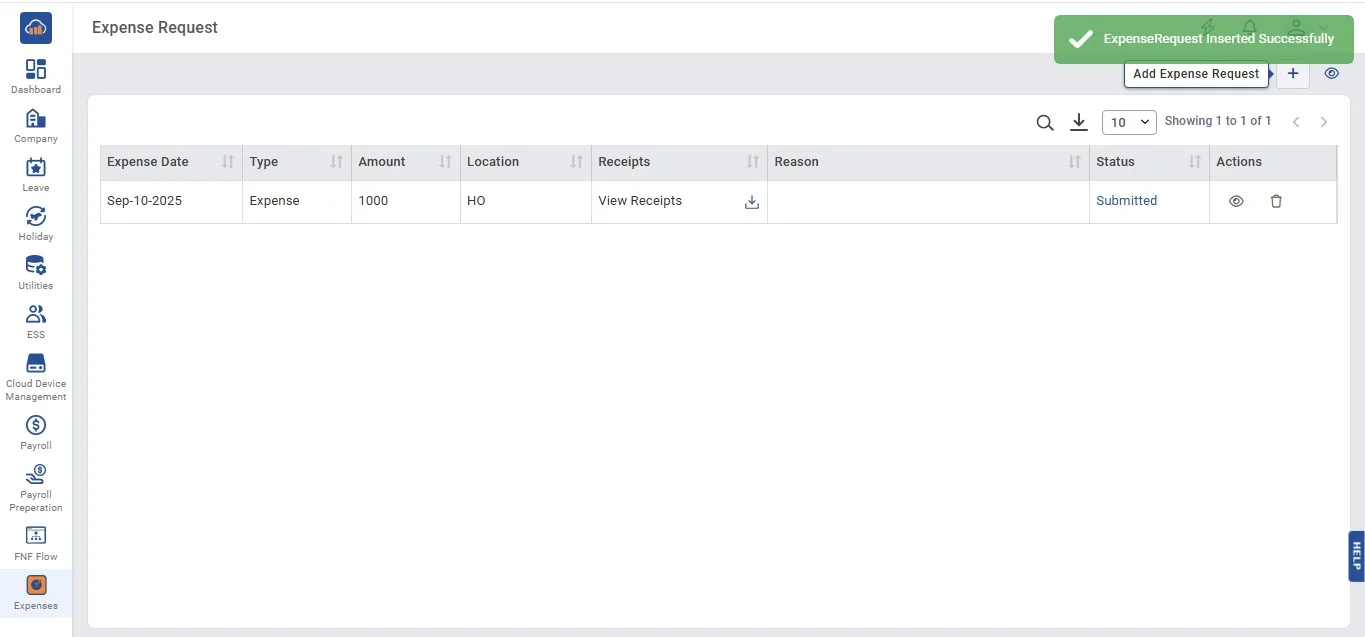
On clicking "Expense Request" a toaster will appear to confirm that it is added.

img

Click on "Save as Draft" to add the request as draft. If user does not want to add then can click on "Cancel" or close button icon on top right of modal.

img

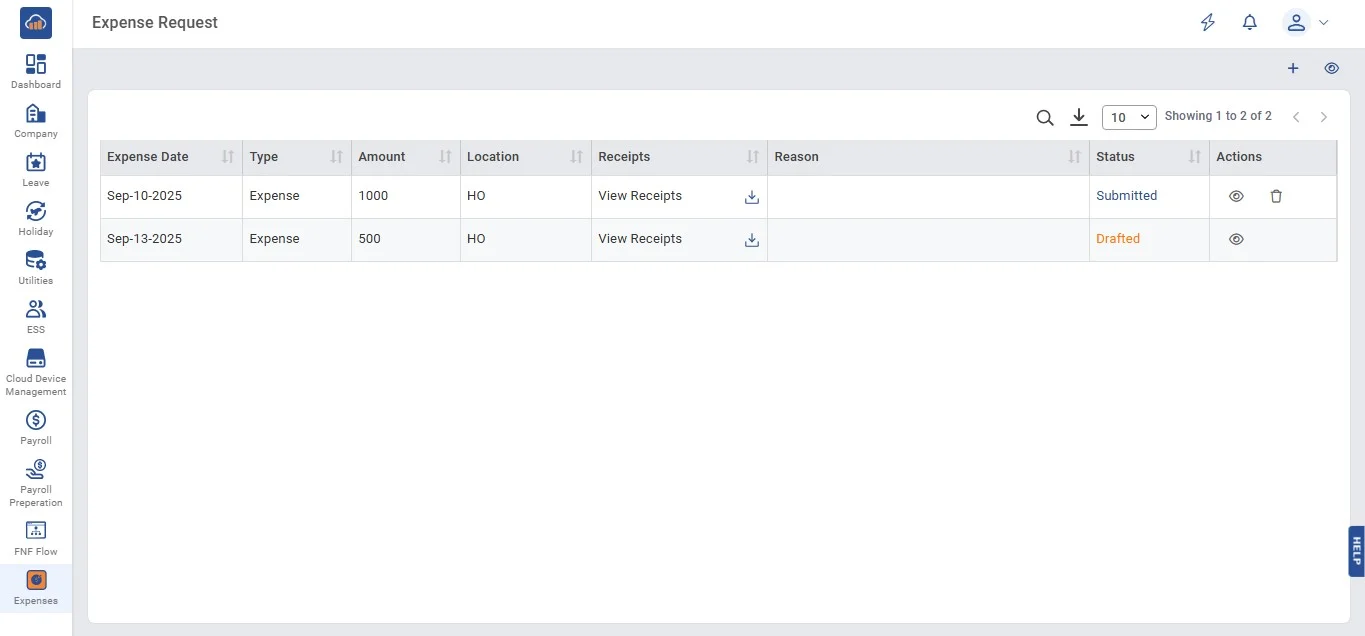
On clicking "Save as Draft" a toaster will appear to confirm that it is drafted.

img

2. View/Edit/Delete Expense Request

Column Action Condition
Expense Date On click CTA search button Click search by date to search
Type On click CTA search button Click search by type to search
Amount On click CTA search button Click search by an amount to search
Location Non-Actionable View only
Receipts On click CTA Click to download receipts
Reason Non-Actionable View only
Status Non-Actionable View only for Drafted/Submitted status depending on actions
Actions On click CTA icons View/Edit/Update/Delete icons
Validation: If user role = Admin/Manager

After saving as draft, user can edit the drafted details by clicking on "Edit" icon. When user status shows as draft then they could not view particular expense. It could only be edited or deleted.

img

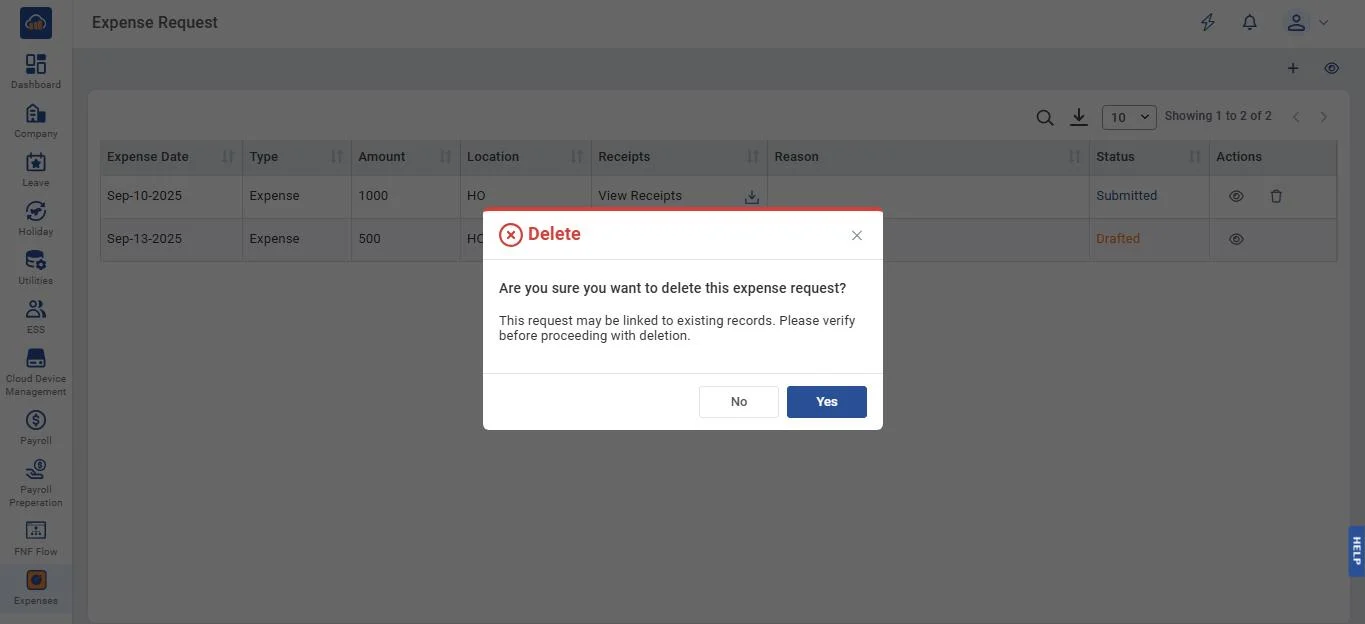
If user wants to delete the expense then can click on "Delete" icon. After clicking a pop-up message will appear to confirm the delete. Click "Yes" or user can return by clicking "Back" button.

img

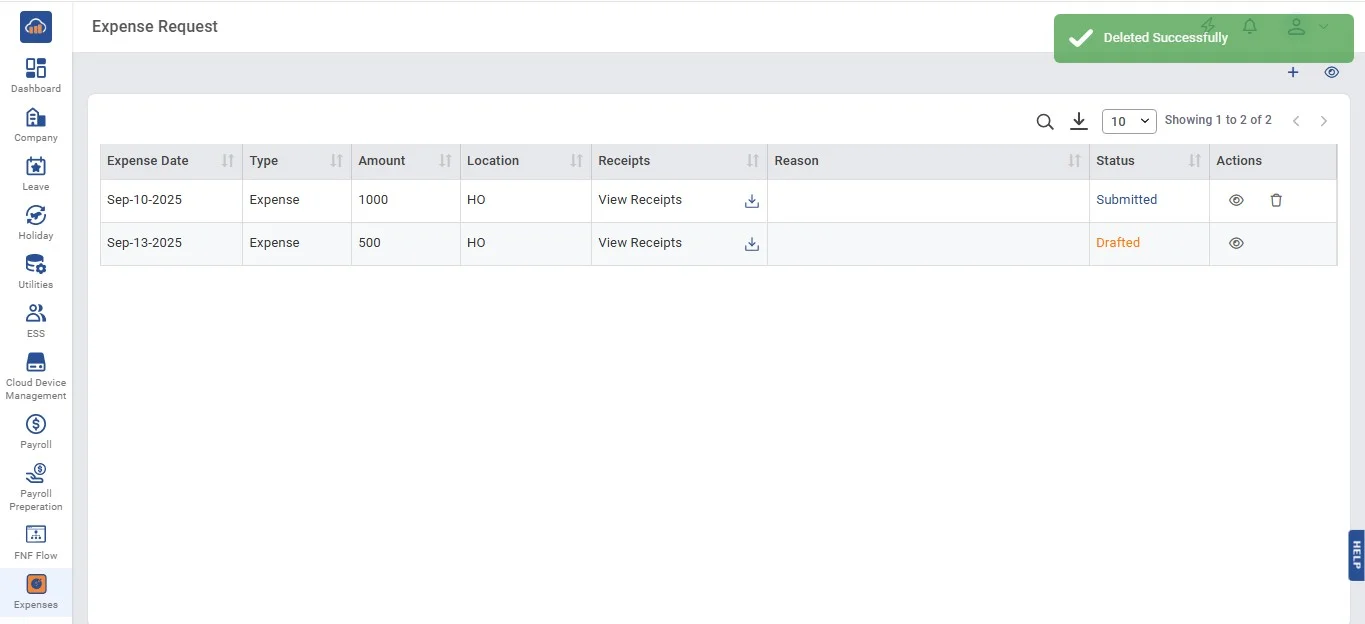
By clicking "Yes" a success toaster will appear to confirm the delete.

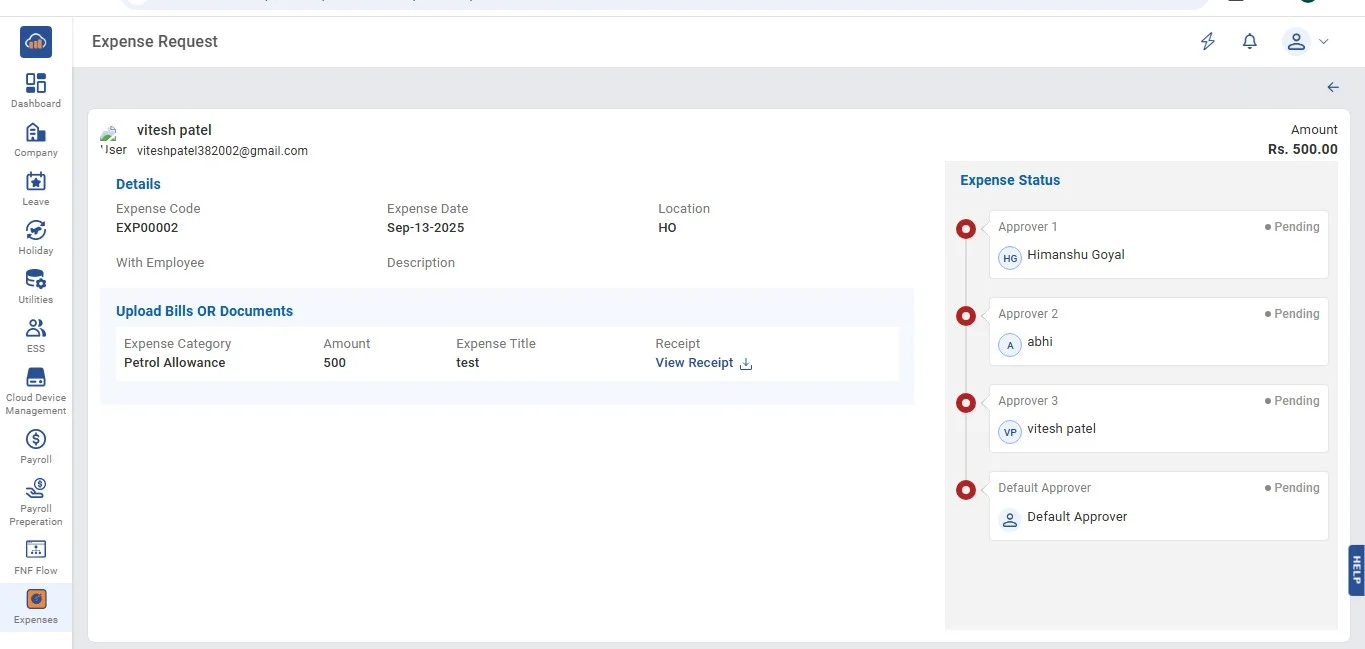
User can see the expense status of particular expense by clicking on "View" icon.

img