Review Expense

Overview

Field Details
Roles Admin/Manager Only
Type MINOP - Expense Management System - Review Expense Module
Device Web Application

Goal/Scope

The scope for reviewing expenses in an expense management system involves allowing designated reviewers to access submitted expense requests, review details, verify receipts, ensure compliance with policies, and approve or reject expenses within specified thresholds and guidelines.

User Story

Manager/Admin reviews submitted expenses in the system, ensuring accuracy, compliance with policies, and appropriate documentation, for timely approval or rejection.

Function and Rule Description

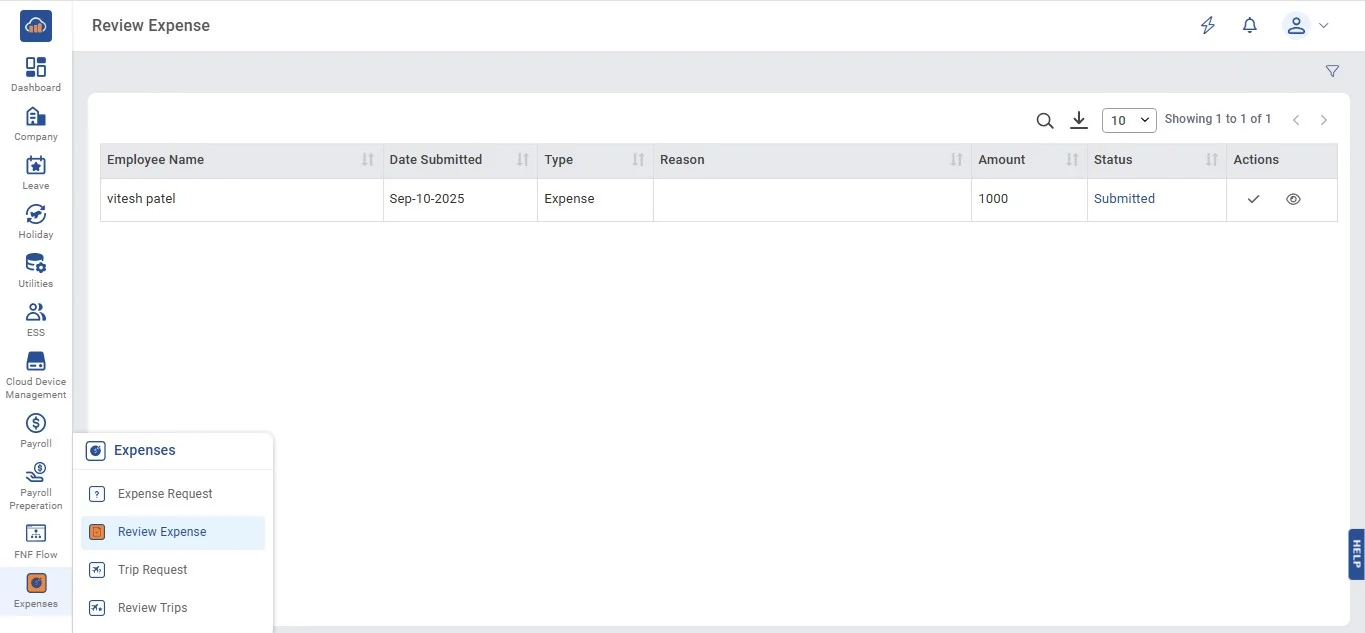
When you click on "Expenses", you'll see a menu with four options: Expense Request, Review Expense, Trip Request and Review Trips.

If you click on Review Expense, there are two possibilities.

1. If there are no expenses created yet, you'll see an empty screen.
img

2. When a user visits the Review Expense page, they can see the following table in which they can see the status submitted. In action, they can click on the "Approve" button to approve.
img

Sections

1. Approve, On Hold, Decline, View & Download Receipt

    a. View Personal Details

    b. Uploaded Bills or Documents list

    c. Expense Status

2. Filter

3. Level 2, 3, and Default Approver

1. Approve, On Hold, Decline, View & Download Receipt

Validation: If user role = Admin/Manager

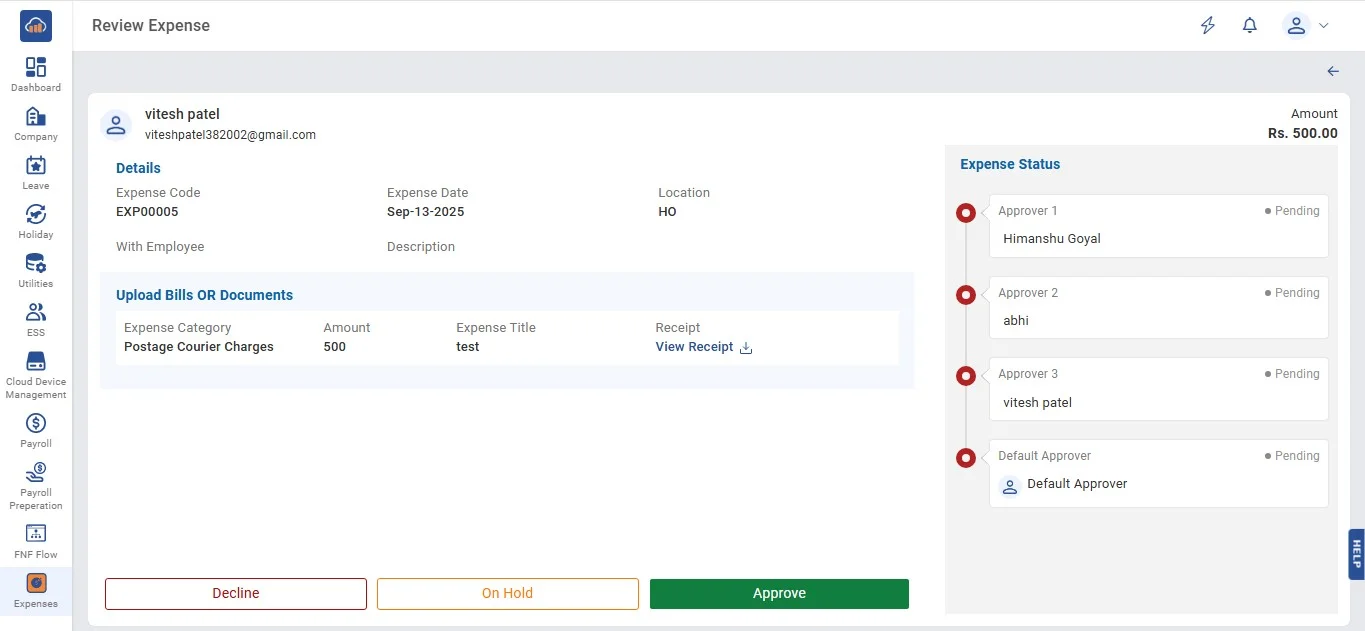
After clicking on the "Approve" button the following page opens.

img

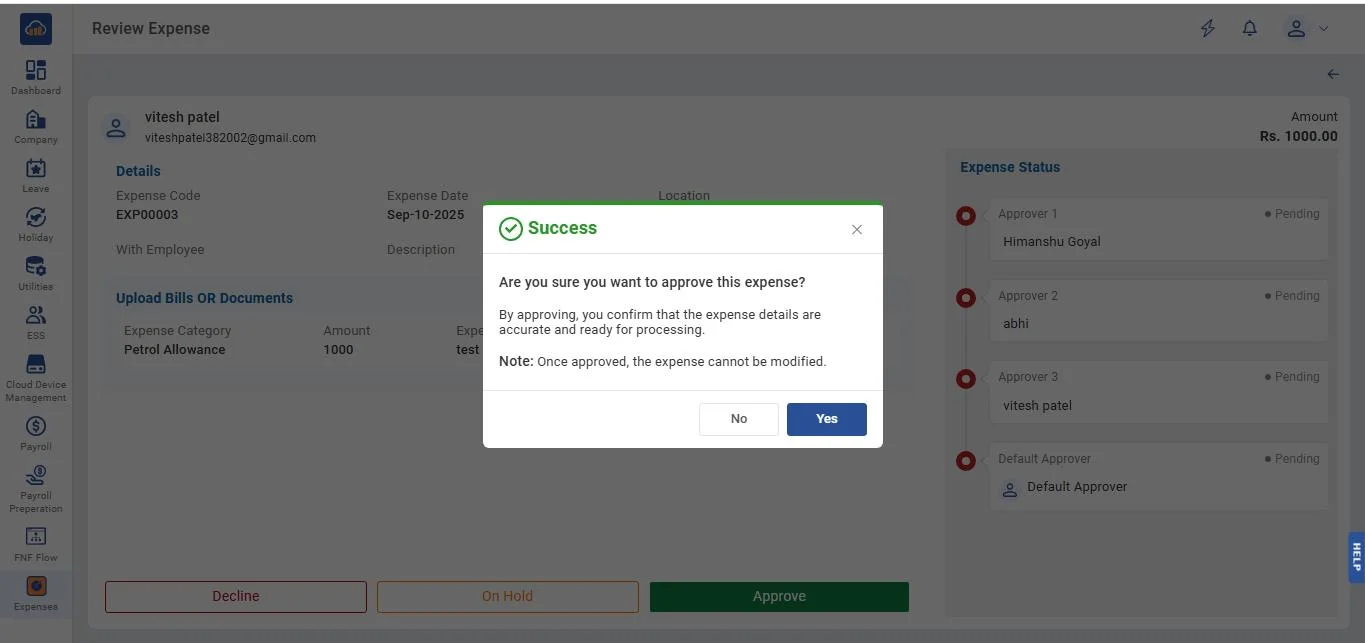
Then the user can click on the "Approve" or "On Hold" button to approve or keep on hold.

img

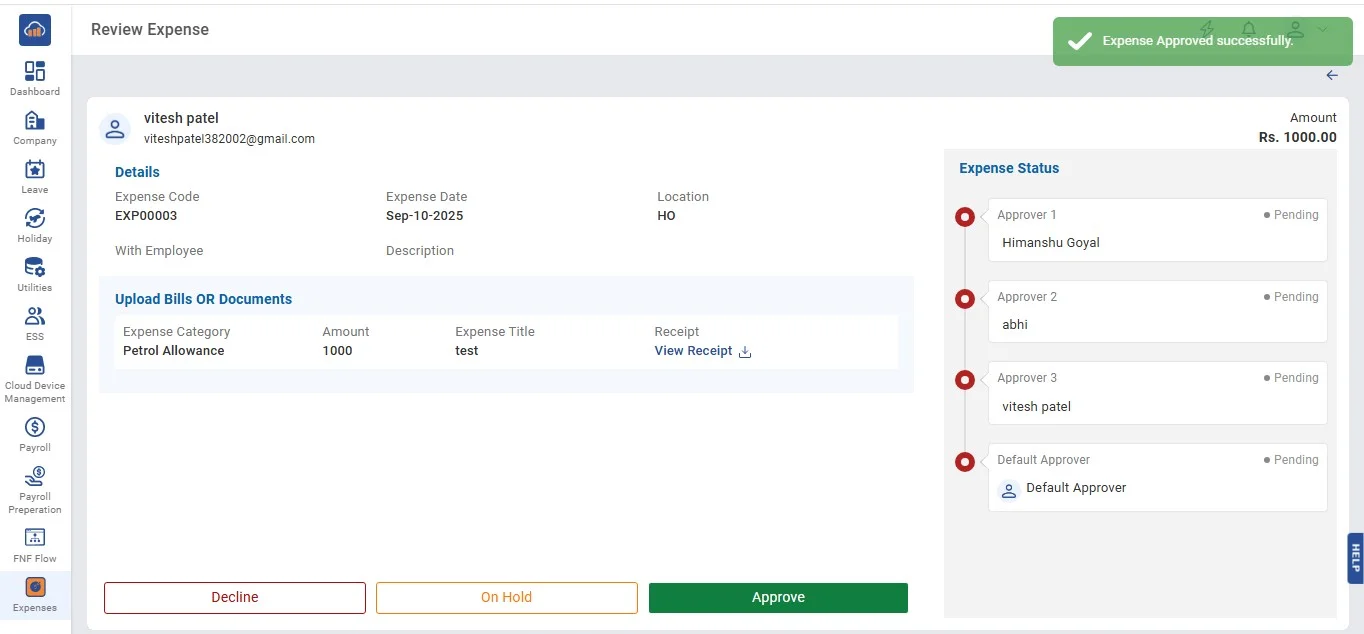
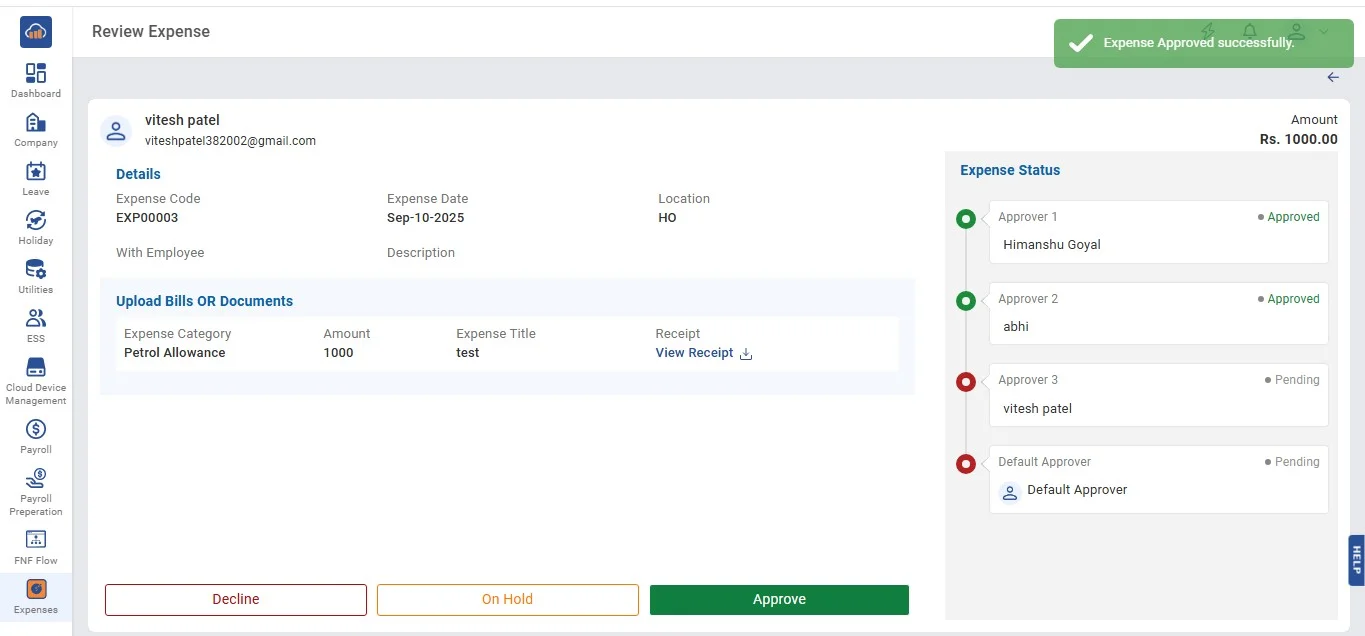
After clicking on "Approve" a success toaster message will appear to confirm approval.

img

View Expense Details

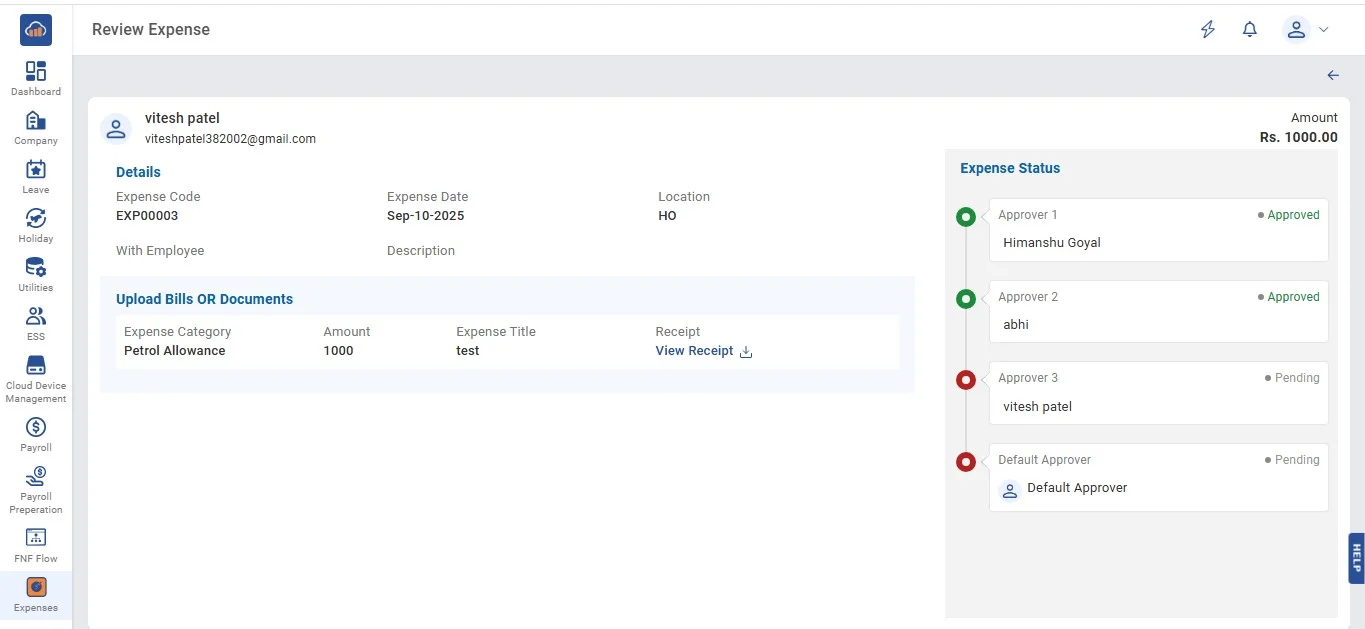
On clicking on the "View" icon from the table, users can view the following page.

img

On Hold

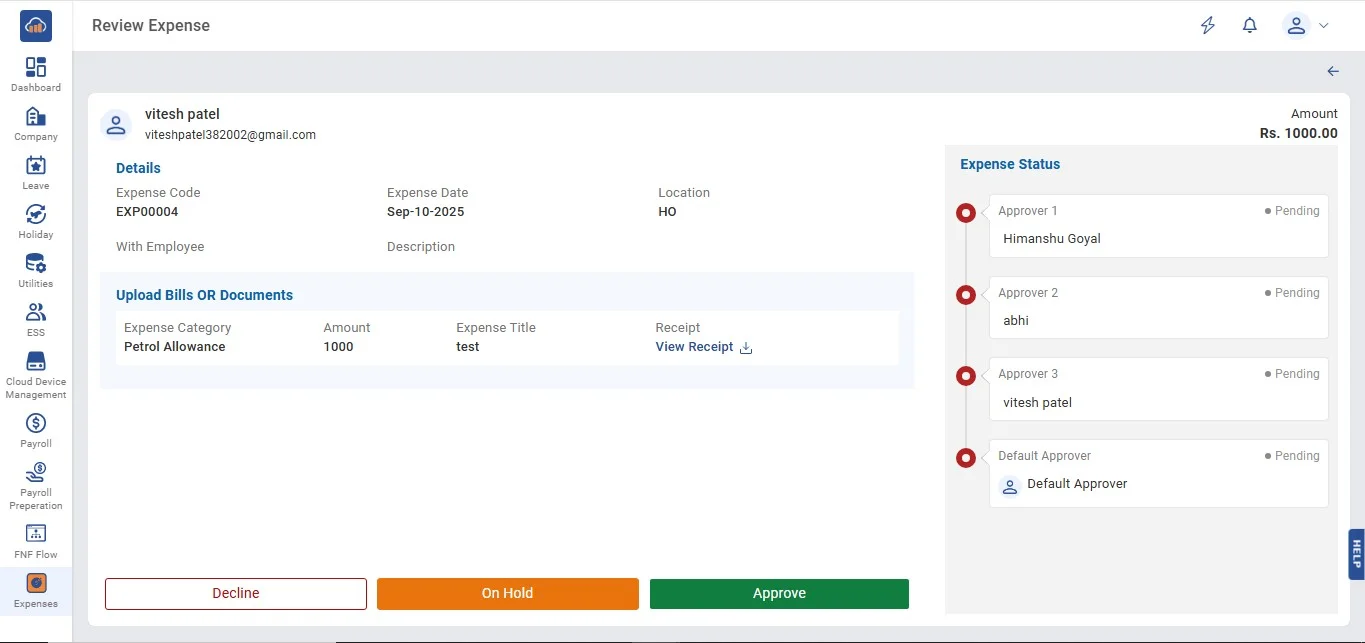
Users can click on the "On Hold" button if they want to keep on hold the expenses.

img

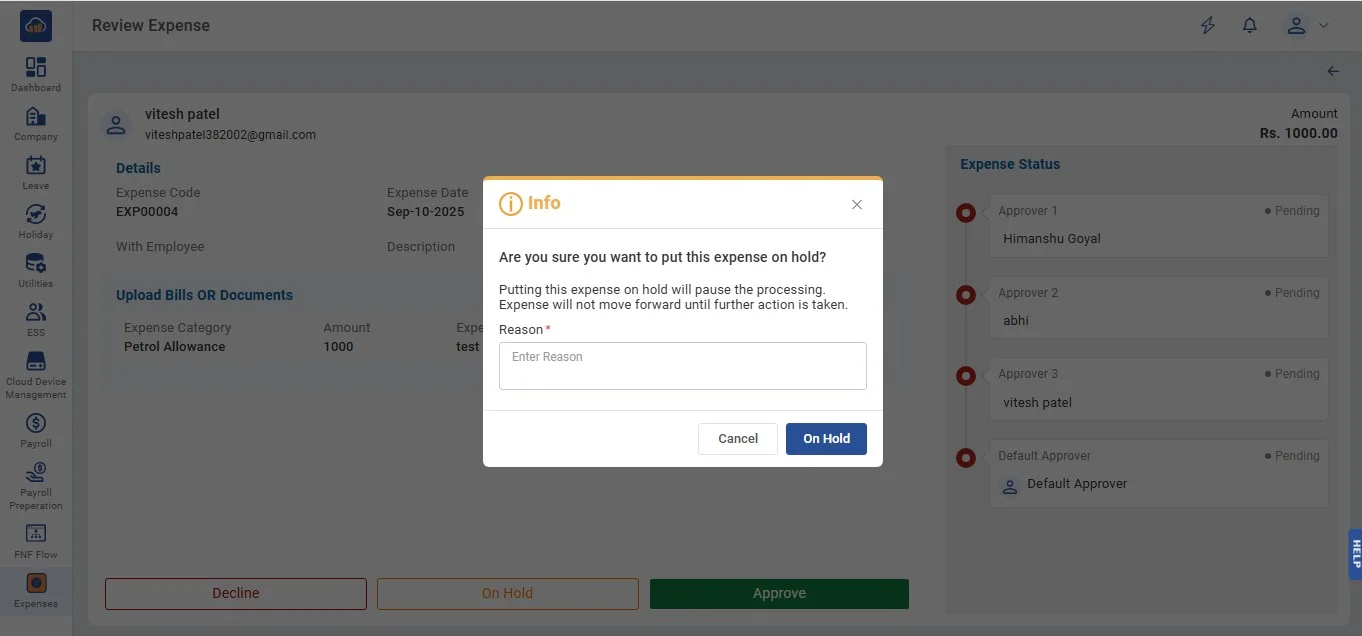
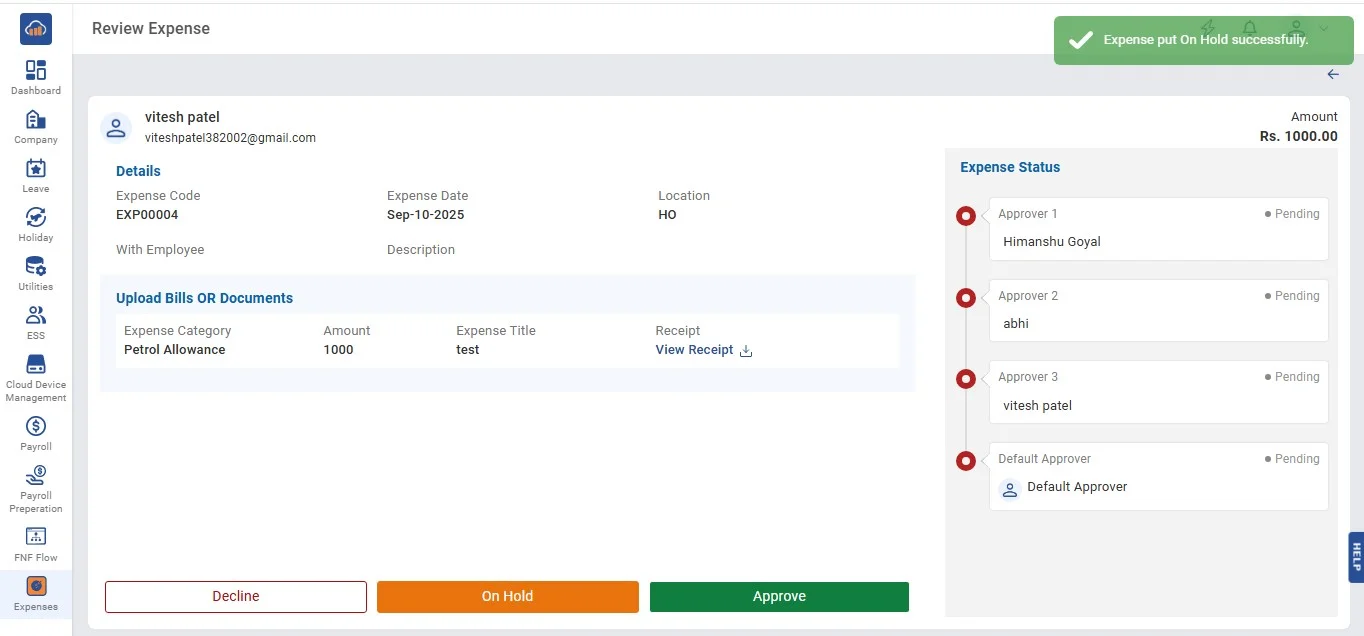
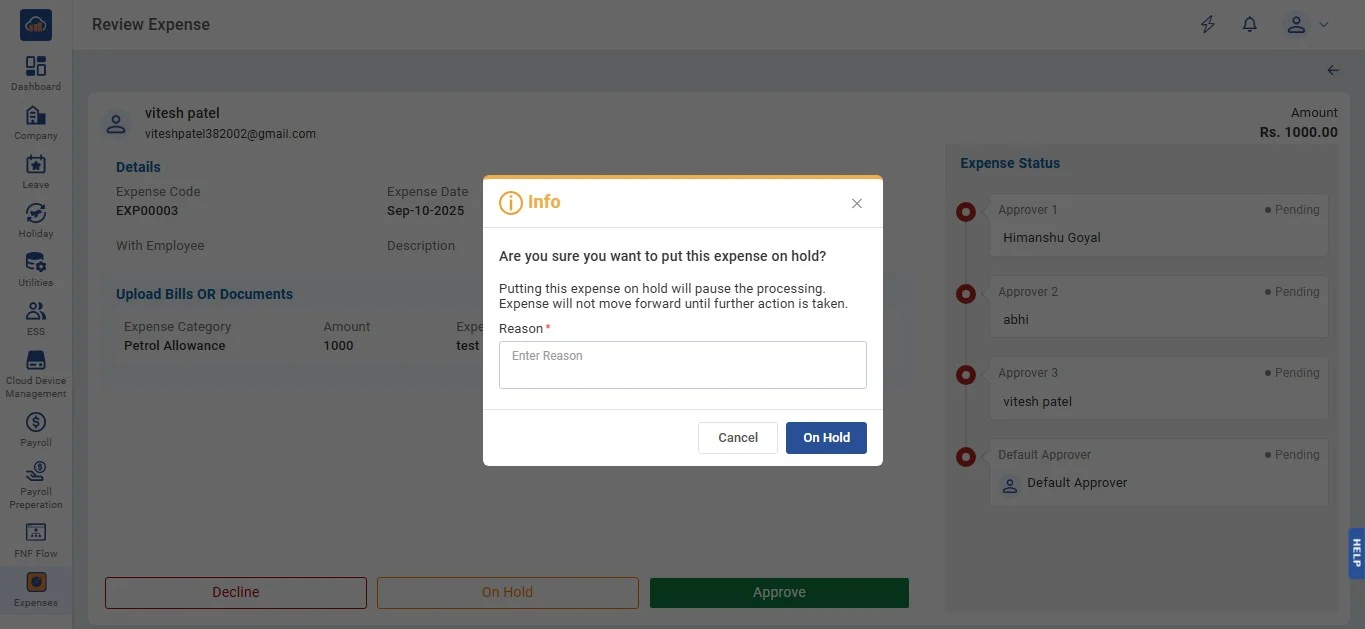
After clicking on "On Hold", a pop-up message appears to confirm. If the user wants to return then can by clicking the "Cancel" button and confirm by clicking the "On Hold" button. Users need to compulsorily enter a reason to confirm.

img

After clicking on "On Hold" a success toaster message will appear to confirm.

img

On clicking on the "View" icon from the table, users can view the following page.

img

Decline

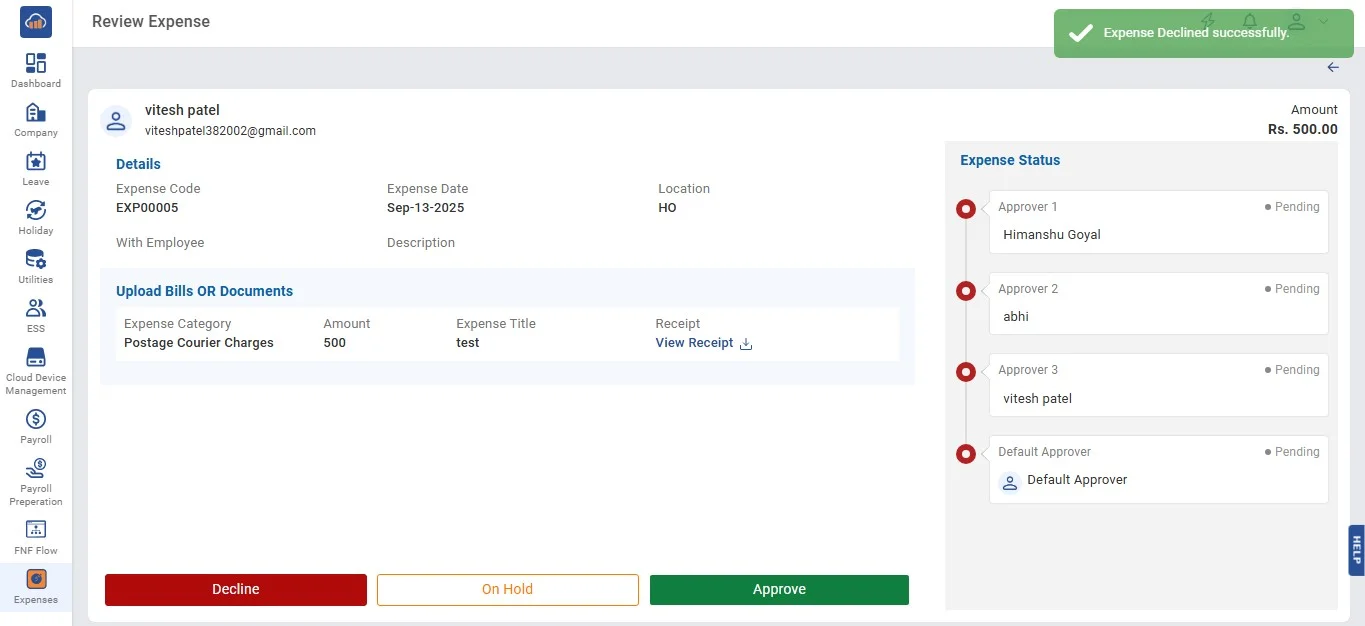
Users can click on the "Decline" button if they want to decline the expenses.

img

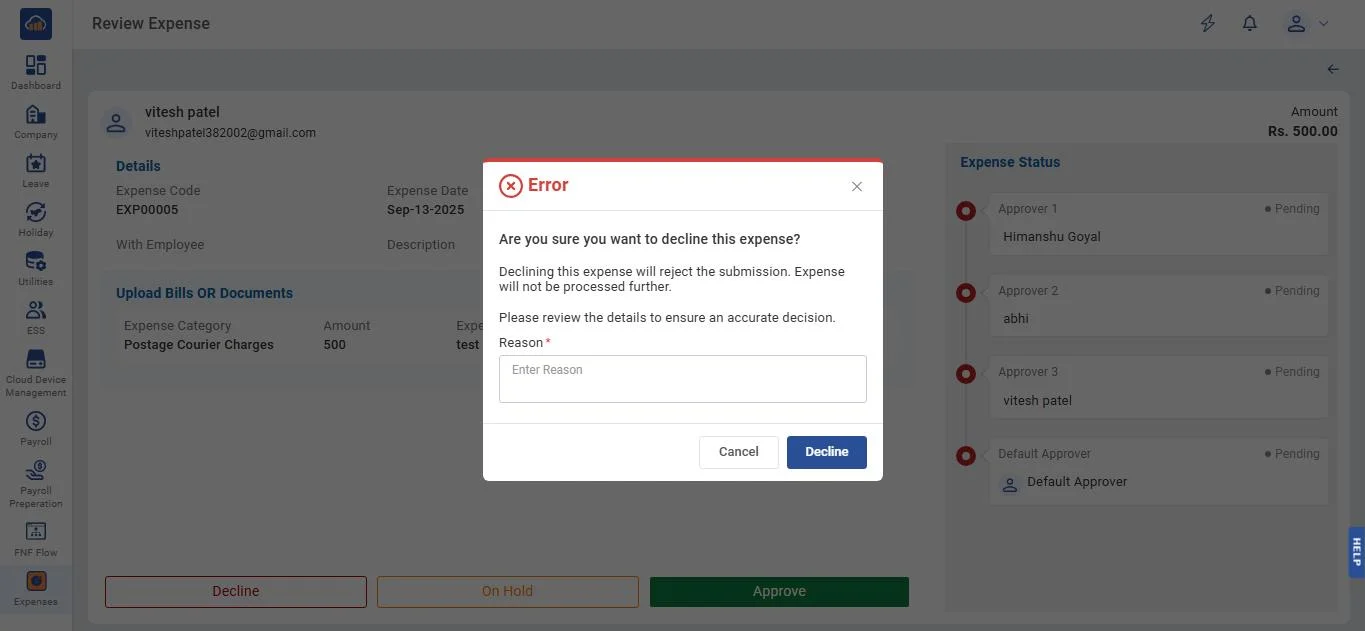
After clicking on it a pop-up message appears to confirm. If the user wants to return then can by clicking the "Cancel" button and can confirm by clicking the "Decline" button. Users need to compulsorily enter a reason to confirm.

img

After clicking on "Decline" a toaster message will appear to confirm.

img

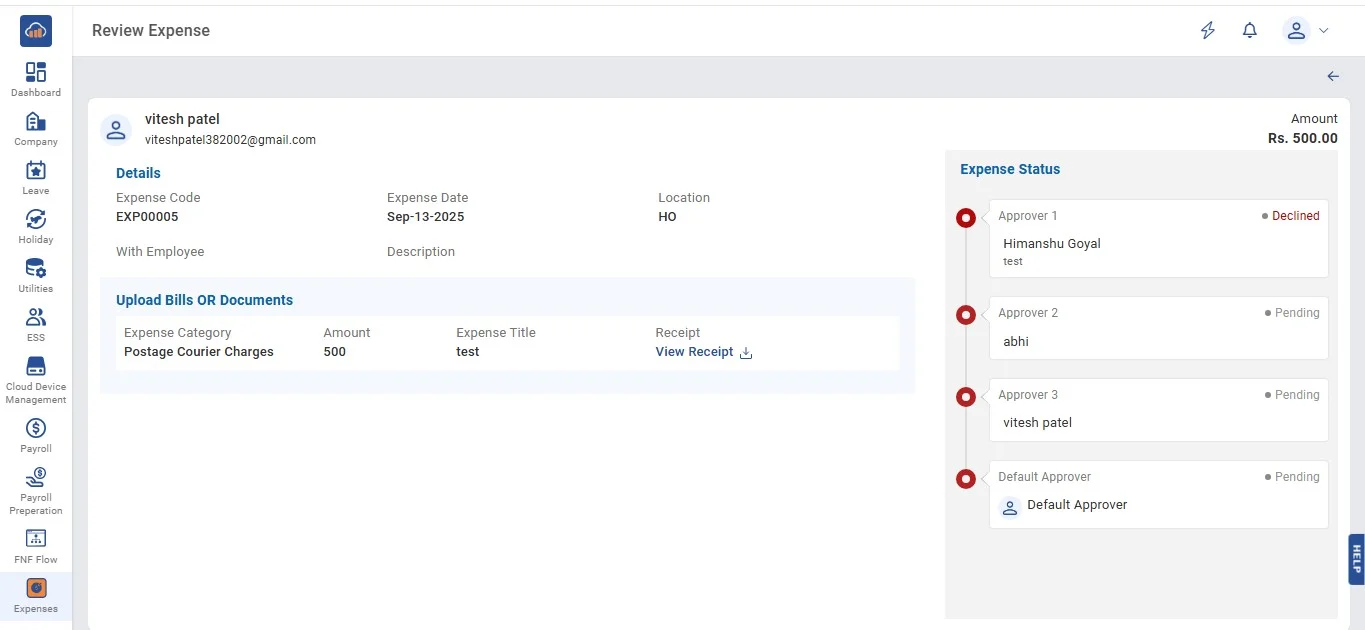
On clicking on the "View" icon from the table, users can view the following page.

img

2. Filter

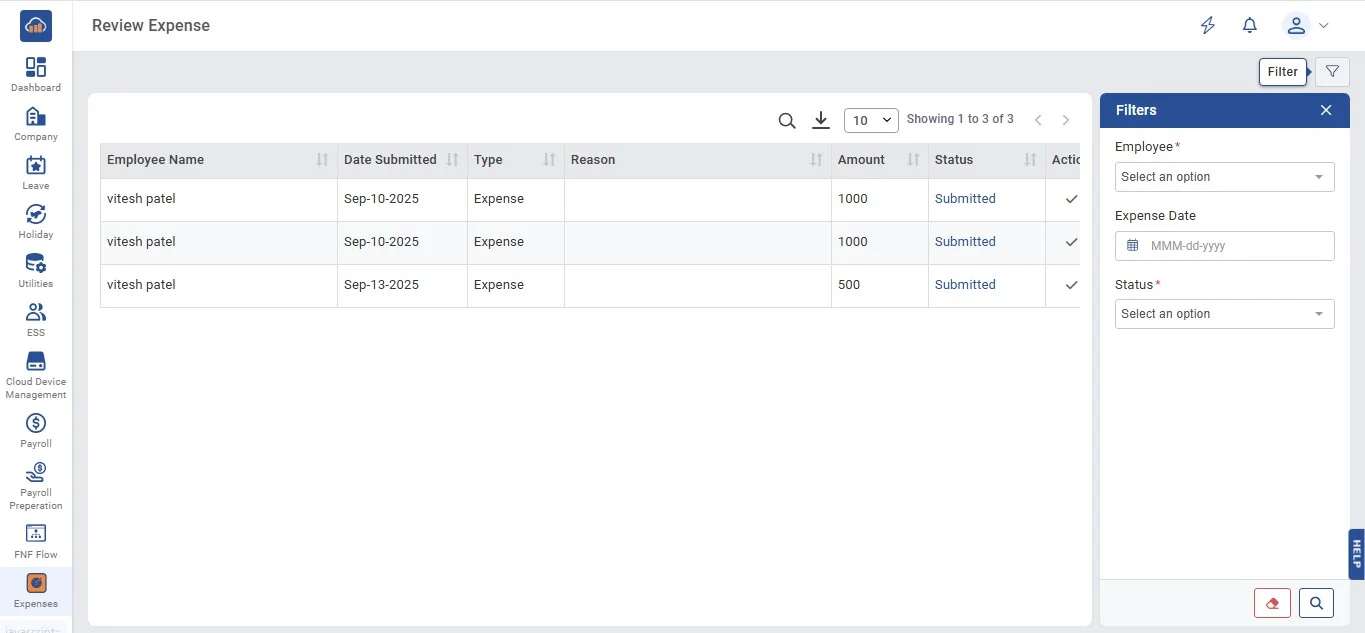
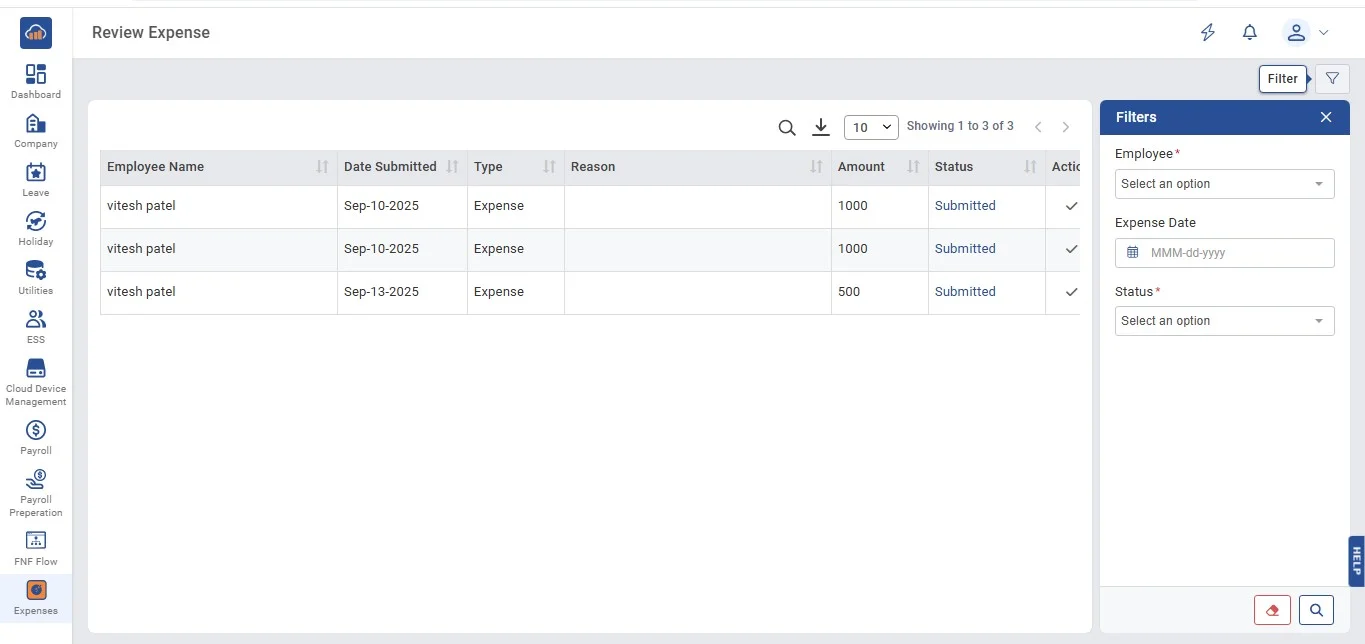
Click on the "Filter" button on the top right to apply filters.

img

Clicking on the "Filter" button the following page opens.

img

Click on the "Apply" button to apply or "Clear" if the user doesn't want to apply.

img

3. Level 2, 3, and Default Approver

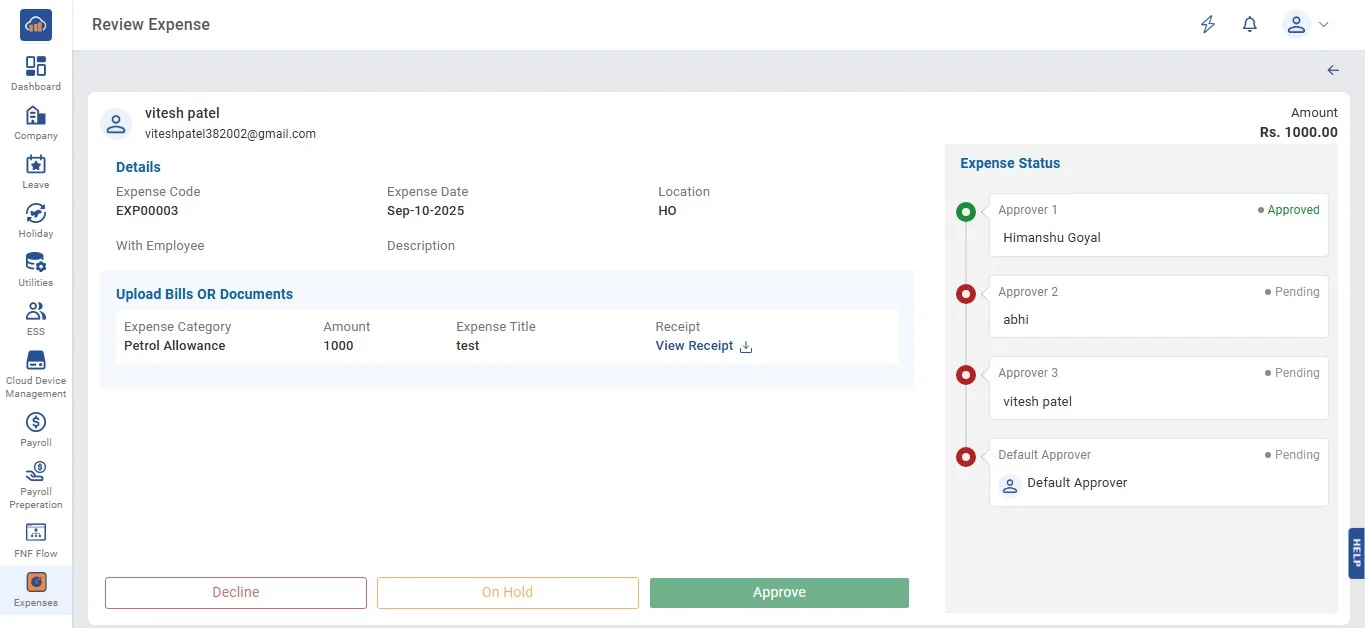
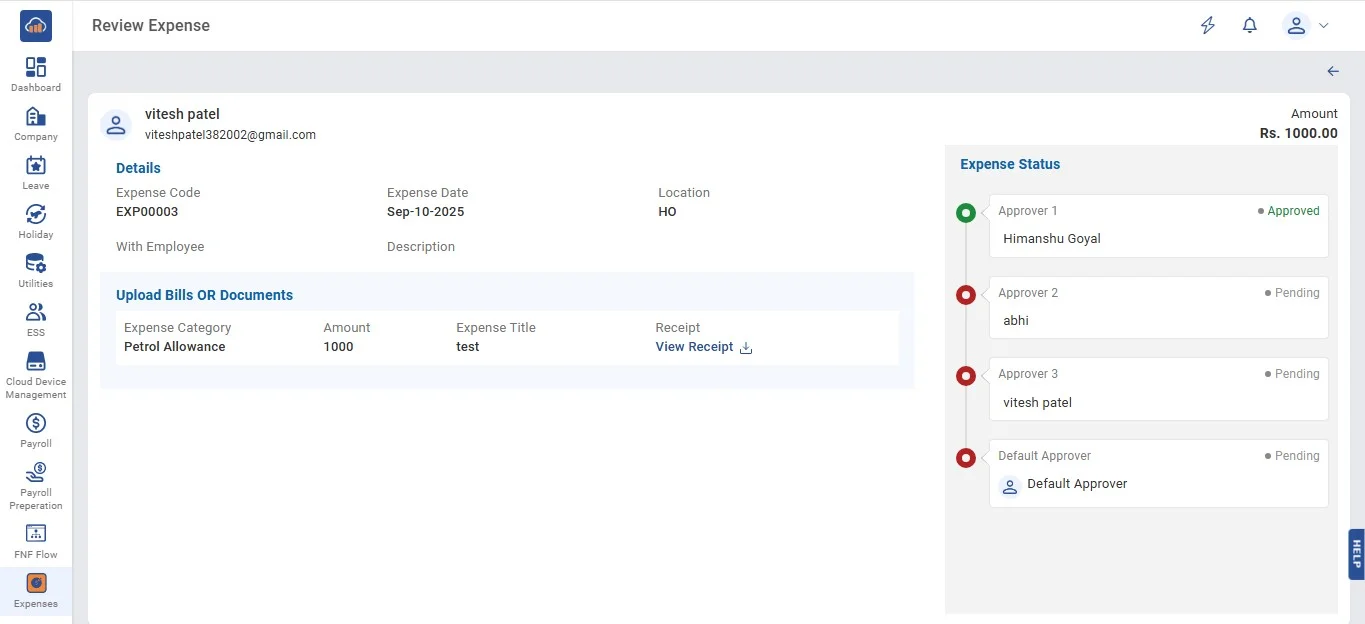
Approver 2 can click on the "Approve", "On Hold" or "Decline" buttons only if Approver 1 has approved expense and it will showcase the expense status.

img

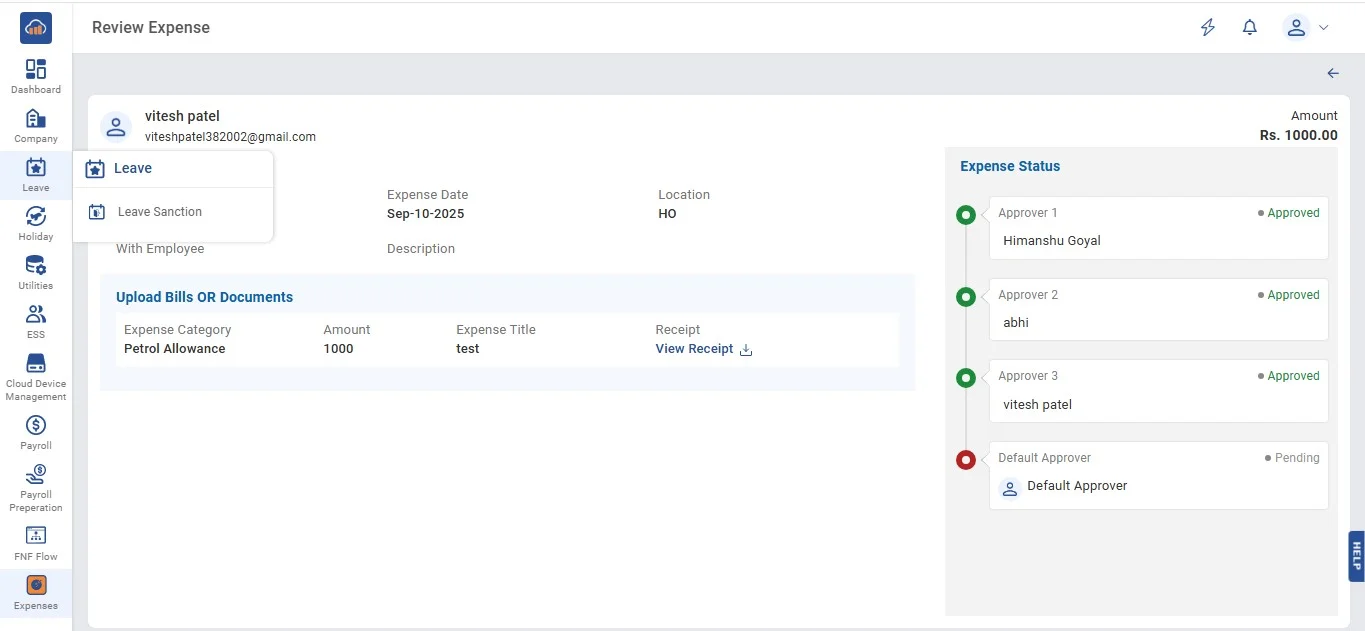
Approver 3 can click on the "Approve", "On Hold" or "Decline" buttons only if Approver 2 has approved expense and it will showcase the expense status.

Default Approver i.e. Account Department has the final rights to "Approve", "On Hold" or "Decline" expenses.