| Field | Details |
|---|---|
| Roles | Admin/Manager Only |
| Type | MINOP - Expense Management System - Review Trips Module |
| Device | Web Application |
The goal of the review trips feature in the expense management system is to provide a streamlined process for managers and admins to efficiently review and approve/reject trip requests, ensuring compliance with company policies and optimizing resource allocation.
An admin or manager, reviews trip requests within the expense management system to ensure compliance with company policies and efficiently allocate resources.
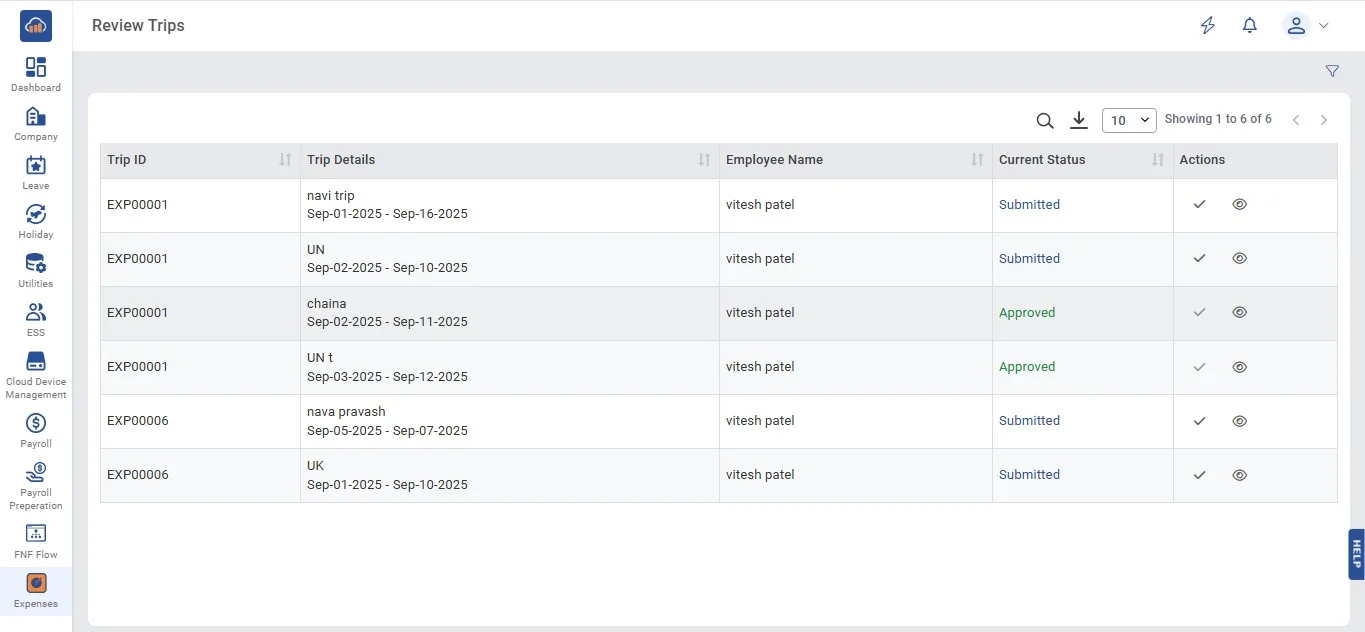
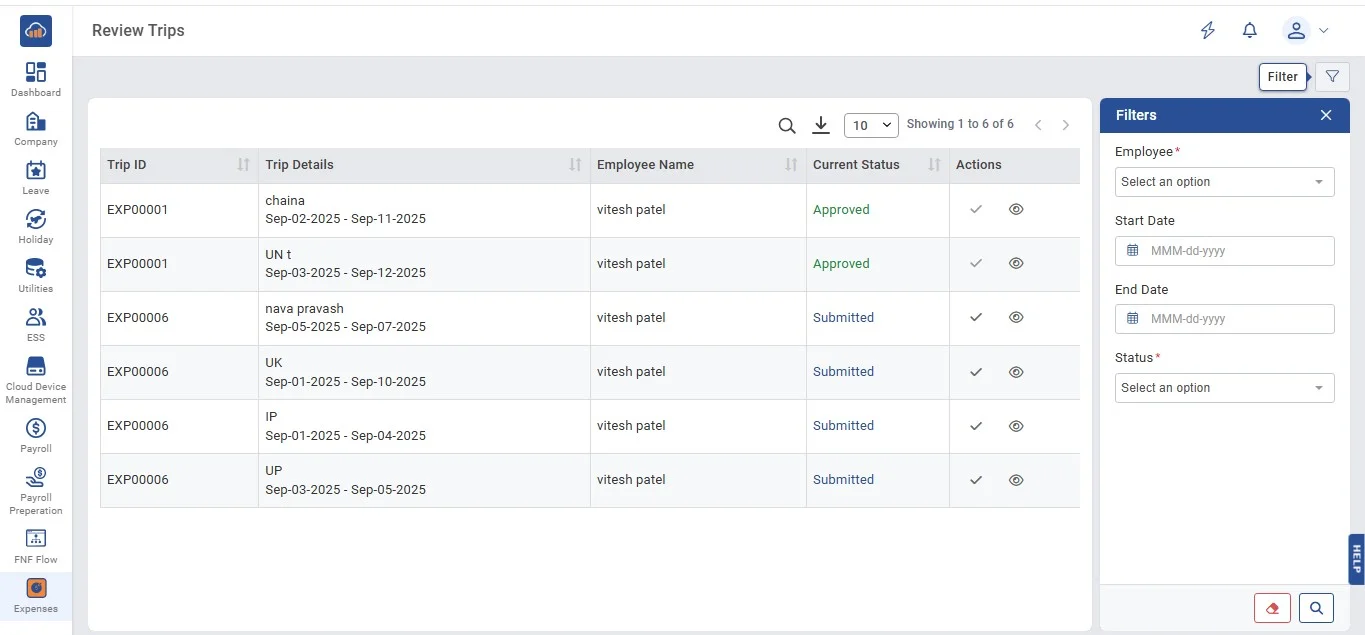
• When you click on "Expenses", you'll see a menu with four options: Expense Request, Review Expense, Trip Request and Review Trips.
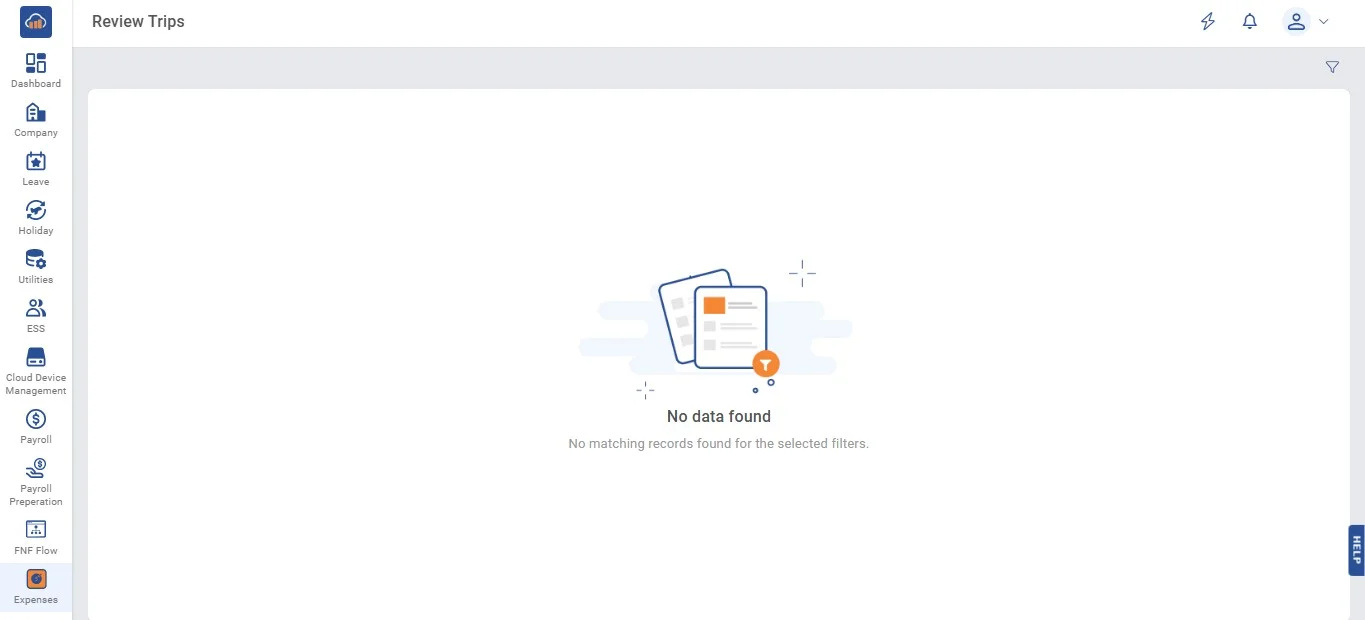
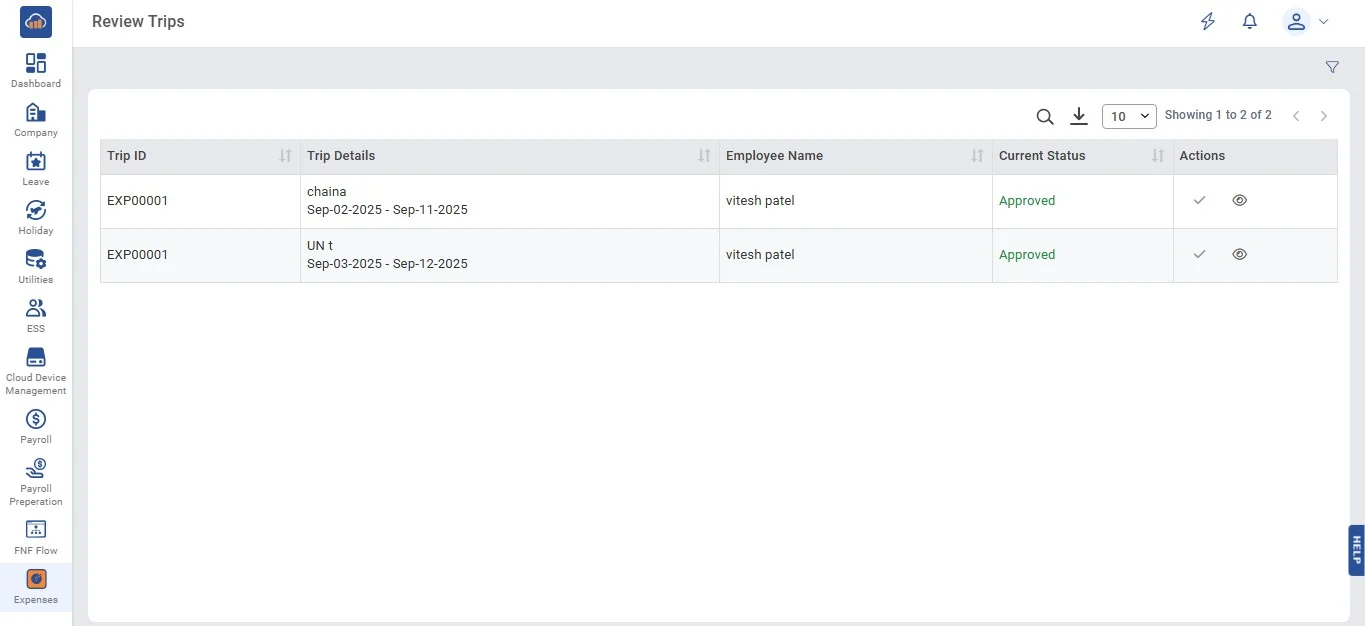
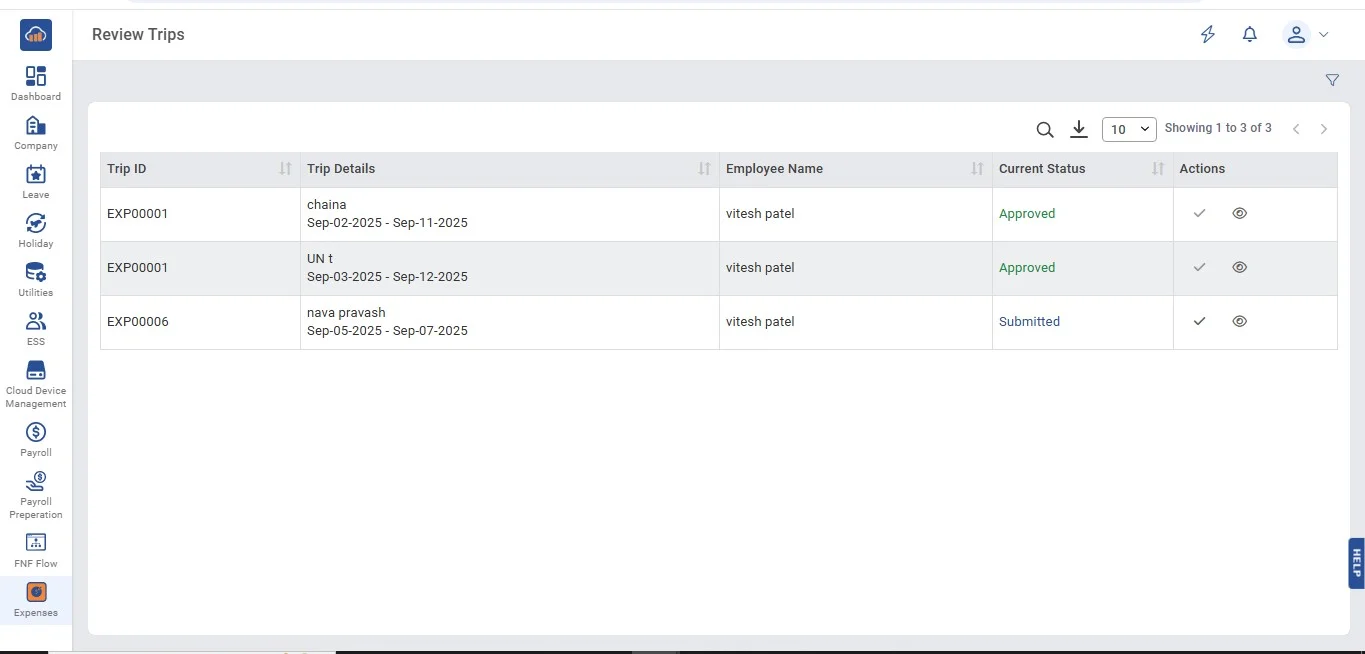
• If you click on Review Trips, there are two possibilities.
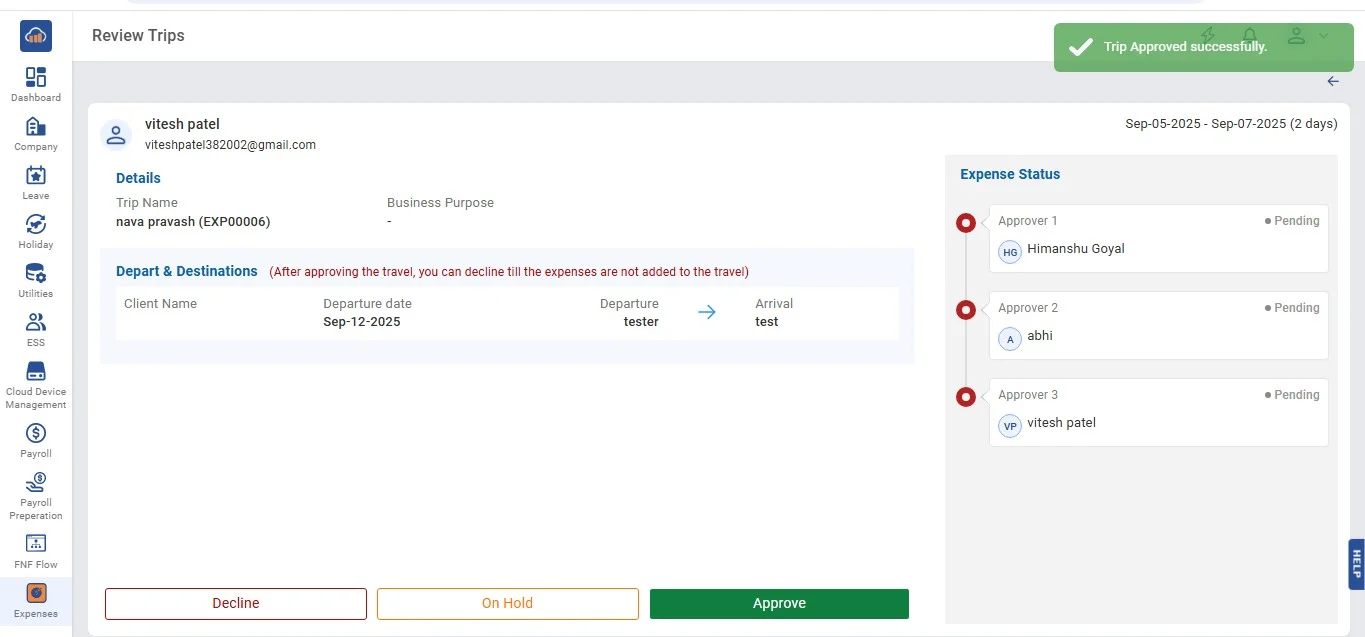
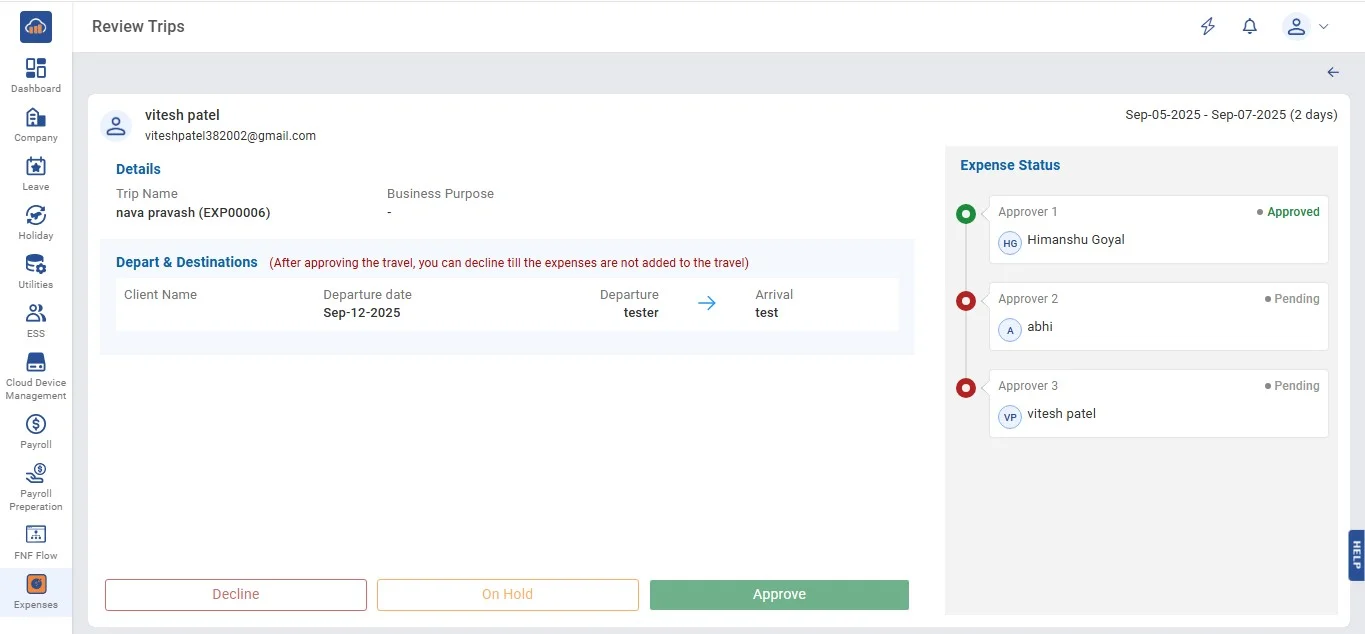
• After clicking on the "Approve" button the following page opens.
• Then the user can click on the "Approve" or "On Hold" button to approve or keep on hold.
• After clicking on "Approve" a success toaster message will appear to confirm approval.
• By clicking on the "Close" button on top right, users can view the status as "Approved" in the table.
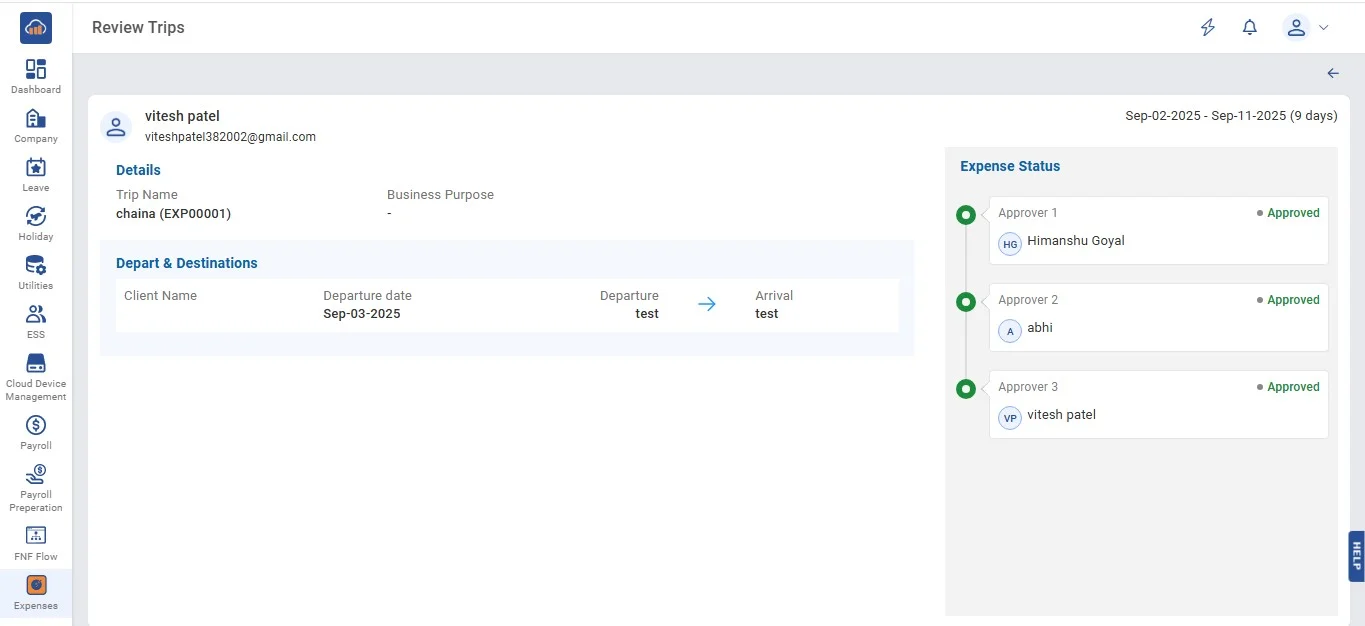
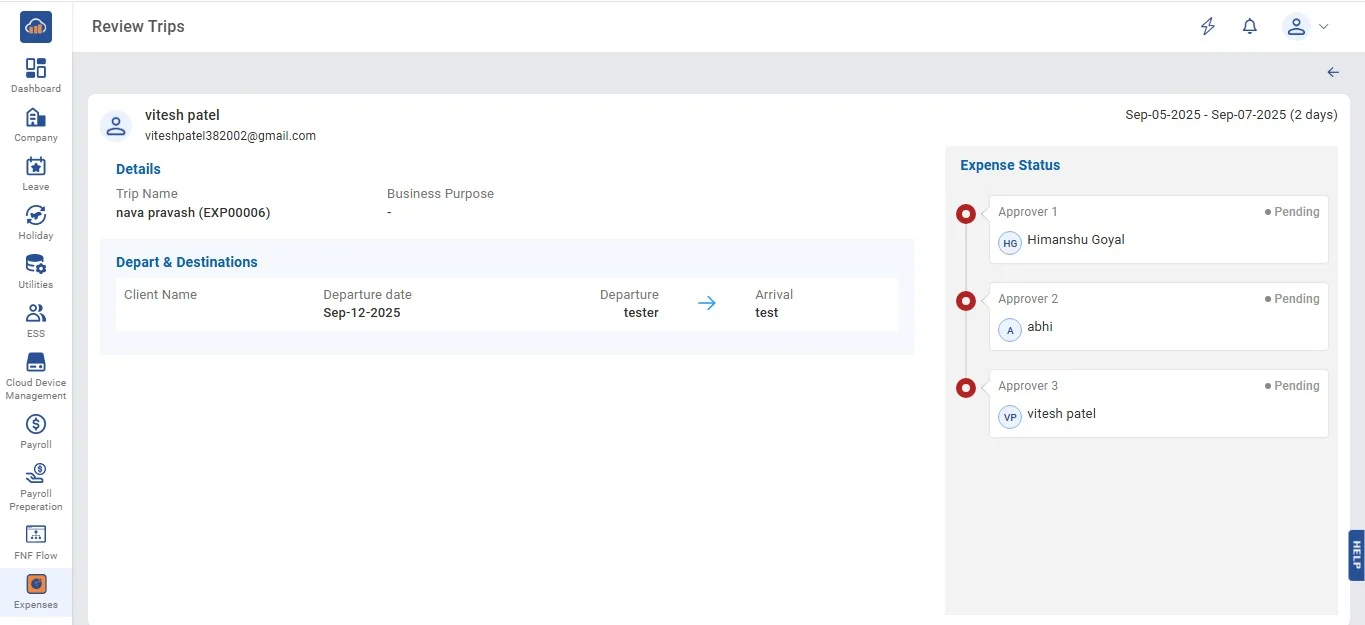
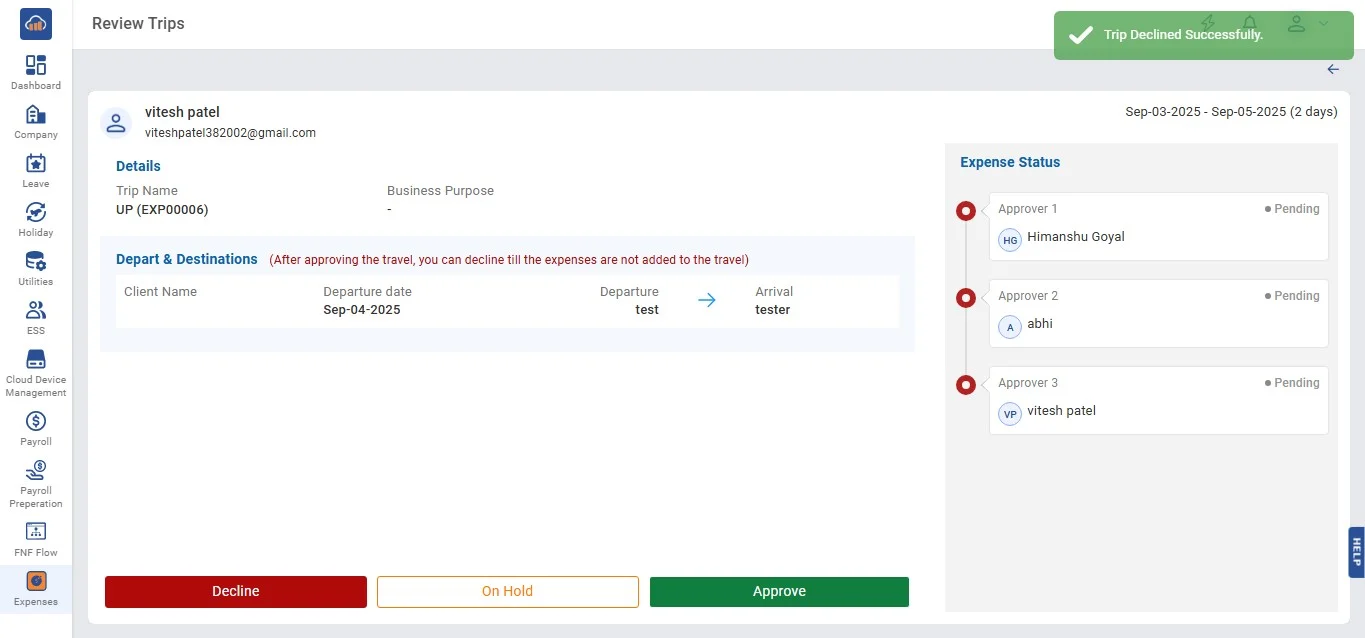
• On clicking on the "View" icon from the table, users can view the following page.
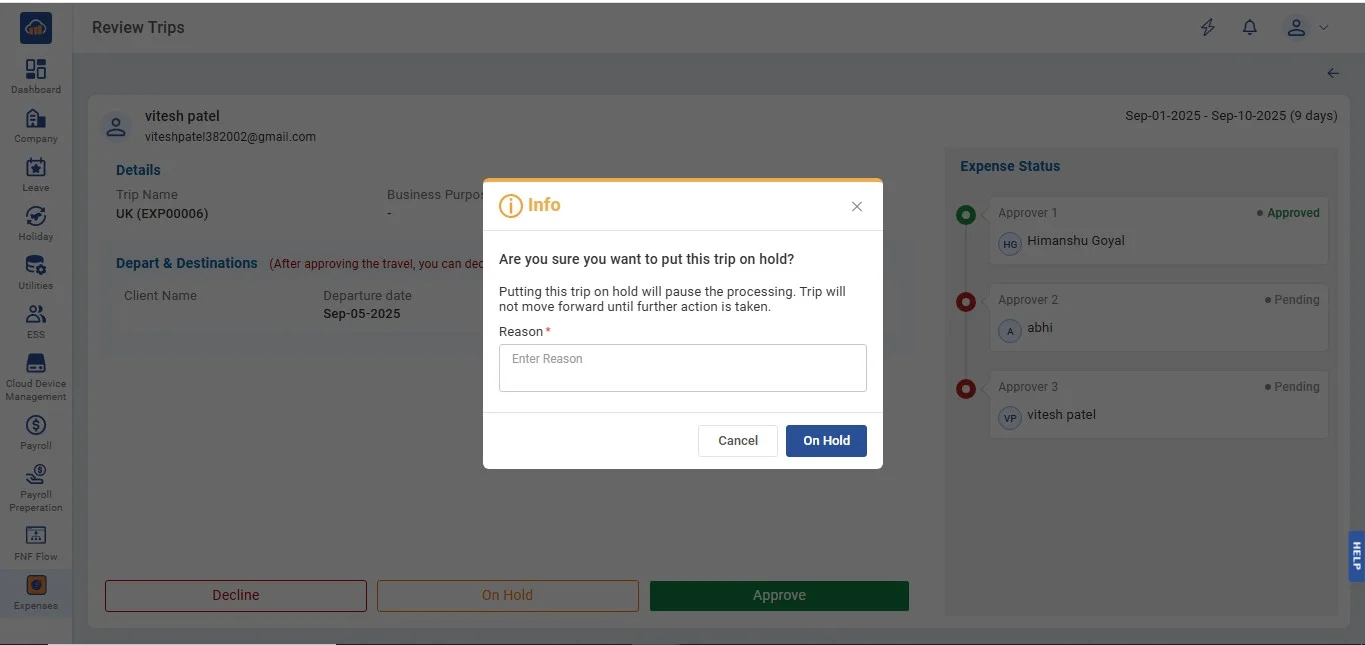
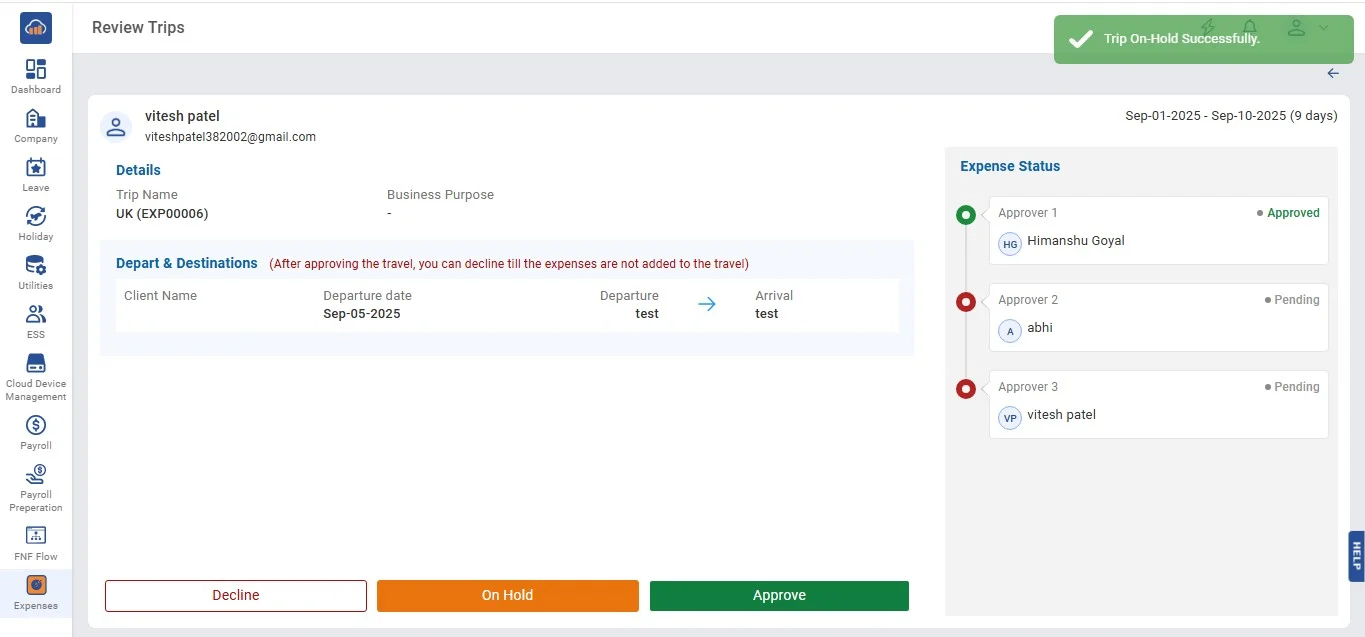
• Users can click on the "On Hold" button if they want to keep on hold the trips.
• After clicking on "On Hold", a pop-up message appears to confirm. If the user wants to return back then can by clicking the "Cancel" button and can confirm by clicking the "On Hold" button. Users need to compulsorily enter a reason to confirm.
• After clicking on "On Hold" a success toaster message will appear to confirm.
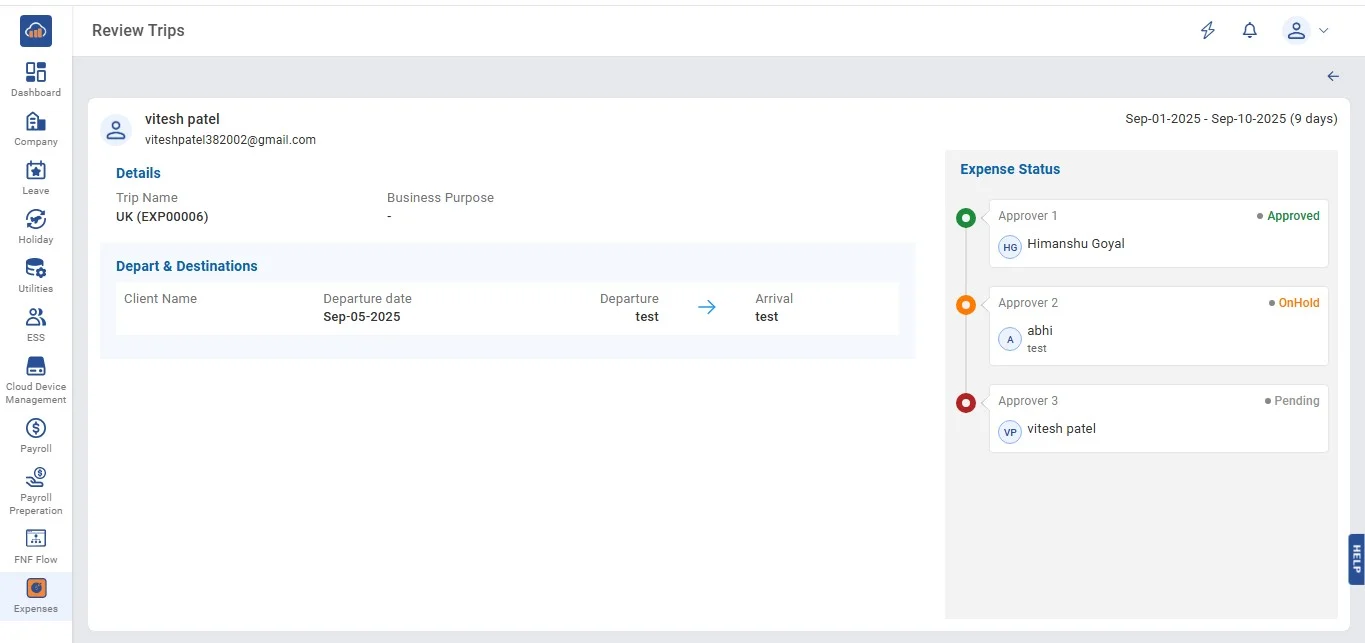
• By clicking on the "Close" button on top right, users can view the status as "On Hold" in the table.
• On clicking on the "View" icon from the table, users can view the following page.
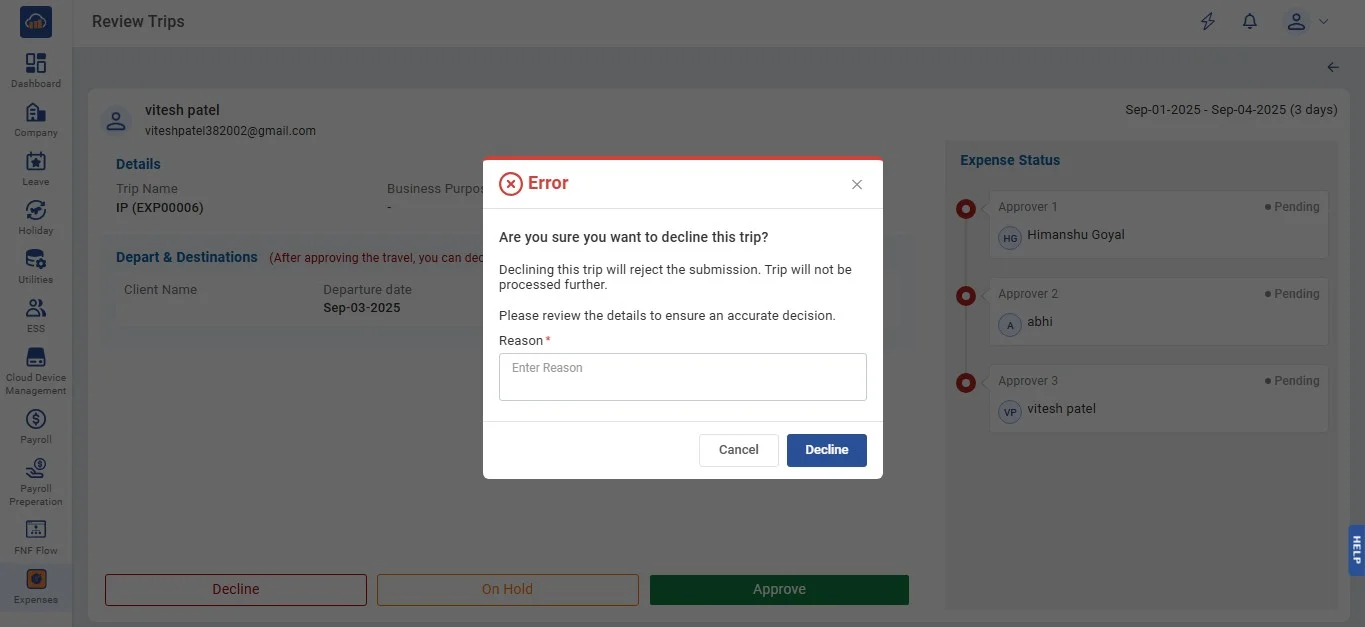
• After clicking on it a pop-up message appears to confirm. If the user wants to return back then can by clicking the "Cancel" button and can confirm by clicking the "Decline" button. Users need to compulsorily enter a reason to confirm.
• After clicking on "Decline" a toaster message will appear to confirm.
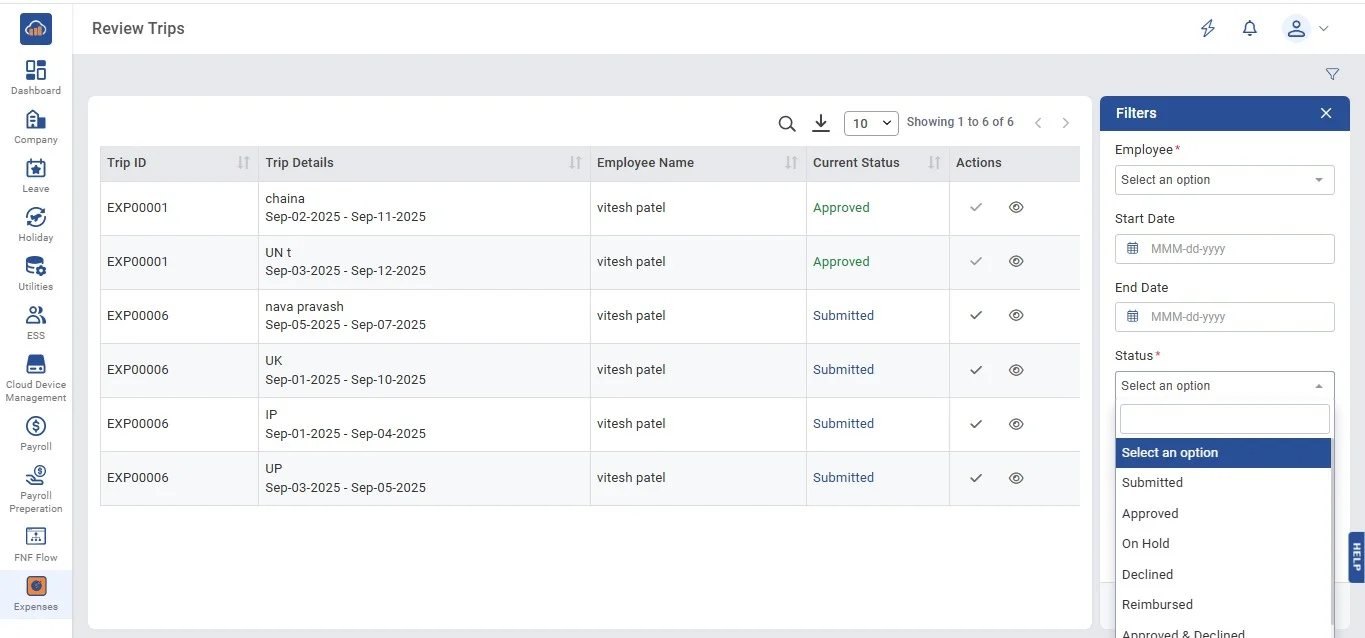
• Clicking on the "Filter" button the following page opens.
• Select on specific field to apply filter.