Policy Allocation

Overview

Field Details
Roles Admin/Manager Only
Type MINOP - MTrack Management System - Policy Allocation Module
Device Web Application

Goal/Scope

The Policy Allocation module allows administrators to assign work policies to individual employees. Each employee is mapped to a specific policy which governs their field tracking behavior including geofence radius, task creation rights, and proof of work requirements. This module provides a centralized view of all employee-policy assignments with the ability to edit or remove allocations.

Step 1: Access the Policy Allocation Page

From the left navigation menu, click on "Field Tracking" to expand the submenu. Then select "Policy Allocation".

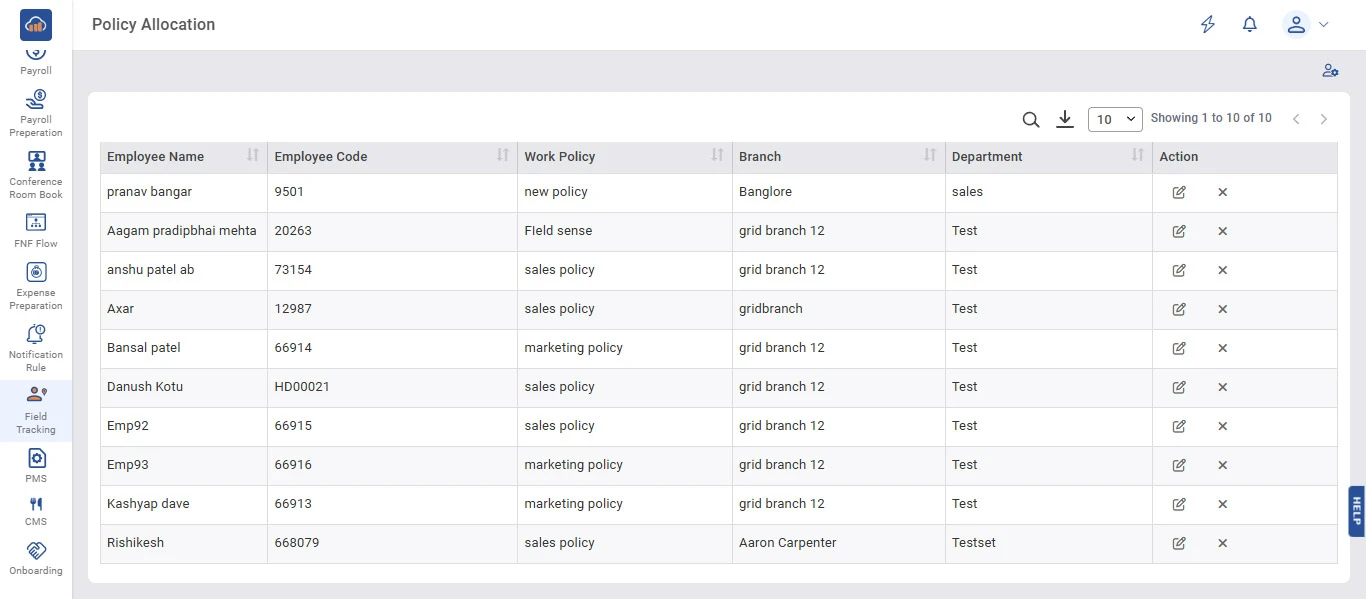
The Policy Allocation page displays all employee-policy assignments in a table with the following columns:

Column Description
Employee Name Name of the employee assigned to the policy.
Employee Code Unique identification code of the employee.
Work Policy The name of the work policy assigned to the employee.
Branch The branch to which the employee belongs.
Department The department of the employee.
Action Options to Edit or Remove the policy allocation.

Users can use the Search icon to find specific employees, the Download icon to export data, and control pagination using the page size dropdown.
img

Step 2: Assign a New Work Policy

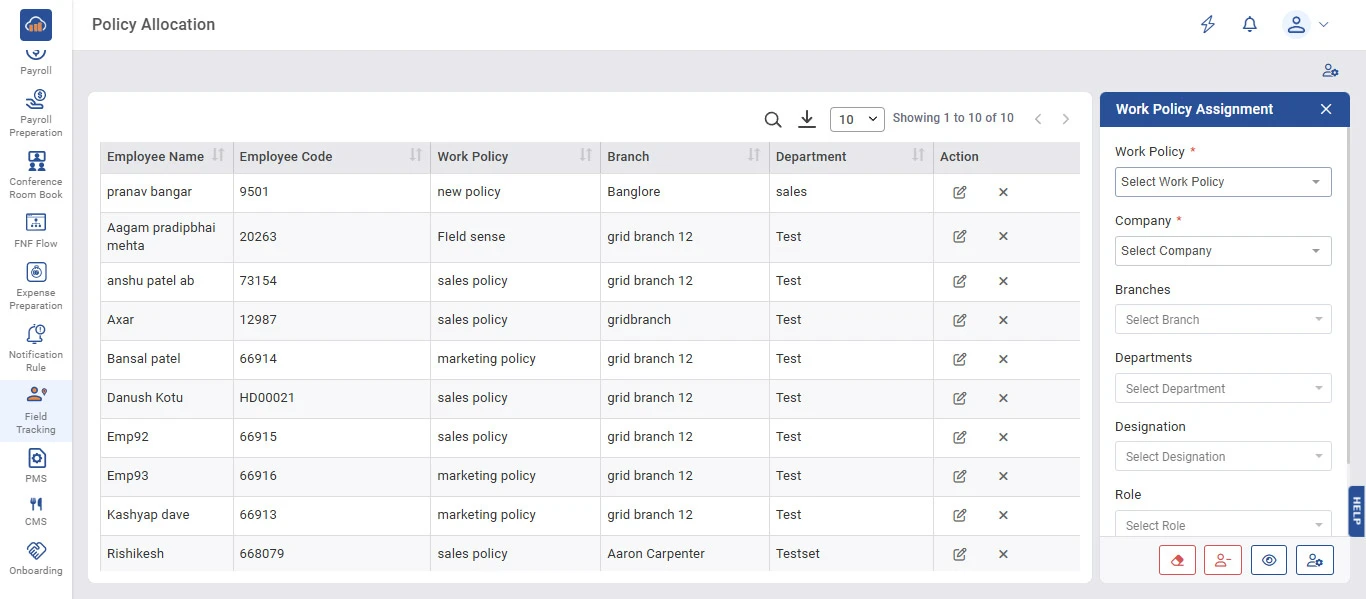
To assign a work policy to an employee, click the "Assign" icon button at the top right corner of the page.

A "Work Policy Assignment" side panel will open with the following fields:

Field Description
Work Policy * Select the work policy from the dropdown (mandatory).
Company * Select the company from the dropdown (mandatory).
Branches Filter employees by branch.
Departments Filter employees by department.
Designation Filter employees by designation.
Role Filter employees by role.

At the bottom of the panel, action icons are available to assign the selected policy, add employees, view selected employees, and confirm the assignment.

img

Step 3: Edit Work Policy Allocation

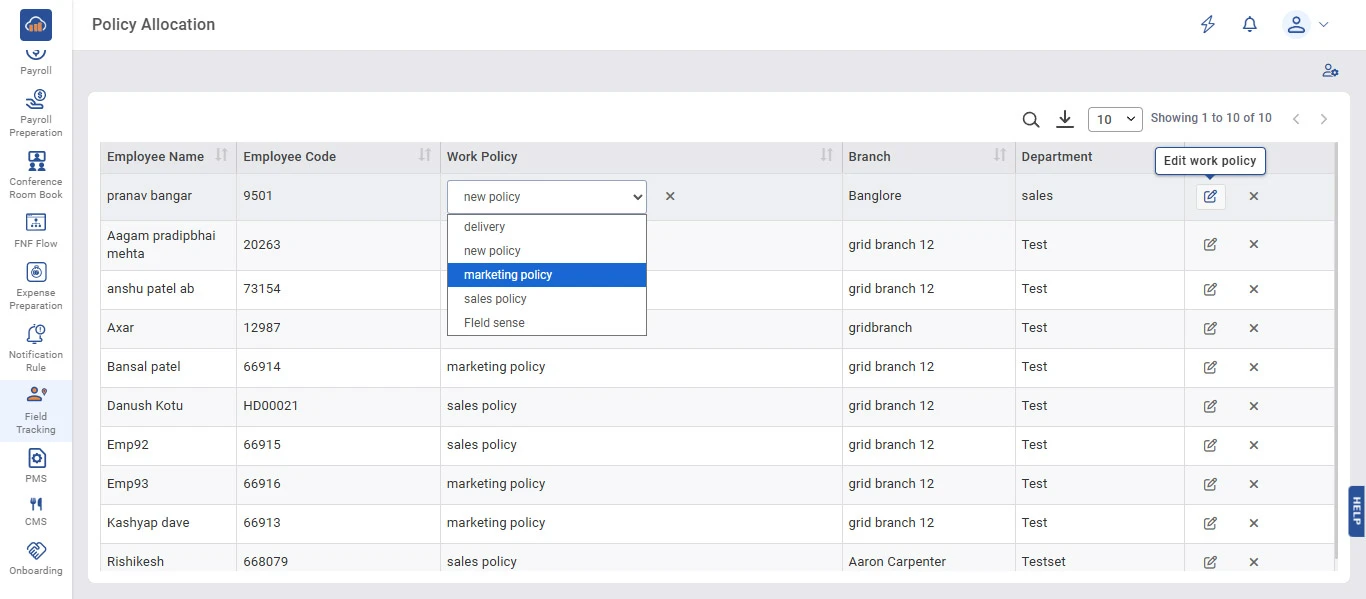
To edit an existing policy allocation, click the "Edit" icon in the Action column of the respective employee row.

A dropdown will appear in the "Work Policy" column of that row, allowing you to select a different policy from the list of available policies (e.g., delivery, new policy, marketing policy, sales policy, Field sense).

Select the desired work policy from the dropdown and the change will be applied to the employee.

img

Step 4: Remove Work Policy Allocation

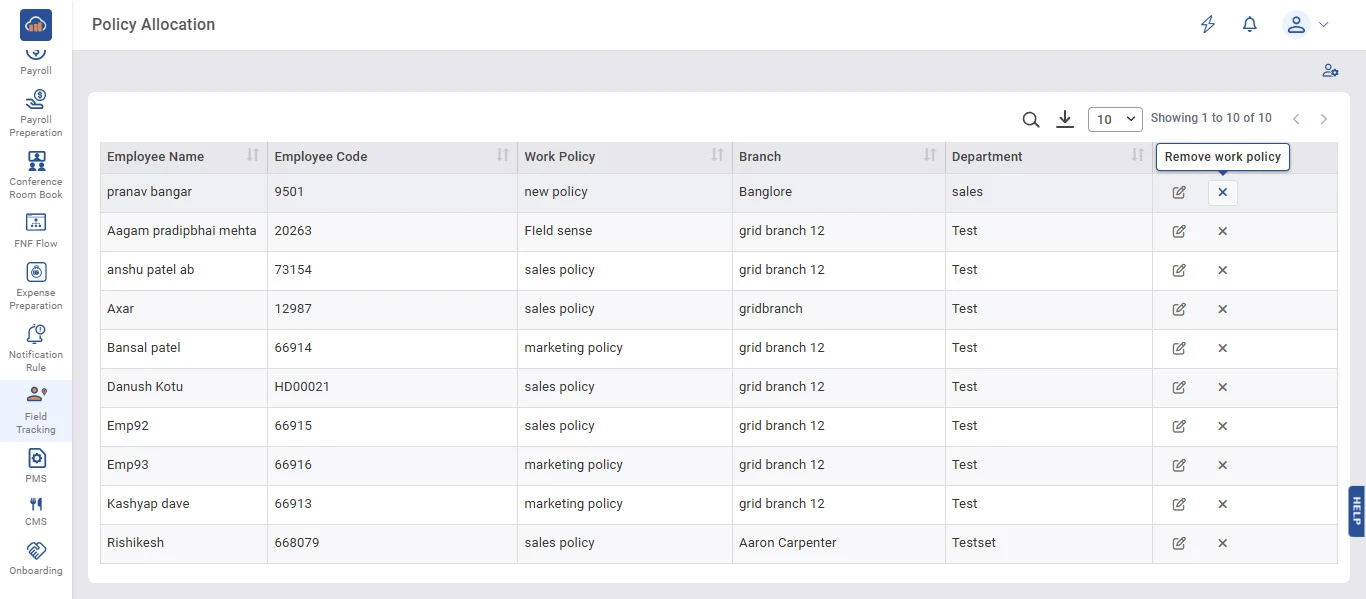
To remove a policy allocation from an employee, click the "Remove" icon in the Action column of the respective employee row.

Hovering over the X icon will display the "Remove work policy" tooltip to confirm the action.

After clicking, the work policy will be unassigned from the selected employee and the table will be updated accordingly.

img