Clients

Overview

Field Details
Roles Admin/Manager Only
Type MINOP - MTrack Management System - Clients Module
Device Web Application

Goal/Scope

The Clients module in the MTrack Management System allows administrators to manage client information for field operations. Clients represent the locations or organizations where field employees are assigned tasks. Each client record includes contact details, address, geofence radius, and category classification (New, Regular, Premium) to help organize and prioritize field workforce activities.

Step 1: Access the Clients Page

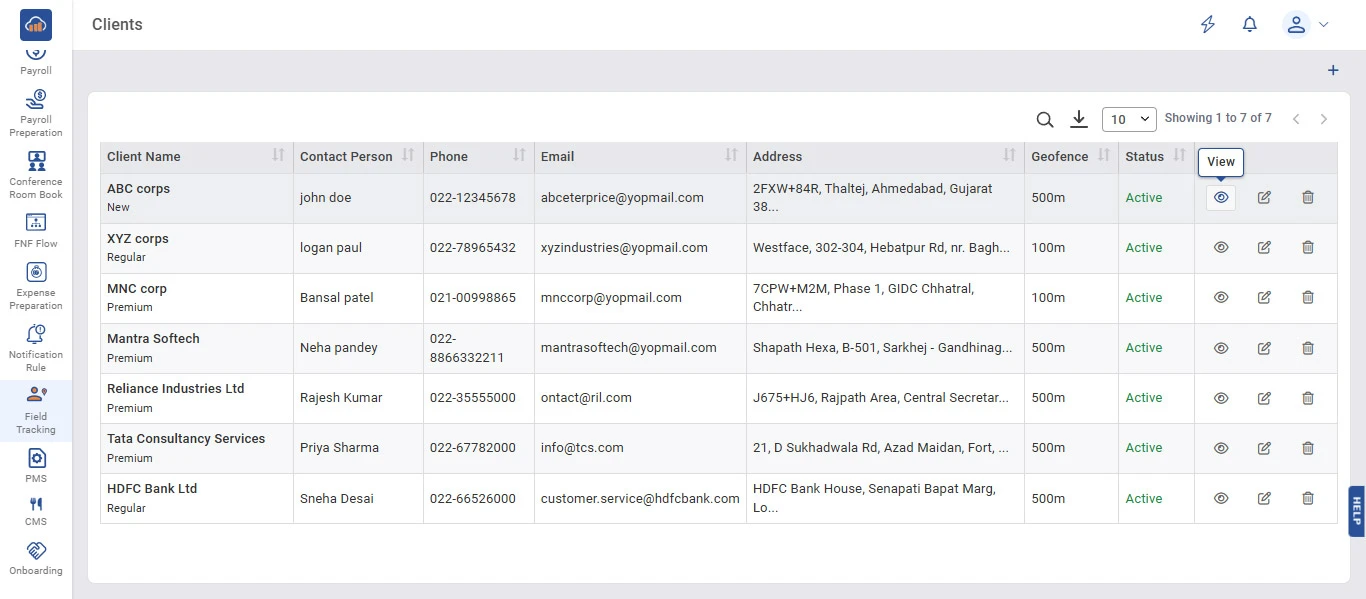
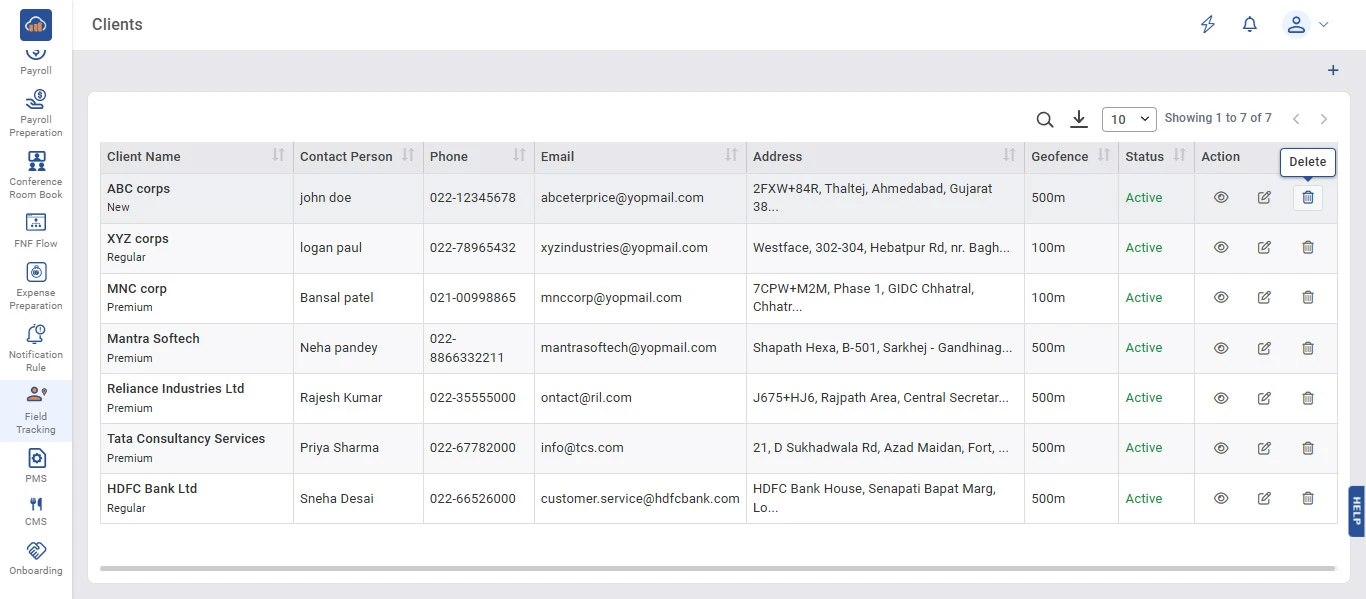
From the left navigation menu, click on "Field Tracking" to expand the submenu. Then select "Clients".

The Clients page displays all registered clients in a table with the following columns:

Column Description
Client Name Name of the client along with their category (New, Regular, Premium).
Contact Person The primary contact person for the client.
Phone Phone number of the client.
Email Email address of the client.
Address Physical address of the client location.
Geofence The geofence radius set for the client location (e.g., 500m, 100m).
Status Current status of the client (Active/Inactive).
Action Options to View, Edit, or Delete the client record.

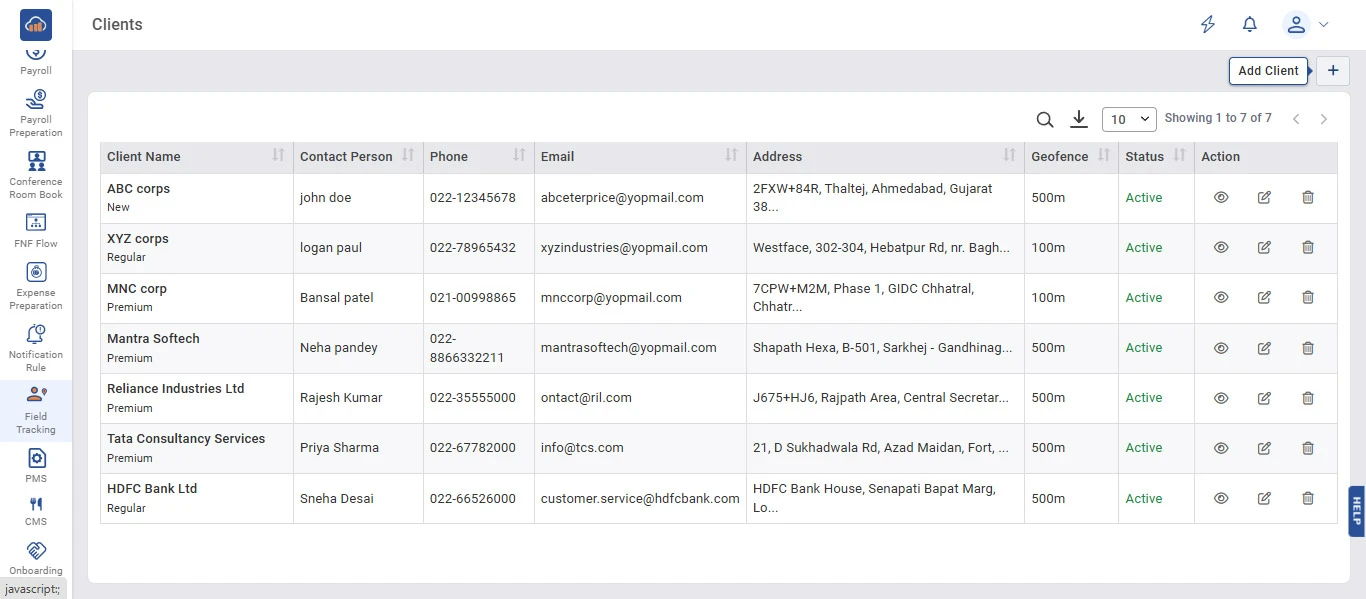
Users can use the Search icon to find specific clients, the Download icon to export data, and the "Add Client" button at the top right to add new clients.
img

Step 2: Add a New Client

To add a new client, click the "Add Client" button (or the + icon) at the top right corner of the page.

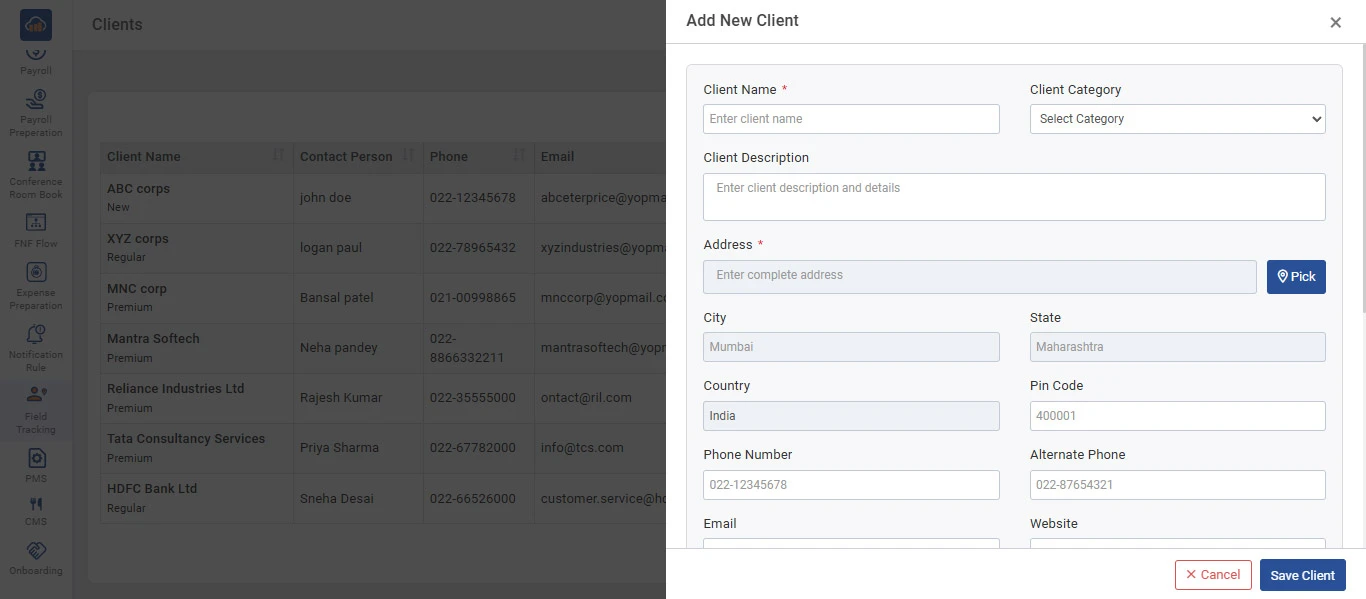
An "Add New Client" side panel will open with the following fields:

Field Description
Client Name * Enter the name of the client (mandatory).
Client Category Select the client category from the dropdown (New, Regular, Premium).
Client Description Enter a description about the client and their details.
Address * Enter the complete address of the client. Use the "Pick" button to select the location from the map.
City City of the client (auto-filled based on address).
State State of the client (auto-filled based on address).
Country Country of the client (auto-filled based on address).
Pin Code Pin code of the client location (auto-filled based on address).
Phone Number Primary phone number of the client.
Alternate Phone Alternate phone number of the client.
Email Email address of the client.
Website Website URL of the client.

After filling in all required details, click "Save Client" to add the client. Click "Cancel" if you do not want to proceed.

img

Step 3: View Client Details

To view the full details of a client, click the "View" icon (eye icon) in the Action column of the respective client row.

img

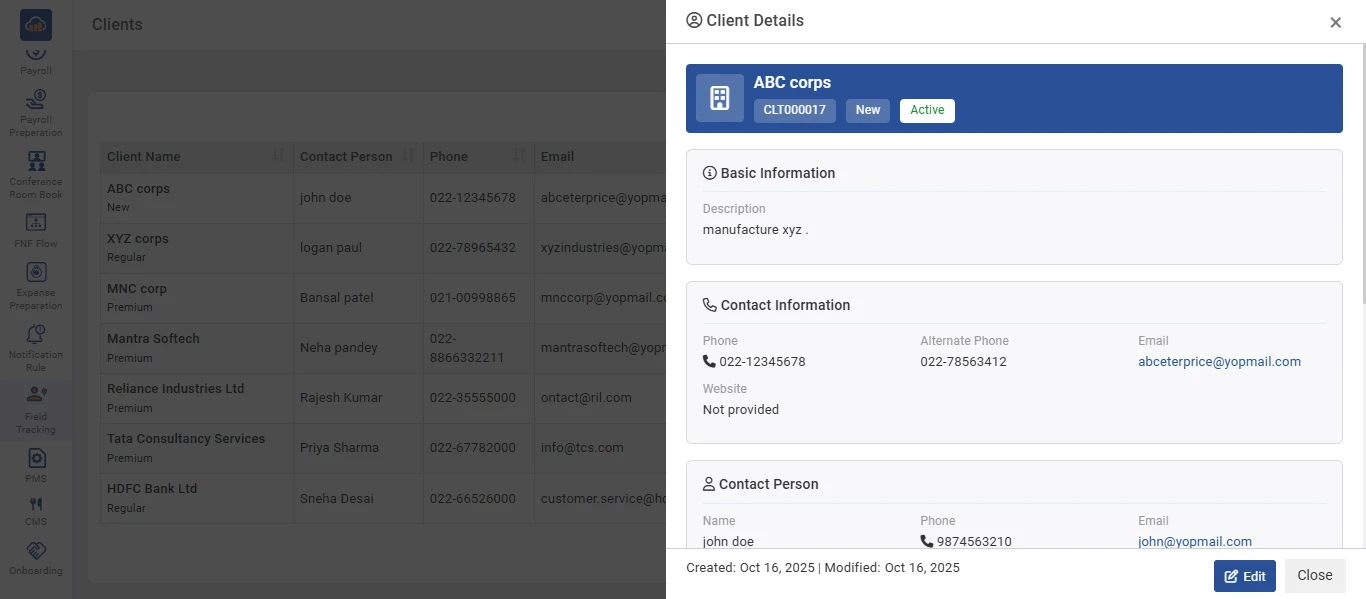
A "Client Details" side panel will open displaying the following information:

Section Details
Header Client name, Client ID (e.g., CLT000017), Category (New/Regular/Premium), and Status (Active/Inactive).
Basic Information Description of the client.
Contact Information Phone, Alternate Phone, Email, and Website details.
Contact Person Name, Phone, and Email of the contact person.

At the bottom, the panel also shows the Created and Modified dates. Users can click "Edit" to modify the client details or "Close" to close the panel.

img

Step 4: Edit Client Details

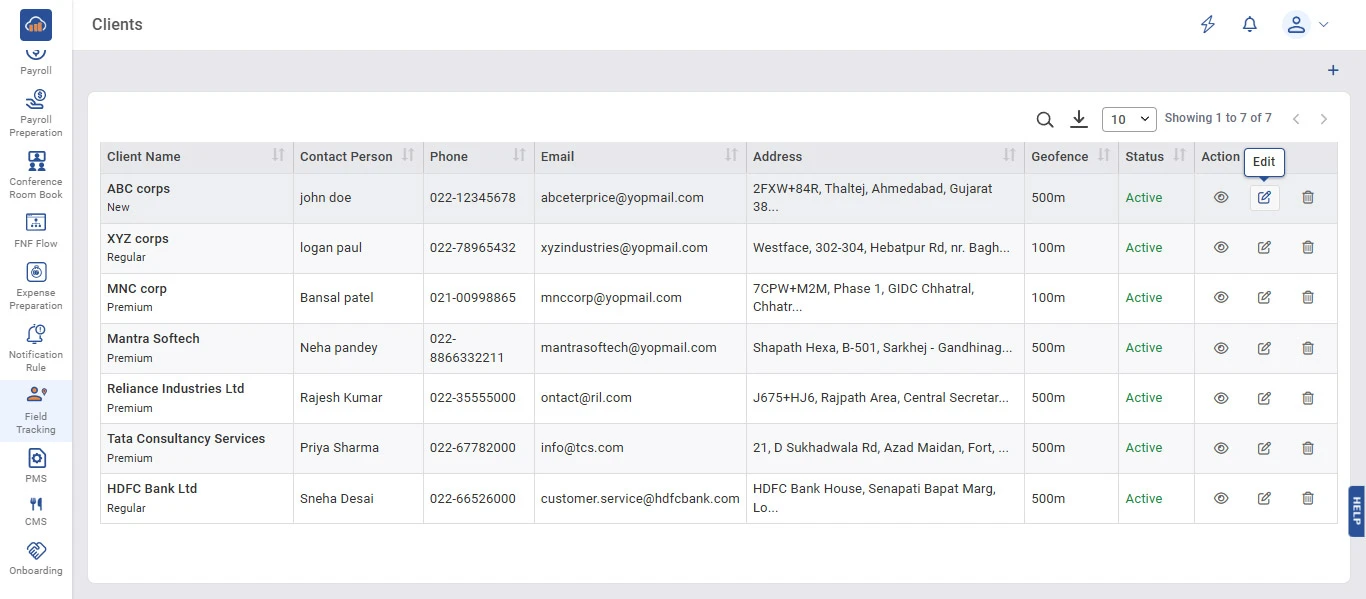
To edit an existing client, click the "Edit" icon (pencil icon) in the Action column of the respective client row.

img

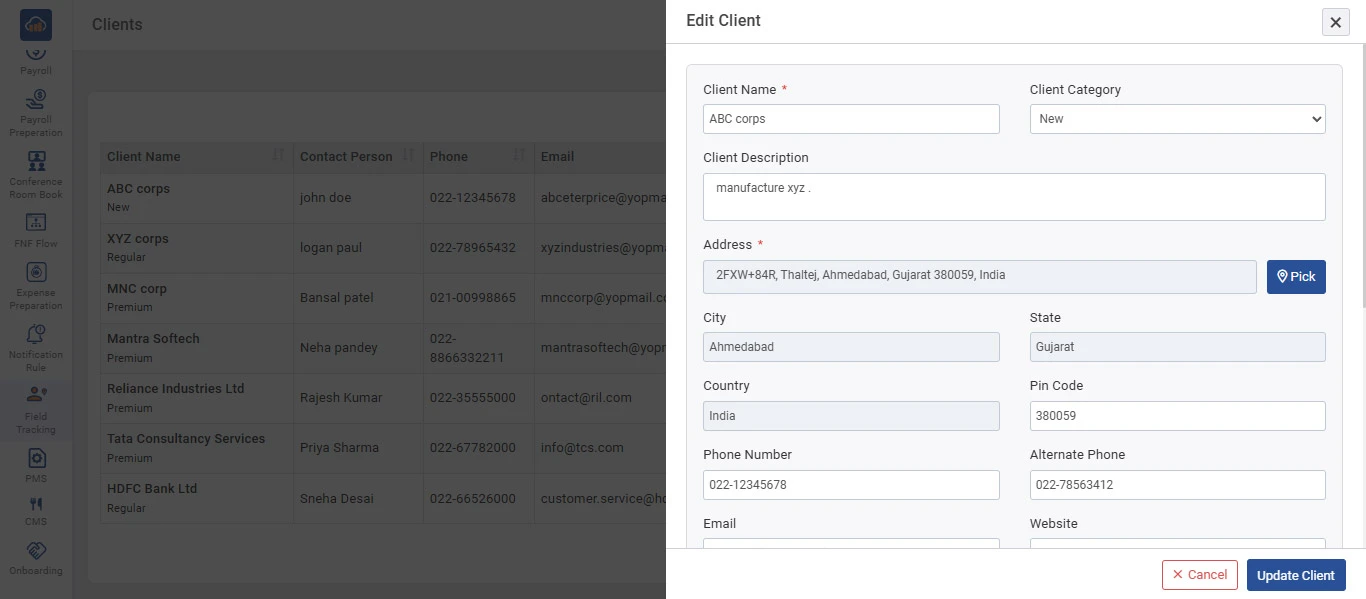
An "Edit Client" side panel will open with all the pre-filled fields for the selected client, including Client Name, Client Category, Client Description, Address, City, State, Country, Pin Code, Phone Number, Alternate Phone, Email, and Website.

Modify the details as necessary and click "Update Client" to save the changes. Click "Cancel" if you do not want to update.

img

Step 5: Delete a Client

To delete a client, click the "Delete" icon (trash icon) in the Action column of the respective client row.

img

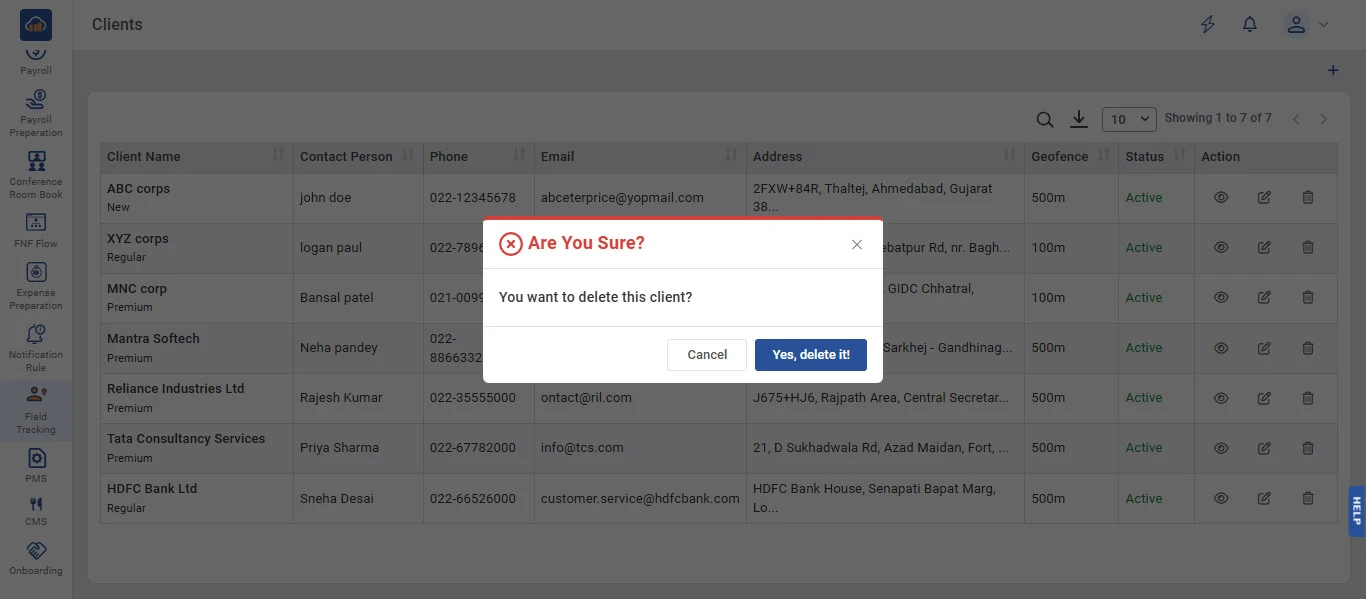
A confirmation dialog will appear with the message "Are You Sure? You want to delete this client?".

Click "Yes, delete it!" to confirm the deletion. Click "Cancel" if you do not want to delete the client.

After confirming, the client will be removed from the list and the table will be updated accordingly.

img