Tasks

Overview

Field Details
Roles Admin/Manager Only
Type MINOP - MTrack Management System - Tasks Module
Device Web Application

Goal/Scope

The Tasks module in the MTrack Management System enables administrators to create, assign, and monitor tasks for field employees. Tasks are linked to specific client locations, allowing real-time tracking of employee activities, task progress, and completion status. The module provides full visibility into field workforce operations with priority levels, status tracking, and journey monitoring capabilities.

Step 1: Access the Tasks Page

From the left navigation menu, click on "Field Tracking" to expand the submenu. Then select "Tasks".

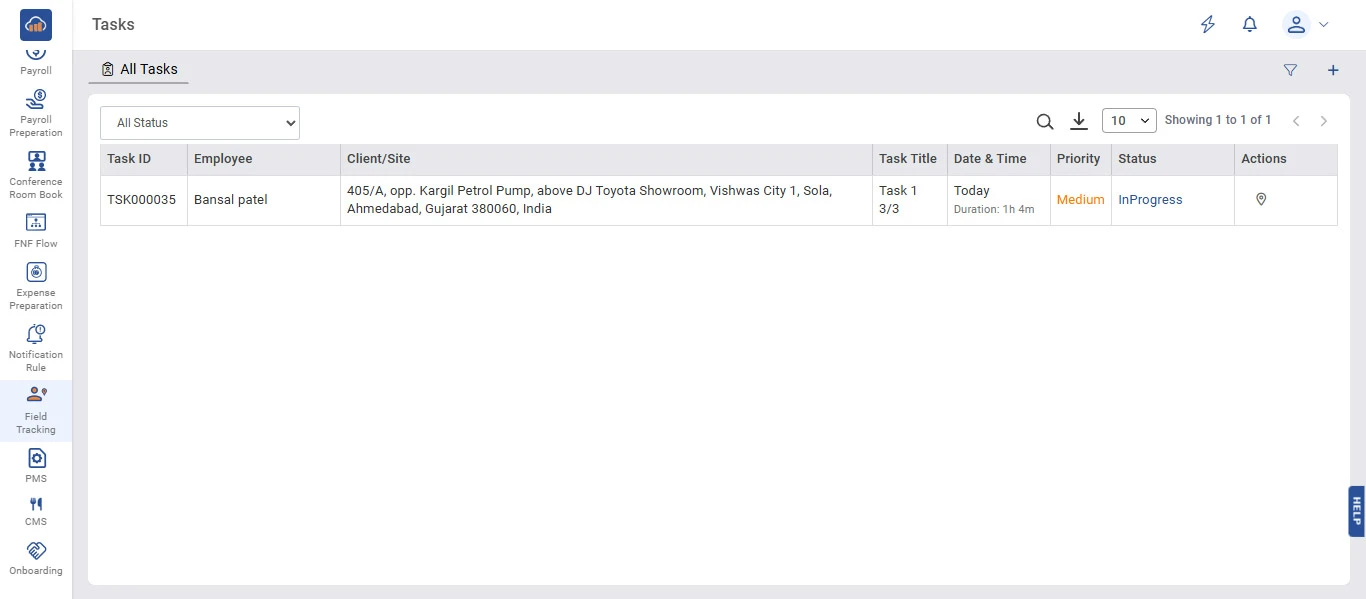
The Tasks page opens with the "All Tasks" tab selected by default. The page displays all tasks in a table with the following columns:

Column Description
Task ID Unique identification number for the task (e.g., TSK000035).
Employee Name of the employee assigned to the task.
Client/Site The client location or site address where the task is to be performed.
Task Title Title of the task along with the subtask count (e.g., Task 1 - 3/3).
Date & Time The scheduled date and duration of the task (e.g., Today, Duration: 1h 4m).
Priority Priority level of the task (Low, Medium, High) shown in color-coded format.
Status Current status of the task (Pending, InProgress, Completed, Overdue).
Actions Action icons including Track Journey (location icon).

Users can use the Search icon to find specific tasks, the Download icon to export data, and the Filter icon to apply filters.
img

Step 2: Create a New Task

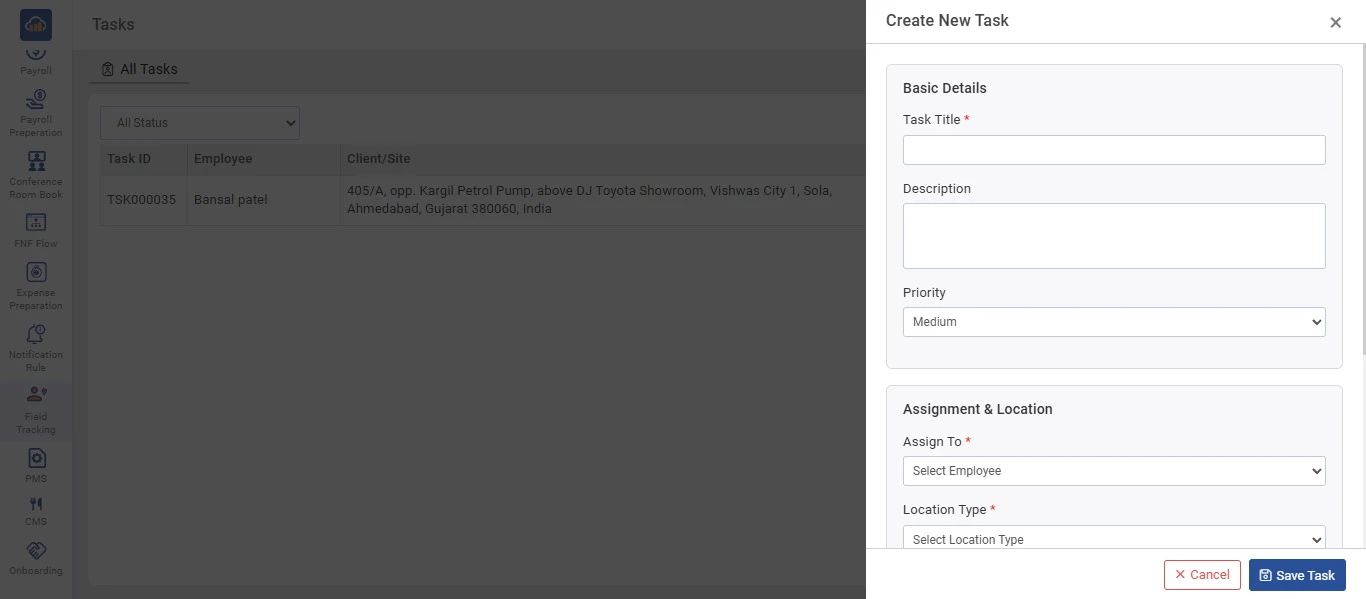
To create a new task, click the "+" icon button at the top right corner of the page.

A "Create New Task" side panel will open with the following sections:

Basic Details

Field Description
Task Title * Enter the title of the task (mandatory).
Description Enter a detailed description of the task.
Priority Select the priority level from the dropdown (Low, Medium, High).

Assignment & Location

Field Description
Assign To * Select the employee to assign the task to (mandatory).
Location Type * Select the type of location for the task (mandatory).

After filling in all the required details, click "Save Task" to create the task. Click "Cancel" if you do not want to proceed.

img

Step 3: Track Employee Journey

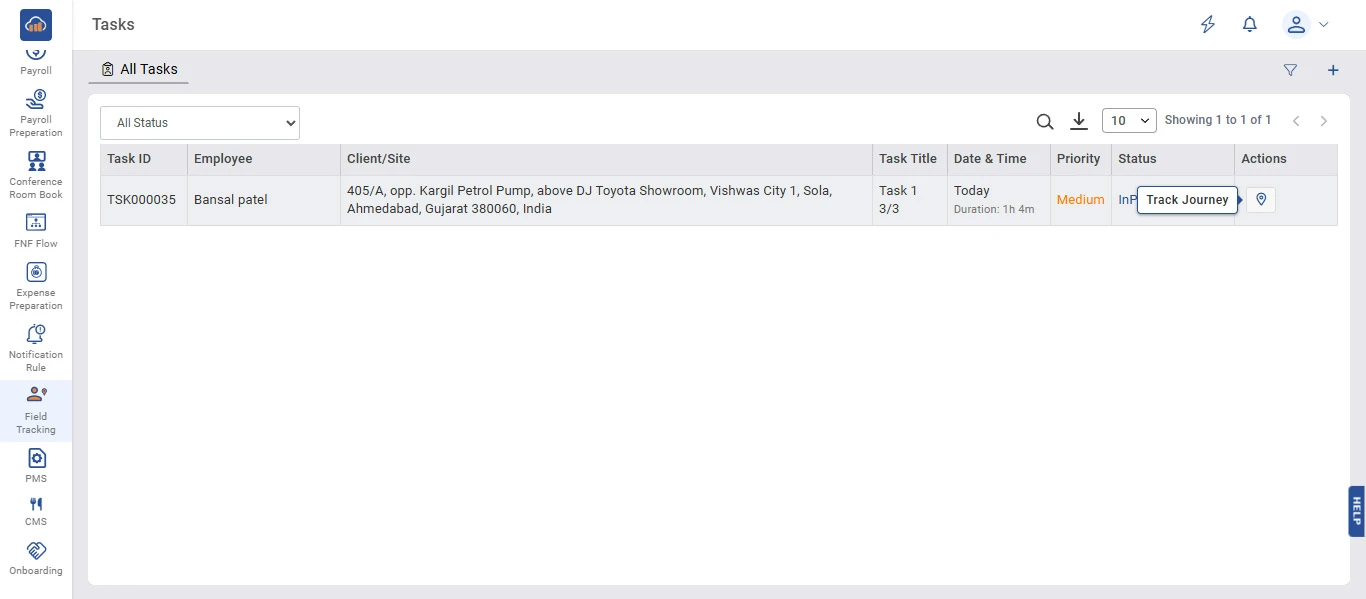
To track the journey of an employee for a specific task, click the "Track Journey" icon (location pin icon) in the Actions column of the respective task row.

Hovering over the icon will display the "Track Journey" tooltip.

Clicking this icon will navigate you to the Employee Journey page where you can view the real-time map location, route, and task progress of the assigned employee.

img

Step 4: Filter Tasks by Status

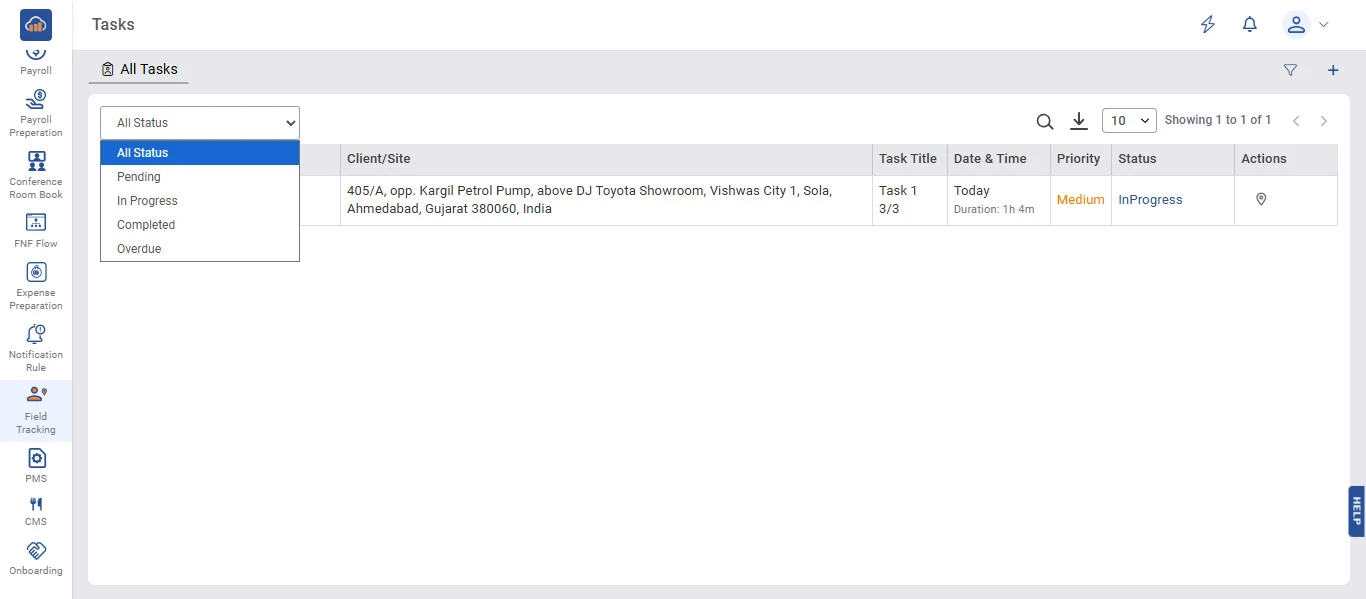
The Tasks page provides a status filter dropdown at the top left to quickly filter tasks based on their current status.

Click on the "All Status" dropdown to view the available filter options:

Status Description
All Status Displays all tasks regardless of their status.
Pending Shows only tasks that have not been started yet.
In Progress Shows only tasks that are currently being worked on.
Completed Shows only tasks that have been completed.
Overdue Shows only tasks that have passed their due date without completion.

Select the desired status to filter the task list accordingly. The table will update to show only tasks matching the selected status.

img