| Field | Details |
|---|---|
| Roles | Admin/Manager Only |
| Type | MINOP - MTrack Management System - Employee Journey Module |
| Device | Web Application |
The Employee Journey module provides a comprehensive map-based view of an employee's field activities for a given day. It displays the real-time location, travel route, task progress, and journey summary including total distance, working hours, and travel time. This module helps administrators monitor field workforce movements and ensure task completion efficiency.
• From the left navigation menu, click on "Field Tracking" to expand the submenu. Then select "Employee Journey".
• The Employee Journey page opens with the following filter options at the top:
| Filter | Description |
|---|---|
| Employee | Select the employee from the dropdown to view their journey (e.g., Bansal patel (66914)). |
| Date | Select the date for which you want to view the journey using the date picker. |
| Load Journey | Click this button to load and display the selected employee's journey on the map. |
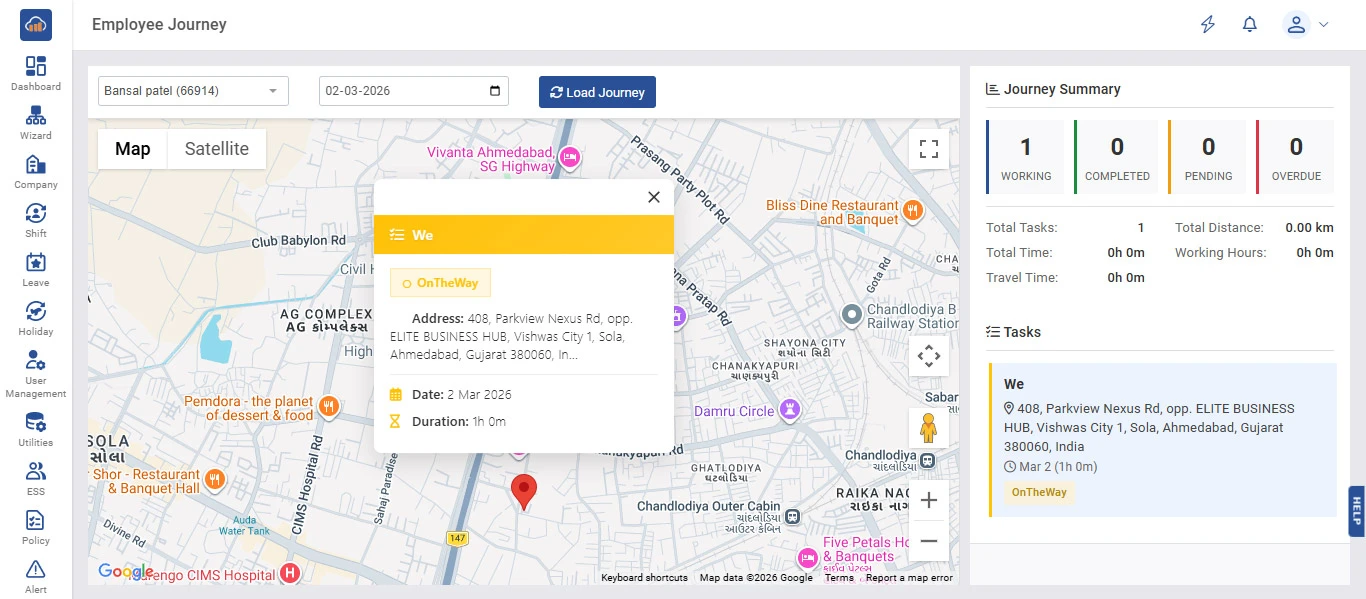
• After selecting the employee and date, click the "Load Journey" button. The page will display:
I. Map View (left side): Shows the employee's location on a Google Map with pin markers. Users can switch between Map and Satellite views.
II. Journey Summary (right side): Displays task and travel statistics.
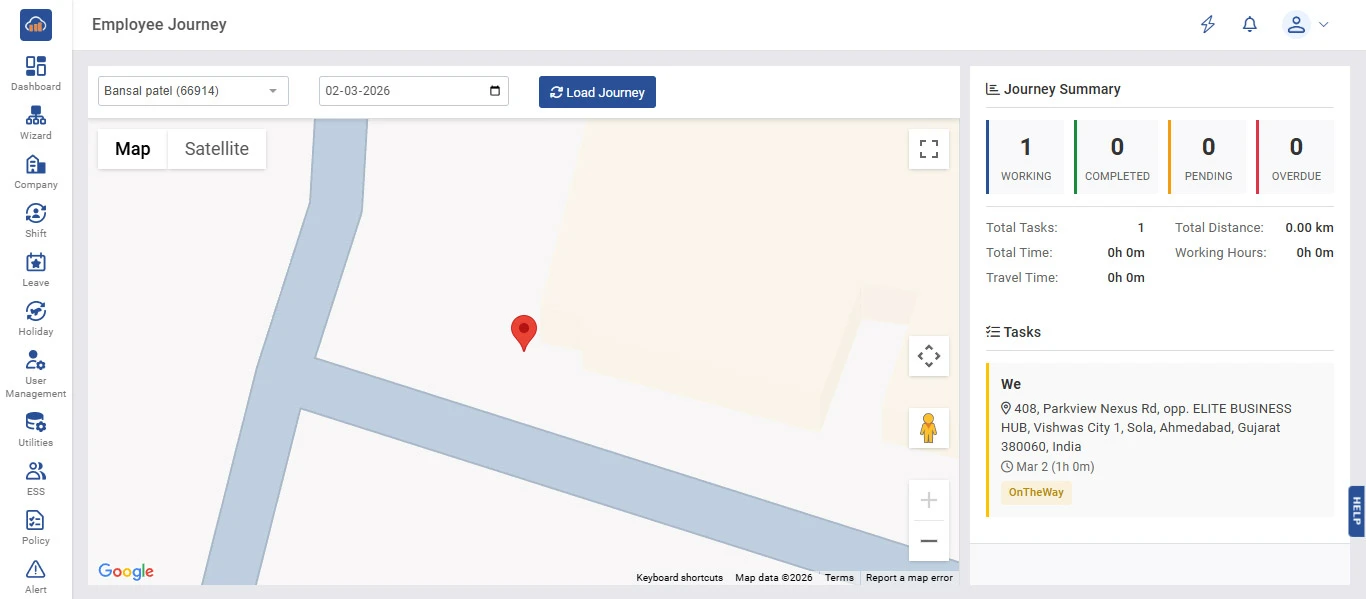
• The Journey Summary panel on the right side provides the following information:
| Status | Description |
|---|---|
| Working | Number of tasks currently being worked on (color-coded green). |
| Completed | Number of tasks that have been completed (color-coded green). |
| Pending | Number of tasks that are yet to be started (color-coded orange). |
| Overdue | Number of tasks that have passed their deadline (color-coded red). |
| Metric | Description |
|---|---|
| Total Tasks | Total number of tasks assigned for the day. |
| Total Distance | Total distance covered by the employee (in km). |
| Total Time | Total time spent on all activities. |
| Working Hours | Total working hours logged by the employee. |
| Travel Time | Total time spent traveling between task locations. |
• Below the Journey Summary, the Tasks section lists all tasks assigned to the employee for the selected date.
• Each task card displays the following information:
I. Task Name: The title of the task.
II. Location: The client/site address where the task is located.
III. Date & Duration: The date and time spent on the task.
IV. Status Badge: Current status of the task (e.g., OnTheWay, InProgress, Completed).
• Clicking on a task marker on the map opens a popup that shows detailed information including the task name, status, full address, date, and duration.
• Users can zoom in/out on the map and switch between Map and Satellite views for a better understanding of the employee's location and route.