Notification Event Log Data

Goal/Scope

The Notification Event Log Data module provides a detailed log of all notifications sent through the system. Administrators can track which notifications were delivered, the delivery channel used (In-App, Email, Push), whether the notification was read, and view the actual content of each notification. This module serves as an audit trail for all notification activities.

Step 1: Access the Notification Event Log Data Page

From the left navigation menu, click on "Notification Rule" to expand the submenu. Then select "Notification Event Log Data".

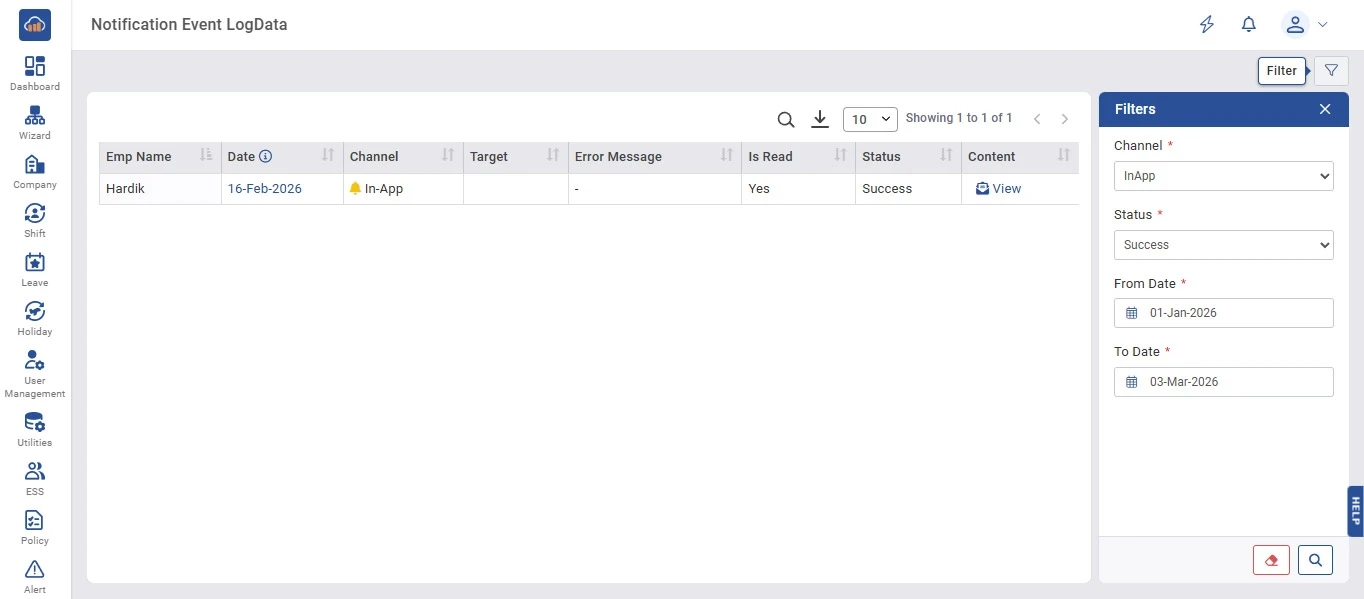
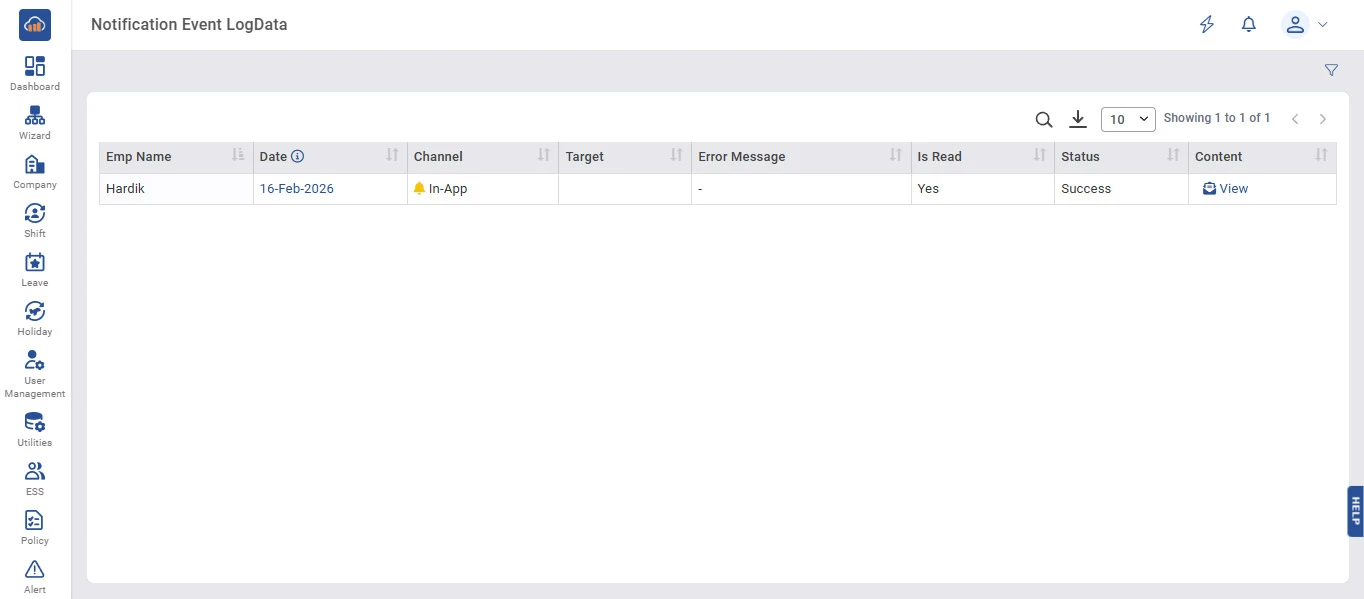
The Notification Event Log Data page displays all notification logs in a table with the following columns:

Column Description
Emp Name Name of the employee who received the notification.
Date Date when the notification was sent (with info icon for additional details).
Channel The delivery channel used (e.g., In-App, Email, Push) with a color-coded icon.
Target The target recipient or endpoint of the notification.
Error Message Displays any error message if the notification delivery failed. Shows "-" if no error.
Is Read Indicates whether the notification has been read (Yes/No).
Status Delivery status of the notification (Success/Failed).
Content Click "View" to see the full notification content.

Users can use the Search icon to find specific logs and the Download icon to export the log data.
img

Step 2: Filter Notification Logs

To filter the notification logs, click the "Filter" icon at the top right corner of the page.

A "Filters" side panel will open with the following filter options:

Filter Description
Channel * Select the notification channel to filter by (e.g., InApp, Email, Push).
Status * Select the delivery status to filter by (e.g., Success, Failed).
From Date * Select the start date for the log period.
To Date * Select the end date for the log period.

After setting the filter criteria, click the Search icon button to apply the filters. Click the Reset icon button to clear all filters.

Close the filter panel by clicking the "X" icon at the top right corner of the panel.

img

Step 3: View Notification Content

To view the full content of a notification, click the "View" link in the Content column of the respective log row.

A "Notification Content" side panel will open displaying the complete notification message that was sent to the employee.

For example, a leave approval notification may display: "Dear Hardik, Your leave request for the period 16-Feb-2026 to 16-Feb-2026 has been approved. Leave Type: CLAction By: Admin."

Click the "X" icon at the top right corner to close the content panel.

img