OKR Generate

Overview

Field Details
Roles Manager/TL Only
Type MINOP - Performance Management System - OKR Generate Module
Device Web Application

Goal/Scope

The OKR Generate module allows administrators to create OKRs (Objectives and Key Results) with clear objectives and measurable key results. Each objective must have at least 2 key results, and the total weightage of key results for each objective must add up to 100.

Step 1: Access OKR Generate Page

After logging in, open the PMS Module from the left navigation menu.

Click on "OKR" to expand the submenu, then select "OKR Generate".

The OKR Generate page displays all existing objectives in a list with details such as Objective Name, Weightage, Number of Key Results (KR), Target Period, and Action buttons (Add KR, Edit).

Note: Create a minimum of 2 Key Results (KRs) for your objectives and ensure that the total KR weightage does not exceed 100.
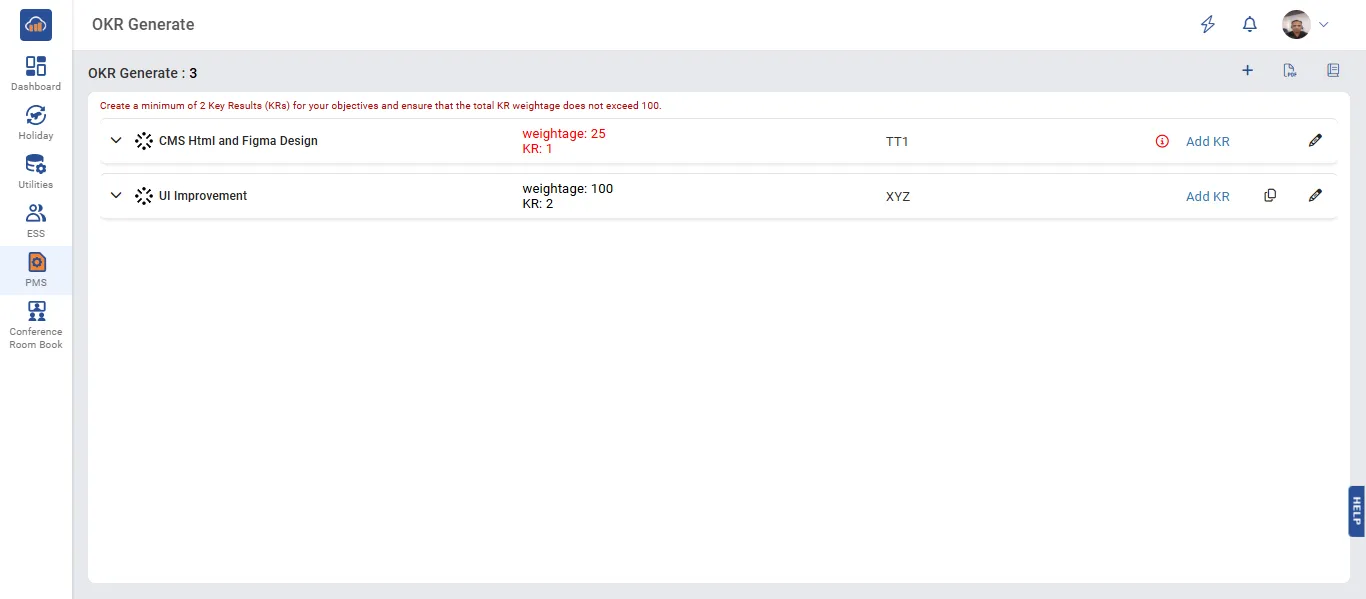
OKR Generate List

Step 2: Create a New Objective

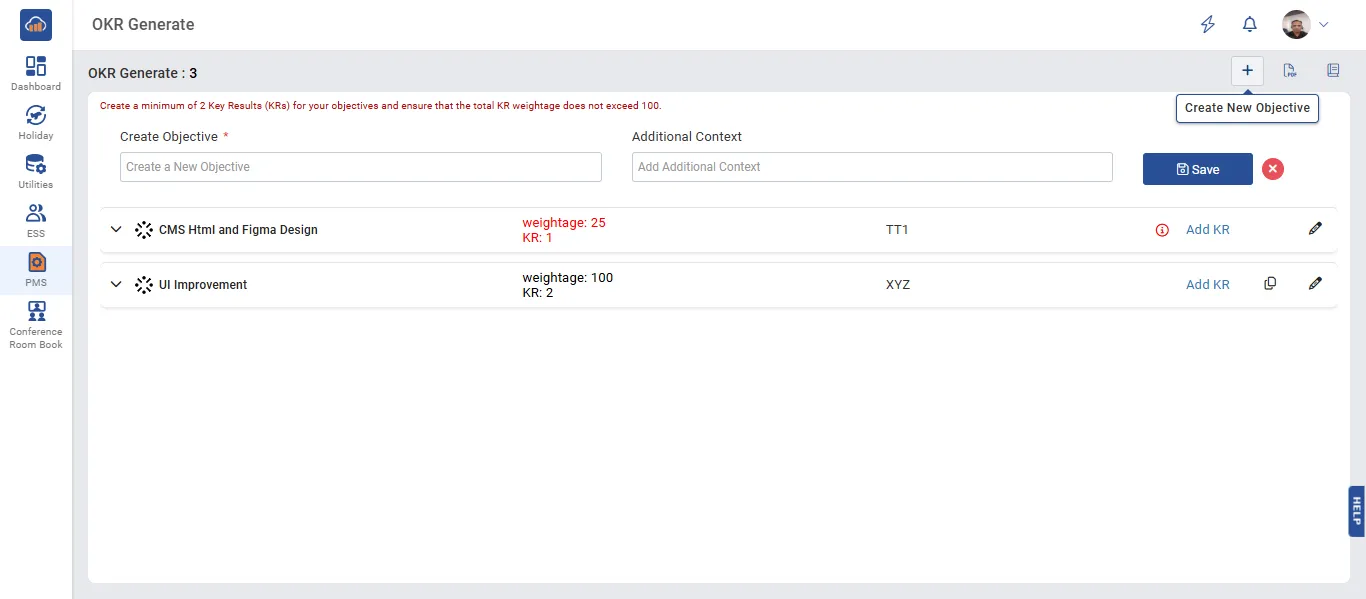
Click on the "+ Create New Objective" button at the top right corner of the page.

A form will appear with the following fields:

Field Description
Create Objective * Enter the name/title of the objective (mandatory field).
Target Period * Select the target period from the dropdown (e.g., Yearly Based, Monthly Based, Quarterly Based).
Additional Context Add any additional context or description for the objective (optional).

After filling in all the required details, click "Save" to create the objective.

Create New Objective

Step 3: Add Key Results (KR)

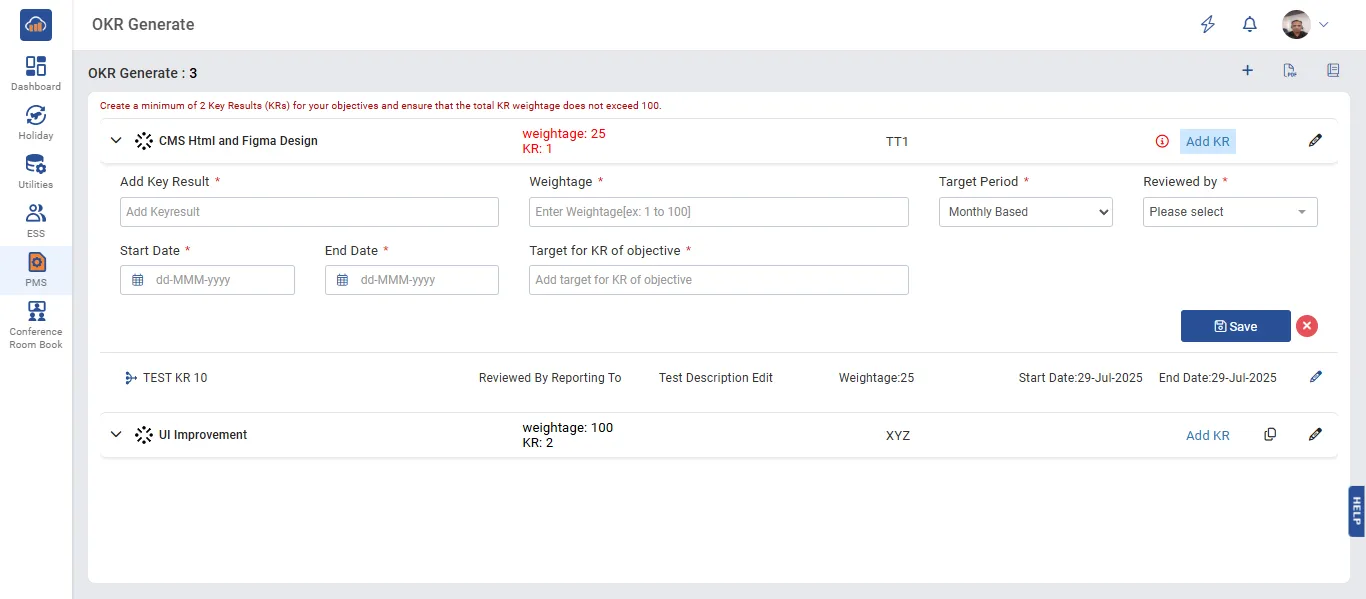
Click on the "Add KR" button next to the objective to add key results.

A form row will appear under the objective with the following fields:

Field Description
Add Key Result * Enter the name/title of the key result (mandatory field).
Weightage * Enter the weightage for this key result (value between 1 to 100). The total weightage of all KRs under one objective must equal 100.
To be filled by * Select who will fill in the KR progress (e.g., Admin, Employee).
Additional Context Add any additional context for the key result (optional).

Click "Save" to add the key result. Repeat this step to add more key results.

Important: Each objective must have at least 2 key results, and the total weightage of all key results under one objective must not exceed 100.
Add Key Result

Step 4: Edit Objective or Key Result

Click on the Edit (pencil) icon next to an objective to modify the objective details.

If the total weightage of key results does not equal 100, a warning icon will be displayed next to the objective, indicating that the KR weightage needs to be corrected.

Warning: If the weightage is shown in red (e.g., "weightage: 60"), it means the total KR weightage does not add up to 100. Please add or adjust key results accordingly.