OKR Assign

Overview

Field Details
Roles Manager/TL Only
Type MINOP - Performance Management System - OKR Assign Module
Device Web Application

Goal/Scope

The OKR Assign module allows managers and team leads to assign objectives to specific employees. Multiple objectives can be assigned to a single employee or the same objective can be assigned to multiple employees. The overall objective weightage assigned to an employee must not exceed 100.

Step 1: Access OKR Assign Page

From the left navigation menu, click on "OKR" to expand the submenu, then select "OKR Assign".

The OKR Assign page displays a list of all employees with the following columns:

Column Description
Employee ID Unique identifier for the employee.
Employee Details Name and profile picture of the employee.
Designation Employee's current designation (e.g., SR, JR).
Assigned Objective Number of objectives already assigned to the employee.
Action Click "ASSIGN OKR" to assign objectives to the employee.

Use the Filter Search button to search employees by name, ID, or designation.

Click "Excel" to export the employee list data.
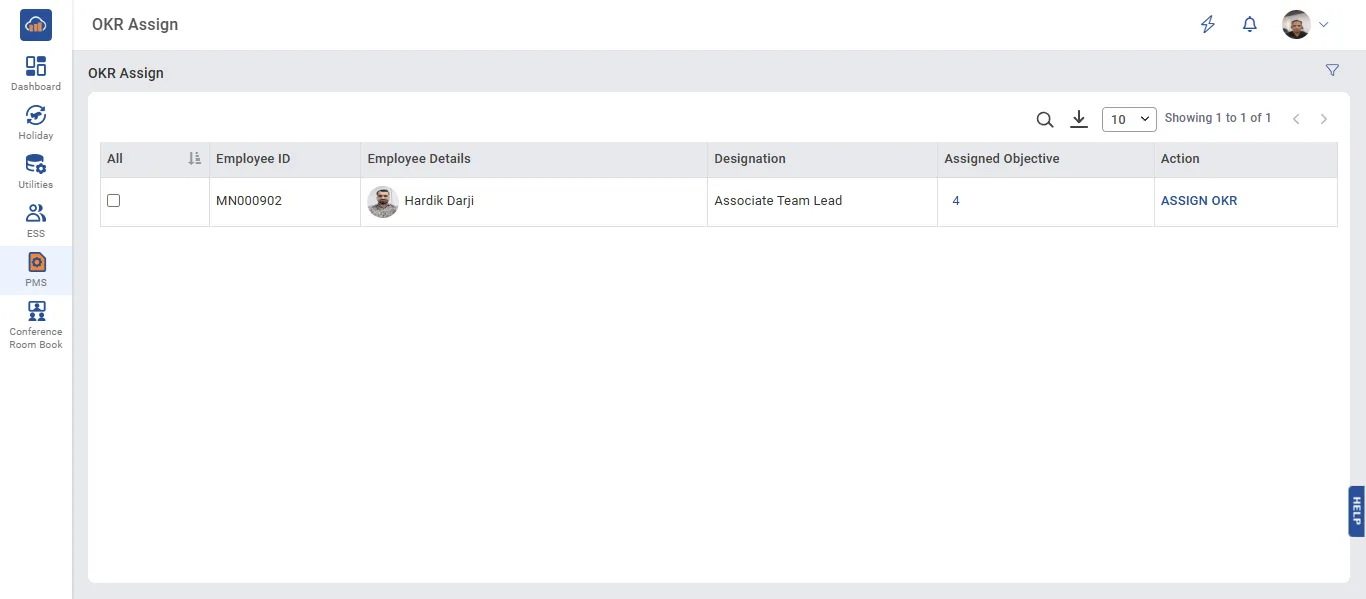
OKR Assign Employee List

Step 2: Assign OKR to an Employee

Click on the "ASSIGN OKR" button next to the employee you want to assign objectives to.

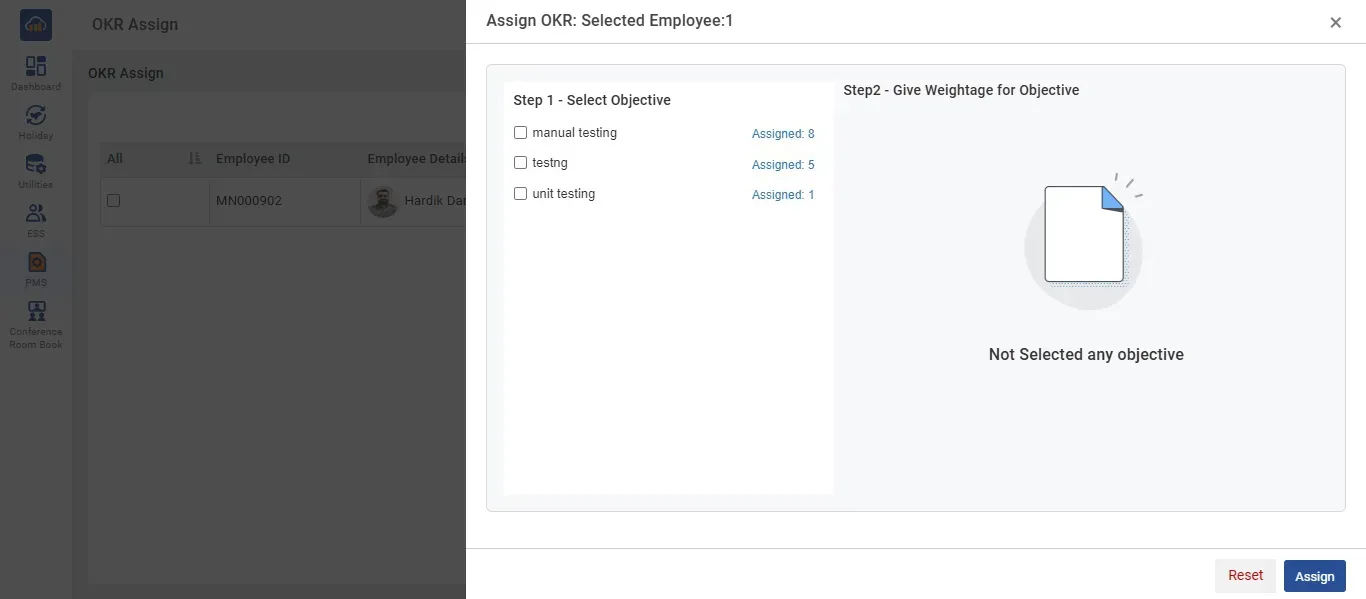
An "Assign OKR" dialog will open with three steps:

Step 1 - Select Objective

A list of available objectives will be displayed with checkboxes. Each objective shows how many times it has already been assigned (e.g., "Assigned: 8").

Select one or more objectives by checking the corresponding checkboxes.

Step 2 - Give Weightage for Objective

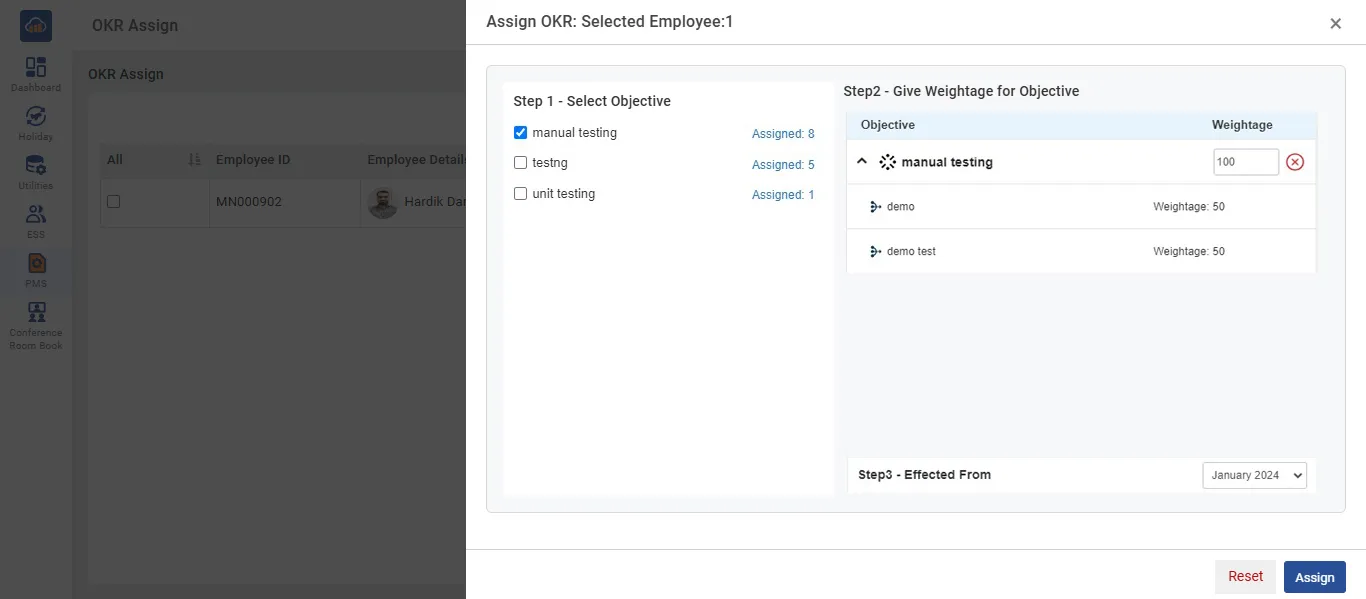
After selecting objectives, the right panel will display the selected objectives with their key results.

Enter the Weightage for each objective. The total weightage across all assigned objectives must not exceed 100.

Step 3 - Effected From

Select the month from which the assignment will take effect (e.g., January 2024).

Assign OKR Dialog - Select Objective

Step 3: Confirm and Assign

After selecting objectives and entering weightages, review the assignment details:

Field Description
Total Weightage Displayed at the top right corner. Ensure it does not exceed 100.
Objective Name of the selected objective with its key results listed below.
KR Weightage Weightage of each key result under the objective.

Click "Assign" to confirm and assign the objectives to the employee.

Click "Reset" to clear all selections and start over.

Important: Assign weightage to your objectives while ensuring that the overall total weightage does not surpass 100.
Assign OKR Dialog - Confirm Assignment

Step 4: Assign to Multiple Employees

You can also assign objectives to multiple employees at once by selecting multiple employees using the checkboxes in the employee list.

After selecting employees, follow the same steps to select objectives, assign weightages, and confirm the assignment.

Note: After successfully assigning objectives, employees can view their assigned objectives in the "My OKR" section, organized month-wise.