OKR Review

Overview

Field Details
Roles Manager / TL
Type MINOP - Performance Management System - OKR Review Module
Device Web Application

Goal/Scope

The OKR Review module allows managers and team leads to review employee performance against assigned objectives at the end of each month. Managers can view employee scores, review notes and uploaded files, and provide scores using flat score or percentage-based evaluation for each key result.

Step 1: Access OKR Review Page

From the left navigation menu, click on "OKR" to expand the submenu, then select "OKR Review".

The OKR Review page displays a list of employees with the following columns:

Column Description
Employee Details Name, designation, and profile picture of the employee.
Employee ID Unique identifier for the employee.
Assigned OKR Number of objectives and key results assigned to the employee.
Q1 / Q2 (Monthly Scores) Monthly scores for each quarter (Jan, Feb, Mar for Q1; Apr, May for Q2, etc.).
Total (%) Overall total percentage score of the employee.
Manager Given (%) Score given by the manager during the review.
Action Click "Score" button to open the review page for the employee.

Use the Search field to find specific employees by name.

Click "Excel" to export the review data.
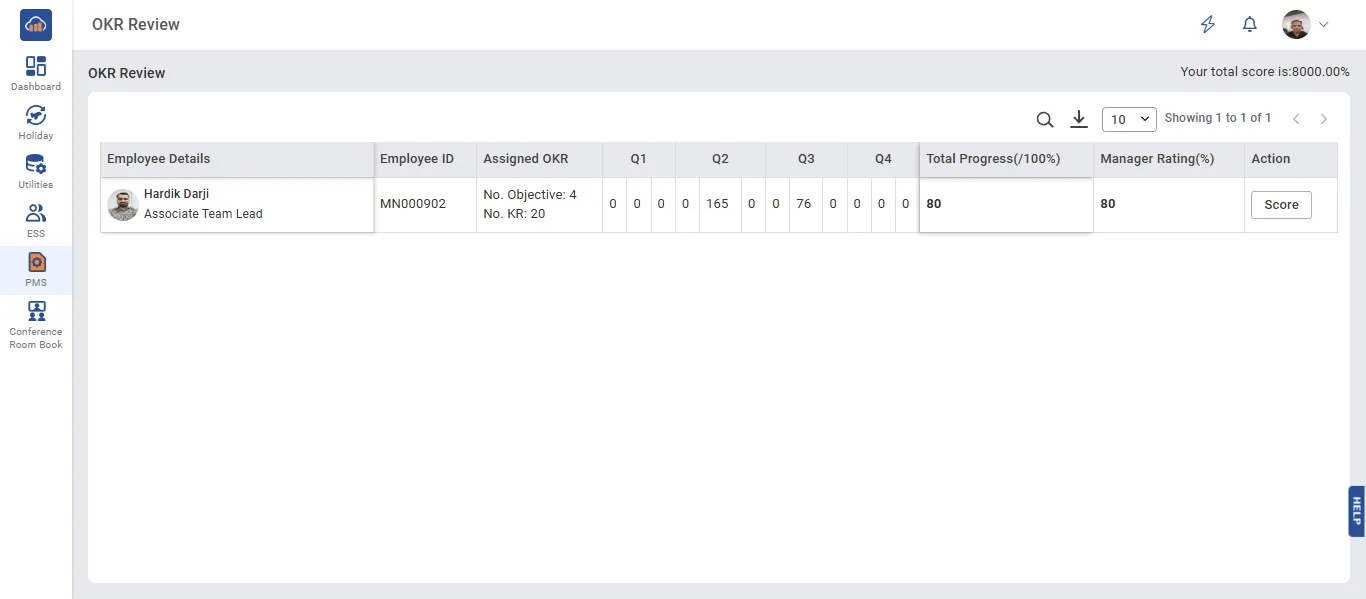
OKR Review Employee List

Step 2: Review Employee Objectives

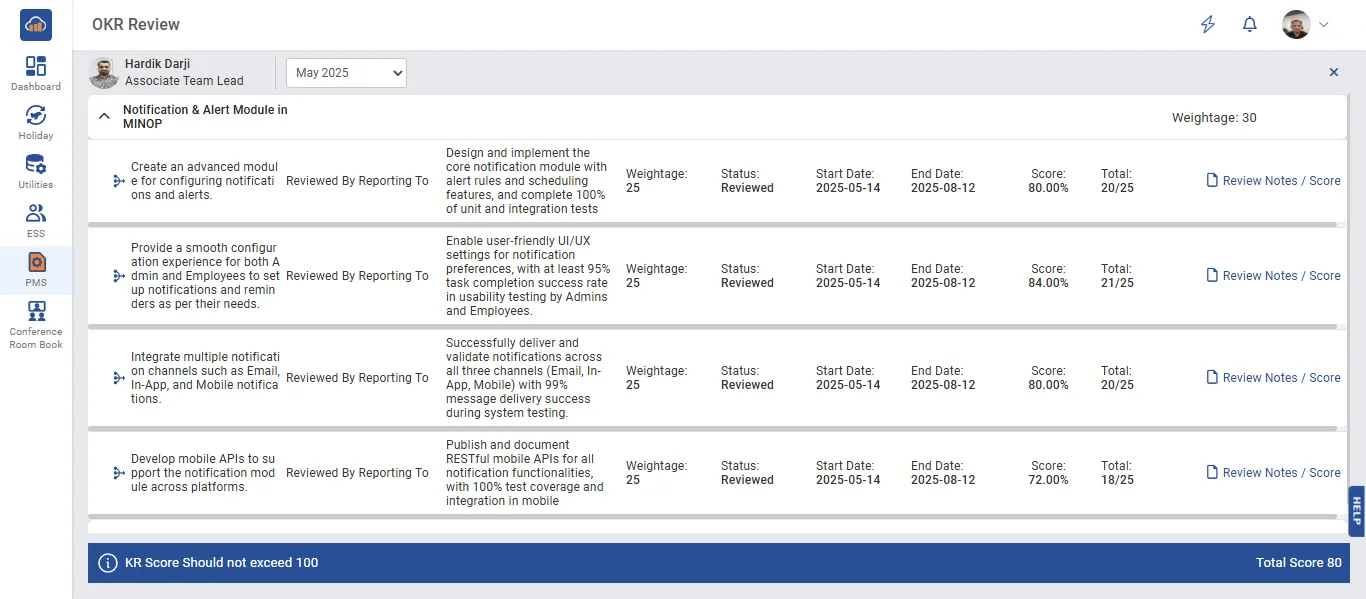
Click the "Score" button next to an employee to open their detailed review page.

The review page displays the employee's name, designation, and a month selector dropdown to view objectives for a specific month.

All assigned objectives are listed with their details:

Field Description
Objective Name The name of the assigned objective.
Target Period The frequency of the objective (Monthly Based, Yearly Based, etc.).
Weightage The weightage assigned to the objective.
Key Results List of key results under each objective with their individual weightages and who filled them.

Click "Close" to go back to the review list.

Review Employee Objectives

Step 3: View Notes and Uploaded Files

Click on a key result to view the Notes section. This section shows:

Field Description
Notes Day-by-day notes added by the employee for the key result.
Uploaded Files Files uploaded by the employee as proof of work (e.g., documents, spreadsheets, PDFs).

Review the notes and uploaded files to assess the employee's performance on the key result.

Notes and Uploaded Files

Step 4: Give Score to Key Results

For each key result, the manager can provide a score using the scoring options:

Option Description
Flat Score Enter a flat score value for the key result based on its weightage.
Percentage Enter a percentage score for the key result.

Select the scoring type from the dropdown (Flat Score or Percentage) and enter the score value in the "Enter Score" field.

Click "Save" to submit the review score for the key result.

Important: KR Score should not exceed 100.

The Total Score is displayed at the bottom right corner of the page, showing the combined score across all objectives (e.g., "Total Score 100/33").