My OKR

Overview

Field Details
Roles Employee
Type MINOP - Performance Management System - My OKR Module
Device Web Application

Goal/Scope

The My OKR module allows employees to view their assigned objectives and key results on a month-wise basis. Employees can add daily notes, upload supporting files for each key result, and view the review scores given by their TL/Manager after the monthly review.

Step 1: Access My OKR Page

From the left navigation menu, click on "OKR" to expand the submenu, then select "MyOKR".

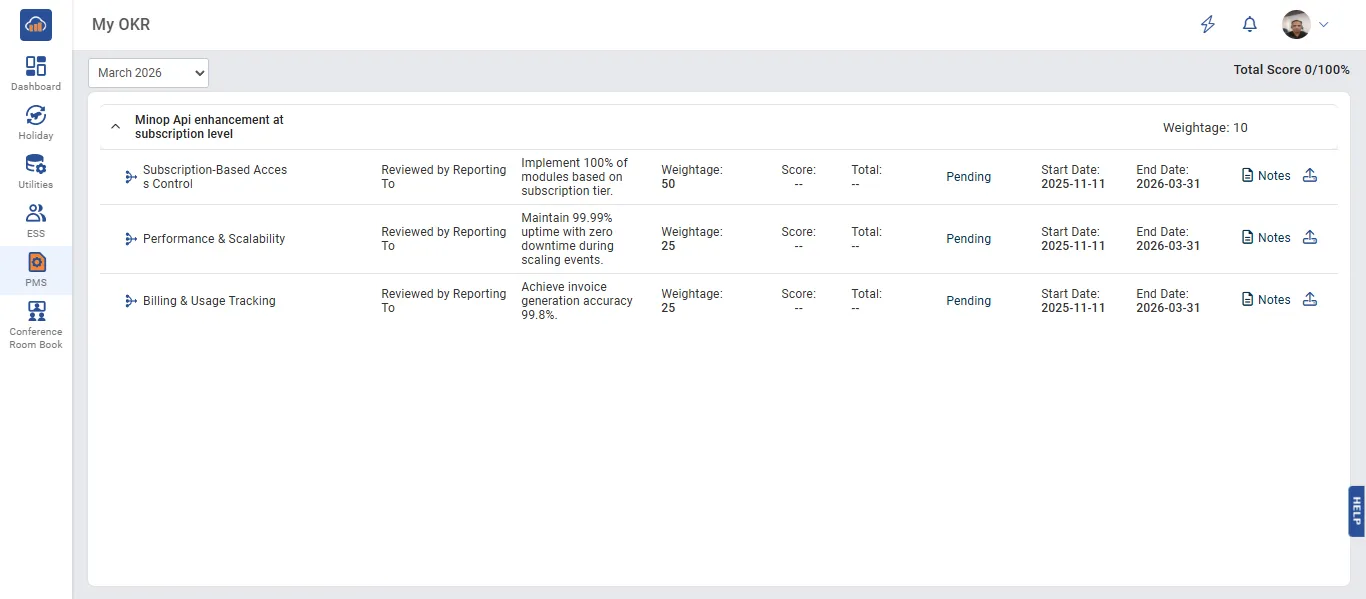
The My OKR page displays your assigned objectives for the selected month.

Use the month dropdown at the top left to switch between different months (e.g., January 2024).

The Total Score is displayed at the top right corner (e.g., "Total Score 100/59%"), showing your overall performance score after the manager's review.

Each objective is listed with the following details:

Field Description
Objective Name The name of the assigned objective.
Target Period The frequency of the objective (Monthly Based, Yearly Based, etc.).
Additional Context Any extra context provided for the objective.
Weightage The weightage assigned to the objective.

Click on an objective to expand it and view its key results.
My OKR Page

Step 2: View Key Results

After expanding an objective, you can see the list of key results with their details:

Field Description
Key Result Name The name of the key result.
Filled By Indicates who is responsible for filling the KR data (e.g., CompanyAdmin, Employee).

Each key result can have daily notes and supporting files attached to track progress.

Step 3: Add Notes

Click on a key result to open the Notes section.

Add day-by-day progress notes for the key result to document your work and achievements.

Notes help the TL/Manager during the review process to understand your progress and contributions.

Step 4: Upload Files

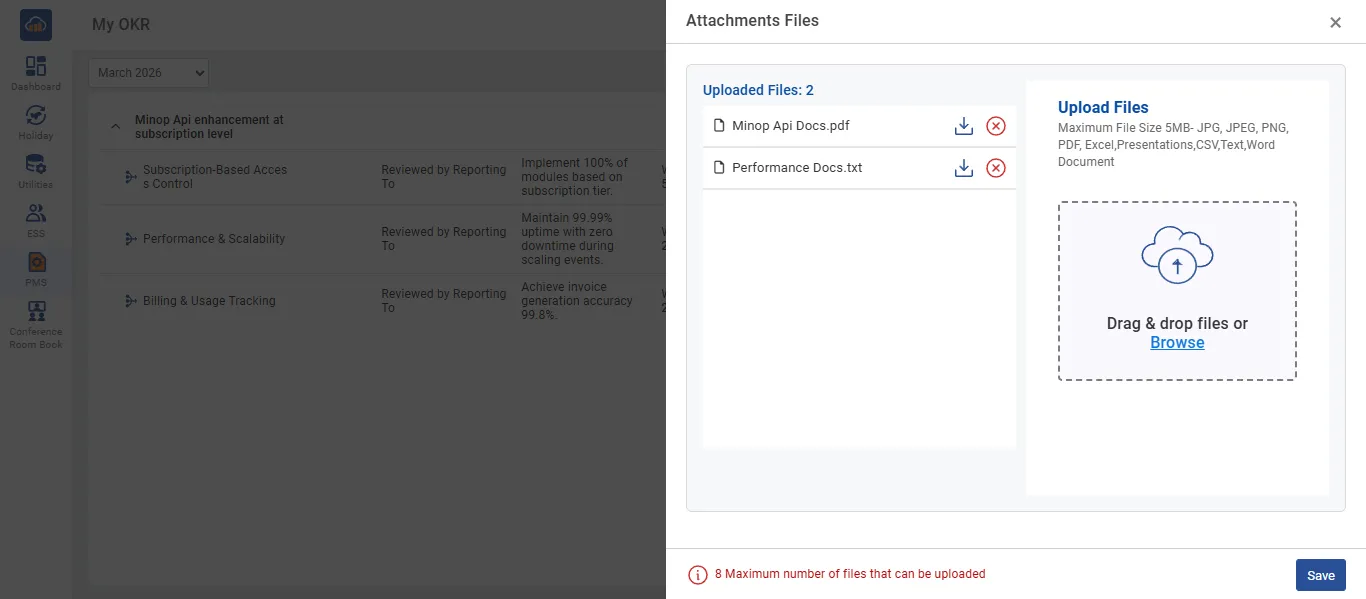
Click on a key result to open the Attachments Files section.

The attachment section shows:

Field Description
Uploaded Files List of all files already uploaded with download option.
Upload Files Drag & drop files or click "Browse" to upload new files.

Supported file formats: JPG, JPEG, PNG, PDF, Excel.

Maximum file size: 5MB per file.

Maximum number of files that can be uploaded: 8 files.

Click "Save" after uploading the files.

Note: Upload relevant documents, reports, or proof of work to support your key result progress. This will be reviewed by your TL/Manager.
Upload Files for Key Result

Step 5: View Review Scores

After the TL/Manager reviews your objectives at the end of the month, you can view the review scores on the My OKR page.

The Total Score at the top right corner reflects the combined score given by the manager across all your objectives.

Each objective will also show the individual weightage and score received after the review.

Tip: Regularly update your notes and upload supporting files throughout the month to ensure a comprehensive review by your manager.