• The Attendance Finalize page is where an employee's attendance is locked (frozen) for a selected month after all required reviews or adjustments.
• On the Attendance Finalize page: Select the Company, Branch, and Month (these are mandatory). Optionally, you can also filter by Department, Designation, and Status. Click on the Apply button to fetch the attendance records.
• Once filters are applied, the Attendance Finalization Summary tab will display employee statuses with counts :
(1) Attendance Pending (AP) - This is the default status when the filter search is initially applied. It also displays the count of employees whose attendance is yet to be approved or change to other statuses.
(2) Attendance Freezed (AF) - This status indicates that employee attendance status is'Freezed' and displays the count of employees whose attendance has been 'Freezed'.
(3) Attendance On Hold (AOH) - This status shows employee count whose attendance status is on hold.
(4) Attendance FNF (AFNF) - This status shows employee count whose attendance status is FNF.
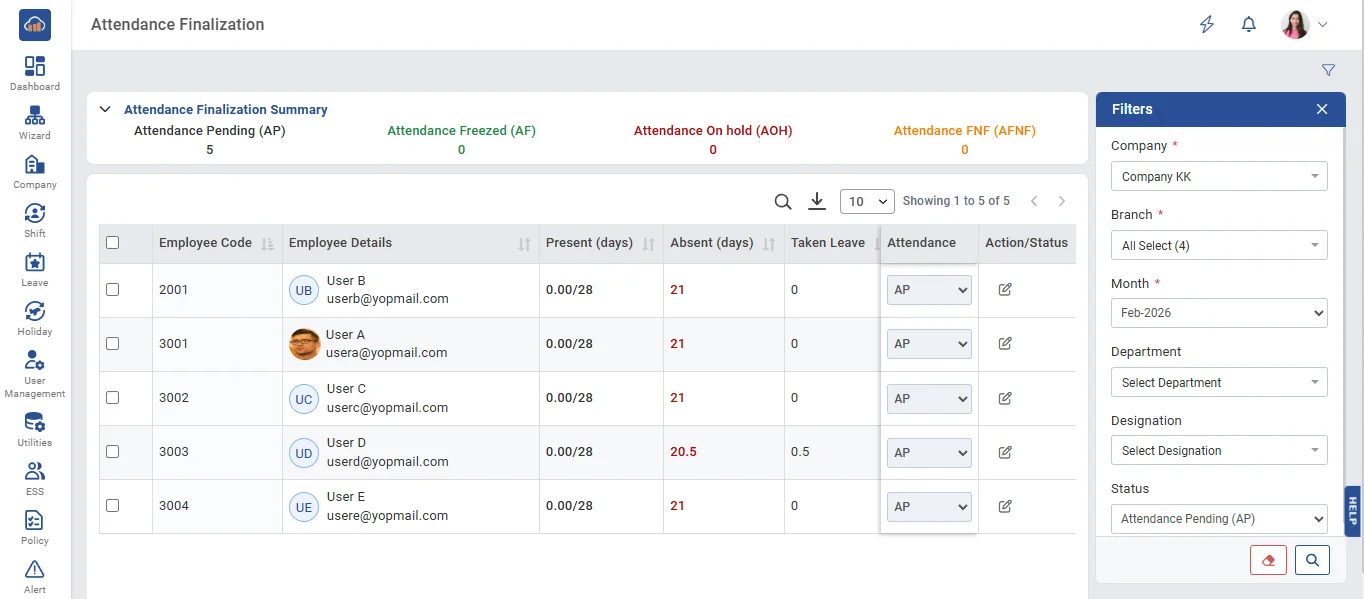
• Select an employee whose attendance you want to finalize.
• Click the 'Edit' button to make updates (e.g., Present Days, Absent Days, Leave Taken, Overtime, No Pay Days) and After editing, click the Apply button.
• Once all data is verified, click the Freeze button to finalize.
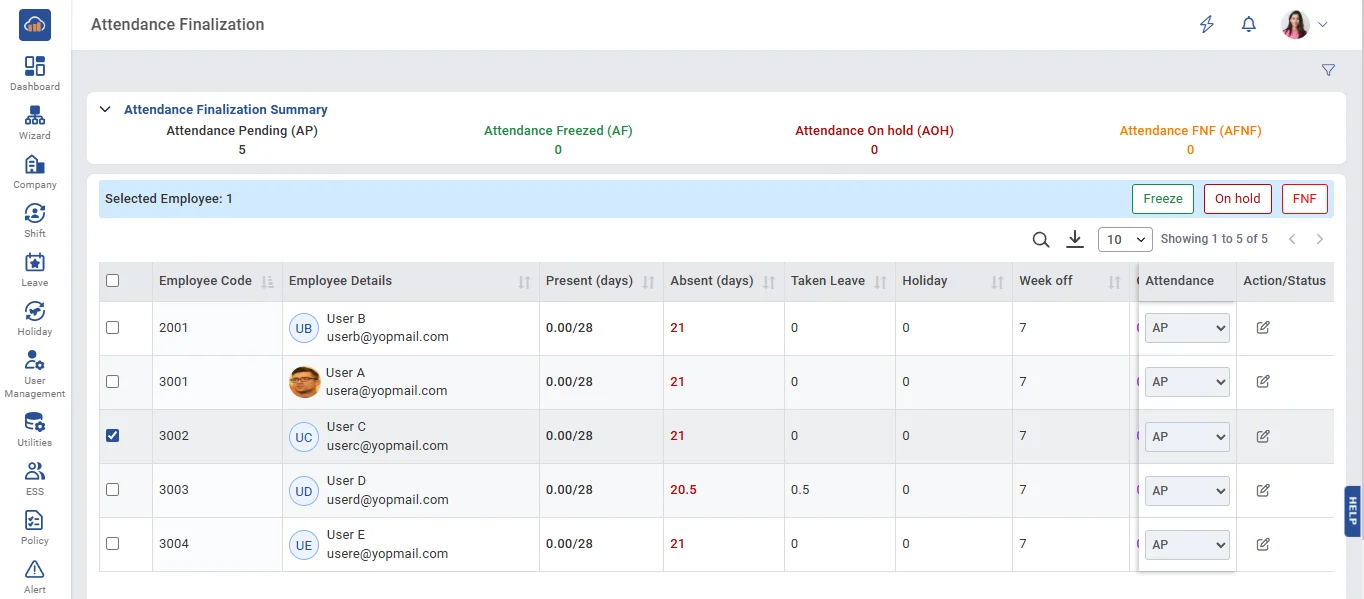
• Finally, Select the employee and click Save to complete the attendance freezing process.
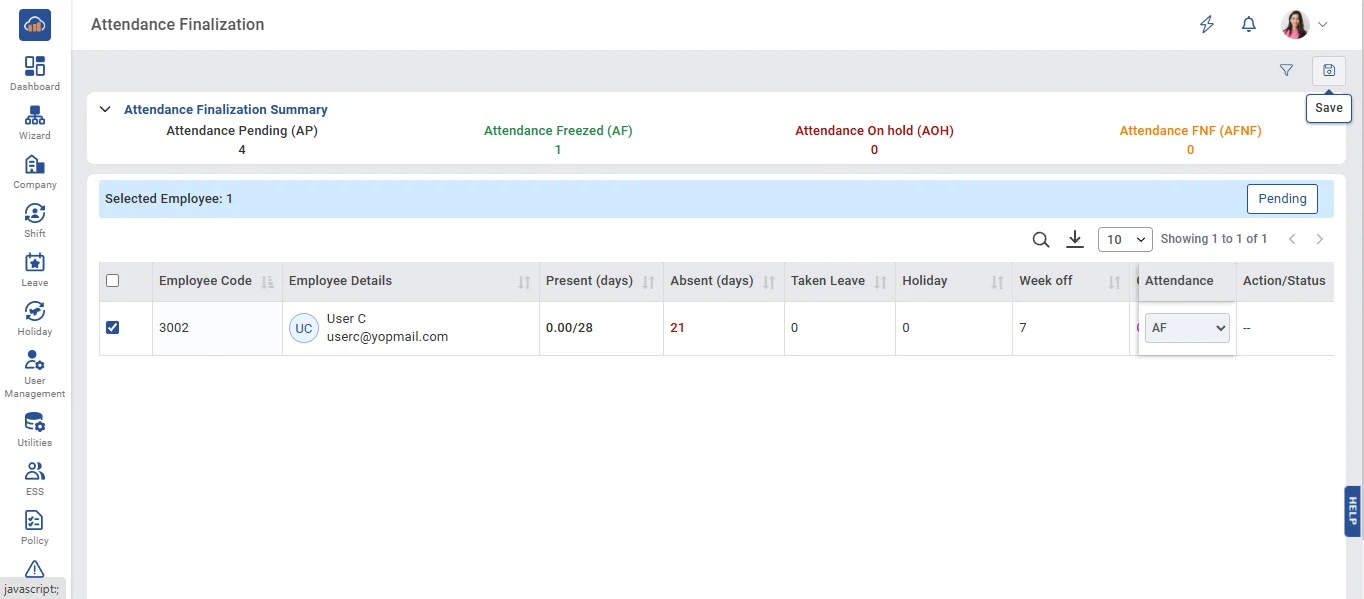
• When the On Hold button is clicked, the process is put on hold.