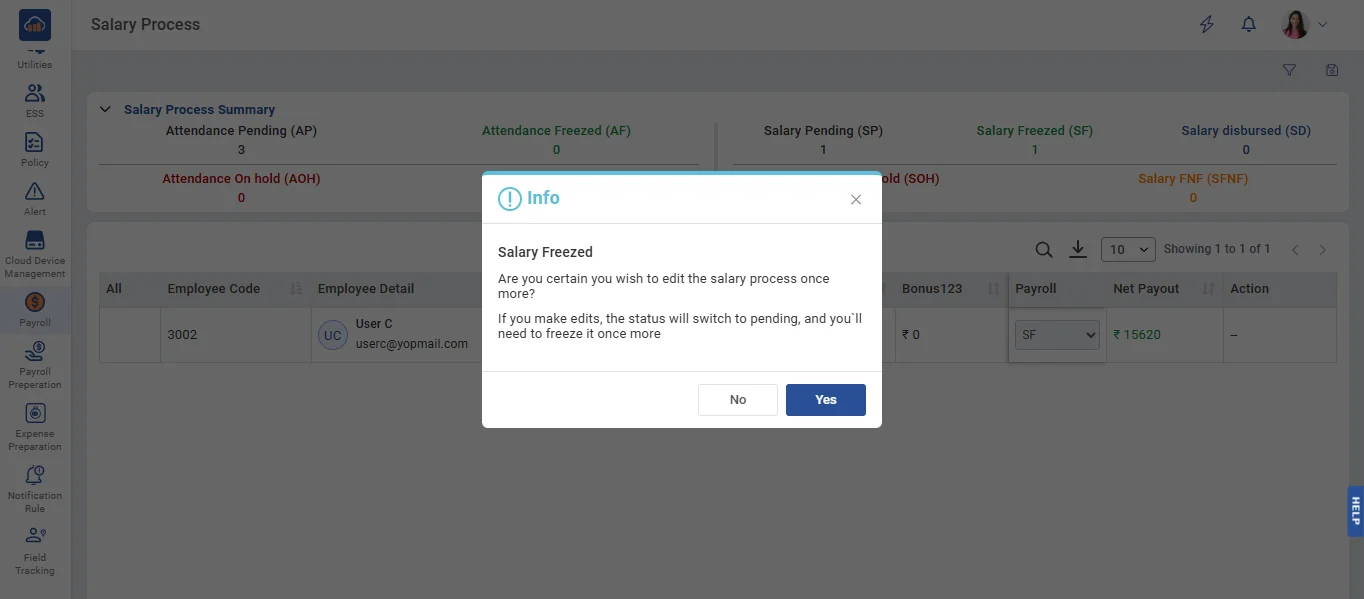
• The Salary Process refers to the stage where employee salaries are processed after their attendance has been finalized.
• On the Salary Process page: Select the Company, Branch and Month. Click the Search button to view the salary processing data.
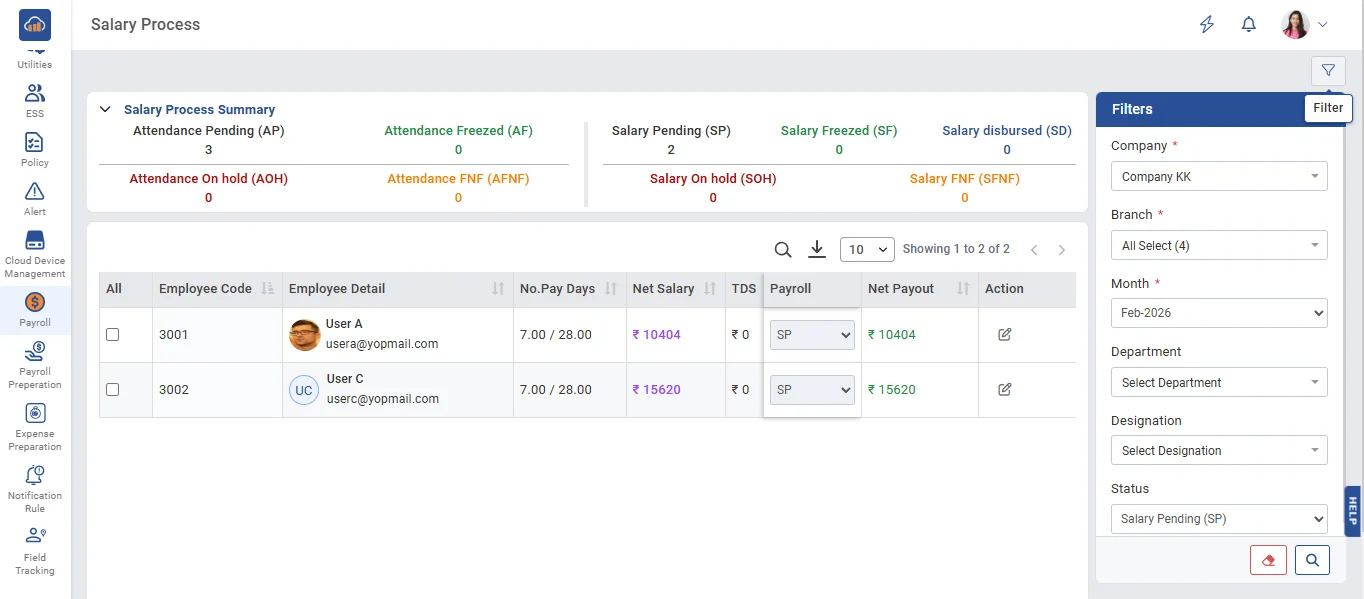
• After applying the filters, the Salary Process Summary tab will display various statuses
• Note: If the current status is not saved, the process will not proceed to the next stage. It will only display the existing status as per the current workflow stage.
(1) Salary Pending (SP) - This is status indicated that employees attendance has been approved. It also displays the count of employees whose attendance has been approved/Freezed and saved.
(2) Salary Freezed (SF) - This status indicated that the employees salary status is 'Freezed' and displays the count of employees whose salary has been 'Freezed'.
(3) Salary Disbursed (SD) - This status shows Salary disbursed and counts.
(4) Salary On Hold (SOH) - This statusindicates that employees' salaries are 'On Hold' along with the employee count.
(5) Salary FNF (SFNF) - This status indicates that employees' salaries are 'FNF' along with the employee count.
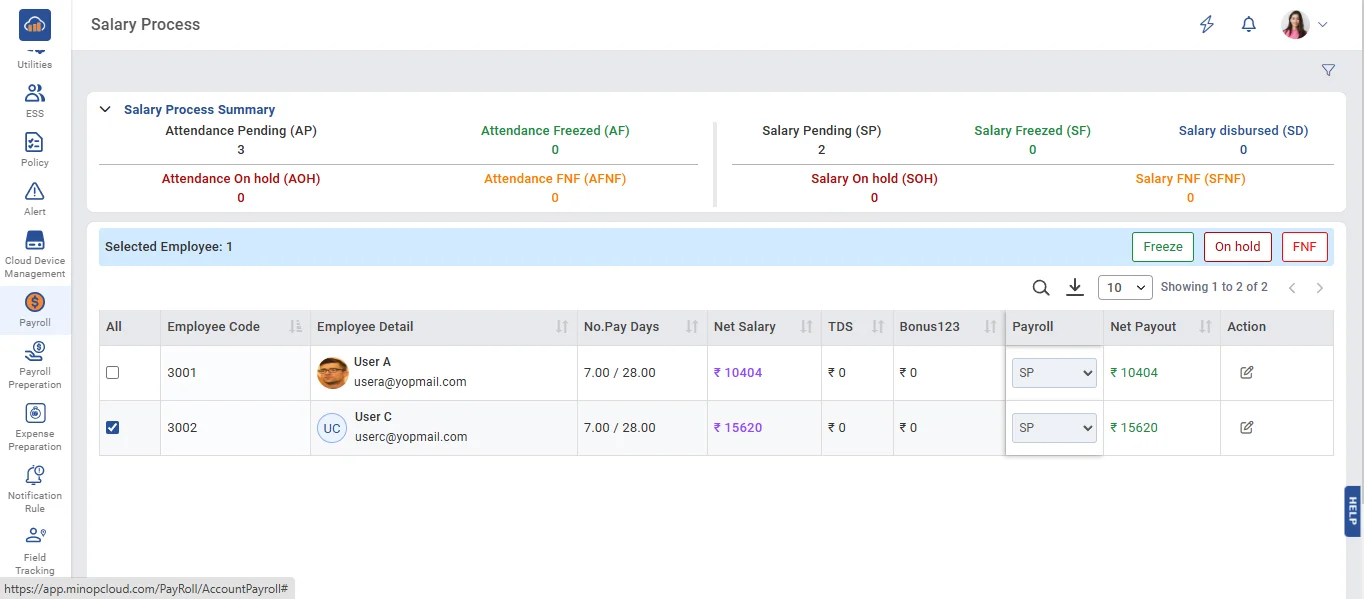
• Note : To change an employee's salary status, select the employee. Then options such as Freeze, On Hold, and FNF will appear.
• Select the checkbox next to the employee whose salary you want to process. Click the Freeze button.
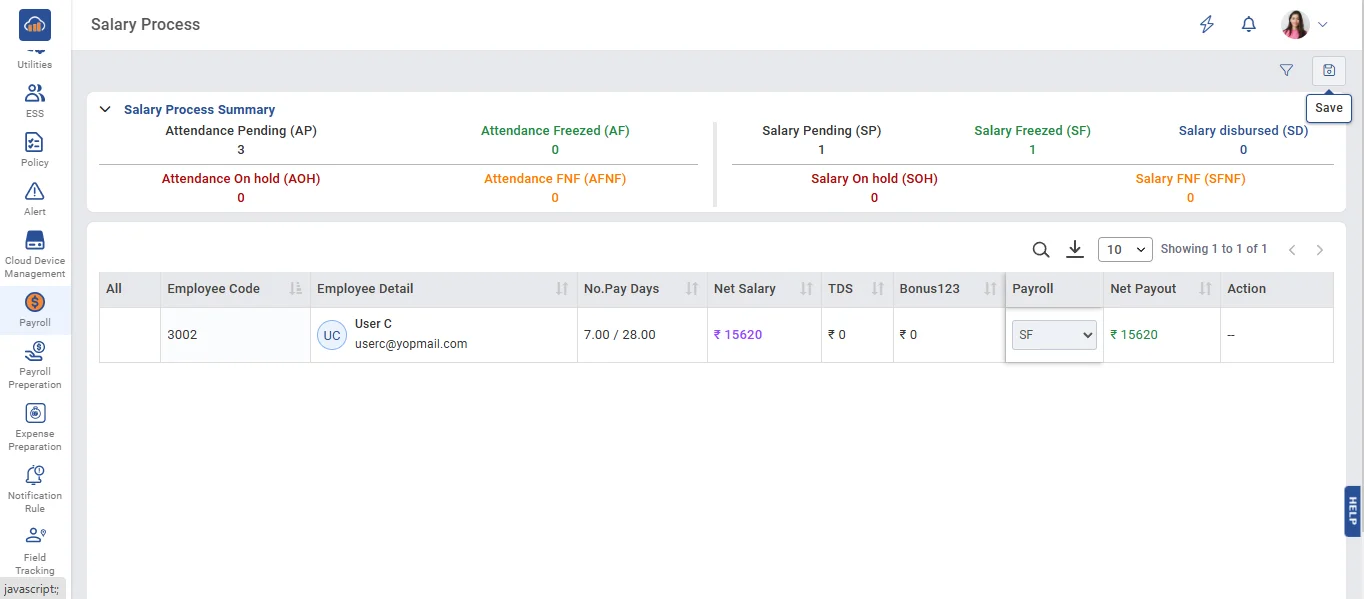
• After freezing, select the employee again. Click the Save button to complete the salary process.
• A confirmation popup will appear. Click 'Yes' to proceed.