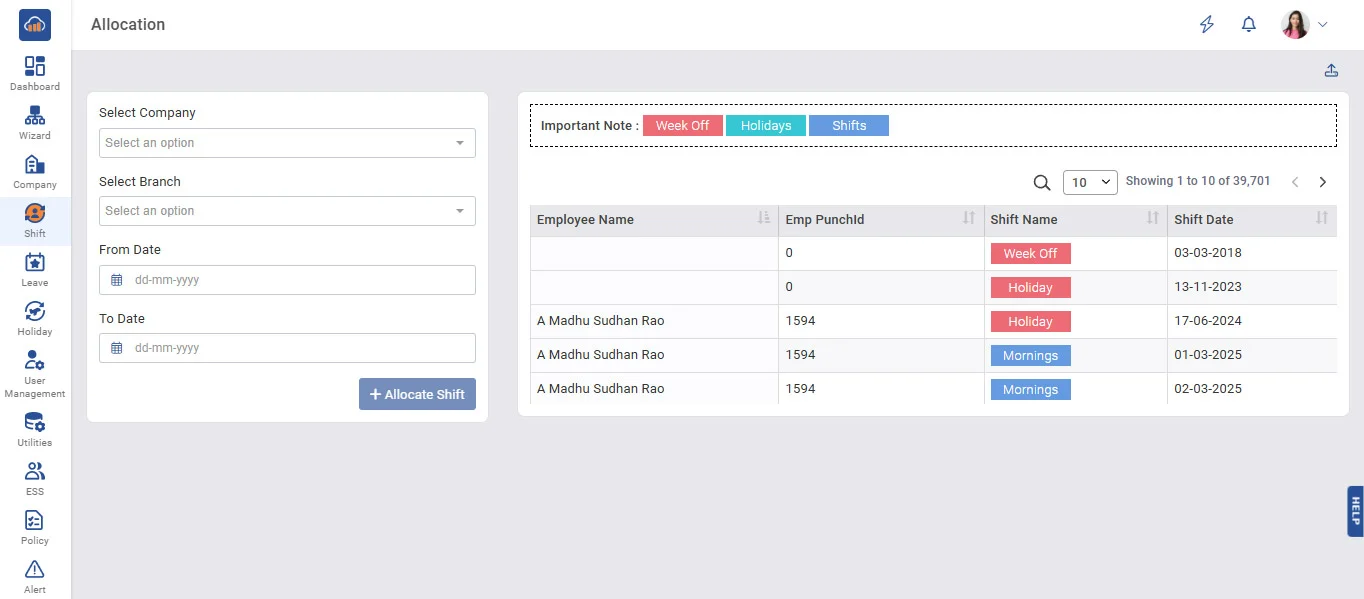
Above image shows view of shift allocation.
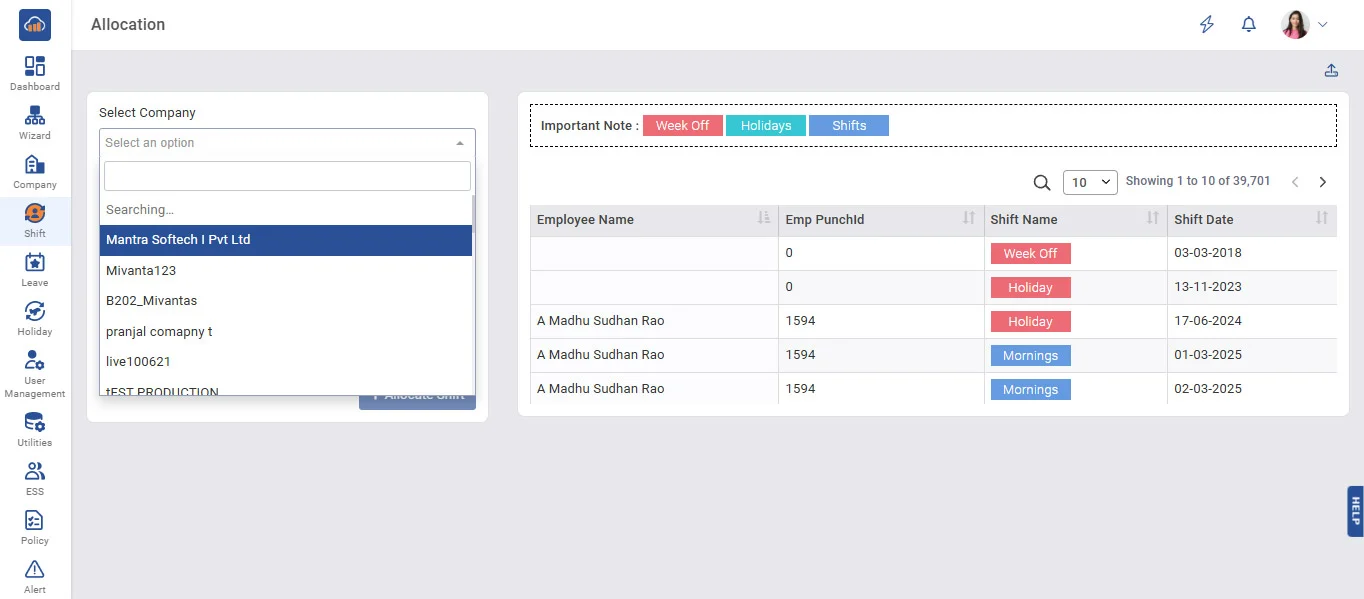
Above image shows selection option to view in grid.
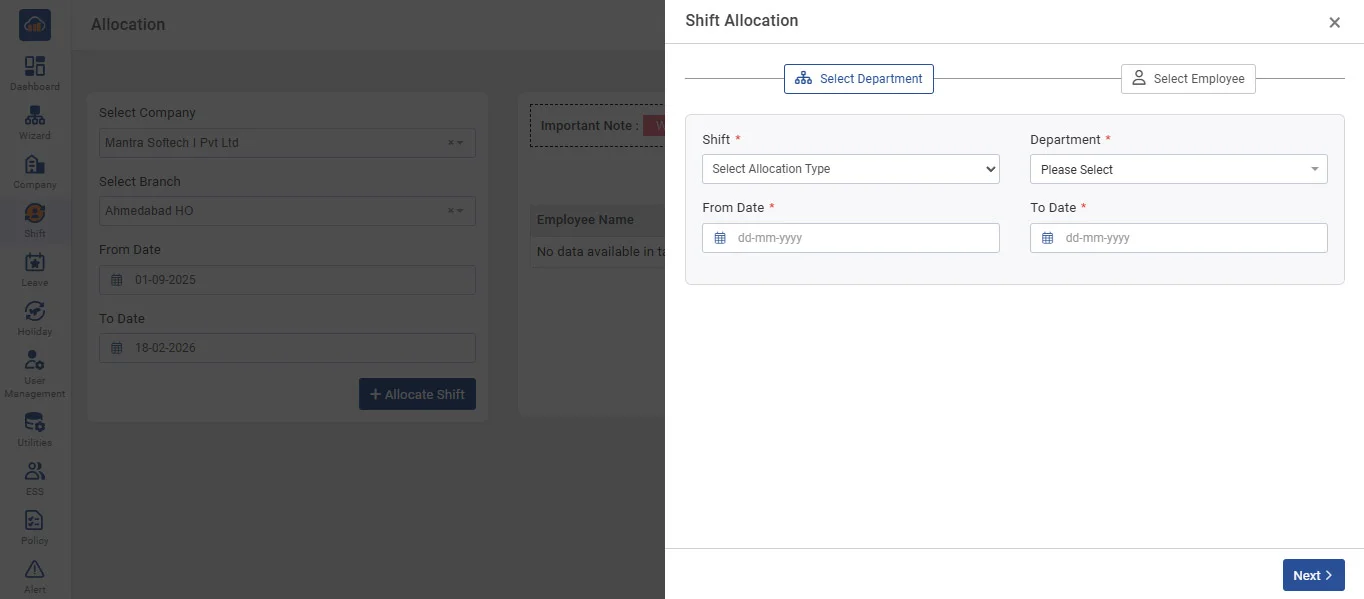
Above image show modal when you click on “+ Allocate Shift”.
• Shift allocation allows you to allocate a shift to an employee for a particular date range
• To allocate a shift, first select the company, then select branch, and click on 'Allocation Shift' button, and then fill in all related details and click on the 'Save' button.
• By default, the employee shift will be carried out from Employee Master. But if your Shift changed on a daily, weekly, or monthly basis, then you can allocate from the above screen.
• The third list displays already allocated shift details of the employee between selected dates.
• You can assign weekly days off and holiday days off for selected dates from the above screen.